Configured connections
To see your tenant's connections, go to Security Operations > Automations > Connectors. The Connections tab shows all connections configured for your tenant.
Use the search bar to filter the list of configured connections by name.
Note
We recommend adding the Version column so you can quickly identify which connector template version each connection uses.
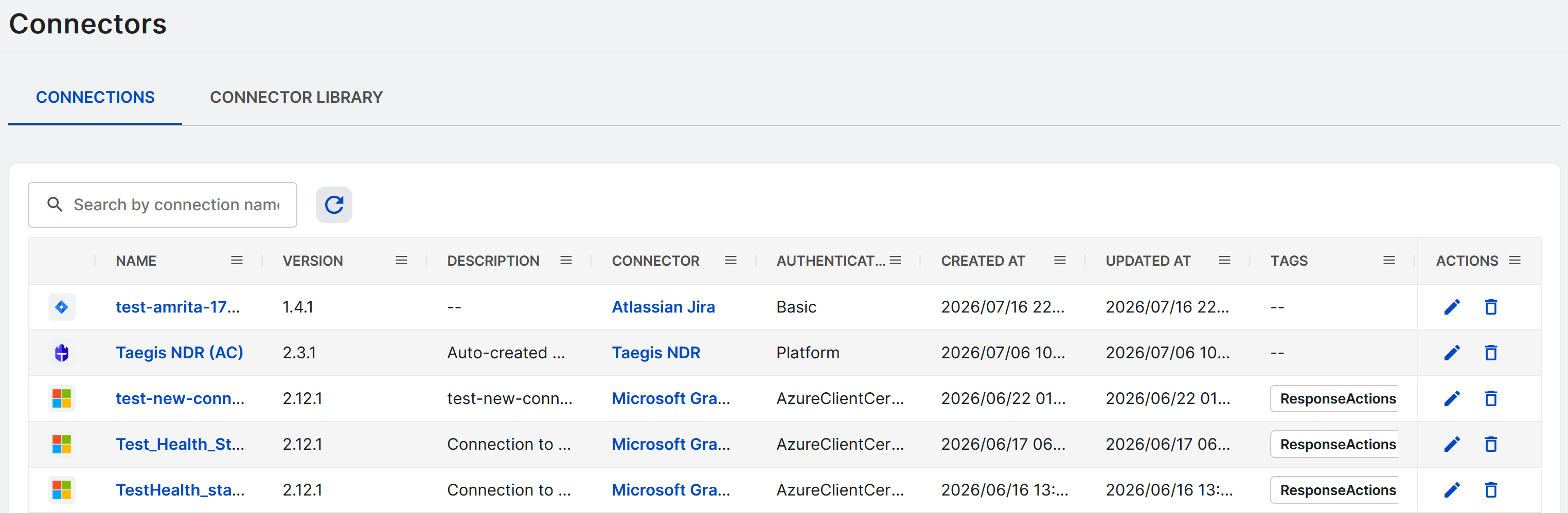
See connection details
To see details of a configured connection, click its name in the table.
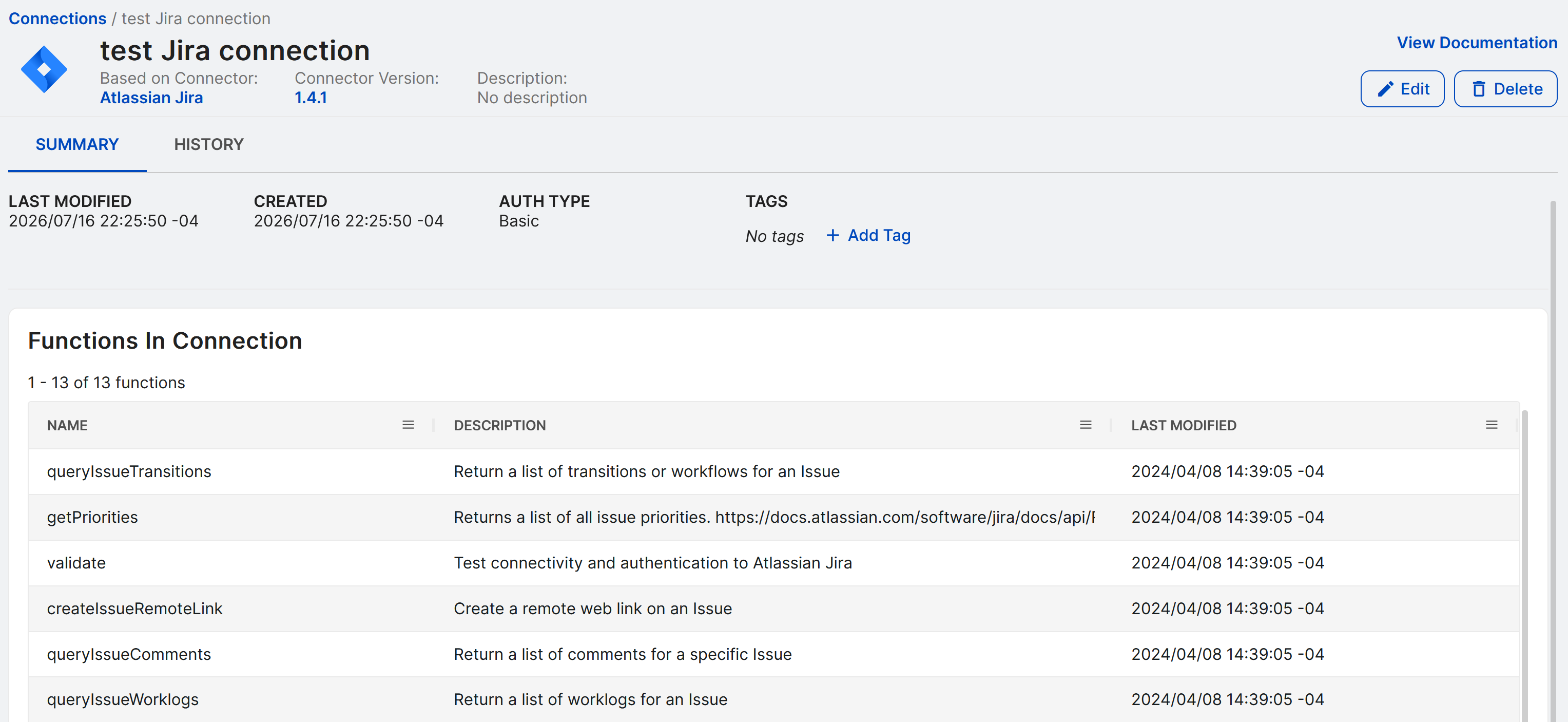
The connection details page includes a header, a Summary tab, and a History tab.
Connection header
The header across the top of the page shows the following information and options:
- Name: The connection name.
- Based on Connector: The connector template the connection is based on. Click the name to go to the template details. See Connector Library.
- Connector Version: The connector template version used by the connection. Click the version to open the version history. See Connector versions.
- Description: Description of the configured connection.
- View documentation: A link to view the connector's documentation.
- Edit and Delete: Buttons to edit and delete the connection.
Summary tab
The Summary tab shows the following information:
- Details: Basic details about the connection, such as when it was last updated and created, the authentication type it uses, and tags.
- Functions in Connection: A table of all the actions the connection supports.
- Associated Playbooks: Links to playbooks that use the connection.
History tab
The History tab shows audit logs for the connection.
You can do the following on this tab:
- Use the date picker above the table to adjust the time period.
- Turn Show Only Update Events on or off to show only activity related to connection updates or all activity.
- Click View Diff in the Actions column to see the differences in a side-by-side or inline view.
- Select rows and click Actions > Export Selected as CSV to export the selected logs.
Edit a connection
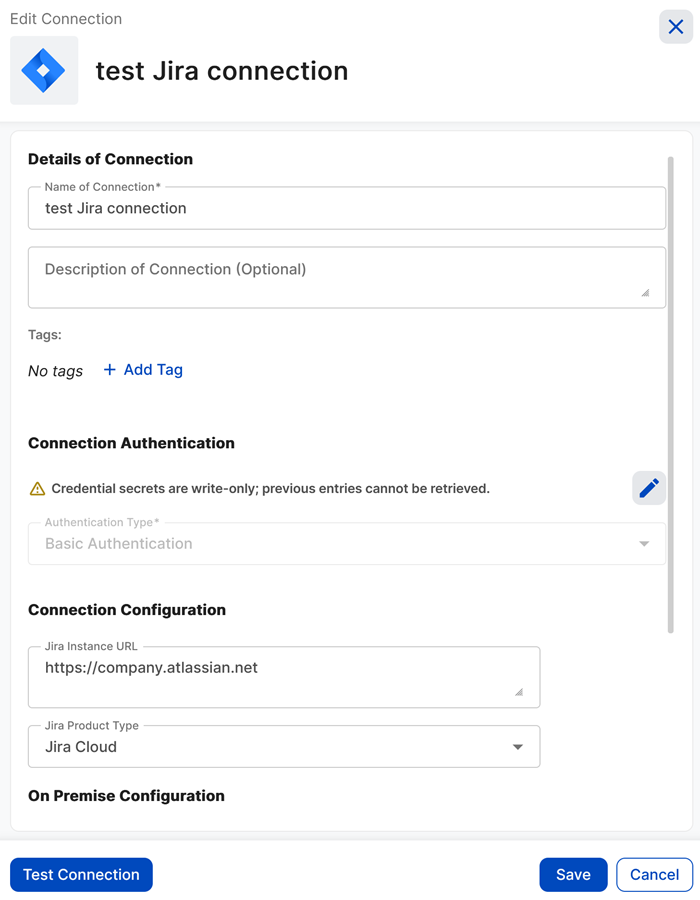
To edit a connection's configuration from its details page, do as follows:
- On the Connections tab of the Connectors page, click a name to open its details.
- Click Edit.
Tip
You can also edit a connection by clicking the Pencil icon in the Actions column on the Connections table.
-
Edit the connection's details or authentication options.
Note
If you're configuring a connection that communicates with on-premises systems such as Atlassian Jira, see On-Premise Automation Connector.
-
Click Save to complete the connection's configuration.
Tag a connection
You can use tags for grouping connections. To tag a connection, do as follows:
- On the Connections tab of the Connectors page, click a name to open its details.
- On the Summary tab, click + Add Tag.
- Start typing to search existing tags or to add a new one.
- Click a tag to apply it to the connection. You can add as many tags as needed.
To remove a tag, click the X icon on the tag.
Delete a connection
Connections must not be in use before they can be deleted. To delete a connection, do as follows:
- On the Connections tab of the Connectors page, click a name to open its details.
- Click Delete, then confirm the deletion.
Tip
You can also delete a connection by clicking the Trash icon in the Actions column on the Connections table.