Configured playbooks
To see your tenant's configured playbooks, go to Security Operations > Automations > Playbooks.
Use the search bar to filter configured playbooks. Turn on Include Disabled to show disabled playbooks.
Note
We recommend adding the Template Version and Status columns to the table.
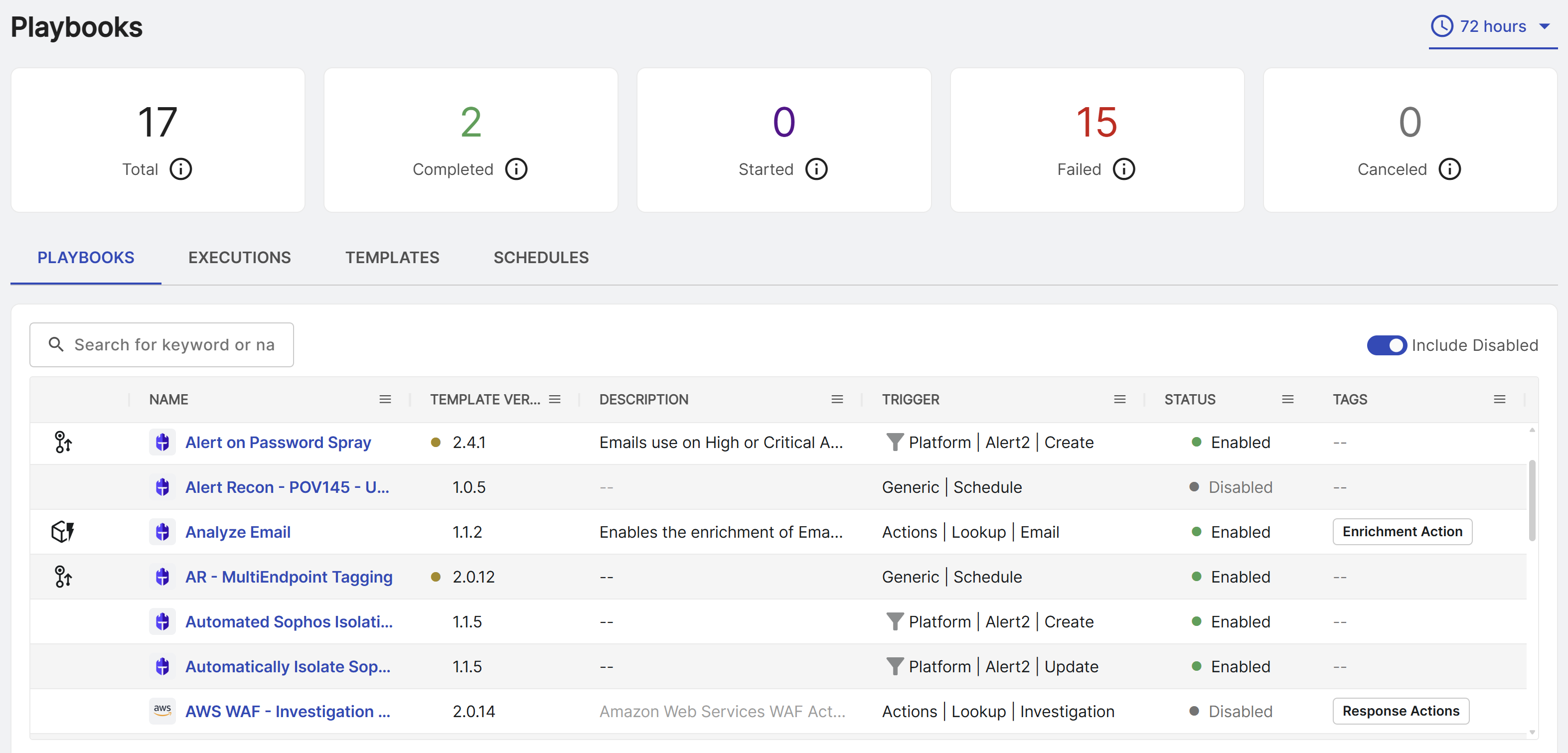
At the left side of each row, one of the following icons may show:
- A Simplified Configuration icon indicating the playbook is managed as an action in the Marketplace rather than through the playbook editor. For details, see Actions.
- A New Version Available icon indicating a new version of the playbook is available. For details, see Playbook template versions.
See playbook details
To see details of a configured playbook, click its name in the table.
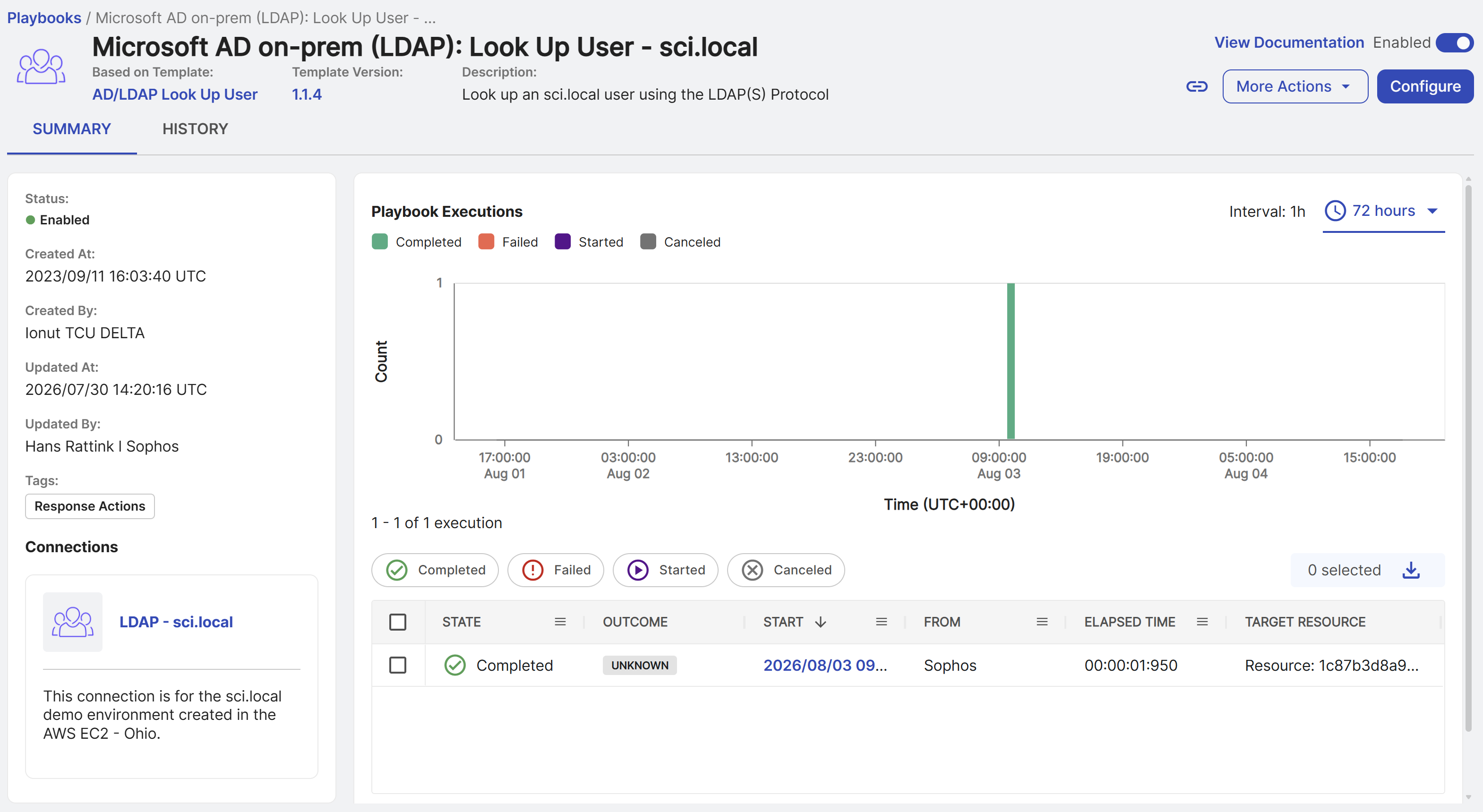
Playbook details include a header, a Summary tab, and a History tab.
Playbook header
The header across the top of the page shows the following information and options:
- Name: The playbook's name with a Simplified Configuration icon if it is managed as an action in the Marketplace rather than through the playbook editor. See Actions..
- Based on Template: The template the playbook is configured from. Click the name to go to the template details. See Playbook templates.
- Template Version: The template version the playbook is configured from. Click the version to open the version history. See Playbook template versions.
- Description: Description of the configured playbook.
- View Documentation: A link to view the playbook's documentation.
- Status toggle: A toggle to enable or disable the playbook.
-
More Actions: A menu with the following options:
- Trigger Manually: Run the playbook manually.
- Schedule Executions: Create an execution schedule for the playbook. This option appears only if the playbook supports scheduling. See Playbook schedules.
- View Template: View the template the playbook is based on. See Playbook templates.
- Delete: Delete this playbook.
- Cancel Executions: Cancel running executions of this playbook.
-
Configure: Edit the configuration of the playbook.
Note
The Configure option doesn't show for Simplified Configuration playbooks. These are managed as actions in the Marketplace. See Actions.
Summary tab
On the left side of the Summary tab, you can see the following information:
- Basic details about the playbook, such as its status, created date and user, last updated date and user, and tags.
- A list of connections used by the playbook. Click the name to open the connection details. See Configured connections.
On the right side, you can see the Playbook Executions section. This contains a bar chart showing executions grouped by status and a table listing all matching executions. You can do the following in this section:
- Use the date picker to change the time period shown in the chart and table. Use the filters above the table to show executions in specific states. For details on possible playbook states, see Playbook states.
- Click the Start Time of an execution in the table to open a slide-out that has a summary of the execution and JSON input and output data.
- Click the New Tab icon in the slide-out to open the full execution details where you can review individual steps and identify execution issues. For details, see Execution details.
Note
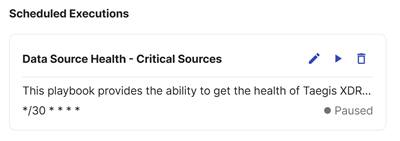
If the playbook has been configured to run on a schedule, a Scheduled Executions section shows the schedule overview information, the schedule cron expression, and links to Edit, Pause, and Delete the schedule. For details, see Playbook schedules.
History tab
The History tab shows a table of audit logs related to the playbook.
You can do the following on this tab:
- Use the date picker above the table to adjust the time period.
- Turn Show Only Update Events on or off to show only activity related to playbook updates or all activity.
- Click View Diff in the Actions column to see the differences in a side-by-side or inline view.
- Select rows and click Actions > Export Selected as CSV to export the selected logs.
Edit a playbook
You can edit a playbook's configuration from its details page. Simplified Configuration playbooks are managed as actions in the Marketplace. For details, see Configuring actions.
Note
Playbooks only allow you to configure options that are supported by the playbook template. Unsupported options are greyed out or not shown.
To edit a configured playbook, do as follows:
- On the Playbooks tab of the Playbooks page, click a name to open its details.
- Click Configure.
-
Edit the playbook configuration. For details, see Playbooks overview.
Tip
Click Documentation at the top of the edit screen to see the playbook's configuration requirements and input definitions.
-
Click Next after each section to save your progress.
- Click Save to complete the playbook's configuration.
Enable or disable a playbook
You can enable or disable a playbook from its details page.
Note
New playbooks are enabled by default when created.
To enable or disable a playbook, do as follows:
- On the Playbooks tab of the Playbooks page, click a name to open its details.
- Turn the toggle to Enabled or Disabled on the top right of the page.
Manually run a playbook
You can manually run a supported playbook from its details page.
Tip
Refer to the playbook's documentation to learn if it is designed to be executed manually. The majority of playbooks are not designed for this purpose and will fail if run manually.
To manually run a playbook, do as follows:
- On the Playbooks tab of the Playbooks page, click a name to open its details.
- Click More Actions > Trigger Manually.
- In Execute Playbook, review the inputs, making changes if desired, and then click Execute.
Schedule a playbook execution
You can schedule a supported playbook to run from its details page.
Tip
Not all playbook templates support scheduled executions. See Playbook schedules.
To schedule executions for supported playbooks, do as follows:
- On the Playbooks tab of the Playbooks page, click a name to open its details.
- Click More Actions > Schedule Executions.
- Follow the guidance found in Playbook Schedules. See Playbook schedules.
Cancel executions of a playbook
To cancel all running executions of a playbook, do as follows:
- On the Playbooks tab of the Playbooks page, click a name to open its details.
- Click More Actions > Cancel Executions.
- In Cancel Executions, specify the time period containing the executions you want to cancel, or leave blank to cancel all.
- Click Proceed.
Tip
To cancel one or more individual executions, see Playbook executions.
Delete a playbook
To delete a configured playbook, do as follows:
- On the Playbooks tab of the Playbooks page, click a name to open its details.
- Click More Actions > Delete, then confirm the deletion.