Playbook executions
You can view playbook execution history in the following locations:
- On the Playbooks page Executions tab. See Playbook Executions tab
- On a configured playbook details page. See See playbook details
- On the Automations Overview page. See Automations Overview.
Playbook Executions tab
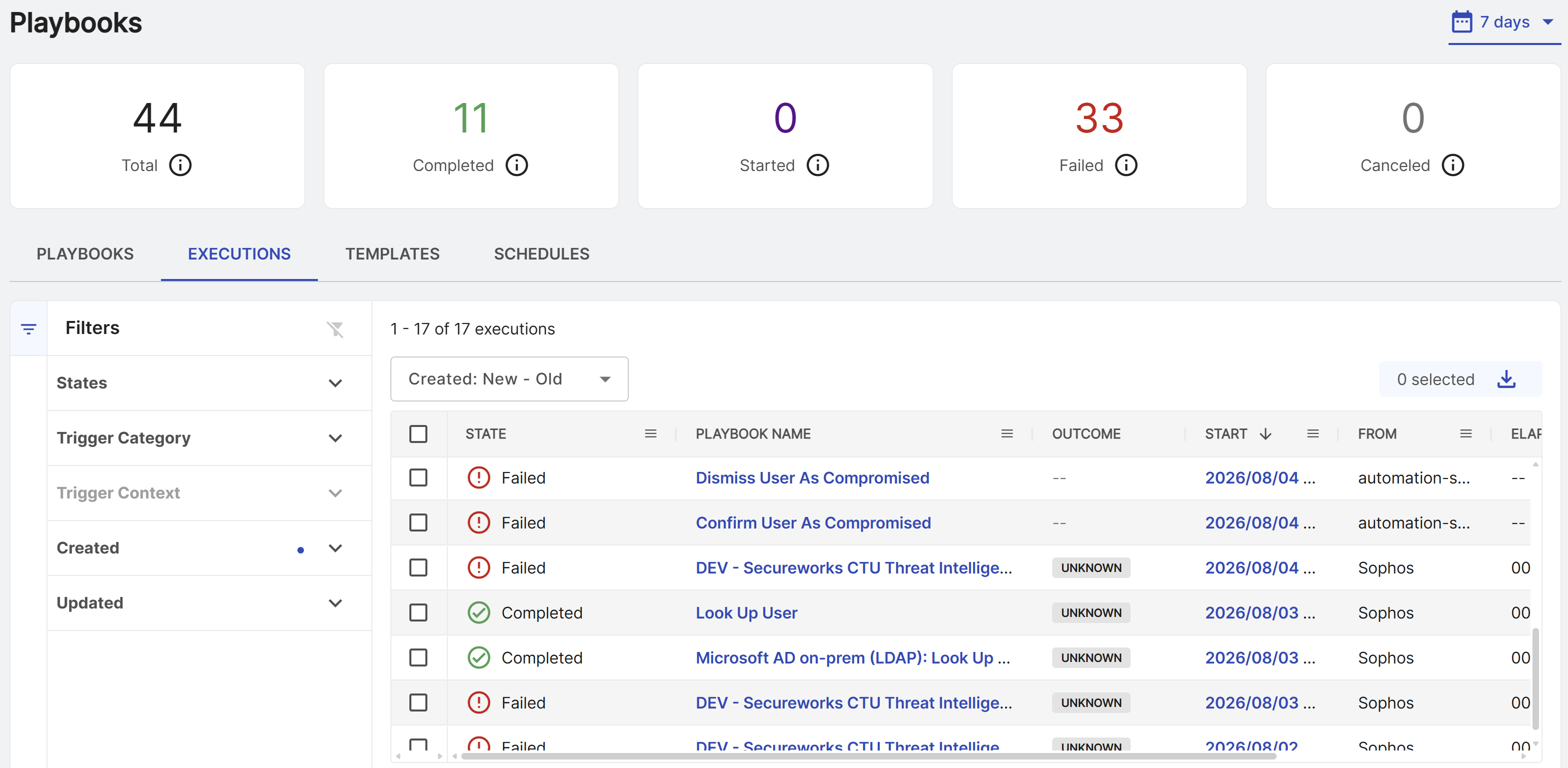
To see the history of all playbook executions, go to Security Operations > Automations > Playbooks. Select the Executions tab.
You can use the filters on the left of the table and the Sort menu above the table to quickly find executions in various states.
Playbook states
Possible playbook states include the following:
- Completed: The playbook executed without any errors.
- Failed: The playbook failed to complete because of an error.
- Started: The playbook is currently running.
- Canceled: The playbook was manually canceled before it finished running.
A playbook can complete successfully but still have an unsuccessful outcome. This happens when the playbook finishes running but does not achieve its intended result. Hover over the outcome in execution tables to see a tooltip with details when available.
Execution details
Click the Start Time of an execution in the table to open its details page.
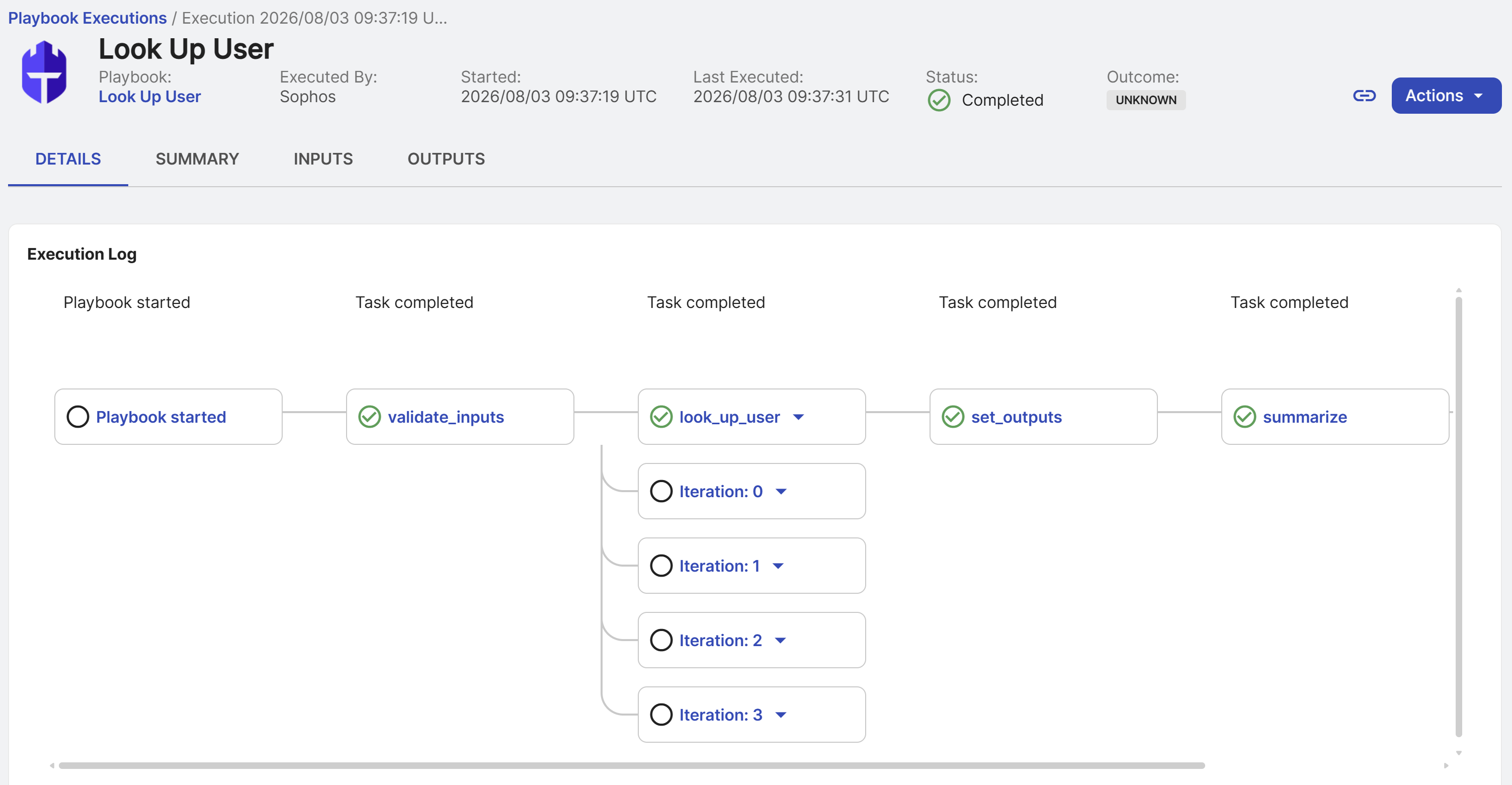
Execution details pages show the following:
- Header: The header at the top of the page shows execution information with a Link icon to the execution.
-
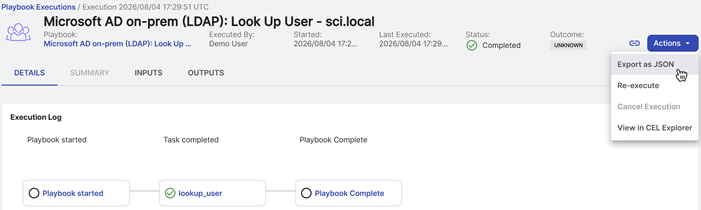
Actions: A menu with the following options:
- Export as JSON: Export the execution as JSON.
- Re-execute: Retry the execution.
- Cancel Execution: Cancel the execution if it is currently running.
- View in CEL Explorer: Open CEL Explorer to use the execution as input when testing CEL expressions. See CEL Explorer.
-
Details tab: Shows the execution log. Click a step to see its details.
- Summary tab: A summary of the tasks taken by the playbook.
- Inputs tab: A JSON view of the execution's inputs.
- Outputs tab: A JSON view of the execution's outputs.
Cancel executions
To cancel individual instances of a playbook execution, do as follows:
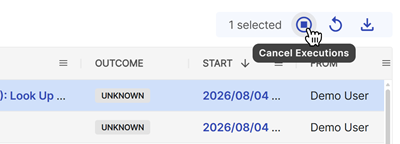
- On the Executions tab of the Playbooks page or a configured playbook details page, select the checkboxes of executions you want to cancel.
- Click the Stop icon above the table.
- Click Proceed to confirm.
Tip
You can also cancel all running executions of a single configured playbook. See Cancel executions of a playbook.
Retry executions
If an execution fails, you can retry it as follows:
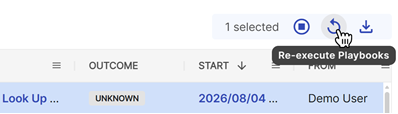
- On the Executions tab of the Playbooks page or a configured playbook details page, select the checkboxes of executions you want to retry.
- Click the Re-execute icon above the table.
- A new execution of the playbook starts.
Export execution history
You can export a playbook's execution history in one of the following ways:
-
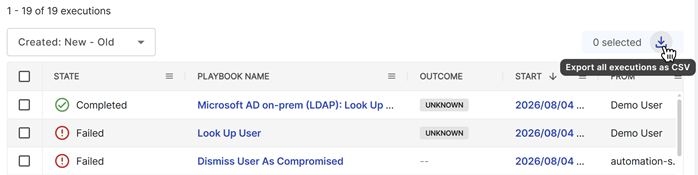
To export the execution history as CSV, click the Download icon above the table on the Executions tab of the Playbooks page or a configured playbook details page.
-
To export an execution as JSON, click Actions > Export as JSON on an execution details page.
-
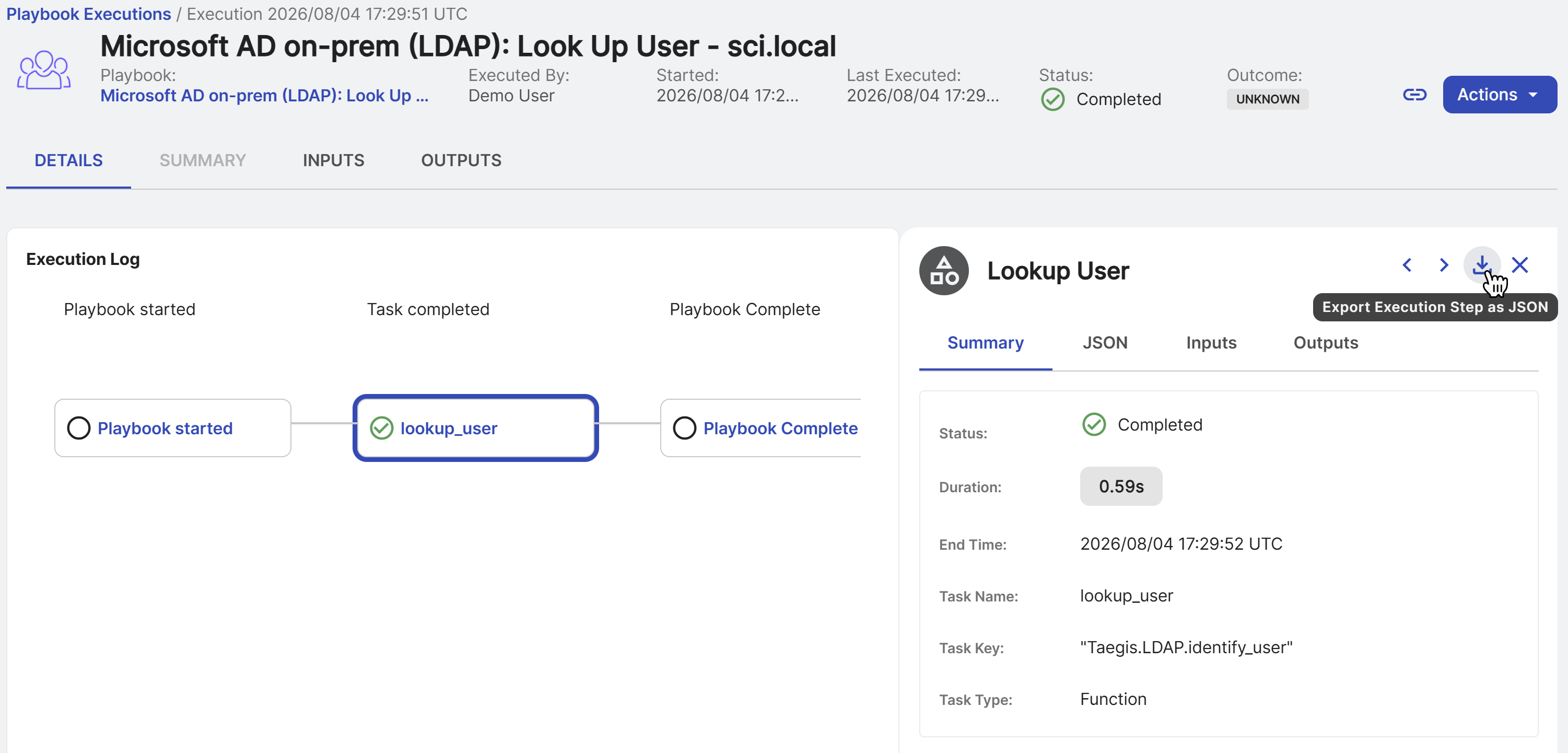
To export an execution step as JSON, click the Download icon for a JSON of an individual playbook execution step.