Playbook schedules
You can create an execution schedule for playbooks configured for scheduled execution. Not all playbook templates support scheduled executions.
See playbook schedules
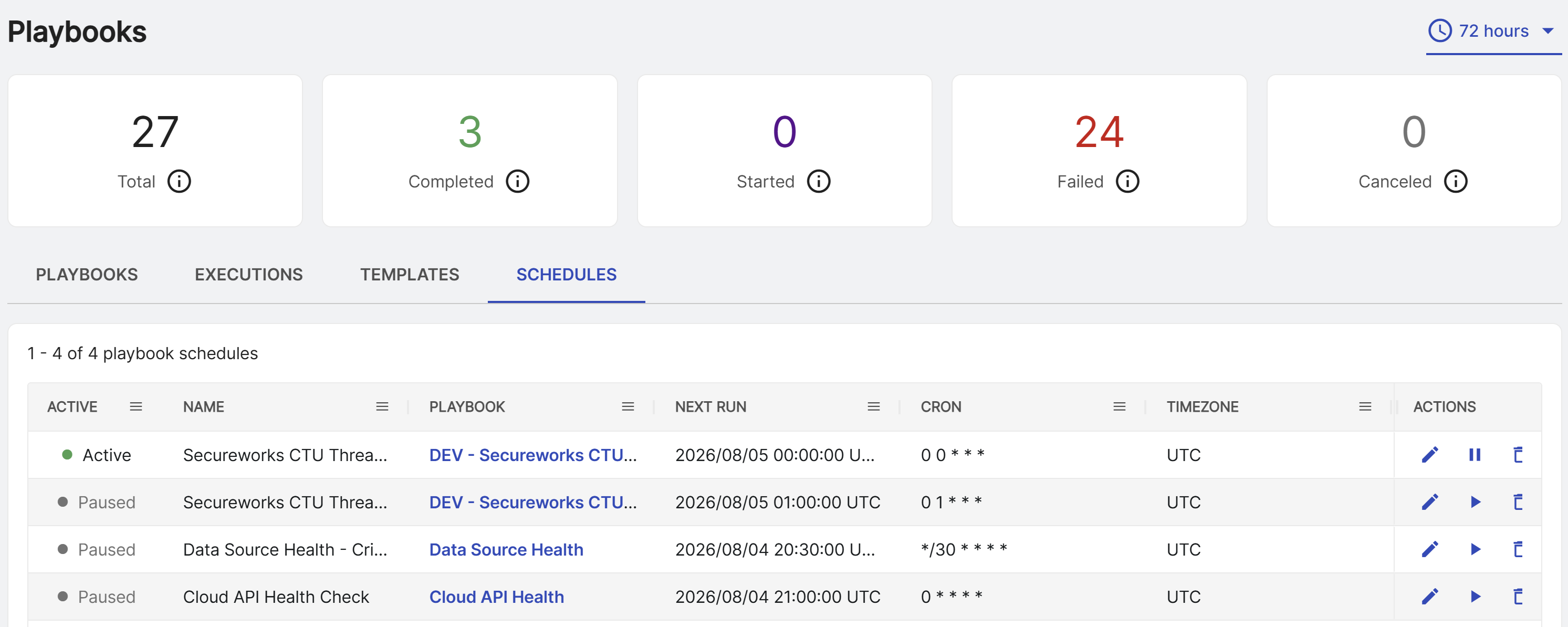
To see all configured playbook schedules, go to Security Operations > Automations > Playbooks, then select the Schedules tab.
Click the link in the Playbook column to open the playbook details. See Configured playbooks.
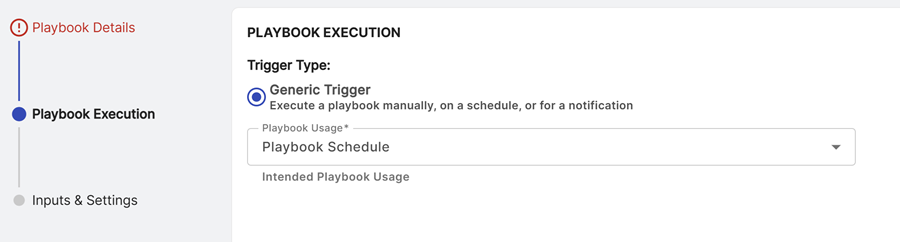
Configure a playbook for scheduled execution
When you configure a playbook's execution for templates that support scheduling, choose the following options:
- Trigger Type: Generic Trigger
- Playbook Usage: Playbook Schedule
Note
Generic Trigger is only available for templates that support scheduling.
Create execution schedules
To create a schedule, the playbook must already be configured for scheduled execution. To create a schedule, do as follows:
- On the Playbooks tab, click a playbook name to open its details.
- Verify the playbook is enabled at the top right. Playbooks must be enabled to schedule executions.
- Click More Actions > Schedule Executions.
-
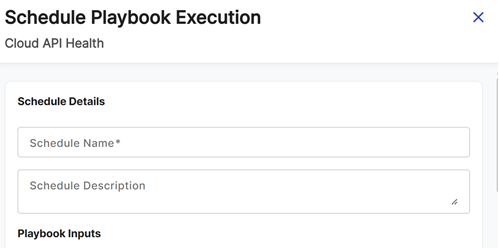
In the Schedule Details section, enter a name and description to identify the schedule execution in Sophos XDR.
-
In the Playbook Inputs section, verify the configuration, dependent on the playbook template.
Note
Each playbook includes setup and configuration guidance. Click View Documentation in the playbook details to view the information.
-
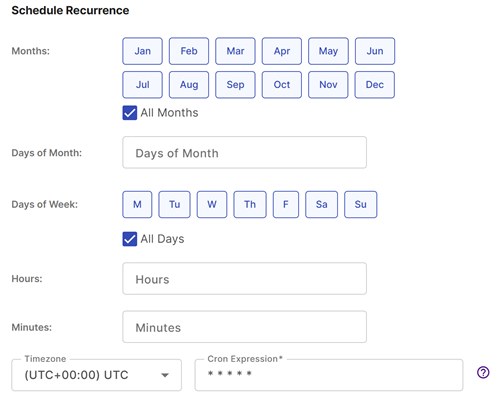
In the Schedule Recurrence section, configure the schedule.
Tip
You can enter a schedule directly in the Cron Expression field directly using cron syntax. For details, see Cron Expression Builder.
-
Click Save to complete the schedule.
Verify execution schedules
You can verify an execution schedule in the following places:
- On the Schedules tab of the Playbooks page. Use the Active column to verify the schedule is active, and the Next Run column to verify the schedule's next execution.
- On configured playbook details pages in the Scheduled Executions section. See Configured playbooks.
- On the Automations Overview page in the Upcoming Scheduled Executions widget. See Automations Overview.
Manage execution schedules
Take the following actions from the Actions column on the Schedules tab:
- Click the Pencil icon to edit the schedule.
- Click the Pause icon to pause an active schedule.
- Click the Play icon to resume a paused schedule.
- Click the Trash icon to delete a schedule.
Tip
You can also take these actions from the Scheduled Executions section on configured playbook details pages.