Playbook templates
Use playbook templates to create playbooks in your tenant. A single template can be used to create as many playbooks as needed.
Each playbook template includes setup and configuration guidance. To view, go to the Documentation tab of playbook details.
Tip
You can find a changelog of the newest and most recently updated templates on the Automations Overview page. See Automations Overview.
See available playbook templates
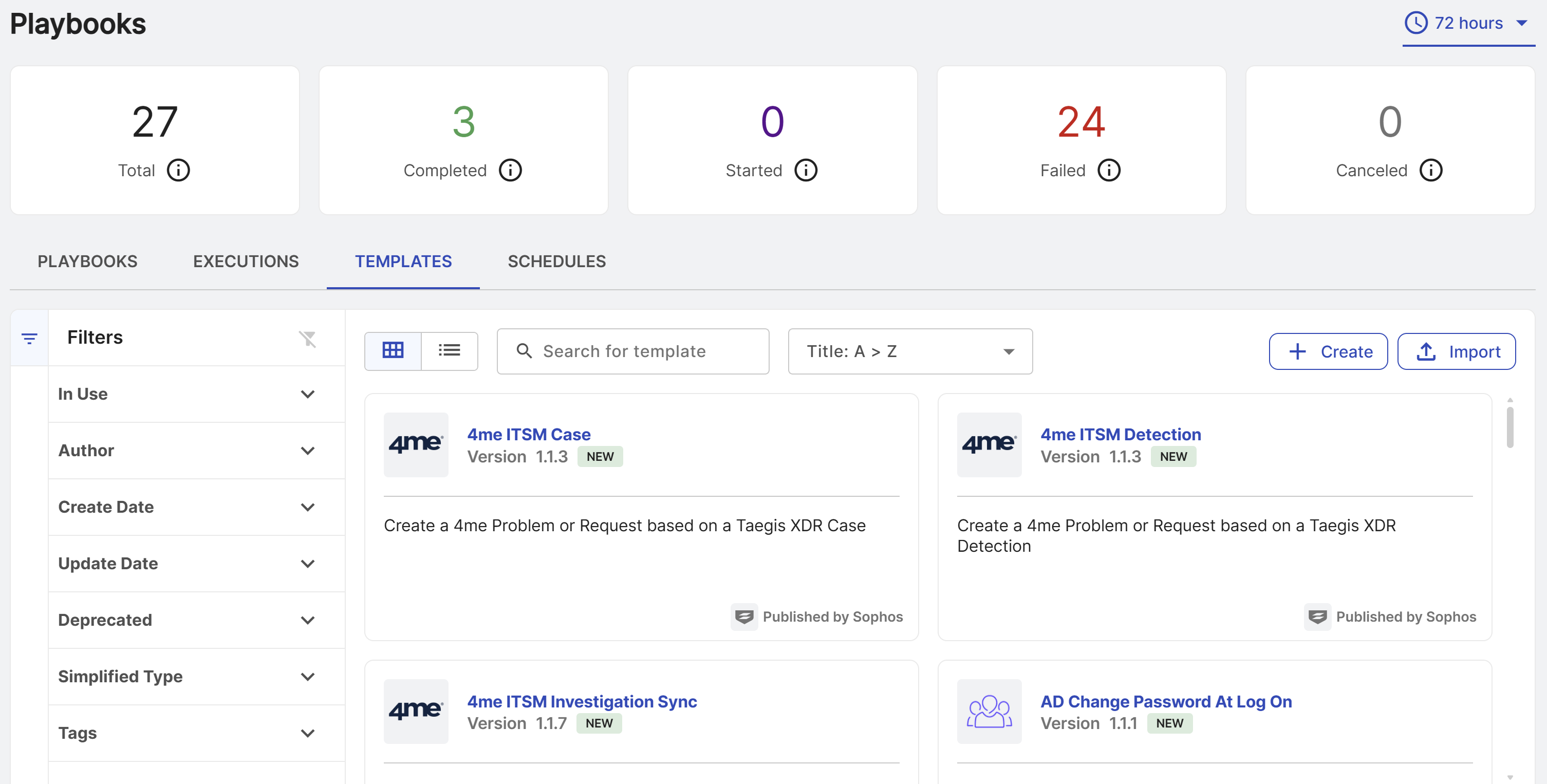
To see all available playbook templates, go to Security Operations > Automations > Playbooks. Select the Templates tab.
You can use the filters on the left of the table, and the search bar and Sort menu above the table to filter the templates.
Playbook template details
To see a template's details page, click a template title. The details page features definition information for the template, including template steps, configured playbooks based on the template, dependencies, and documentation.
Template steps
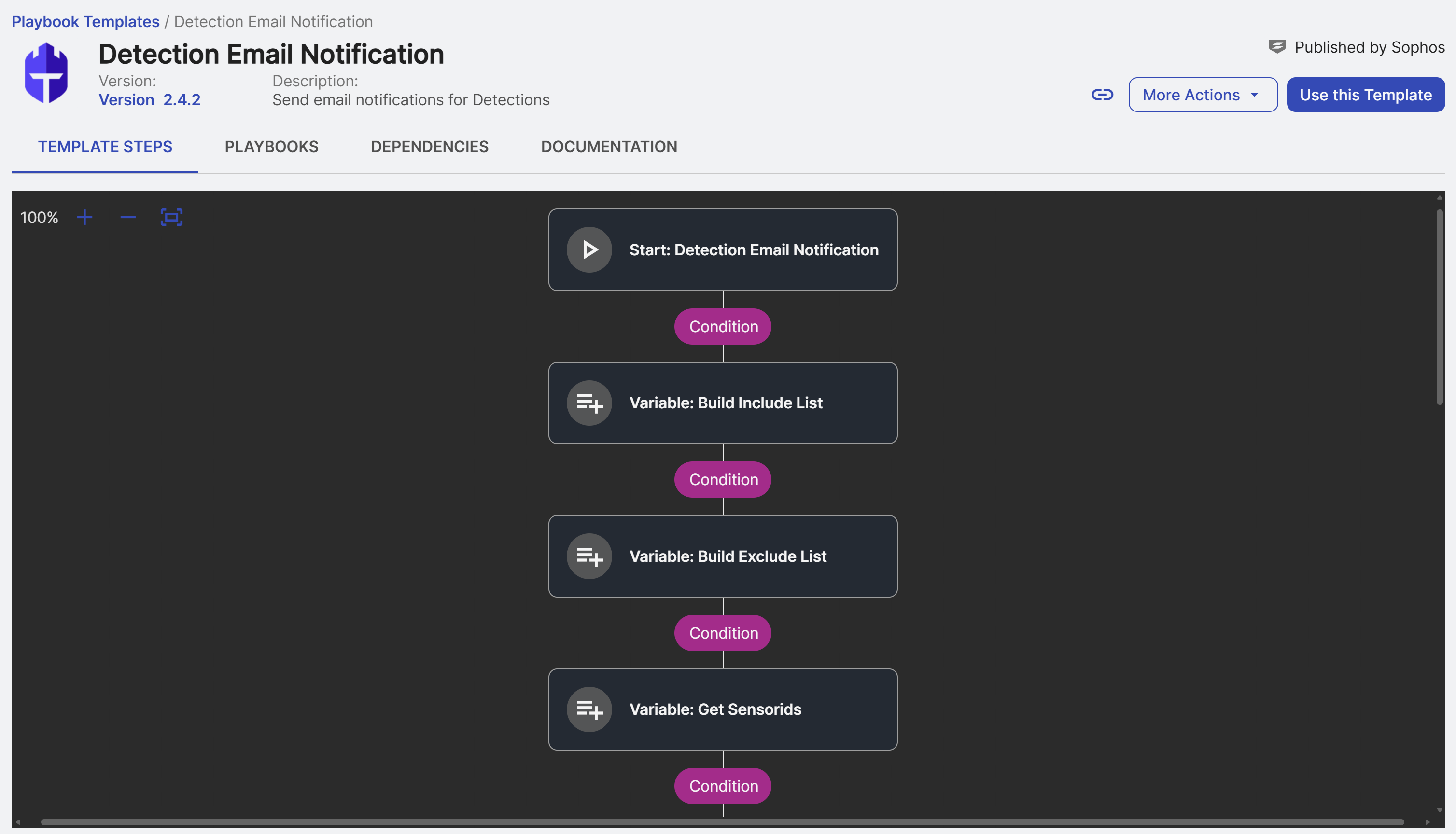
The Template Steps tab shows a graphical view of the playbook's steps. You can do the following on this tab:
- Click a step to open its details and view code subsets.
- Hover over a condition to see a tooltip with the full variable.
- Click the Expand icon or Collapse icon in the upper right corner of a code segment with an iteration or branch.
Note
You can export a template if you want to read the entire YAML file. See Export a template.
Playbooks
The Playbooks tab shows configured playbooks based on the template.
Turn on Include Disabled to also show disabled playbooks based on the template.
Dependencies
The Dependencies tab shows connectors required by the template.
If a required connector isn't configured, a warning is shown. Click Add New Connection. For details, see Configure a connection.
Playbook templates that support multiple connectors list these in the Supported Activities section of this tab.
Documentation
The Documentation tab shows setup and configuration guidance.
Tip
You can also access the documentation when configuring a playbook.
Configure a playbook
To configure a playbook from a template, click Use this Template and follow the prompts to complete the configuration. For details on the components you configure in a playbook, see Playbooks overview.
Simplified Configuration playbooks are managed as actions in the Marketplace. For details, see Configuring actions.
Clone a template
Sophos-managed templates can't be edited. You must clone it first if you want to adapt it.
To clone a playbook template, do as follows:
- On the Templates tab of the Playbooks page, click a template title to open its details.
- Click More Actions > Clone.
- In Clone Template, enter a name for the new template. Names must be unique and can only contain letters, numbers, and underscores.
- Click Clone.
Note
Sophos doesn't maintain or update playbook templates cloned from Sophos-managed templates. We recommend using Sophos-managed templates when possible.
Export a template
To export a playbook template as a YAML file, do as follows:
- On the Templates tab of the Playbooks page, click a template title to open its details.
- Click More Actions > Export. The YAML file downloads.
Import a template
You can import your own playbook templates using a YAML file.
We recommend you export and update an existing template to ensure you have all the necessary fields in your file. Note that not all fields are shown on the Template Steps tab. This graphical view shows only the playbook steps portion of the file.
To import a playbook template, do as follows:
- On the Templates tab of the Playbooks page, click Import.
- Upload the YAML file you wish to import.
Deprecate a template
You can deprecate playbook templates created by users in your tenant to indicate that a better alternative exists. Deprecated templates can still be used to create playbooks, but we recommend using a non-deprecated version whenever possible.
Note
You can't deprecate Sophos-managed templates.
Templates that have been deprecated, as well as playbooks based on deprecated templates, display a warning banner.
To deprecate an existing playbook template, do as follows:
- On the Templates tab of the Playbooks page, click a template title to open its details.
- Click More Actions > Deprecate.
- Enter a reason for deprecation.
- Click Deprecate.
Undeprecate a template
To restore a deprecated playbook template, do as follows:
- On the Templates tab of the Playbooks page, click a template title to open its details.
- Click More Actions > Undeprecate.
- Click Undeprecate to confirm.
Edit a template
To edit a playbook template created by users in your tenant, do as follows:
- On the Templates tab of the Playbooks page, click a template title to open its details.
- Click More Actions > Edit.
- Edit the configuration.
- Click Publish when complete.
Note
You can't edit Sophos-managed templates.
Delete a template
To delete a playbook template created by users in your tenant, do as follows:
- On the Templates tab of the Playbooks page, click a template title to open its details.
- Click More Actions > Delete.
- Click Delete to confirm.
Note
You can't delete Sophos-managed templates.