Playbook template versions
When a playbook template changes, a new version is created. The latest version becomes the default version used when you create new playbooks from the template.Configured playbooks can continue to use an earlier template version if needed.
Tip
You can find a changelog of the newest and most recently updated templates on the Automations Overview page. See Automations Overview.
Version numbers
Template versions are formatted as Major.Minor.Patch:
- Major updates are breaking changes that may require playbook reconfiguration before they can be applied. These updates aren't applied automatically to existing playbooks.
- Minor updates are non-breaking changes.
- Patch updates are all other trivial non-breaking changes, such as documentation updates.
Configure a playbook from a specific template version
A playbook template is assigned a default version, which is used when you create new playbooks from the template.
To use a version other than the default, do as follows:
- On the Templates tab of the Playbooks page, click a title to open its details.
- Click the Version link below the template name to open the version history.
-
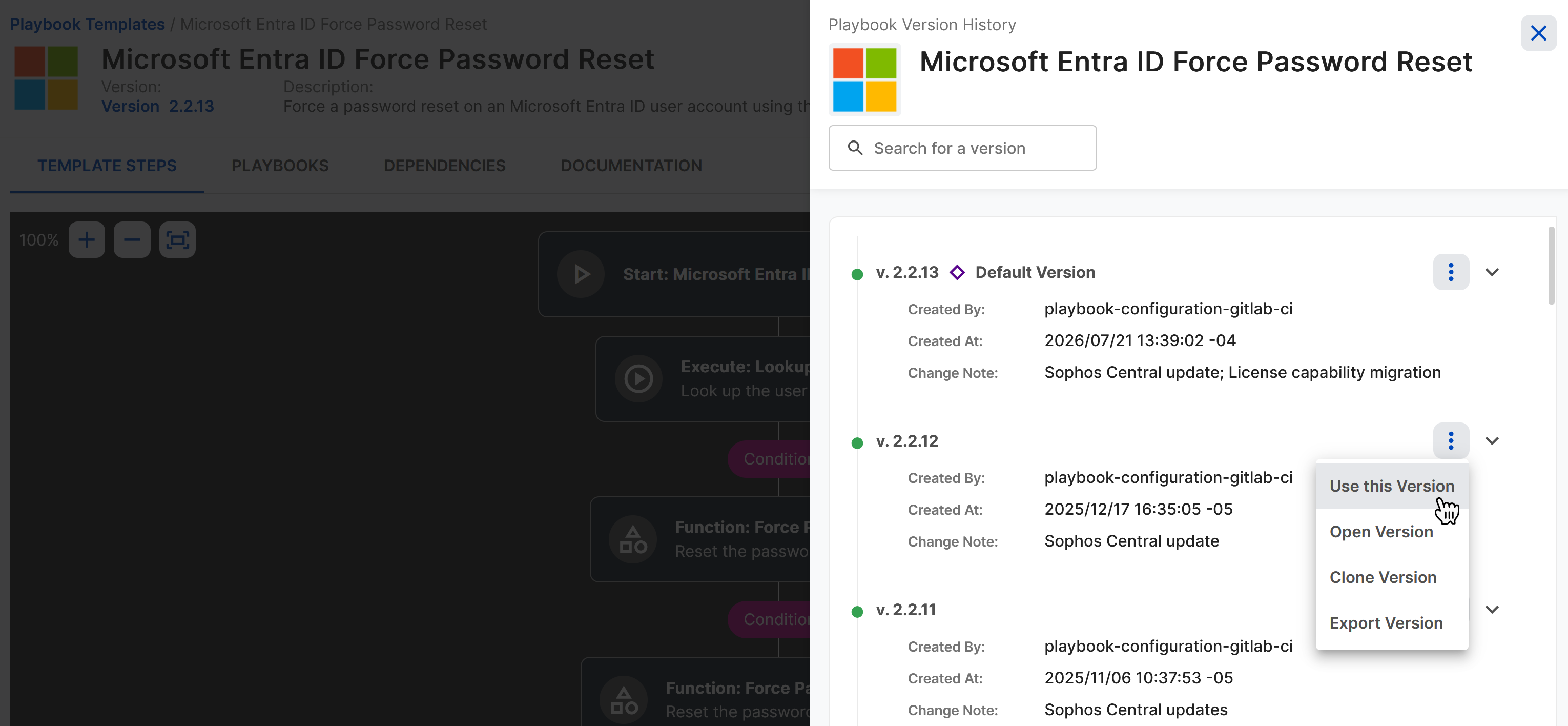
Click the three dots next to the version you want to use.
Tip
Use the search bar to find a version quickly.
-
Click Use this Version.
-
Follow the prompts to complete the configuration. For details on the components you configure in a playbook, see Playbooks overview.
Change the version of a playbook
To select a different template version for a configured playbook, do as follows:
- On the Playbooks tab of the Playbooks page, click a name to open its details.
- Click the Template Version link below the playbook name to open the version history.
-
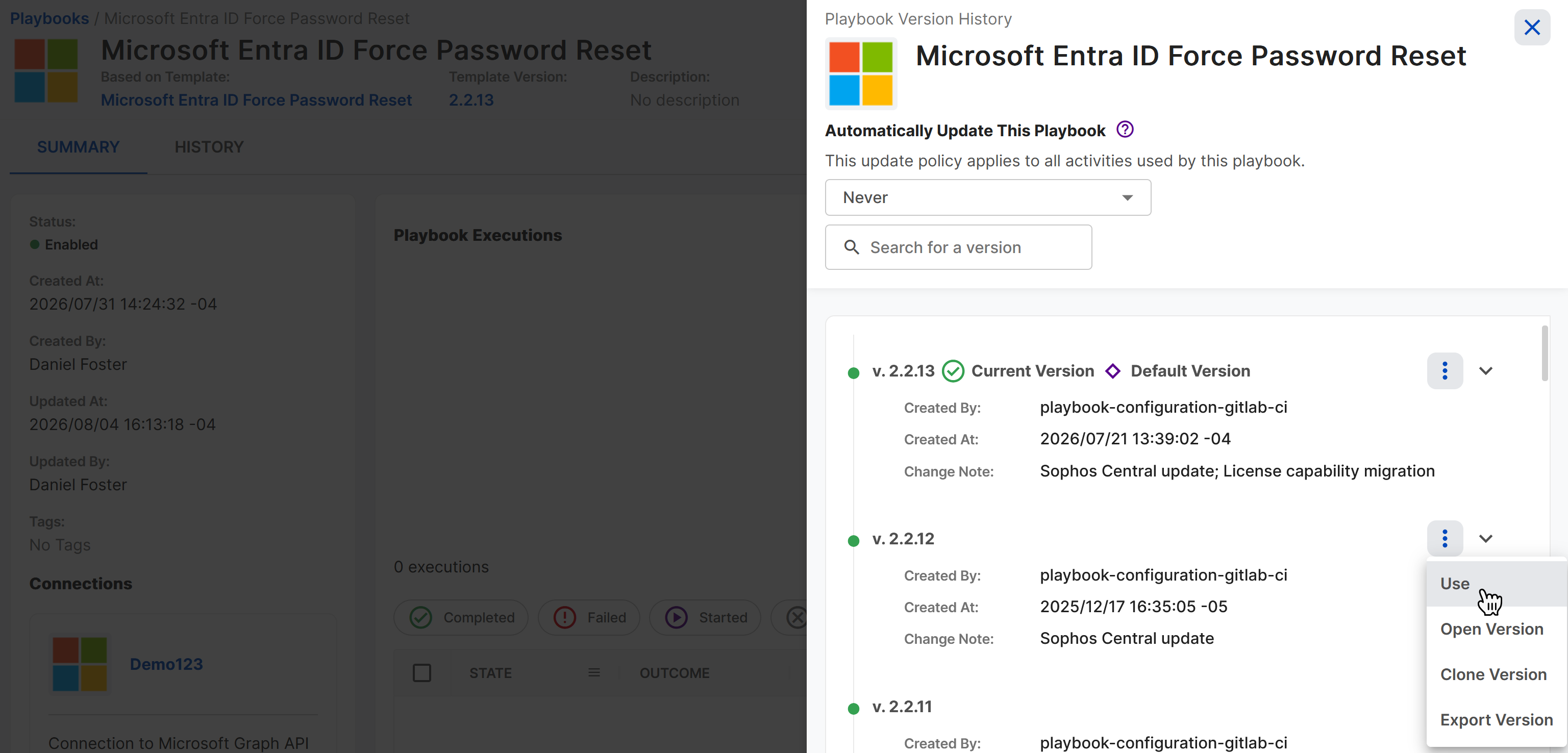
Click the three dots next to the version you want to use.
Tip
Use the search bar to find a version quickly.
-
Depending on the version you choose, do one of the following:
-
If the new version you choose has the same major version, such as
2.3.0instead of2.2.13, click Use to update the playbook. -
If the new version you choose has a different major version, such as
3.0.0instead of2.2.13, click Use and Configure to open the playbook configuration, where you must review the settings and make any required changes.
-
-
Follow the prompts to complete the configuration, then click Save. For details on the components you configure in a playbook, see Playbooks overview.
Configure automatic updates
You can choose which template updates are applied automatically or disable automatic updates. The default is automatic updates on patch and minor version changes.
To edit the automatic update settings, do as follows:
- On the Playbooks tab of the Playbooks page, click a name to open its details.
- Click the Template Version link below the playbook name to open the version history.
-
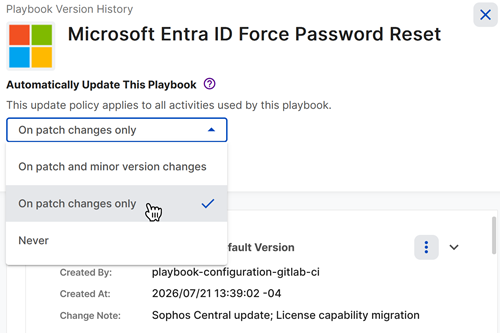
Under Automatically Update This Playbook, choose one of the following options:
- On patch and minor version changes
- On patch changes only
- Never
Note
Major version updates are never applied automatically because they might require manual reconfiguration.
See available playbook upgrades
You can see all playbooks with available upgrades that haven't yet been applied in the Playbook Upgrades Available widget on the Automations Overview page. See Automations Overview.
Deprecate a template version
You can deprecate a version of a playbook template created by users in your tenant to indicate that a better alternative exists. Deprecated template versions can still be used to create playbooks, but we recommend using a non-deprecated version whenever possible.
Note
You can't deprecate Sophos-managed template versions.
Template versions that have been deprecated, as well as playbooks based on deprecated versions, show a warning banner.
To deprecate an existing playbook template version, do as follows:
- On the Templates tab of the Playbooks page, click a title to open its details.
- Click the Version link below the template name to open the version history.
- Click the three dots next to the version you want to deprecate.
- Click Deprecate Version.
- Enter a reason for deprecation, then click Deprecate.
Undeprecate a template version
To restore a deprecated template version, do as follows:
- On the Templates tab of the Playbooks page, click a title to open its details.
- Click the Version link below the template name to open the version history.
- Click the three dots next to the version you want to restore.
- Click Undeprecate Version.
- Click Undeprecate.