CEL Explorer
Sophos XDR supports the use of Google's Common Expression Language (CEL) in the following areas:
- In automations connectors, playbook templates, playbook inputs, and playbook triggers to add logic and manipulate data.
- In automatic case templates and rules to refine configuration.
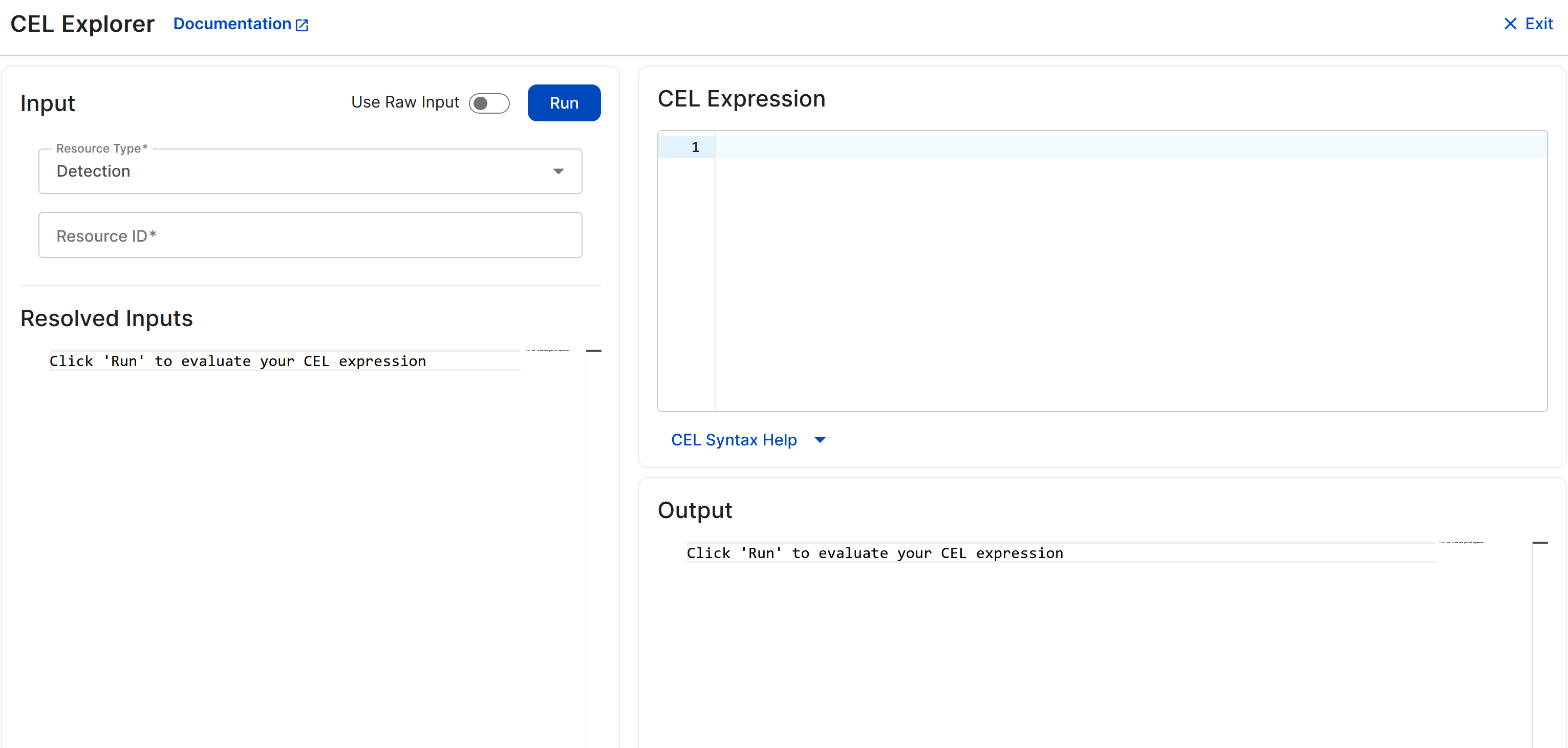
CEL Explorer lets you test CEL expressions against a specific input type and see the result. The following input resource types are supported:
- Detection
- Endpoint Asset
- Entity
- Case
- Playbook Execution
Enter a resource ID for a supported resource in the Resource ID field to load its data while you build your CEL expression.
Get to CEL Explorer
You can access CEL Explorer in the following ways:
- Go to Security Operations > Automations > CEL Explorer.
- On a case, detection, or entity details page, click Actions and choose View in CEL Explorer.
Tip
When you open CEL Explorer from a case, detection, or entity details page, the resource type and ID are automatically set to the associated input.
Use CEL Explorer
To evaluate the outcome of a CEL expression, do as follows:
- Select a resource type from the menu.
-
Enter the resource ID of the object you want to test the expression against.
Tip
When you access CEL Explorer from a details page, the resource type and ID are automatically set to the associated input.
You can find a resource ID in the URL of the desired resource's details page:
https://fusion.sophos.com/secops/cases/{case-id}/summary. -
Paste or enter the CEL expression you want to test in the CEL Expression field. As you type, macros relevant to the chosen resource are suggested. For details, see CEL Explorer autocomplete.
Tip
For help with CEL, supported macros, and examples, see the Related resources list on the right of this page.
-
Click Run to evaluate your CEL expression against the input.
CEL Explorer autocomplete
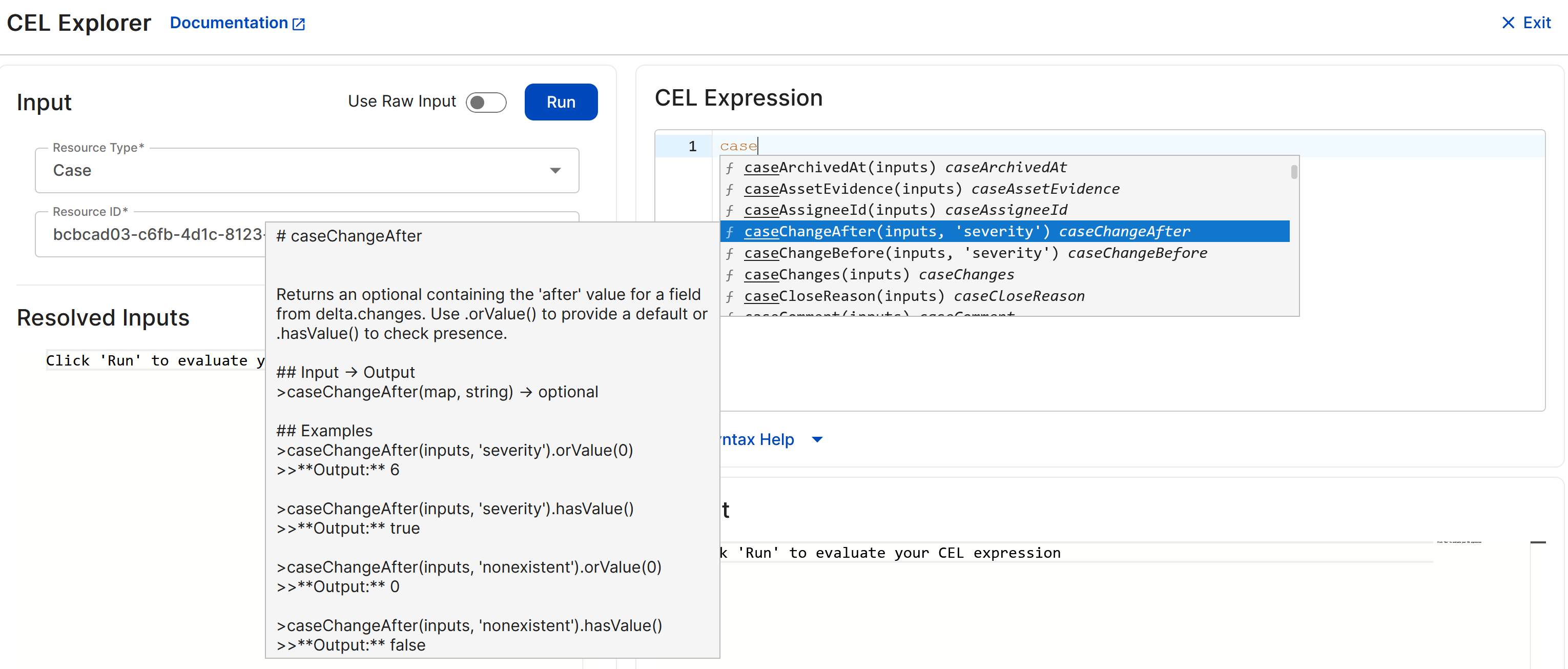
CEL Explorer provides context-aware autocomplete for CEL macros. As you type, it suggests macros relevant to the resource type and lets you insert them directly into your expression.
Note
If you select Use Raw Input, macros for all resource types are suggested.
To use autocomplete, do as follows:
- Start typing in the CEL Expression field to see suggestions.
-
Click a macro to insert it into your expression.
You can also use the Down arrow key to select a macro and press Enter to insert it.