Automatic cases
You can configure automatic case rules that create a new case from detections that meet your criteria, or append newly-created detections to existing cases that match specified attributes.
Note
Only newly-created detections invoke automatic case rules. Detection updates, such as severity changes, don't trigger automatic case rules at this time.
Automatic case rules may be defined at the partner level and applied to all child tenants, or at the individual tenant level. You configure a rule with an Advanced Search detection query and detection grouping definitions that group detections into cases by attributes such as involved entities or detection title.
Create an automatic case rule
Tip
Create the case template that your automatic case rule will use first if you haven't already. For details, see Templates.
To create an automatic case rule, do as follows:
- In Sophos Fusion, go to Security Operations > Cases > Automatic Cases.
-
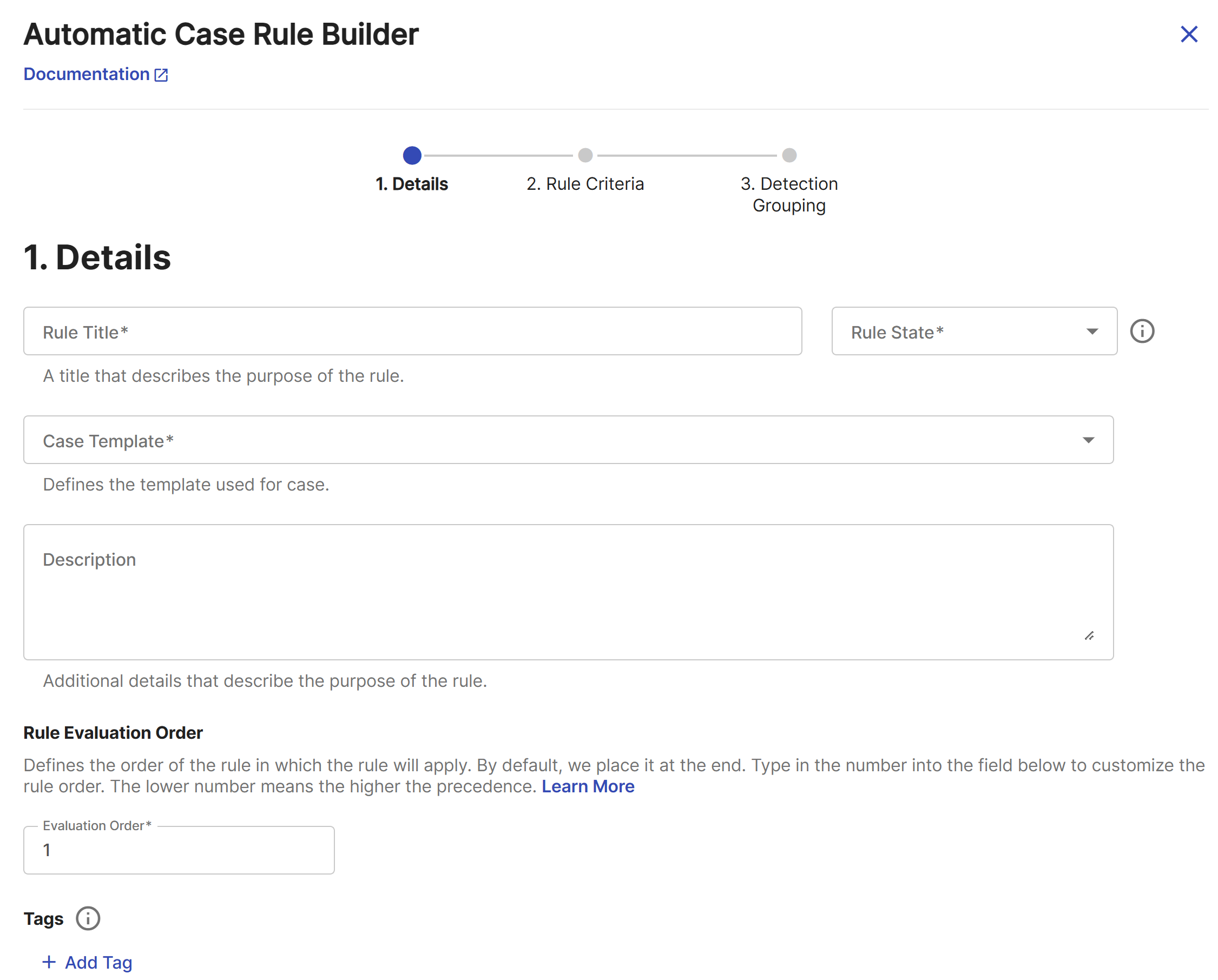
Click New Rule to open the Automatic Case Rule Builder.
Rule details
Configure the rule details as follows:
- Enter a title that describes the purpose of the rule.
-
Select one of the following rule states from the drop-down:
- Disabled: The rule doesn't do anything.
- Test: Generates logs only for verification purposes.
- Enabled: Creates a new case or appends detections to an existing case.
- Append: Appends detections to an existing case only, but doesn't create a case.
-
Select a template from the Case Template drop-down. For details, see Templates.
- (Optional) Enter a description of the rule.
- Set the rule evaluation order. Lower numbers have higher precedence and are evaluated first. For details, see Rule order.
- (Optional) Add one or more tags to organize the rule.
- Click Continue
Rule criteria
Configure the rule criteria as follows:
- In the Filter field, enter an Advanced Search query that filters for the detections you want the rule to apply to. For details, see Advanced Search query language.
- (Optional) In the Append Additional Detections field, enter an Advanced Search query that finds the detections you want to append to cases created by this rule.
- (Optional) Click Ignore Detection Prioritization to make the rule ignore a detection's Threat Score and execute the rule regardless of whether the system automatically deprioritized the detection being evaluated. This option is off by default.
Detection grouping
Configure the detection grouping as follows:
-
Using Common Expression Language (CEL) syntax, define which detections should be appended to an existing case and which case detections should be appended to. Click Add Criteria to define multiple attributes. For more information, see Detection grouping.
Note
This field is mandatory to create the rule. You must specify at least one detection attribute.
Tip
Click AI Expression Assistant to create a CEL expression from a natural language description. For details, see AI Expression Assistant.
-
In Criteria Count, enter the minimum number of detection attributes you defined that must match for the detection to be grouped.
- Click Submit.
Rule evaluation
The following are taken into account when rules are evaluated:
- Only medium- and higher-severity detections trigger automatic case rules. Low and informational detections are excluded from triggering rules.
- Detections are evaluated against rules defined at the child tenant level first, followed by the partner level in the order in which they’re defined.
- Rule evaluation stops on the first match. To match a rule, the detection must both match the rule query and contain the specified grouping attributes
- When a rule is matched, all of the resulting values returned by the detection grouping clause are used to look up existing cases that have at least the specified group count of matching attributes.
- If a match is found, the detection is appended to the case, and if specified in the rule, a comment is generated and added to the case.
- If no match is found, a new case is created depending on the state of the rule. When a new case is created, the system performs a detection search for recent detections that match the rule query and appends any that match the Group By attributes to the new case.
- When a case is manually created, the system evaluates the genesis detections associated with the newly created case and matches them against any defined rules.
- If a rule matches and the case is created by a user who is a member of the tenant that defined the rule, the system performs the same detection search as defined above for additional matching detections that are auto-appended to the case.
Rule monitoring and testing
You can put a rule into the Test state in which the rule is evaluated, but does not actually append detections to a new or existing case. Metrics are collected and logs generated as though the action was actually performed for verification purposes.
Rule processing
Rules defined at the child tenant level are executed first before partner rules. Use caution if you are an MDR customer or have services provided by a partner.
Rule order
Rules are processed according to the evaluation order you set in the rule details. A lower number takes precedence over a higher number and is processed first.
Rule processing stops after the first match. Tenant rules are processed before partner rules.
Detection grouping
The detection grouping values of a rule use CEL to determine if a detection should be appended to an existing case. When a rule is matched, the detection grouping expressions are evaluated. If an existing open case is found matching any of the results returned by the detection grouping expressions, the detection is added to the existing case instead of creating a new one.
Each expression may return either a single result or a list. If more than one expression is defined, the entire set of results is combined into one flattened OR list.
Each distinct row in the detection grouping list can result in a match. The matches are evaluated using an OR condition. To match with an AND condition, you must define a single row. In some cases, it may be possible to use the criteria count to result in an AND condition.
Note
Detection grouping matches are not rule-specific. This means any rule can append to any case if the expression matches.
Example
The following returns a list of usernames identified as entities associated with the detection. If an existing open case contains a detection with any one of the resulting usernames, the detection would be added to the existing case.
${alertUsernames(alert)}
Example
To enforce that all of the usernames within the detection must match, the list of usernames needs to be converted into a single string value using the join macro:
${join(alertUsernames(alert))}
Example
The following returns a list of IPs identified as entities associated with the detection that do not match the specified addresses (127.0.0.1 or 0.0.0.0). If an existing open case contains a detection with any one of the resulting IPs, the detection would be added to the existing case.
${alertIPs(alert).filter(e, !(e in ['127.0.0.1', '0.0.0.0']))}
Example
The following defines a single detection grouping expression that joins multiple detection attributes into a single value. All of these attributes must then match an existing open case before the detection would be appended:
${join(alertHostnames(alert).filter(e, e != 'localhost')+alertSensorIds(alert))}
Example
By default, any rule can append to any open case if the detection grouping expression matches. You may add the name of the rule to the expression to ensure that only this rule can append to cases created by itself:
${alertHostnames(alert).map(h, h + 'The Name of This Rule')}
Adding detections
Rules are evaluated against the detections associated with a case when that case is created or when detections are added to the case. If a rule matches a detection that is associated with the case, then additional detections may be added to the case as defined by the append filter on the rule.
Notes
- Only the first 100 detections associated with the case are evaluated.
- If a rule has no append filter, then the rule filter is used to search for related detections to append.
-
The following criteria are always appended to the query before execution and can't be overridden. To be appended to the case, detections must meet these criteria:
- Detection severity is 0.6 and above.
- Detection status is Open and detection must not be associated with another case already.
- Earliest/latest timestamp of +/- four hours from detection creation timestamp.
-
Up to 100 detections can be automatically appended.
- Detections that are automatically appended are used for future evaluation of detections (detection grouping matches).
Detection processing
Medium- and higher-severity detections are processed sequentially as they’re created or published. For each detection, the rules are evaluated, and a case is either created or appended to for the first rule that matches the detection. The rule's criteria query language filter is used to match the detection, but detections are also evaluated against the append filter and can be appended to a case if both the append filter and the detection grouping criteria match the detection.
Rules that have an append state or an append filter defined continue to be evaluated in order until both the filter or append filter and detection grouping criteria match. If a detection matches the filter, but the detection grouping criteria doesn't match, then the detection is evaluated against the next rule in the ordered list of rules.
See rule details
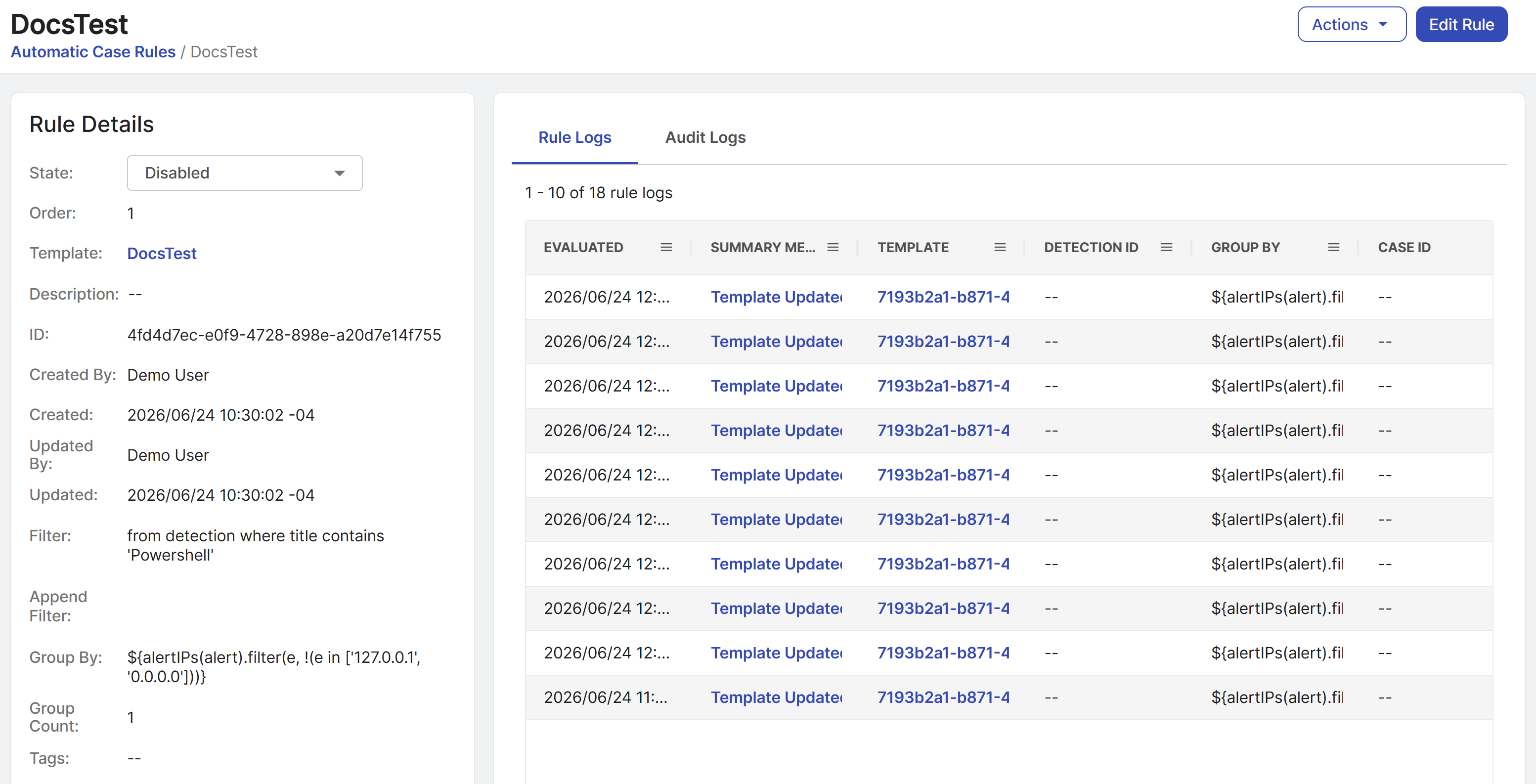
To see the details of a configured rule, click the rule title in the table on the Automatic Cases page. The details page shows the rule configuration with tables of rule logs and audit logs related to the rule.
Edit rules
To edit a rule, click the Pencil icon in the Actions column of the table on the Automatic Cases page, or click Edit Rule on a rule details page.
Tip
You can also change a rule's status from the table on the Automatic Cases page and from a rule details page.
Export and import rules
- To export a rule, click the Export icon in the Actions column. The rule configuration exports in YAML format.
- To import a rule configuration in YAML format, click + Import above the table and choose the file.
Delete rules
To delete a configured rule, click the Trash icon in the Actions column and confirm your action.
Rule logs
The Rule Logs tab of the Automatic Cases page shows logs of any changes to automatic case rules and case templates, as well as actions taken on detections by automatic cases.
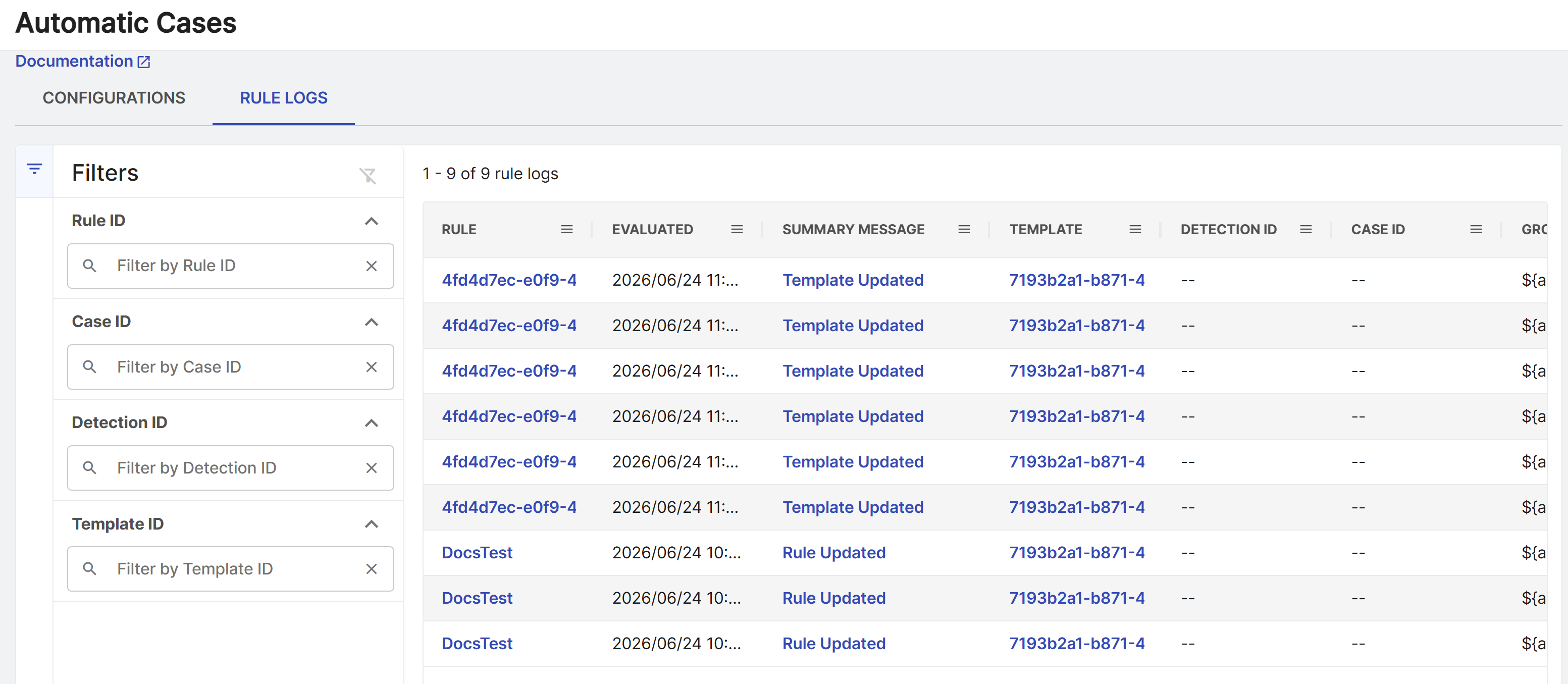
Click the link in the Summary Message column to see further details of the action and a JSON view of associated metadata.