Case email alerts
By default, Sophos Fusion sends case email alerts in these scenarios:
- To all administrators when a case is created.
- To the old and new assignees when a case is assigned.
You can customize case email alerts by creating custom rules in Global Settings. For more information, see Configure email alerts.
If you created a custom rule before migrating to Sophos XDR Powered by Secureworks, case email alerts continue to follow the default behavior. You don't need to add case alerts to your existing custom rule.
Customize case email alerts
You can create custom rules that specify which users receive case email alerts and under which conditions.
Warning
Creating a custom notification rule disables the default behavior of sending email alerts to all administrators. If you still want all administrators to receive certain alerts, create additional rules to support that behavior.
To set a custom rule, do as follows:
- Click the General Settings icon .
-
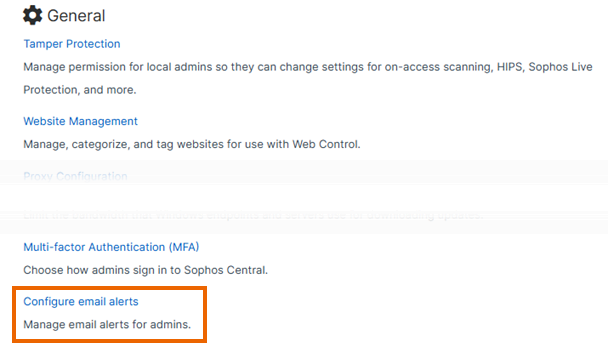
Under Platform > Notification Settings, click Configure email alerts.
-
On the Configure Notifications page, select the Custom rules tab.
-
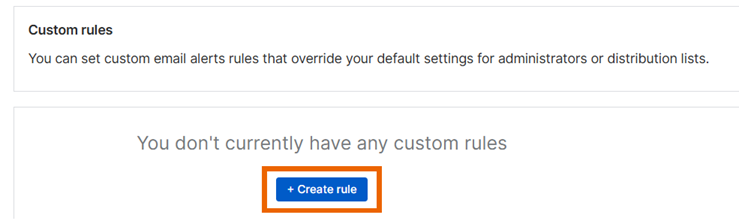
On the Custom rules tab, click + Create new rule.
-
On the Create Notification Rule page, the Role section is open by default. Select the administrator role that the rule applies to.
- Click Next.
-
In Administrators & Distribution lists, all administrators with the role you selected are shown. Select the administrators the rule applies to.
You can also add distribution lists. Use this option to add the email address of your distribution lists, ticketing system, or people you want to notify but who don't have access to Sophos Fusion Admin.
-
Click Next.
- In Devices, leave the default All computers and All servers selected. This setting doesn't affect case email alerts.
- Click Next.
-
In Alert Types, select the types of alert to send.
To customize case email alerts, do as follows:
- In Set by severity, leave all alert severities selected.
- In Set by product, select XDR. Deselect other options unless you want the same administrators to receive email alerts about other products.
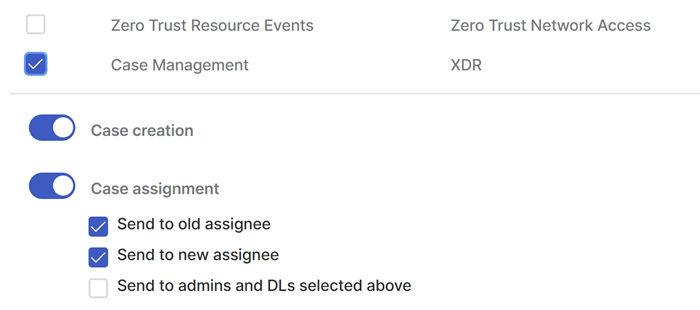
- In Set by category, select Case Management. Deselect other options unless you want the same administrators to receive other alert types.
-
By default, Case creation and Case assignment are selected. Select the case alert types you want to send.
-
Click Next.
-
In Name and Description, name the rule and add a description.
- Click Save.
The new rule appears in the Custom rules list and begins controlling case email notifications based on the settings you selected.