Create and add to cases
You can create new cases from detections and events or create empty cases to add detections and events to later.
Sophos MDR requirements
For MDR customers, Investigation and Other case types require a Managed By value that determines who will manage the case. You can't change Managed By after you set it. For details, see Cases in Sophos MDR.
Create cases from individual detections or events
To create a new case from an individual detection or event, do as follows:
-
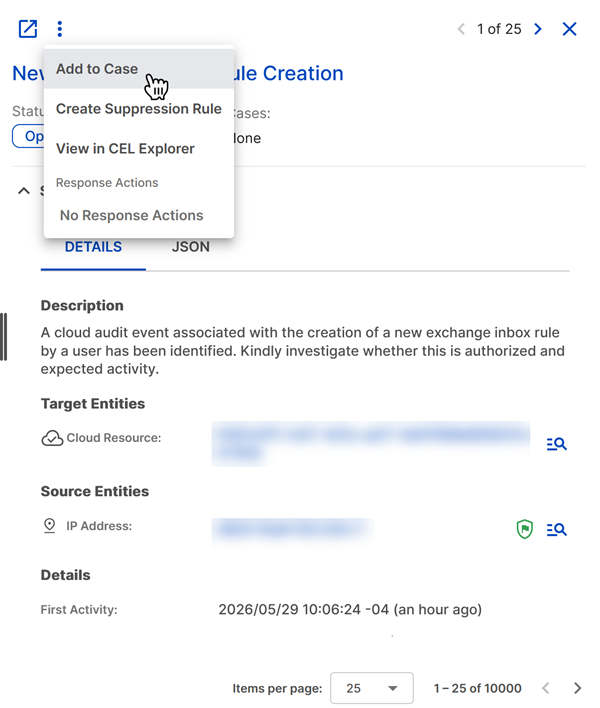
When viewing a detection or event, click the three dots or Actions menu, then choose Add to Case.
-
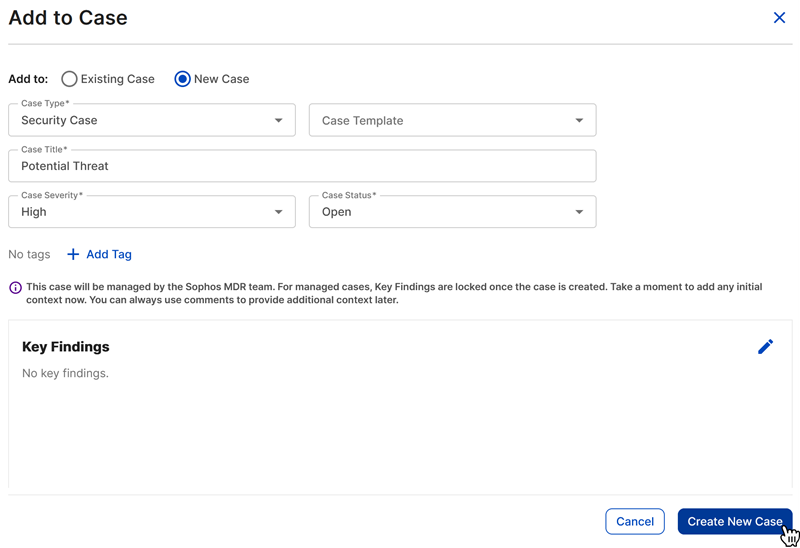
Select New Case.
-
Choose a Case Type and optional template, enter a case title, and choose a Case Severity and Case Status.
Sophos MDR customers must also choose a Managed By value when creating Investigation and Other case types.
-
Click the Pencil icon in the Key Findings section to add initial findings and context.
-
Click Create New Case.
Create cases from multiple detections or events
To create a new case from multiple detections or events, such as on the Detections page or in search results, do as follows:
-
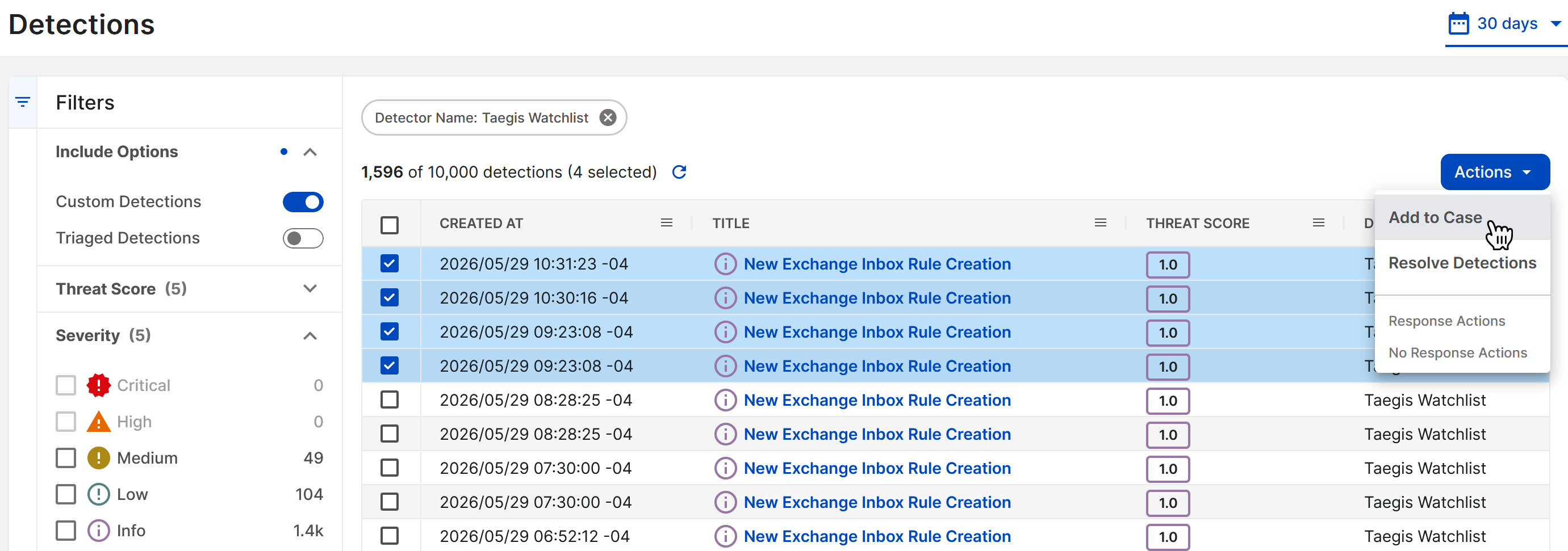
Select the checkboxes from a table of detections or events.
Note
You can add a maximum of 50,000 detections to a case.
-
Click Actions > Add to Case.
-
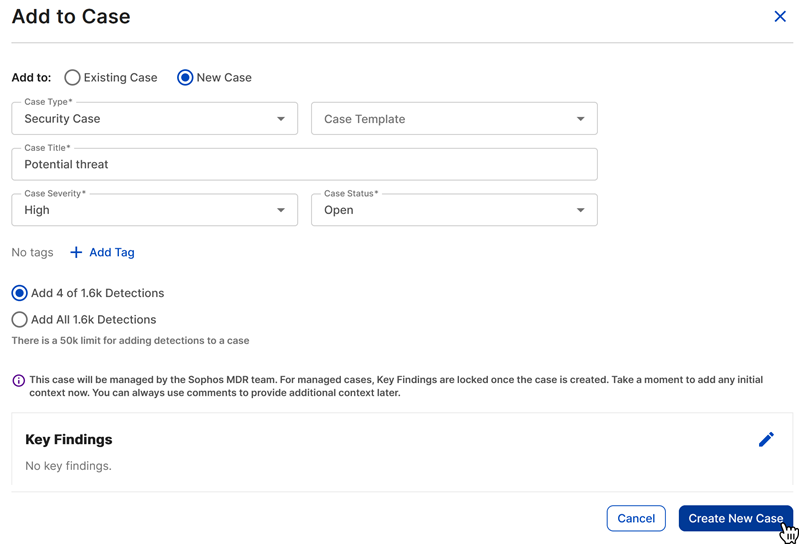
Select New Case.
-
Choose a Case Type and optional template, enter a case title, and choose a Case Severity and Case Status.
Sophos MDR customers must also choose a Managed By value when creating Investigation and Other case types.
-
If adding detections, choose to add just the detections you selected or to add all detections from the table.
-
Click the Pencil icon in the Key Findings section to add initial findings and context.
-
Click Create New Case.
Note
Due to processing time, it may take a few minutes for the evidence to be visible in the case.
Create new empty cases
To create a new empty case to add to later, do as follows:
- Go to Security Operations > Cases.
-
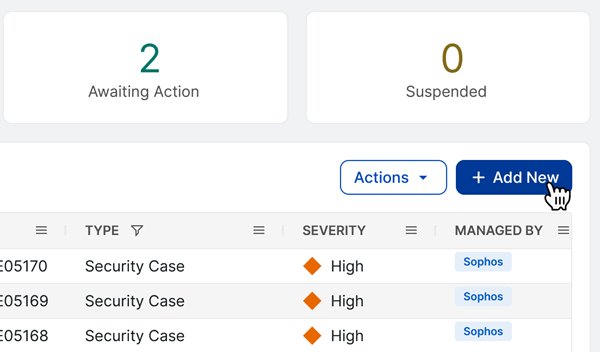
On the Cases page, click + Add New above the table.
-
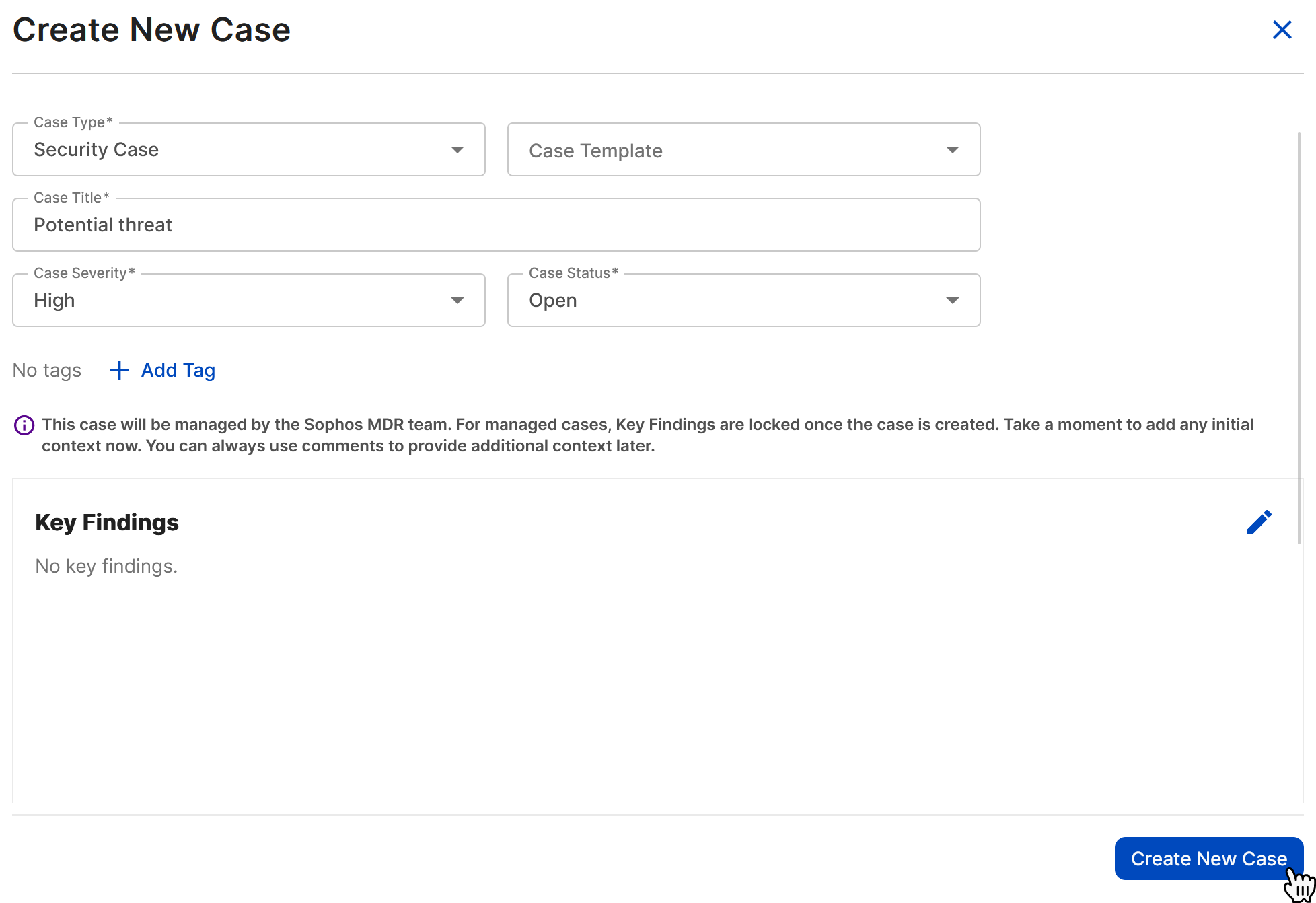
Choose a Case Type and optional template, enter a case title, and choose a Case Severity and Case Status.
Sophos MDR customers must also choose a Managed By value when creating Investigation and Other case types.
-
Click the Pencil icon in the Key Findings section to add initial findings and context.
-
Click Submit.
Add individual detections or events to an existing case
To add an individual detection or event to an existing case, do as follows:
- When viewing a detection or event, click the three dots or Actions menu, then choose Add to Case.
-
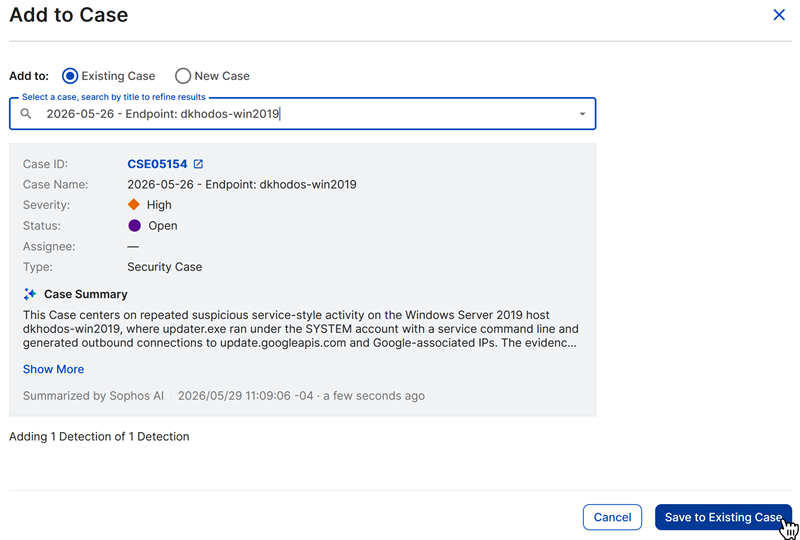
Select Existing Case and then click the menu, search for a case, and select it.
-
Click Save to Existing Case.
Add multiple detections or events to an existing case
To add multiple detections or events to an existing case at once, such as on the Detections page or in search results, do as follows:
- Select the checkboxes from a table of detections or events.
- Click Actions > Add to Case.
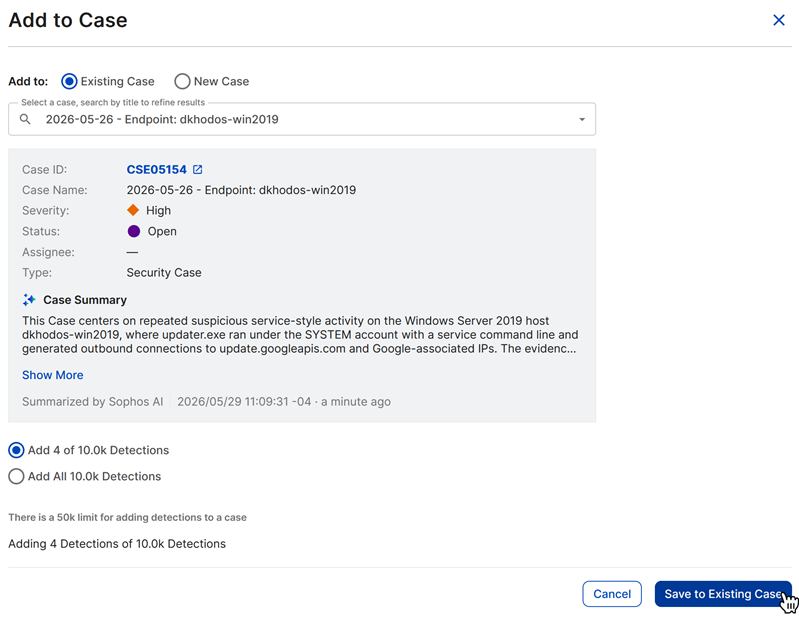
- Select Existing Case and then click the menu, search for a case, and select it.
-
If adding detections, choose to add just the detections you selected or to add all detections from the table.
-
Click Save to Existing Case.
Note
Due to processing time, it may take a few minutes for the evidence to appear in the case.