Templates
You can create case templates for use in manual and automatic cases that populate a case's status, assignee, severity, type, title, and Key Findings.
Create case templates
To create a new case template, do as follows:
-
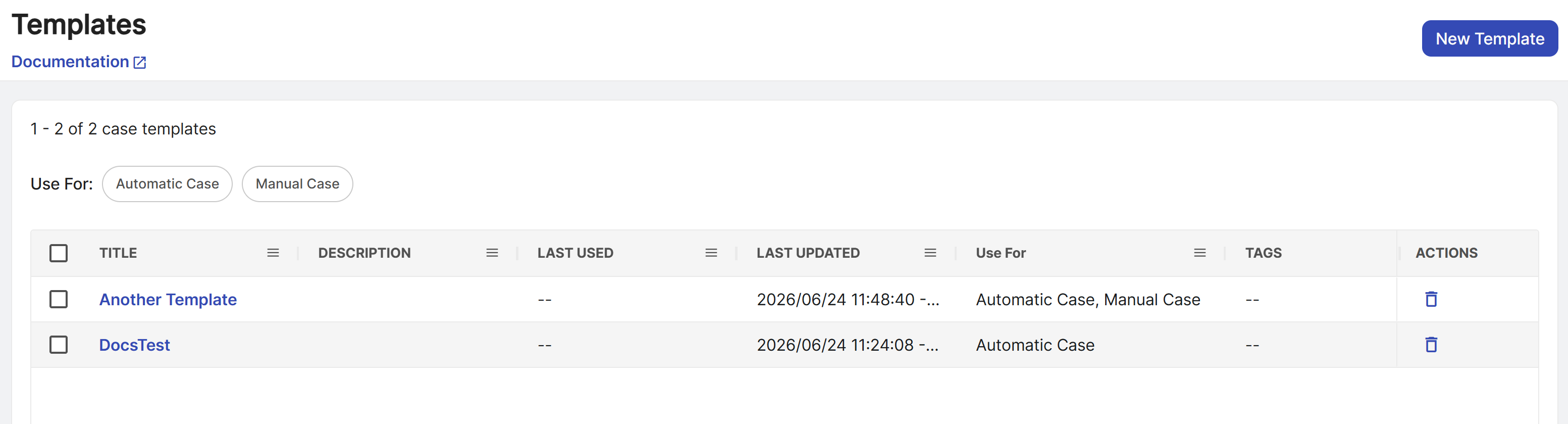
In Sophos Fusion, go to Security Operations > Cases > Templates.
-
Click New Template.
-
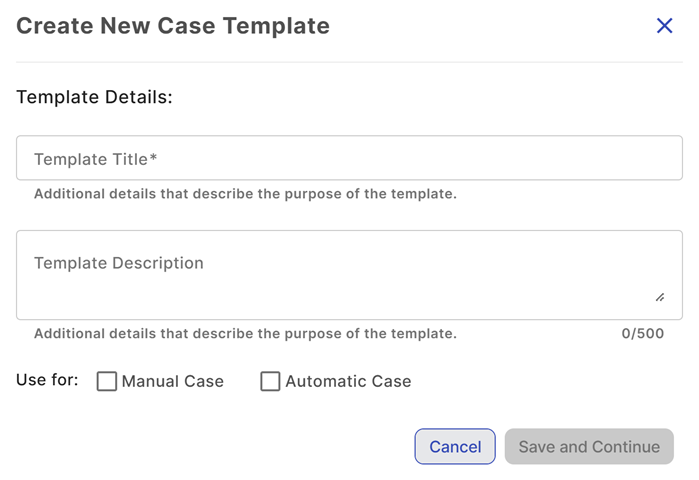
In Create New Case Template, enter a template title and an optional description to help you and others using the template know the template's purpose.
- Select the case types the template can be used for.
- Click Save and Continue. The template is created and added to the table.
- Follow the steps in the next section to add values, edit the case title and Key Findings, and add tags.
Edit case templates
To edit a case template, do as follows:
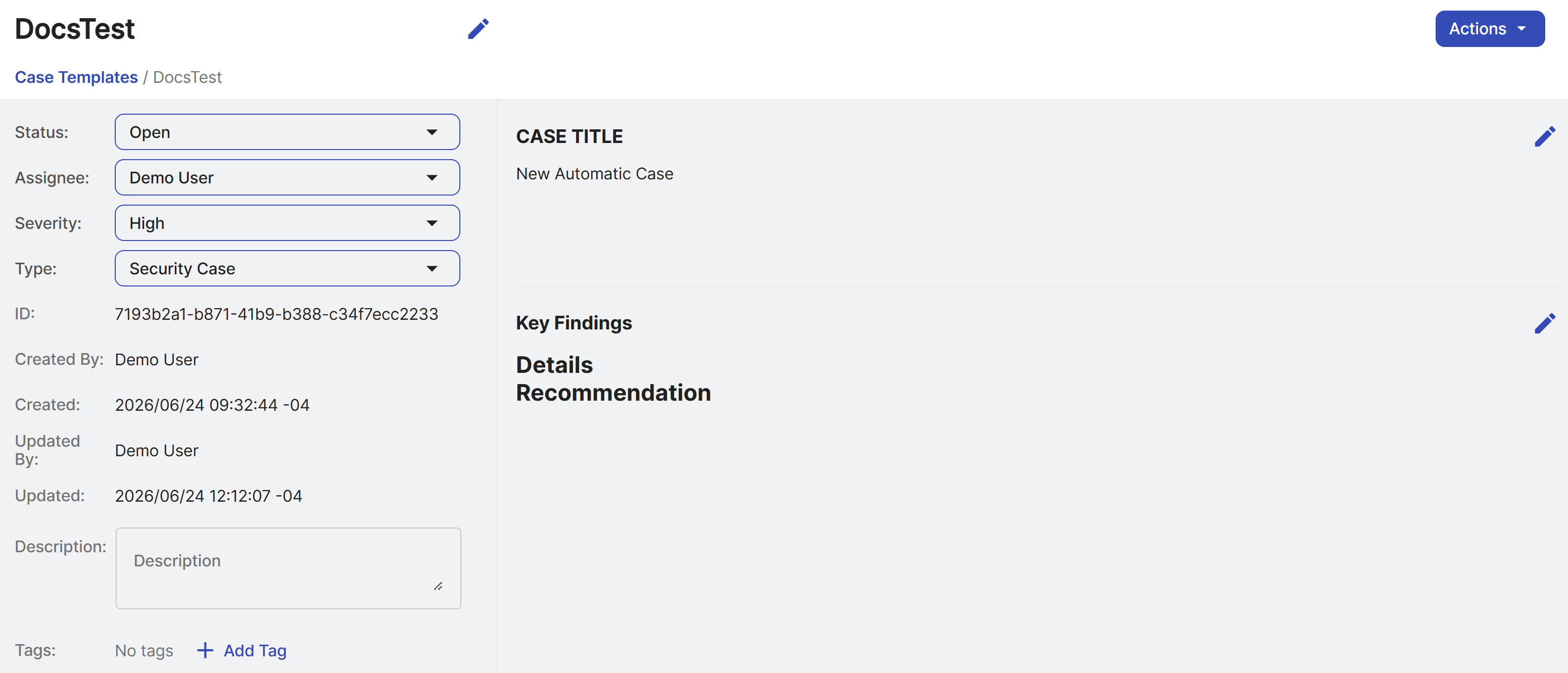
- On the Templates page, click the link in the Title column to see and edit the template details.
- In the Case Title section, click the Pencil icon and enter the title that will be assigned to cases created from this template, then click Save.
- In the Key Findings section, click the Pencil icon and enter the content that will be added to the Key Findings of cases created from this template, then click Save.
- Select the Status, Assignee, Severity, and Type for cases created from this template. For details, see Cases.
-
(Optional) Add one or more tags to organize the template.
Note
You can set the assignee to the tenant or a registered tenant user only.
Delete case templates
To delete a case template, click the Trash icon in the Actions column of the Templates table, or click Actions > Delete Template on a template details page.