Cases
While you examine detections and events in Sophos XDR, use cases to gather related information together and share it with your team. Other users in your tenant can see and work on cases by leaving comments, adding related data, changing the case status, and more.
Sophos MDR cases
If you use Sophos MDR, some case types, statuses, fields, and actions depend on who manages the case. The Managed By value shows whether your organization or Sophos MDR manages it. For more details, see:
See cases
To see your cases, go to Security Operations > Cases.
Tip
You can also see cases on the Total cases widget on the XDR Overview page.
Filter cases
By default, the table shows all unarchived cases created in the past year. You can filter the Cases table with the following controls:
-
Click a status card above the table to filter the table by that status.

- Total: All cases except for those that are archived.
- Open: Cases with an Open status.
- Active: Cases with an Active status.
- Awaiting Action: Cases with an Awaiting Action status.
- Suspended: Cases with a Suspended status.
Sophos MDR
For MDR cases, the status cards and available status values are different. See Case status and verdict.
-
Filter matching cases using the collapsible menu on the left side of the table. The filters only affect the table results. They do not affect the counts shown in the status cards.
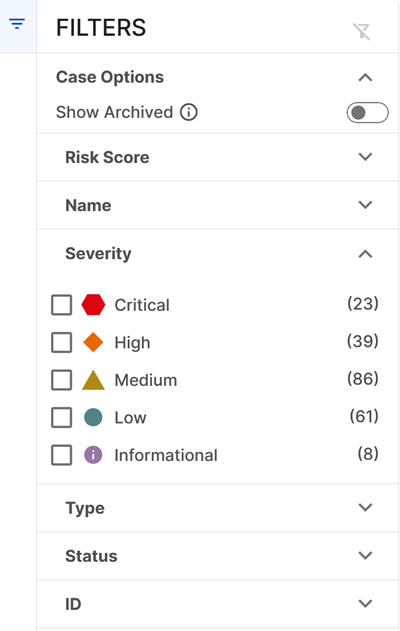
- Click the Filter icon to open or close the filter menu. This choice is saved when you leave the page.
- When you select filters, the table and the count of results update to reflect your filters.
- Click the Reset Filter Selection icon at the top right of the filter menu to clear all filters at once.
-
Click the Show Archived filter to show only archived cases.
- Click the Menu icon in a table column header to manage, add, and remove columns.
Tip
Hover over a case name in the table to show the full case name.
See case details
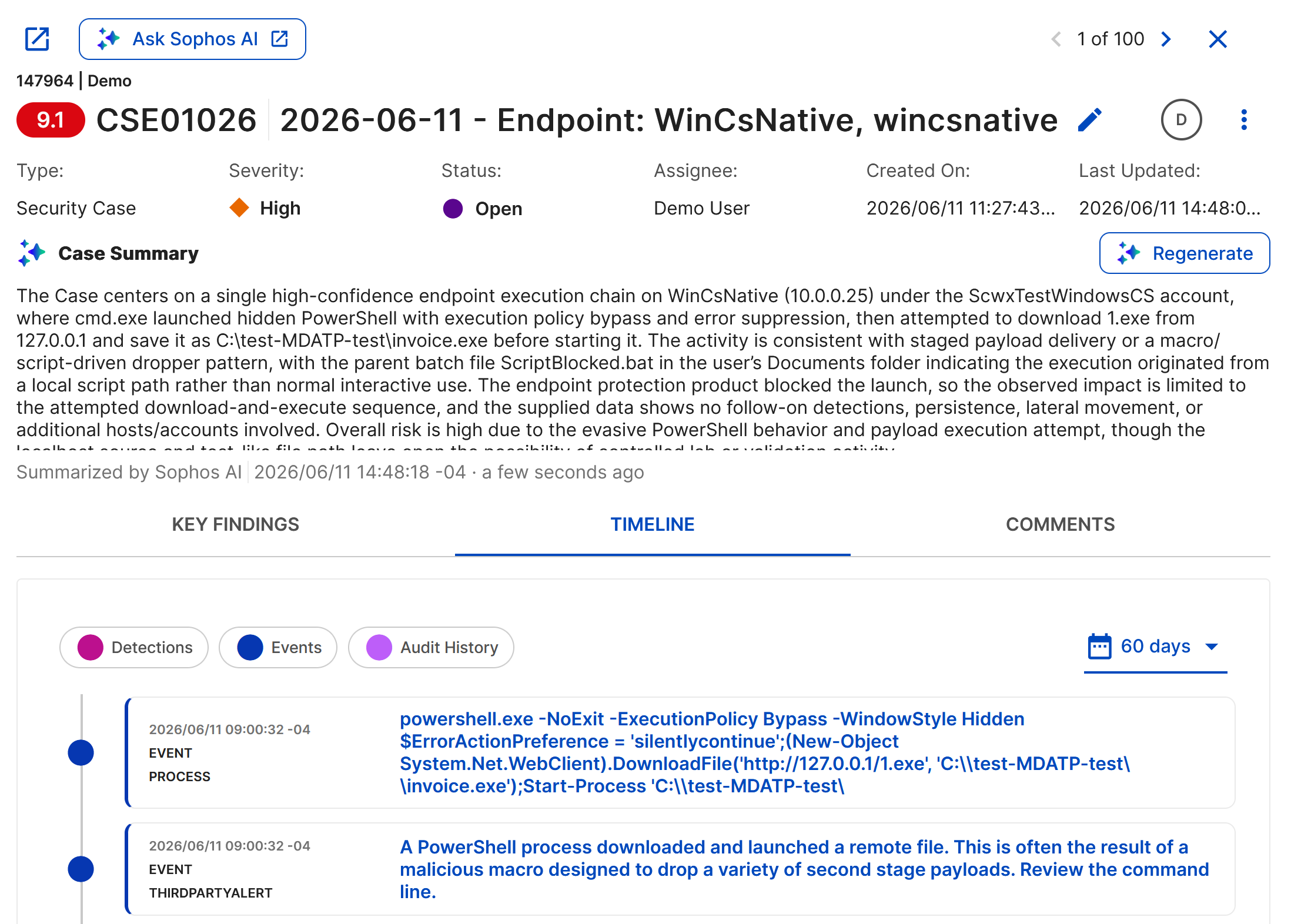
Click a case name in the table to open a slide-out that shows a summary view of key information, including the case header, Case Summary, Key Findings, Timeline, and Comments.
Note
The summary view lets you see comments, but you can only add comments on the full case details page. For details, see Add comments to a case.
Click the New Tab icon in the slide-out to open the full case details page and see all details.
Ask Sophos AI
You can click Ask Sophos AI above or to the right of the case header to use the Sophos AI assistant to investigate the case.
For help with using the assistant, see AI assistant.
Case header
At the top of the case details, you can see the case risk score to the left of the case name. For details, see Case risk score.
To the right of the risk score, you can see the ID, which is the unique identifier of the case, and the case name. Click the Edit icon to the right of the name to rename the case.
Below the case name, you can see the following information:
- Type: Category of the case. See XDR case type for details.
- Severity: Severity of the case. See Case severity for details.
- Status: Status of the case. If the case is closed, the Verdict also shows. See Case status and verdict for details.
- Assignee: Assignee of the case.
- Created On: Date and time the case was created.
- Last Updated: Date and time the case was most recently updated.
- Tags: Tags added to the case.

Sophos MDR
MDR cases also show Managed By, which identifies whether your organization or Sophos MDR manages the case. For details on MDR case behavior, see Cases in Sophos MDR.
Case details have the following tabs: Overview, Evidence, Response, History, and Enrichment.
Tip
Hover over the Evidence and History tabs to show a drop-down list of sub-tabs and go directly to any section.
Overview tab
The Overview tab shows the following sections.
Case Summary
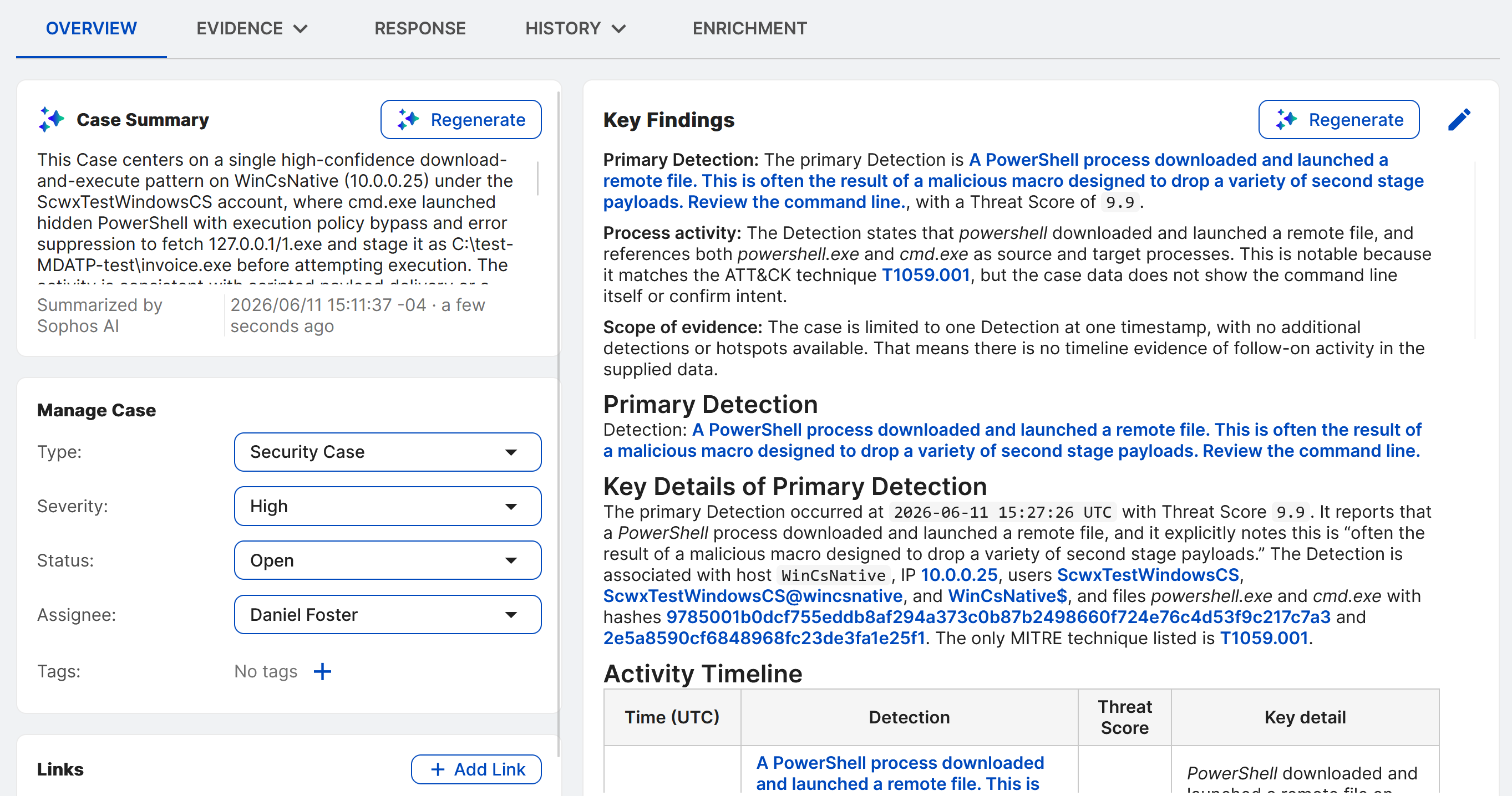
The Case Summary section uses Sophos AI to generate a natural language summary based on available case data. The summary is automatically generated when the case is first created, but does not automatically refresh when the case is updated.
To update the summary to reflect any changes made to the case since the summary was last generated, click Regenerate at the top of the section.
The date and time the summary was last generated shows at the bottom of the section.
Manage Case
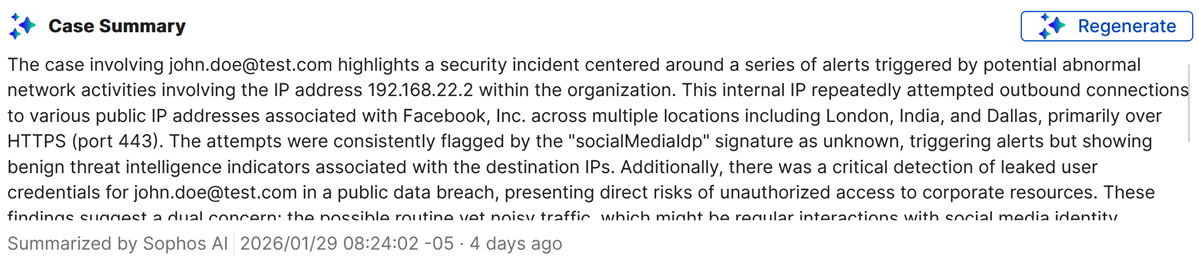
In the Manage Case section, you can see the following information about the case:
- Type: Category of the case. See XDR case type for details.
- Severity: Indication of the importance and potential impact of the activity to your organization. See Case severity for details.
- Status: Status of the case. See Case status and verdict for details.
- Assignee: Assignee of the case. See Reassign cases for details.
- Verdict: Verdict selected when the case was closed, if applicable. See Close cases for details.
- Tags: Tags added to the case.
Sophos MDR
For MDR customers, the Manage Case section is locked until Managed By is set. For details on MDR case behavior, see Cases in Sophos MDR. For details on setting who manages a case, see Set who manages an MDR case
XDR case type
Use the case type to categorize the cases you're working on.
MDR cases use a different set of case types. See MDR case type behavior.
| Type | Description |
|---|---|
| Security Case | The default type for cases identified via detections. |
| Informational | Used only to communicate information. Cases of this type aren't indicative of a security-related incident. |
| Incident Response | Used to collect evidence and case details related to incident response engagements. |
| Threat Hunt | Used for examining unidentified, hidden threats. |
Case severity
When you create a case, use the case severity as described in the following table to highlight the importance and potential impact of the related activity to your organization, as well as to determine the order in which each case should be addressed. You can also alter the severity as you work a case.
Cases created by SophosLabs use rules that define the severity based on the related detections.
| Severity | Description |
|---|---|
| Critical | Activity that poses an imminent threat and needs immediate attention. Examples include a ransomware outbreak, a hands-on-keyboard attack, data exfiltration, credential dumping, internal domain and network enumeration, and persistence creation and execution. |
| High | Potentially significant activity that needs prompt attention. Examples include host infection, stolen credentials, and successful exploitation. |
| Medium | Activity that may escalate impact, such as login failures and vulnerability scanning. |
| Low | Activity unlikely to cause impact, such as instant messaging, adware, and port scanning. |
| Informational | Informational activity with little to no expected impact. |
Case status and verdict
Use the case status to track your team's workflow as the case is triaged, worked on, and resolved. When you close a case, choose the most appropriate verdict.
Sophos MDR
For details on case statuses and verdicts available to MDR customers, see Case status and verdict.
| Status | Description |
|---|---|
| Open | The case has been created. |
| Active | The case is being worked. |
| Awaiting Action | Additional action is needed for the case to continue. |
| Suspended | The case has been paused. |
| Closed | The case has been closed. |
| Verdict | Description |
|---|---|
| Authorized Activity | The activity is authorized or expected. The case is completed. |
| Threat Mitigated | The threat has been mitigated by a security control. The case is completed. |
| Not Vulnerable | The targeted system isn't vulnerable to the exploit, and the case doesn't constitute a security incident. The case is completed. |
| False Positive | The activity the detection indicated didn't occur, and the case is closed as a false positive. |
| Inconclusive | The activity's root cause hasn't been identified, and further activity isn't detected. The case is completed. |
| Informational | Analysis of the activity didn't lead to any notable findings. The case is completed. |
| Confirmed Security Incident | Your organization's systems or data have been compromised, or measures put in place to protect them have failed. The case is completed. |
Links
In the Links section, you can add links to other resources related to the case. Click Add Link and do as follows:
-
Choose one of the following as the Link Type:
- Sophos Case: Other Sophos cases.
- External System: External tools or systems related to the case.
- Reference: Background information or documentation.
- Threat Intel: Security intelligence or context.
- Evidence: Supporting data or files.
- Other: Any relevant link that doesn't fit a predefined category.
-
Enter the link title.
- Enter the link URL.
- Click Save.
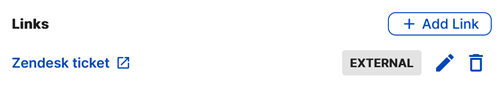
Click the Pencil icon to edit a link, or the Trash icon to delete it.
Sophos MDR
For MDR customers, when cases are merged, parent and source cases are linked here so you can navigate between them. For details, see Split and merge cases.
Key Findings
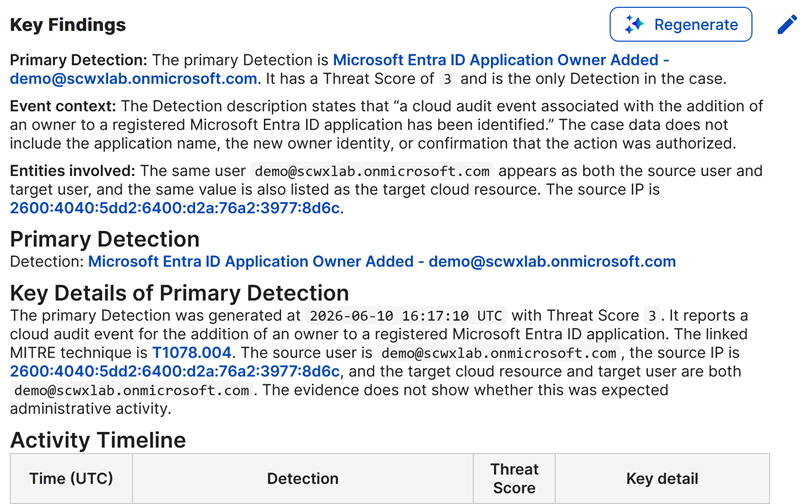
The Key Findings section lets you and your collaborators record your analysis of the case, either manually or with Sophos AI. Cases created by Sophos rules automatically have initial AI-generated Key Findings. All other cases have a blank section for you to populate.
Sophos MDR
AI-generated Key Findings are not available to MDR customers.
Click Regenerate at the top of the section to use Sophos AI to generate Key Findings or update the section to reflect changes made to the case since they were first generated. Key Findings don't automatically refresh when the case is updated.
Note
Regenerating Key Findings overwrites all existing text in the section.
To write and edit Key Findings manually, click the Pencil icon .
Tip
The Key Findings section supports Markdown formatting. For guidance, see Markdown Guide Basic Syntax.
Evidence tab
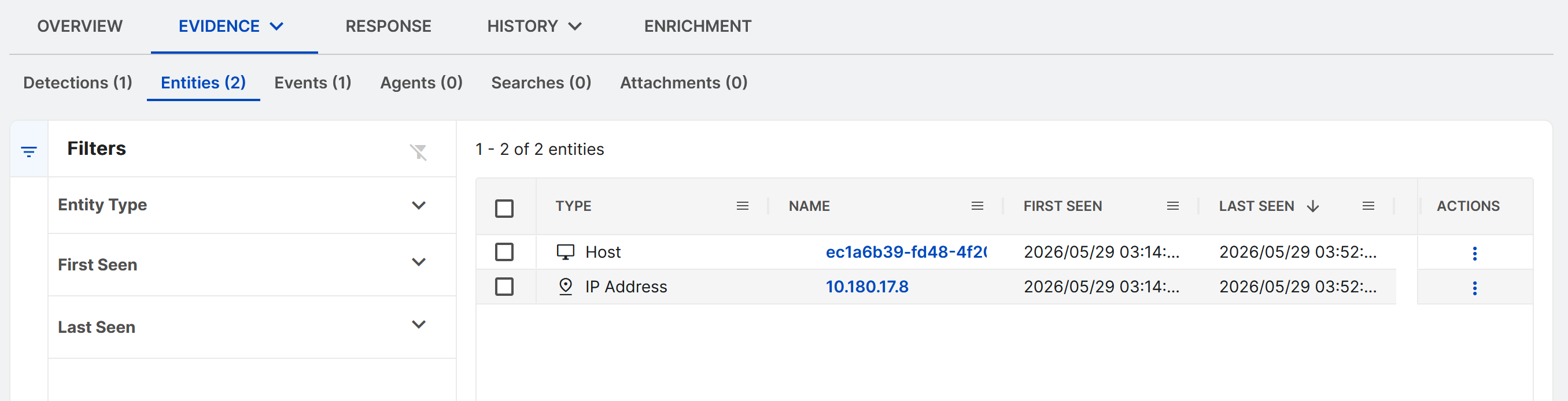
The Evidence tab shows all of the documentation added to the case in one place and includes the following sub-tabs:
- Detections: Detections added to the case. The first detections used to start the case have a Flag icon to indicate they're genesis detections.
- Entities: All entities extracted from the events that are part of the case. Entities are data that played a role in the incident, including usernames, hostnames, IP addresses, and files. For details, see Entities.
- Events: Events added to the case. The first events used to start the case have a Flag icon to indicate they're genesis events.
- Agents: Devices affected by the detections or events in the case.
- Searches: Search queries linked to the case. Click one to open the search.
- Attachments: See and manage file attachments related to the case. There's a 2GB limit per attachment.
Note
When you remove a search query from a case, it unlinks the two but doesn't delete the search query itself.
Entities
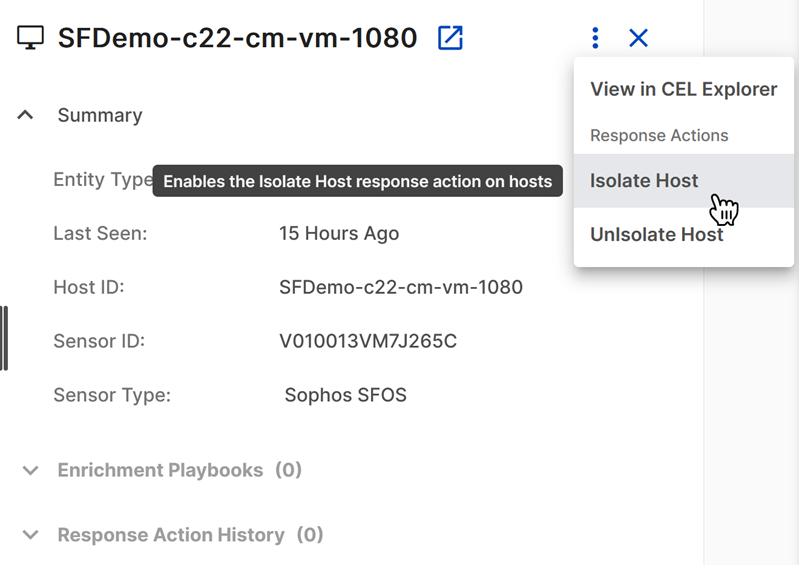
In the Entities sub-tab, click an entity name to open a slide-out with details such as when the entity was first seen and last seen, related entities, related detections, and threat intelligence, if available. Click the New Tab icon in the slide-out to open the full entity details.
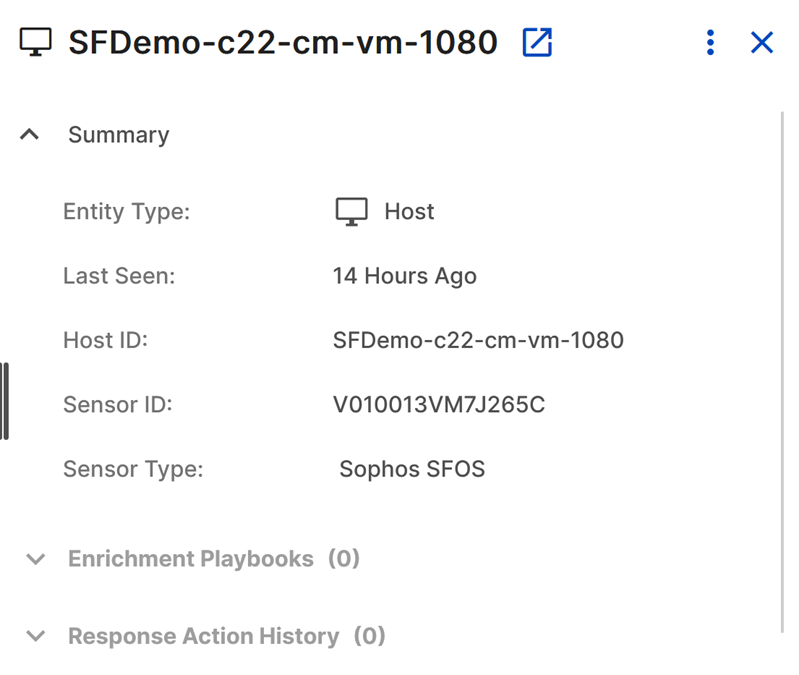
You can perform response actions on an entity if you have relevant automation actions configured. Click the three dots in the Actions column of the Entities table or in the entity details to see available actions.
Response tab
The Response tab provides a centralized place to see and perform available response actions on entities associated with the case. You can run an action on a single entity or on multiple entities at once.
Note
You can find actions that run on the case itself by clicking the three dots in the summary view or the Actions menu on the full details page.
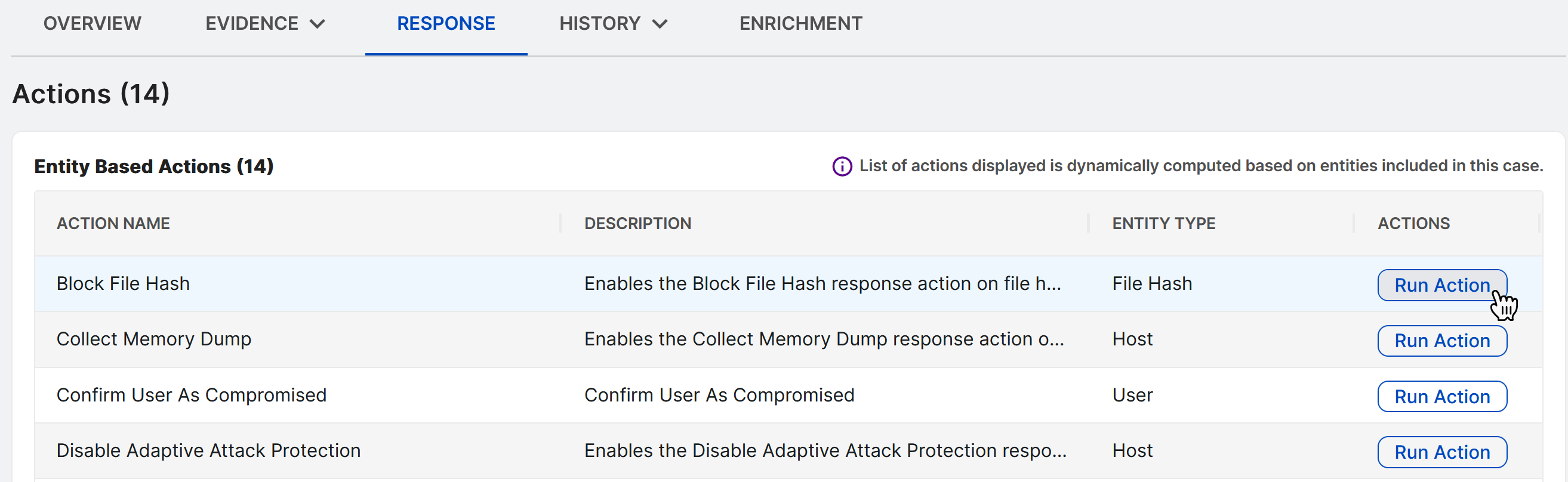
The available actions depend on the following:
- Entity types included in the case
- Product entitlements and permissions
- Response mode and authorization requirements (see MDR threat response for details)
When you click Run Action, a list of entities on which the action can be taken shows. This list excludes any entities that you have excluded in the action's configuration. For further details, see Edit conditions.
If there are response actions available for entities present in the case, perform an action as follows:
- Click Run Action for the action you wish to run.
- A slide-out appears and loads the entities on which the action can be run.
- Click the checkboxes to select the desired entities.
- Click Confirm and Execute.
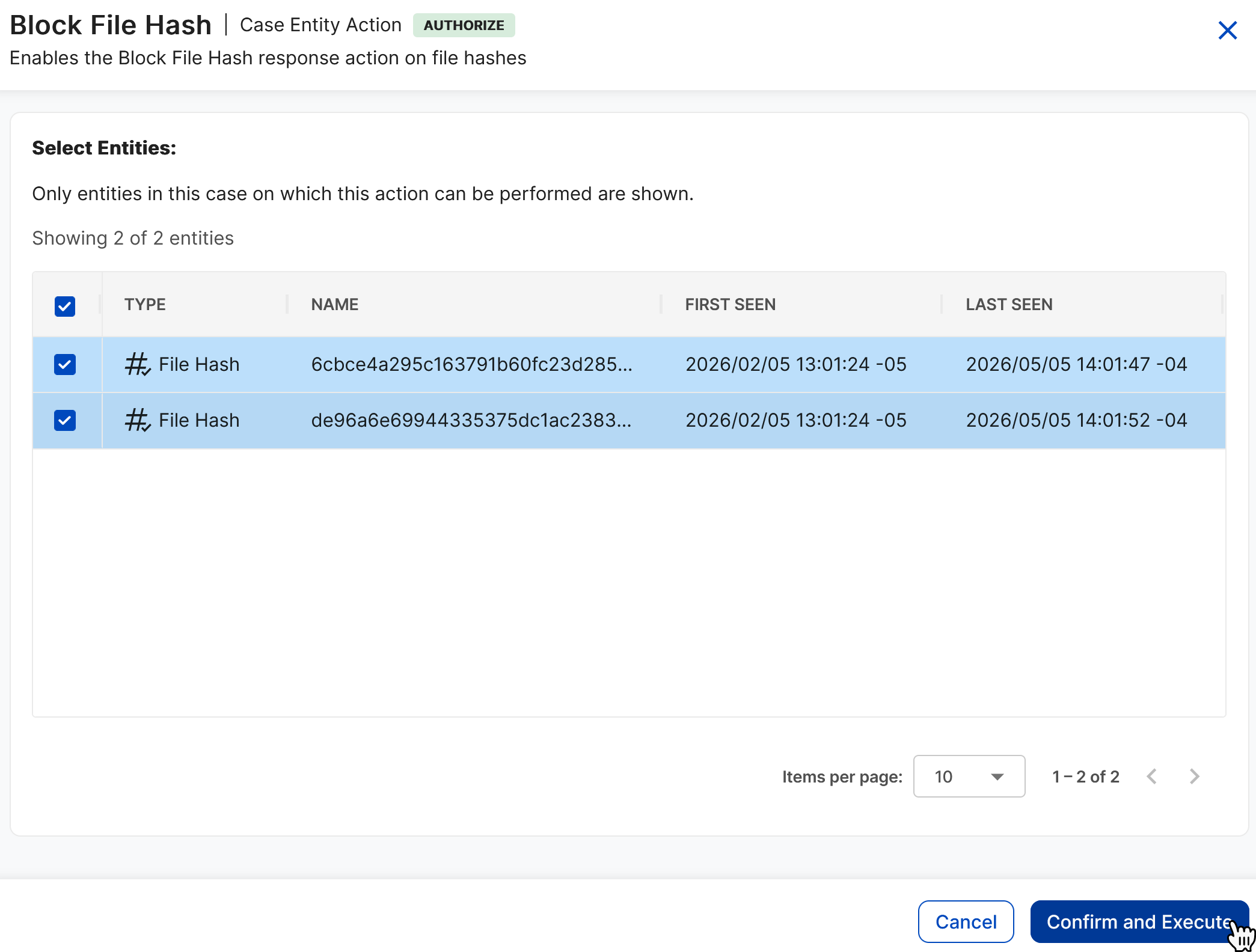
After the action runs, a comment is added to the case with details. To view the complete history of response action executions for the case and details of each execution, go to the History tab and click the Execution History sub-tab.
History tab
The History tab shows data about the case's history.
Timeline
The Timeline sub-tab shows a chronological narrative of the case's detections, events, and actions to help you visualize its scope.
- By default, the timeline shows all detections, events, and audit history activities 30 days before the case was created and 30 days after the last case update. You can adjust the date range from the top right of the timeline.
- Use the filters to include or exclude each activity type.
Audit Logs
The Audit Logs sub-tab shows a table of audit logs related to the case. You can adjust the date range at the top of the table.
Execution History
The Execution History sub-tab shows the history of automation executions for the case, if applicable. Click a timestamp to see the execution logs.
Enrichment tab
The Enrichment tab shows if any enrichment automations have executed on the case. Click an entry to see the output of the automation and its execution history.
Sidebar
The sidebar on the right side of case details has links to the following tools:
- Case Comments: Click the Comment icon to see and add comments to the case. For details, see Add comments to a case.
- Entity Graph: Click the Entity Graph icon to open a visual representation that correlates relevant data with entities involved in the case. For details, see Entity Graph.
- CyberChef: Click the CyberChef icon to open CyberChef to encrypt, encode, decode, and analyze data in Sophos XDR. For details, see CyberChef.