Detection suppression rules
You can create detection suppression rules that resolve detections as suppressed when they're created, so they don't appear by default on the Detections page.
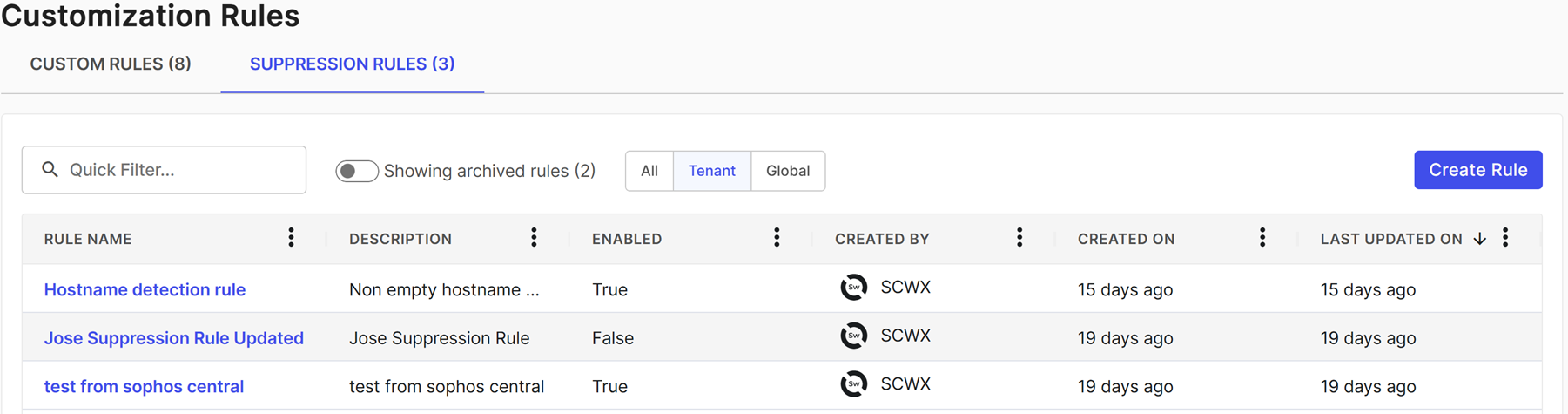
To see and create detection suppression rules, go to Security Operations > Rules and select the Suppression Rules tab.
Tenant rules suppress detections in your tenant only. Global rules are read-only and apply to all Sophos XDR tenants. Global rules are commonly created to triage detection floods until the detection rule or detector is tuned. Contact Sophos Support if you have questions about a global rule.
How detection suppression works
Suppression rules sometimes behave differently from Advanced Search. To understand why, you must understand how suppression runs are processed.
Detection suppression is applied early, while a detection is being generated, before it's finalized and published to the Detection Triage Dashboard. This is intentional: Resolving a detection as suppressed before it's published prevents it from triggering downstream automated response actions, such as automated playbooks or host isolation. If suppression ran after a detection was published, an automated workflow could fire before the detection was suppressed.
Keep the following points in mind when building rules:
- Not all fields are available to suppression rules. Some data is added to a detection after it's generated, including additional enrichment, decoded values, and summary metadata. Those fields can't be included in a suppression rule because they're not available when the rule is run. For specific examples, see Detection suppression rules FAQ.
-
Suppression and Advanced Search are evaluated by different systems. Advanced Search runs queries on finished, fully enriched detections. Suppression rules are evaluated by a separate engine against detection data as it's being generated. This has the following results:
- A query can return results in Advanced Search but match nothing in suppression, and vice versa.
- The See potential matches with current data preview uses Advanced Search, so it's a helpful guide but not a guarantee that a suppression rule will match the same detections.
- Some field names and syntax differ between the two systems. Where they differ, use the suppression syntax described on this page.
Note
Changes to a suppression rule aren't applied instantly. After you create, edit, enable, or disable a rule, allow at least 10 minutes for the change to take effect. A detection created immediately after a rule change may not be affected by it.
-
Suppression criteria must all be true together, not just true somewhere across the detection. A detection can combine matching criteria that became true separately over time. Advanced Search evaluates your query against the finished detection as a whole, so a query like
source_entities.x = a AND source_entities.y = zcan match even ifxandzbecame true at different points that were later combined into the same detection. Suppression rules require all criteria to be true together. Ifxandzwere only ever true separately, the rule won't match, even though the same query finds the detection in Advanced Search.
Note
There's currently no way to tell from a detection or its entities whether your criteria were true together or separately. If a suppression rule doesn't match a detection that Advanced Search finds, try testing one condition at a time.
Create suppression rules
There are two ways to create a detection suppression rule: from the Customization Rules page or from a detection.
Customization Rules page
Suppression rules support matching on a detection's underlying event data using Advanced Search query language. For example, suppression rules can use query language elements such as process.commandline, process, parent_image_path, and other event schemas.
Limitations to using query language for suppression rules
The following detection schema fields aren't supported at this time:
- enrichment_details
- third_party_details: use the
thirdpartyevent schema instead - status
- case
Create a rule using query language
Use Data Lake Search first to create the query that targets the desired detections before you create the suppression rule. For details, see Data Lake Search.
- Go to Security Operations > Data Lake Search and create your search using query language.
- When you're satisfied with the results, copy the query to paste into the rule builder.
- Go to Security Operations > Rules and select the Suppression Rules tab.
- Click Create Rule above the Suppression Rules table.
-
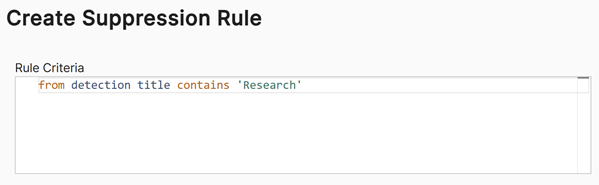
In Create Suppression Rule, paste the advanced search query that targets the desired detections in the Rule Criteria field.
Tip
Click See potential matches with current data in the right pane to test your query and verify it targets the desired detections.
-
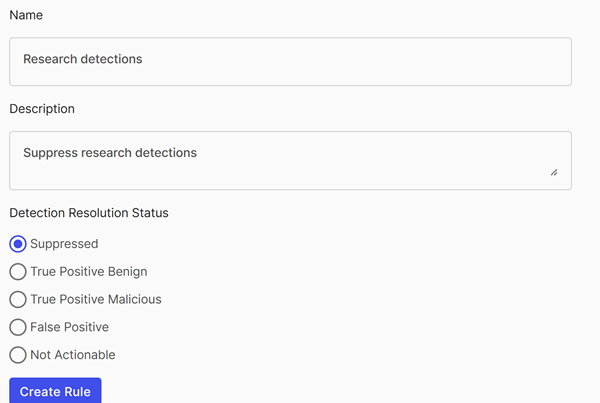
Add a Name and Description to the rule.
-
Select the resolution status to label detections that match this rule.
-
Click Create Rule.
Common query language uses
-
Command line: You can create a suppression rule for detections containing a specific command line by using the
process.commandlineschema for the rule, such as in the following example:FROM detection WHERE process.commandline CONTAINS 'your_string' -
Detection entities: There are two ways you can use detection entities:
-
Use logical types in the query to include the desired detection entity. For more information on logical types, see Logical types. For example, to suppress by hostname, use the logical type
@hostas follows:FROM detection WHERE @host = 'somehostname' -
Use the entities field directly. When viewing a detection you want to suppress, go to the JSON tab and open
entities.entities. Use the entire string to match against the desired entity. For example, you can suppress by destination IP address as follows:FROM detection WHERE entities = 'destIpAddress:128.206.10.3'
-
-
IP CIDR ranges: Detection search doesn't support CIDR ranges, so you can't build these queries using advanced search. We recommend that you build the query in advanced search without the CIDR ranges and then add the ranges when you create the suppression rule.
Detections
You can create a suppression rule from a specific detection to suppress future instances of that detection. Do as follows:
- Open the details of a detection you want to suppress. For more information, see Detection details.
-
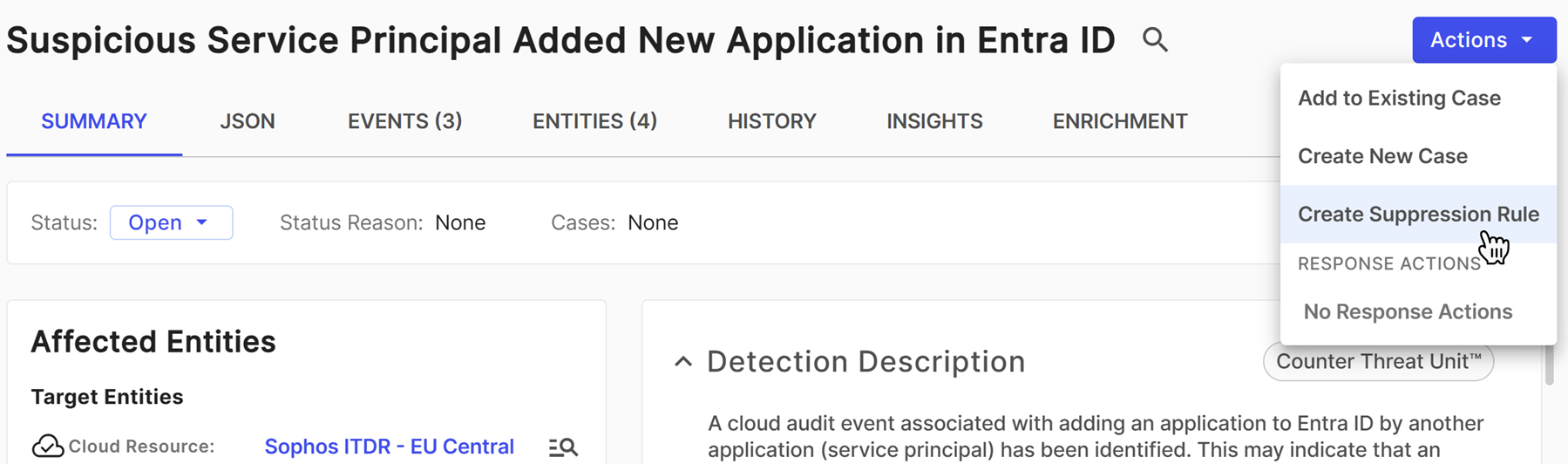
Click Actions > Create Suppression Rule.
-
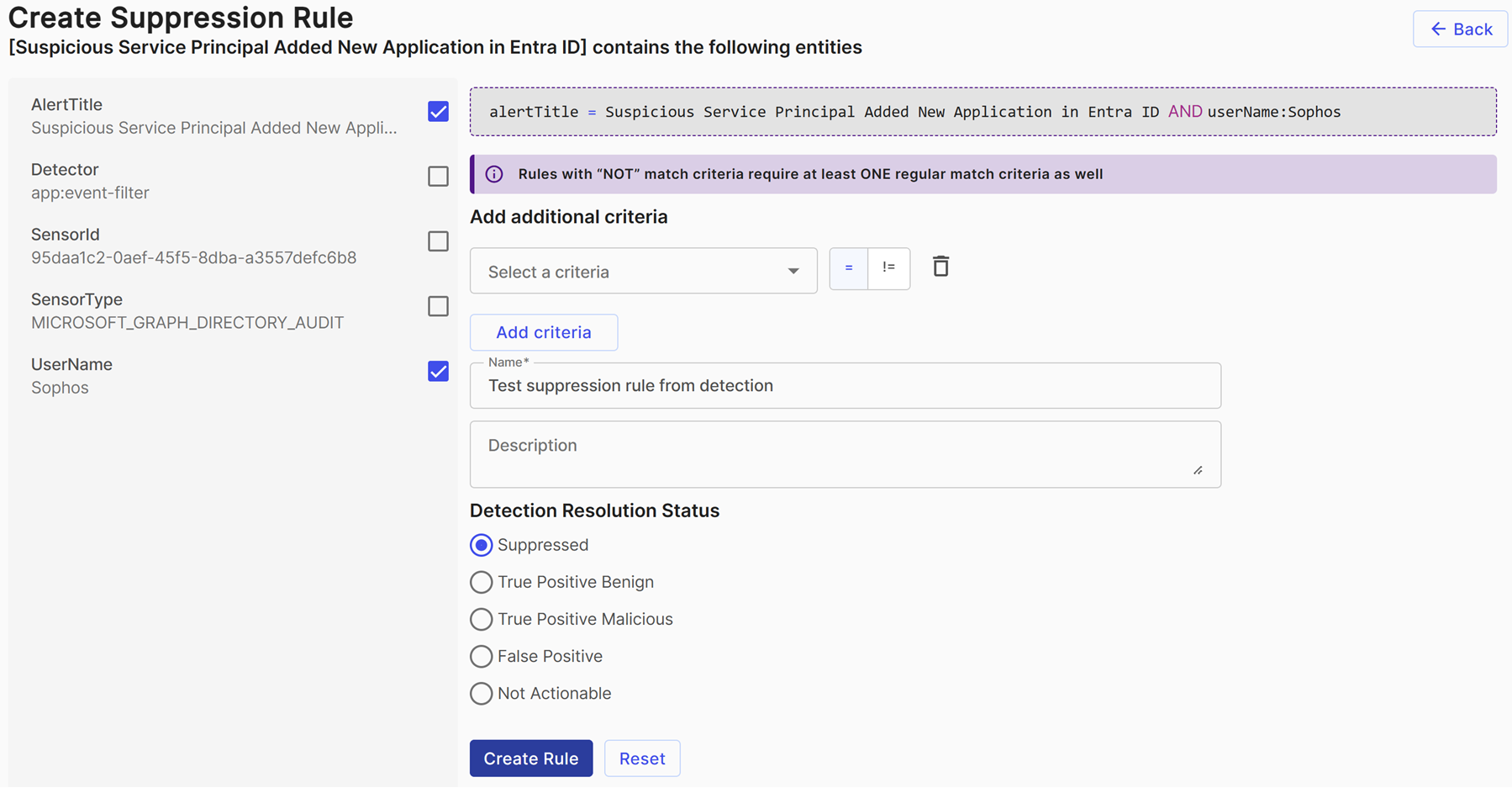
The Create Suppression Rule form populates with entities from the detection. Select one or more entities to build your rule, or manually add criteria.
- Multiple criteria are joined with an
ANDoperator. - Criteria use PCRE regular expressions to perform matching.
- The following regular expression special characters are automatically escaped when you use the prepopulated entities:
. ^ $ * + - ? ( ) [ ] { } \ | /. If you manually add criteria, you must escape these characters.
- Multiple criteria are joined with an
-
Add a Name and Description to the rule.
-
Select the resolution status you want detections that match this rule to be labeled with.
-
Click Create Rule.
Common suppression rules
The following are examples of common suppression rules:
-
Authorized scanner:
- Use the source IP address to suppress detections originating from an authorized scanner.
- If you have multiple authorized scanners, use a regular expression to include all IP addresses in one suppression rule.
-
Guest network range: Use the source IP address to suppress detections from a guest network by specifying the network range using either a regular expression that matches the entire range or IPv4 CIDR notation.
Note
Suppression rules support IPv6 addresses, but they do not support IPv6 CIDR ranges at this time. To suppress a range of IPv6 addresses, create individual rules or use a regular expression pattern. For more information, see CIDR Notation.
-
Authorized process execution on an endpoint: Use a combination of patterns to match both the endpoint and process.
-
Use one of the following to match the endpoint:
- Sensor host ID
- IP address, if the host has a static IP address and does not have an endpoint agent installed
-
Use one of the following to match the process:
- File name
- File (MD5|SHA1|SHA256|SHA512)
- Program name
- Program (MD5|SHA1|SHA256|SHA512)
- Script SHA1, which is a hash of the executed script
-
See suppression rule details and history
Select a rule name from the Suppression Rules table to open its details and history.
Suppression rule details
The Details tab of the suppression rule shows an overview of the rule and the criteria it matches.
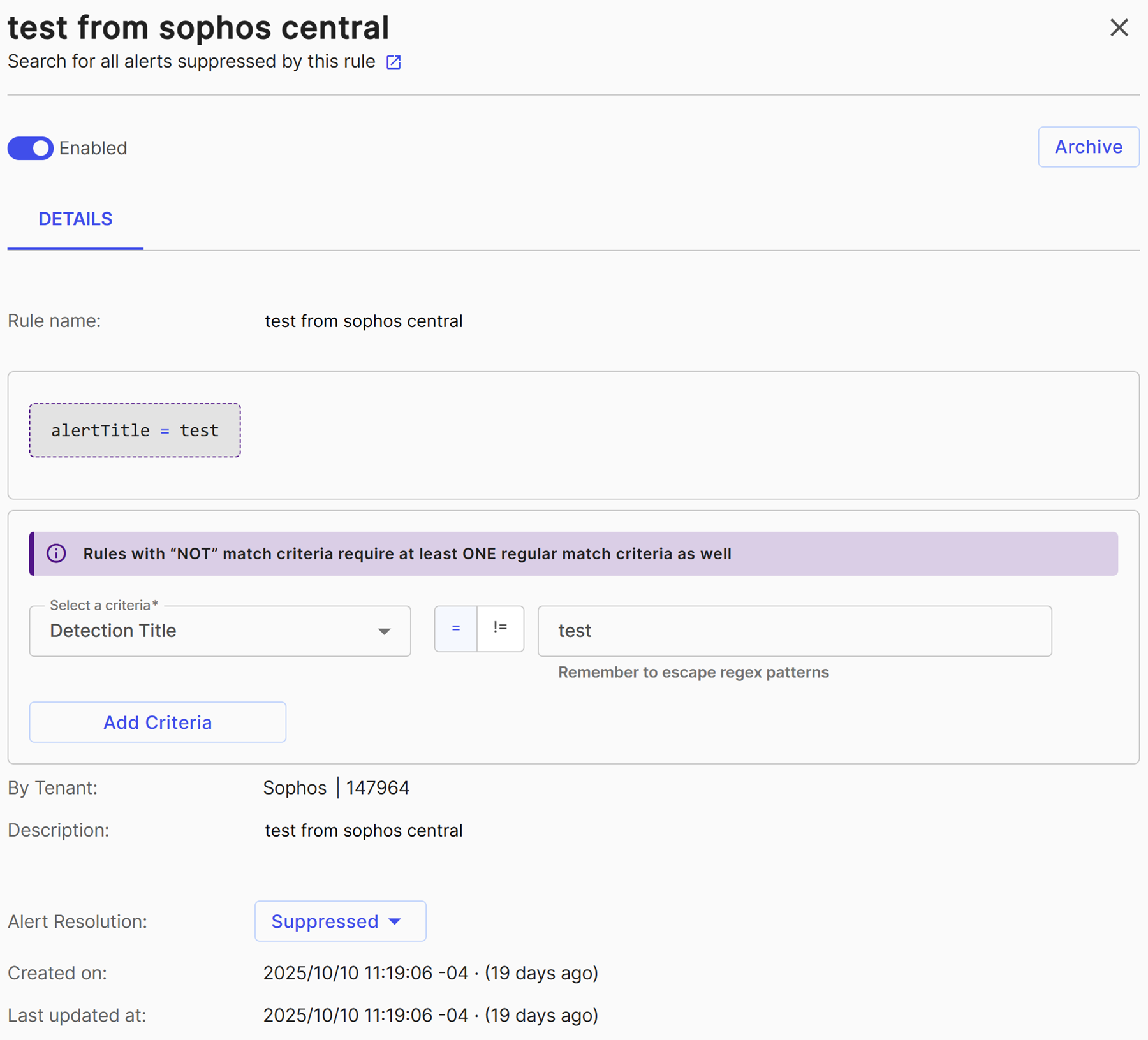
If the rule has matched and suppressed detections in the last seven days, the following shows:
- Number of hits in the last seven days
- Last hit date
- A line chart that shows the number of hits over the last seven days
If there hasn't been any activity in the last seven days, this section doesn't show.
Suppression rule history
The History tab of the suppression rule shows a changelog of edits to the rule. Choose an audit log from the list on the left to view the differences in the right pane.
Turn suppression rules on or off
Suppression rules are turned on by default when you create them. When viewing a suppression rule's details, click Enabled to turn the rule on or off.
Archive and restore suppression rules
When viewing a suppression rule's details, you can archive the rule by clicking Archive and confirming the action. Doing so turns off the rule if it was on, marks it as archived, and removes it from the default view of the Suppression Rules table.
To view archived rules, click Showing Archived Rules above the Suppression Rules table.
When viewing an archived suppression rule's details, you can restore the rule by clicking Restore. Doing so restores the rule in a disabled status and returns it to the default view of the Suppression Rules table.
See suppressed detections
Detections that were suppressed by a suppression rule include a link to the rule in the Suppression Rule field and show a Suppressed label in the detection details. You can see suppressed detections in the following ways:
-
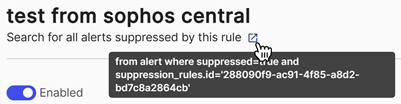
You can see the detections suppressed by a specific rule. To do so, open the rule's details and click the New Tab icon next to Search for all alerts suppressed by this rule. This opens and runs a Data Lake Search query for detections suppressed by the rule.
-
You can search for all suppressed detections with the following Data Lake Search query:
FROM detection WHERE suppressed = true -
You can see suppressed detections on the Detections page. Turn on the Triaged Detections filter to include detections that have been resolved, including those that were suppressed, in the table.
Suppressed detections can be added to new or existing cases, and you can remove or change the Suppressed label from the detection details.