Detections
Sophos XDR detectors create detections from events that are unusual or suspicious. Review the detection details to determine if the activity should be investigated further. For more information, see Detection details.
Note
Some detections are prefixed with RESEARCH to show that the detector or mechanism that generated the detection is in research mode as part of our process to verify the feasibility of the detection and the false positive rate.
See detections
You can see all detections in a filterable table on the Detections page. Go to Security Operations > Detections.
Note
The Detections table is limited to 10,000 results. Apply filters to narrow the results.
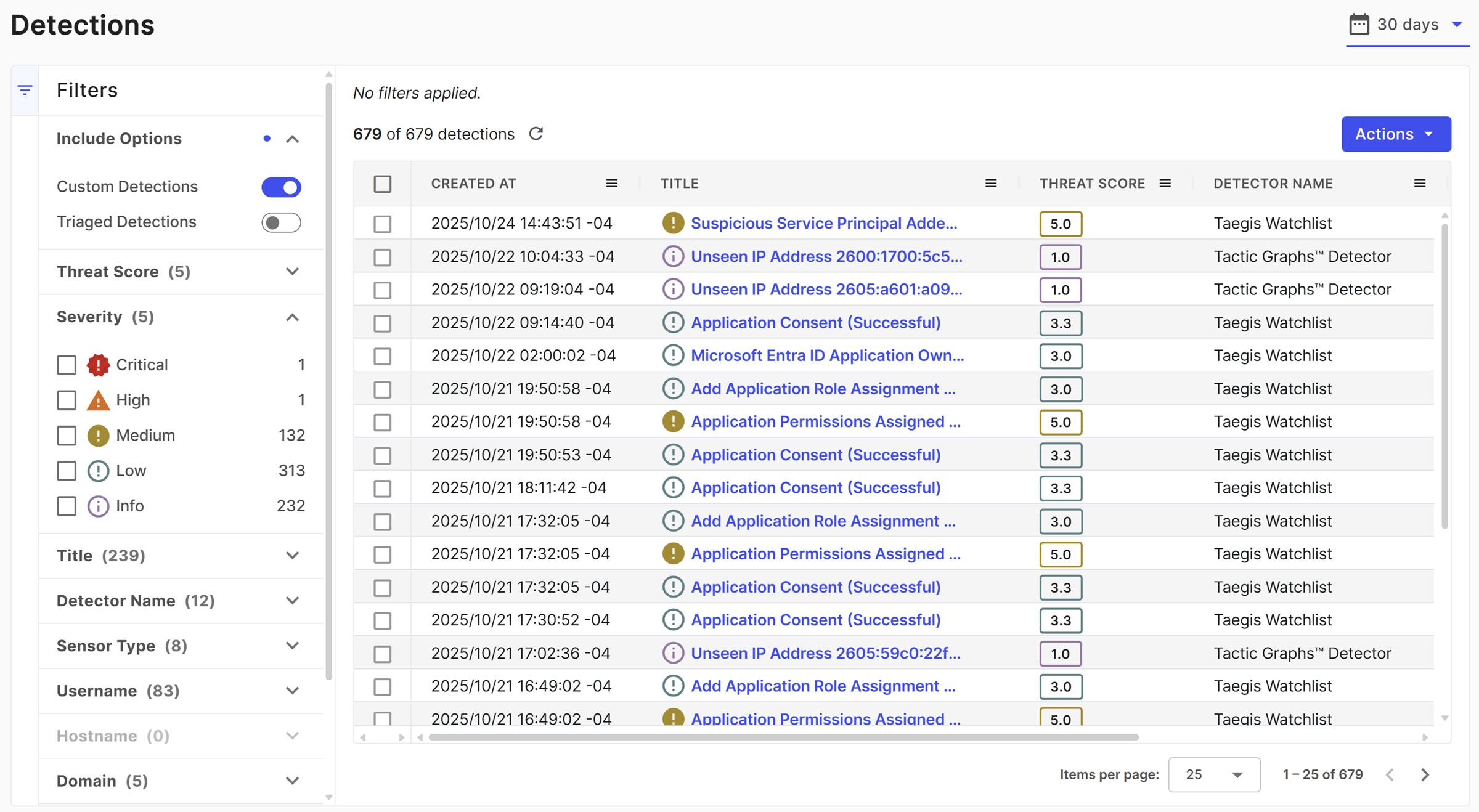
You can also see tables of detections in other areas, such as the Total detections widget on the XDR Overview page or in search results.
Select a detection from any table to see some of its essential details in a slide-out. This lets you continue browsing the table without losing your place or your filters. To see the full detection details, click the New Tab icon . For more information, see Detection details.
Tip
You can adjust the slide-out width by holding and dragging its edge.
Filter detections
You can filter the Detections table with the following controls:
-
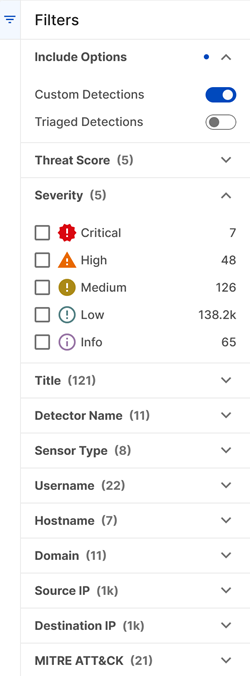
Use the collapsible filter menu on the left of the table to narrow down the list of matching detections.
Note
Filter results are aggregated to a maximum of 1,000. Adjust the time period or select additional filters to further narrow the results.
- Click the Filter icon to open or close the filter menu. The open or closed status is saved when you leave the page.
- When you select filters, the table and the count of results update to reflect your filters.
- Use Include Options filters to include or exclude custom detections and triaged detections.
-
Adjust the time range at the top of the page. The default range is 72 hours.
Detection actions
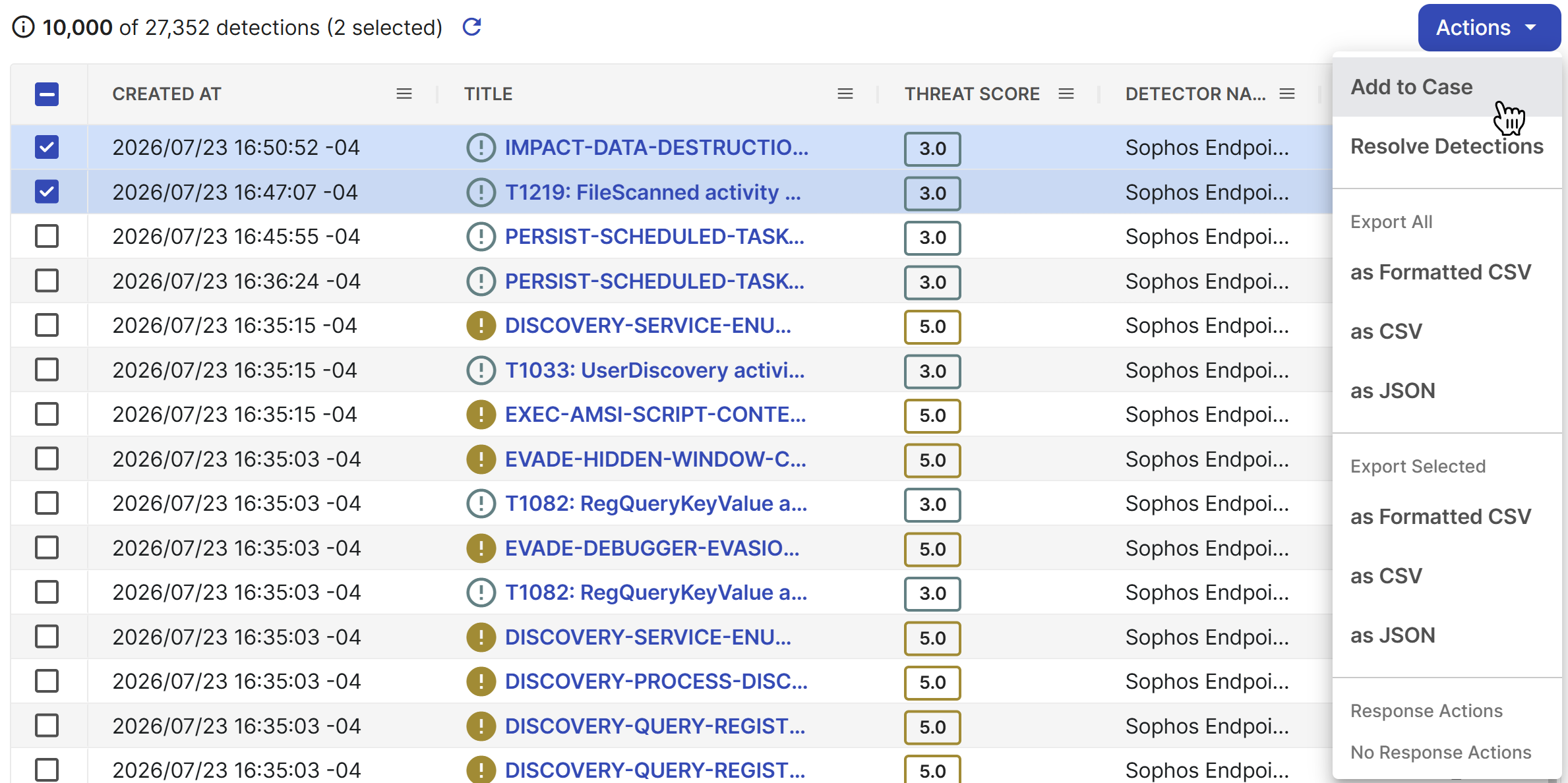
Select checkboxes in the table and click Actions to perform the following actions on the selected detections:
- Add to Case: Add the detections to a new or existing case. See Create and add to cases.
- Resolve Detections: Resolve the detections. See Resolve detections.
- Export All: Export all detections in the table to your desired format.
-
Export Selected: Export the selected detections to your desired format.
Tip
You can check the status of the export and download the file on the Data Exports page. See Data Exports for details.
-
Response Actions: Perform response actions if you have relevant automation actions configured. See Configuring actions.