Add events to cases
Create a case from an event
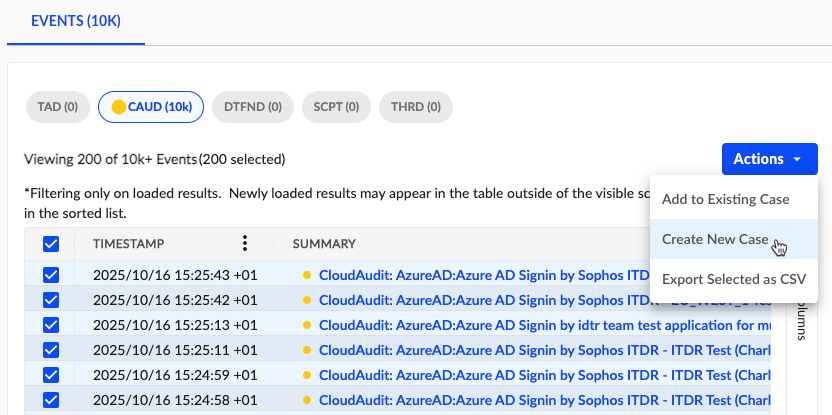
To create a new case from an event, do as follows:
- At the top right of an event details page, click Actions > Create New Case.
- Give the investigation a title and select a Priority and Case Type.
- Specify the Key Findings Template as blank or Security Investigation.
- (Optional) Add custom tags to the case.
- Click Submit.
To add multiple events to a case, do as follows:
- From a table of events, use the checkboxes to select multiple events.
- In the upper right of the table, click Actions > Create New Case.
- Give the investigation a title and select a Priority and Case Type.
- Specify the Key Findings Template as blank or Security Investigation.
- (Optional) Add custom tags to the case.
- Click Submit.
Add an event to an existing case
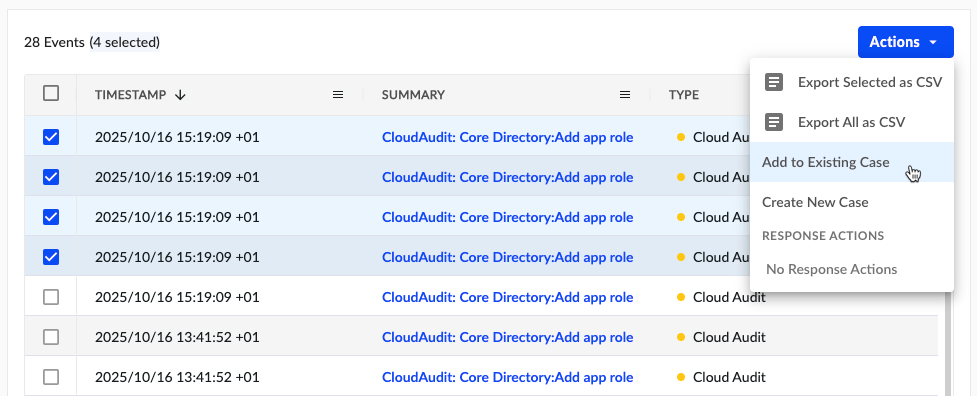
To add an event to an existing case, do as follows:
- At the top right of an event details page, click Actions > Add to Existing Case.
- Search by the title to find the existing case.
- Click Submit.
To add multiple events to an existing case, do as follows:
- From a table of events, use the checkboxes to select multiple events.
- In the upper right of the table, click Actions > Add to Existing Case.
- Search by the title to find the existing case.
- Click Submit.