Timeline view
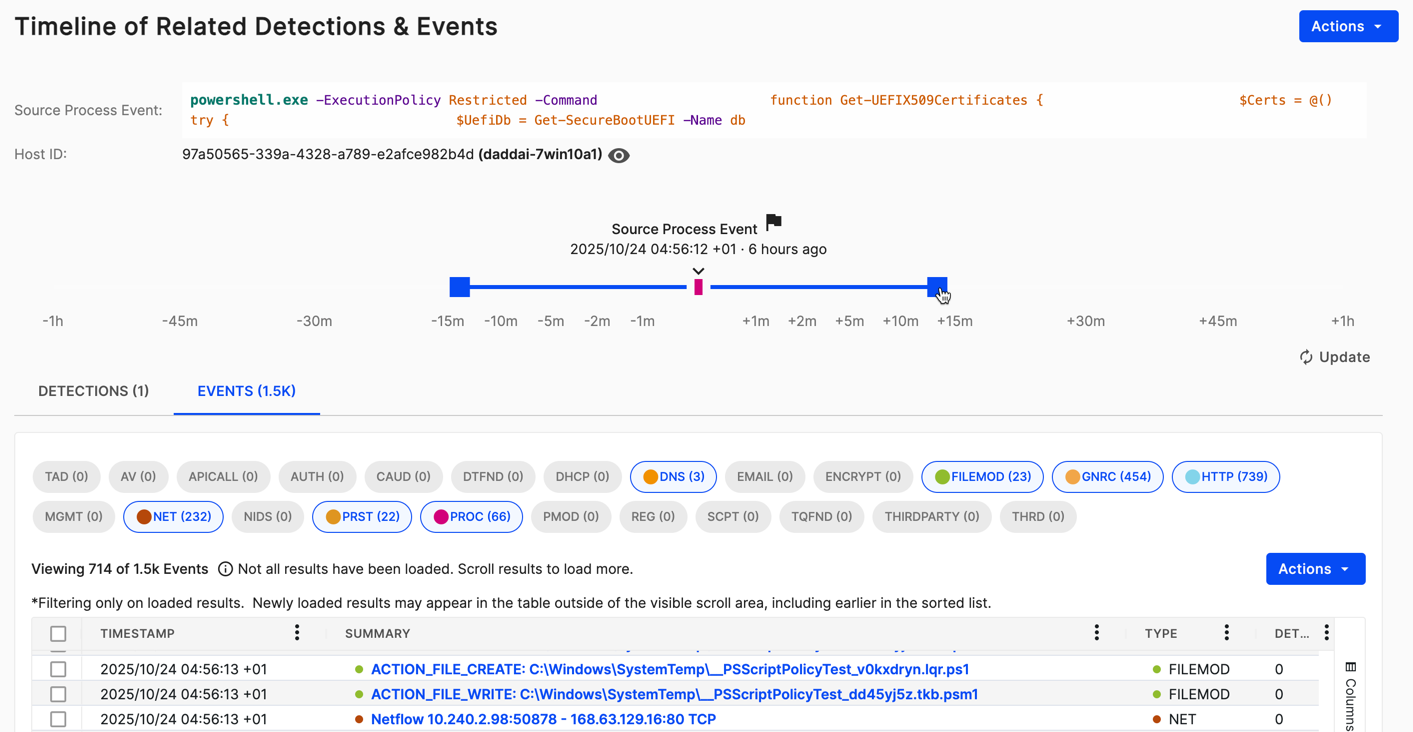
The timeline view is an interactive chart of detections and events in relation to a selected source event. You can adjust the timeline's span by dragging the bar handles closer to or further from the source event.
Below the chart are two tabs, Detections and Events, containing matching results.
To open the timeline from an eligible event, click View in Timeline at the top right of the details page.

Adjust the timeline window
By default, the timeline window is set to ±1 minute from the source event. To adjust the timeline window, do as follows:
- Grab the handles of the timeline bar surrounding the source event and drag them to the time before or after you want to search. The max window is ±1 hour from the source event.
- Click Update. The tables of detections and events return matching results.
Filter by event type
The Events tab has filter chips for event types. Click these to include or exclude event types from the search results table. For more information about event types, see Events.
