Add appliances
Typically, you add an integration appliance when setting up an NDR integration. For instructions for each product, see Sophos NDR.
Alternatively, you can create a new appliance at any time and select it to host an integration during setup later. See the steps below for more information.
Create a new appliance
For Sophos appliance requirements, see Appliance requirements.
To add an appliance that you can deploy on your virtual network and use for integrations later, do as follows.
-
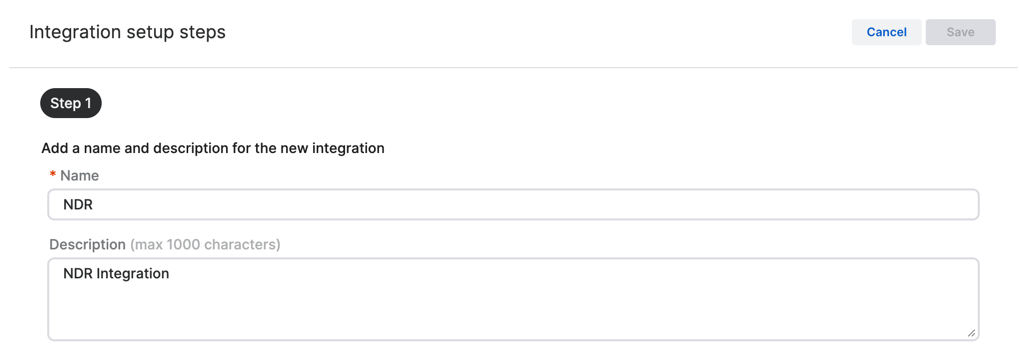
In Step 1, enter a name and description for the integration.
-
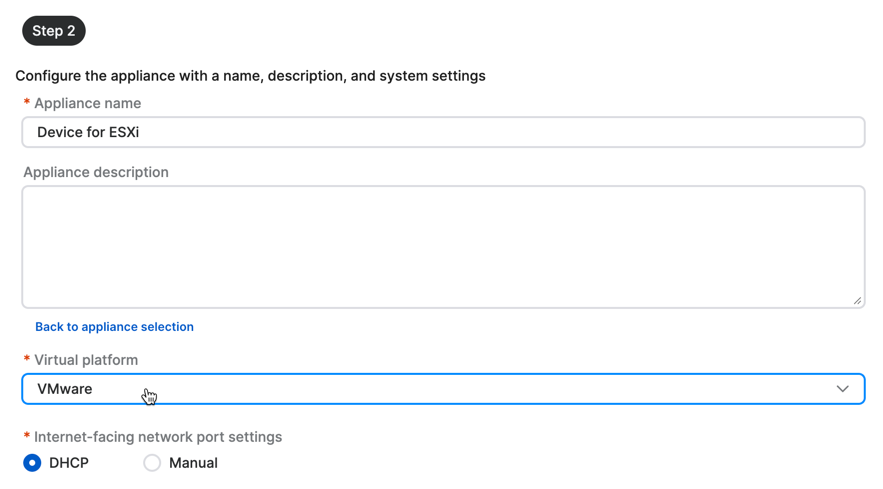
In Step 2, click Create new appliance, then do as follows.
- Enter the appliance name and description. You must enter a unique name.
- Select the virtual platform: VMware ESXi, Microsoft Hyper-V, AWS, Nutanix, or Hardware.
-
Specify the internet-facing network ports.
-
Select DHCP to assign the IP address automatically.
Note
If you select DHCP, you must reserve the IP address.
-
Select Manual to specify network settings. For example:
-
IP address: 10.0.252.5
- Subnet mask: 255.255.255.0
- Gateway address: 10.0.252.1
- DNS 1: 8.8.8.8
- DNS 2: 8.8.4.4
-
-
-
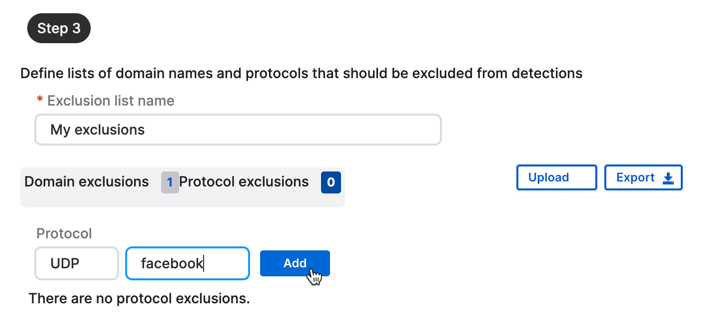
In Step 3, exclude specific domains and protocols from checking. For example, you might do this if you have a domain that causes false positives.
You can set up your exclusions later, but you must enter an exclusion list name now.
- Enter an Exclusion list name.
- To exclude a domain, click Domain exclusions. Enter the domain name, such as
sophos.com, and click Add. -
To exclude a protocol, click Protocol exclusions. You can enter information in either or both of the fields:
- In the first field, enter a master protocol. For example,
TCPorUDP. - In the second field, enter a sub-protocol (website). For example,
facebook.
If you enter information in both fields, we assemble them into one string with a single dot separator.
We don't recommend excluding a master protocol completely. Only do this if a high-traffic protocol that isn't usually risky, like a routing protocol, generates too much data.
- In the first field, enter a master protocol. For example,
-
Click Add.
You can export your exclusions as a JSON file. You can also upload exclusions to the list from a previously exported JSON file.
-
Click Save.
Your new appliance is now in the Integrations Appliances table. When you set up an integration later, you can select this appliance to host it.
Next steps
Now you must deploy the image in your virtual environment. See the following pages for steps based on device:
- ESXi: Deploy the VM
- Hyper-V: Deploy the VM
- Nutanix: Deploy the VM