Configured integrations
The Configured tab of Integrations Marketplace shows sub-tabs for configured data ingest integrations and configured response actions.
To view this tab, go to Security Operations > Integrations > Configured Integrations.
Data Ingest
The table in the Data Ingest sub-tab shows the status of each configured API, syslog, and Sophos integration. It reflects the health of the integration configuration and connectivity, such as expired certificates or no response due to rate limiting.
Note
This page focuses on the health of the integrations. To see whether logs are actually being received and how they're normalized, see Configured data sources.
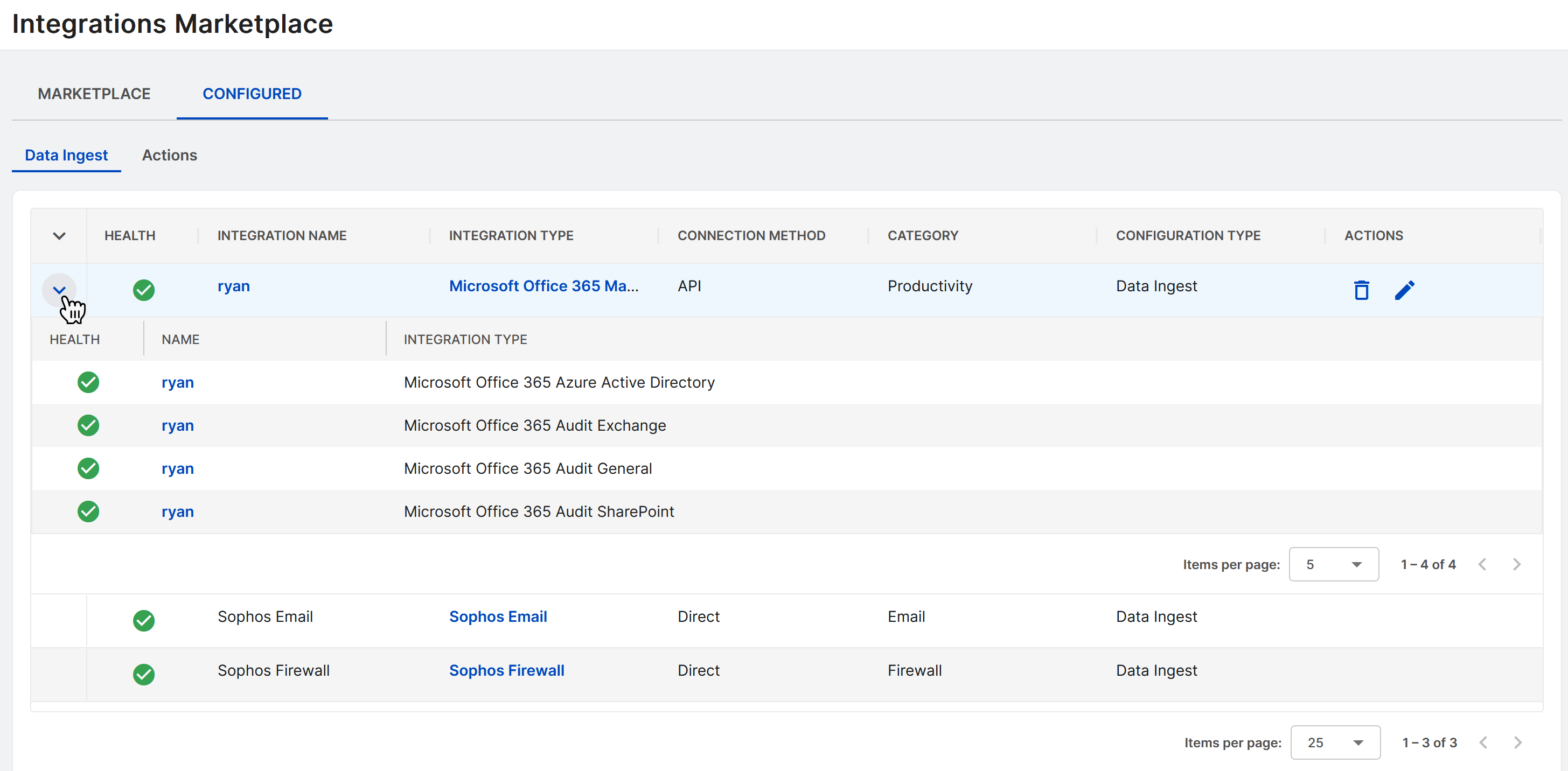
View health status of an integration
The health of an integration may show one of the following icons. Hover over the icon in Sophos XDR for further details, such as:
 : The integration is successfully communicating with the data source.
 : The integration is provisioning or waiting for a connection to be established.
 : The integration has not communicated with the data source for the past 20 minutes, or some of the integration resources haven't reported in recently.
 : The integration has not communicated with the data source for the past 60 minutes, or user authentication failed.
View API query logs and details
Click an API integration's name to drill down into more details.
The API Query Logs tab features a table with logs from the integration. By default, it shows logs from the last day. Choose a range of up to seven days from the top-right.
The Details tab displays basic integration parameters.
Tip
Hierarchical API integrations are nested in expandable rows. A single parent API integration can include multiple child integrations, each typically representing a different but related API endpoint.
Edit an API integration
You can edit integrations from the Configured table. Click the Pencil icon to do so. See Products for each product's specific integration guide.
Note
Sophos Firewall and Sophos Email can't be edited, as they come with your Sophos XDR subscription by default.
Delete an API integration
To delete a configured integration, click the Trash icon , then click Delete in the confirmation box.
Note
Sophos Firewall and Sophos Email can't be deleted, as they come with your Sophos XDR subscription by default.
Actions
The table in the Actions sub-tab shows the actions you have configured and whether they are enabled or disabled. For MDR customers, the table also shows if an action is supported for MDR Threat Response. For details, see MDR threat response.
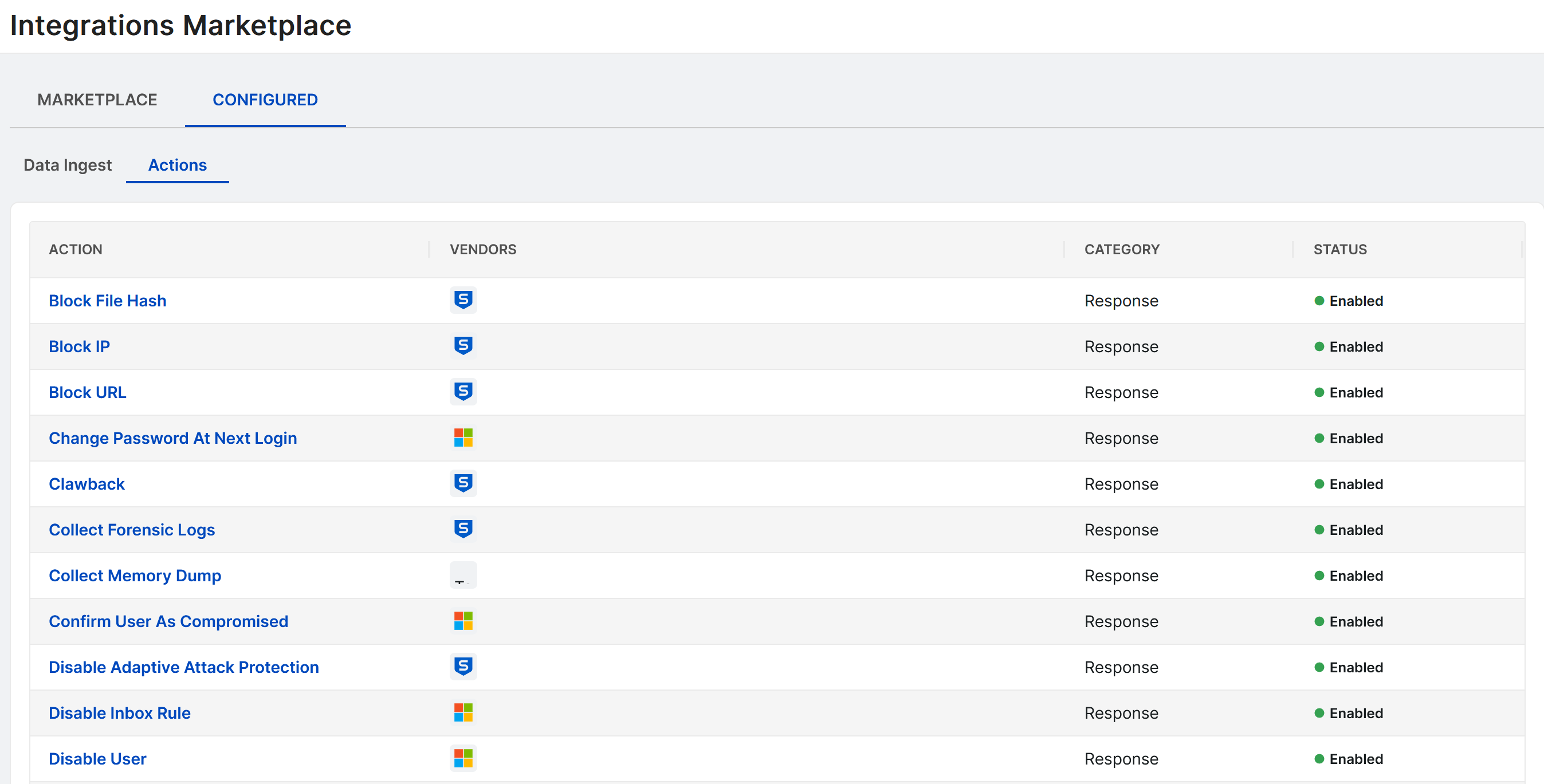
Click an action in the table to see its details. From the details page you can enable or disable the action, edit its conditions, view its executions, and more. For details, see Configuring actions.