Troubleshooting data collectors
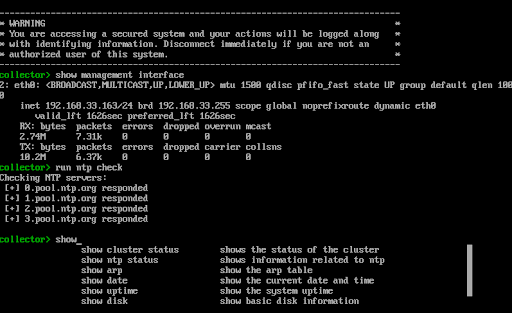
Troubleshooting of data collectors is done using Admiral, a text-based console application available via the Sophos XDR data collector's console or via the serial port. The Admiral console lets you access information about a deployed Sophos XDR data collector locally.
The tools provided in Admiral assist with device setup and troubleshooting common problems, such as network connectivity issues. Administrators can use Admiral to issue commands to the data collector to obtain device information, such as hostname, network details, NTP configuration, and more. You can also issue diagnostic commands to determine whether any health or connectivity issues are affecting the device and obtain verbose results that may help resolve problems.
Access Admiral
Access the Admiral console via the console or the serial port of the Sophos XDR data collector, according to the platforms listed below.
VMware
In VMware, access Admiral from the data collector’s console. There are multiple ways to access the virtual machine console from within VMware, depending on your setup. For steps to access the console, refer to the official VMware documentation.
HyperV
In HyperV, access Admiral from the virtual machine console. Follow these steps:
- Find the data collector's virtual machine from System Center Virtual Machine Manager, also referred to as SCVMM or VMM.
- Right-click the virtual machine and click Connect or View. A sub-menu displays.
- Click Connect via Console. A new window opens with the console. If the screen is initially blank, press Enter to see the console.
Nutanix
For steps to access the console, refer to the official Nutanix documentation for your version of Prism. For details, see Managing a VM through Prism Central (AHV).
AWS
In AWS, access Admiral from the EC2 serial console as follows:
Note
You must have permission to access the EC2 serial console granted to you by your AWS administrator.
- Find the data collector instance in EC2 and open the instance summary.
- Click Actions and choose Monitor and troubleshoot. A sub-menu displays.
- Choose EC2 serial console from the sub-menu. The EC2 serial console screen displays.
- Click Connect to connect to the instance's serial console. A new window opens, allowing you to interact with the console. If the screen is initially blank, press Enter to see the console.
Azure
In Azure, access Admiral from the VM serial console as follows:
- Find the data collector virtual machine in Azure and bring up the overview.
- From the left menu in the virtual machine context, click Serial console from the Help header. Azure connects to the serial console and displays it in the right portion of the screen. If the screen is initially blank, press Enter to see the console.
GCP
In GCP, access Admiral from the serial console as follows:
Note
For GCP Collectors deployed before April 2023, access to the serial port may be disabled by default. If the button to connect to the serial console is grayed out and you're unable to access the serial port, follow the official GCP documentation to turn on serial port access for a VM instance.
- Find the data collector virtual machine and open the instance details.
- At the top of the Details tab, click Connect to serial console to connect to serial port 1. A new window opens, and the serial console appears. If the screen is initially blank, press Enter to see the console.
Note
If the button to connect to the serial console is grayed out, see the note above on turning on access.
Using Admiral
The following sections provide guidance on using Admiral in basic and more advanced scenarios.
Basic usage
Admiral is a text-based command-line application. While using Admiral, the application provides suggestions based on what you type and supports auto-completion with the Tab key.
The Admiral prompt displays when you access Admiral for the first time. This contains the hostname of the data collector followed by a > symbol. Begin typing commands into Admiral for it to execute. To see what commands Admiral supports, use the help command, which outputs a list of currently supported commands with a brief description of each. See Command types for more information.
Suggestions and auto-complete
As you type, Admiral provides a list of suggestions based on your input. These suggestions contain the same brief descriptions of each available command seen when using help. To use a suggestion, press the Tab key to have Admiral auto-complete it. Once you've pressed Tab, scroll through the list of all suggested commands using the up and down arrows, and use Enter to execute the command that you've chosen.
To get a new blank line without executing what you've already typed, press Ctrl-C. Admiral brings you to a new clean line without attempting to process any command you've already entered.
When typing a command, the suggestions list only shows you the top suggestions, requiring you to press Tab and then scroll to see the complete list. However, press the ? key at any time, and Admiral displays every suggested command without needing to tab into the list to scroll.
Note
Some commands have additional syntax that appears only in suggestions, such as run dns check with verbose output.
Command types
Admiral commands are divided into two types: show commands that provide information about the status of the data collector and run commands that cause actions to occur. As a rule, show commands never change the status of the data collector or generate any network traffic, whereas run commands are allowed to perform actions that may cause the data collector to update its status or create network connections.
Check commands and verbosity
One special type of run command is the check command. Checks are routines that provide feedback on various collector systems necessary for it to collect data. In their normal form, they provide very simple output indicating whether a system is functioning correctly. However, if more in-depth information is desired, use the verbose form of the check to obtain more detailed output that can be useful for troubleshooting.
For example, the run dns check command displays a simple output showing if DNS resolution of the Sophos XDR API FQDN is successful. If you need more detailed information about the DNS resolution process, use run dns check with verbose output.
Commands and command menus
Admiral commands are organized into menus. The directory command displays a list of available menus. To enter a menu, use the enter command followed by the name of the menu you wish to enter. To exit a menu, use the exit command.
Currently, there are two menus: default and maintenance. The default menu contains the basic run and show commands. The maintenance menu contains commands useful for troubleshooting specific scenarios when working with Sophos support. When entering a different menu, the prompt changes to indicate which menu you're in to help you keep track of where you are.
Default menu available commands
The following table lists each command available in Admiral's default menu. This menu is used when Admiral starts. Exiting this menu exits Admiral.
| Command | Description |
|---|---|
about | show about dialog |
cancel shutdown | cancel a pending shutdown or pending reboot |
clear | clear the screen |
directory | show a list of available command menus |
enter | enter a different command menu |
exit | exit the recovery console |
help | show available commands in your current command menu |
run all checks | run all available checks one after another |
run dns check | check if the dns servers can resolve the Sophos XDR API |
run e2e check | end-to-end check confirming access to Sophos XDR API |
run ntp check | check to see if the ntp can synchronize |
run ping check | check to see if this device can ping the default gateway |
run reboot | schedule a system reboot one minute in the future |
run shutdown | schedule a system power-off one minute in the future |
run tunnel check | verify the tunnel to Sophos XDR is running |
show arp | show the arp table |
show cluster status | show the status of the cluster |
show date | show the current date and time |
show disk | show basic disk information |
show management interface | show the management interface |
show memory | show the current memory usage in kilobytes |
show network | show the running network configuration |
show ntp status | show information related to ntp |
show routes | show management interface routing information |
show system info | show various diagnostic information about this collector |
show uptime | show the system uptime |
show virtual memory | show the virtual memory usage over a few seconds |
Maintenance menu available commands
The following table lists each command available in Admiral's maintenance menu. Exiting this menu will return you to the default menu.
| Command | Description |
|---|---|
clear | clear the screen |
directory | show a list of available command menus |
enter | enter a different command menu |
exit | return to the default command menu |
help | show available commands in your current command menu |
restart cluster service | restart the cluster service on this node |
restart management service | restart the tunnel and management agent for support connectivity |
restart ntp service | force synchronization to the ntp server and restart ntp |
restart tunnel service | restart the tunnel service between the node and Sophos XDR |