Integration health alerts
When a data ingestion integration is offline or unhealthy, Sophos Fusion generates an alert. By default, Sophos Fusion also sends an email notification to all Sophos Fusion administrators for that alert.
This page tells you how the Sophos Fusion alerts work and how to customize email notifications.
How the Sophos Fusion alerts work
Sophos Fusion generates a medium-severity alert when an integration remains offline or in a "failed" status for 24 hours.
The 24-hour period begins when Sophos Fusion receives the first failure message. An alert is sent only if the failure continues throughout that period.
The 24-hour countdown to an alert resets when one of the following changes happens:
- The integration health status changes to green.
- An administrator acknowledges the alert.
If the issue persists, the alert reappears once every 30 days.
Change the frequency of email alerts
If you've received an integration health alert in Sophos Fusion, you can change how often Sophos Fusion sends email notifications about that alert to administrators.
-
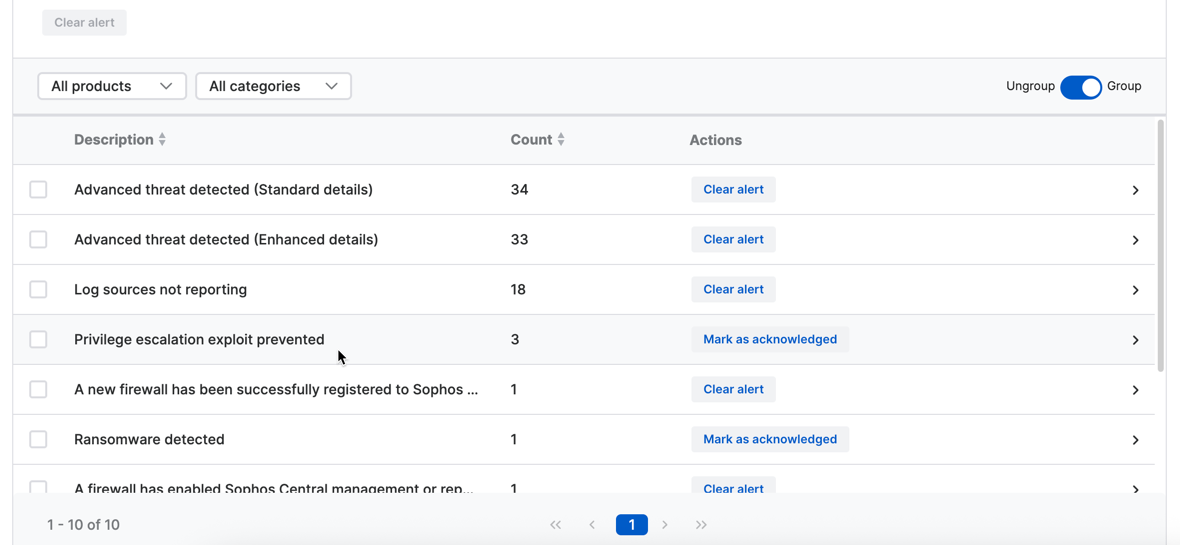
Go to My Environment > Alerts.
-
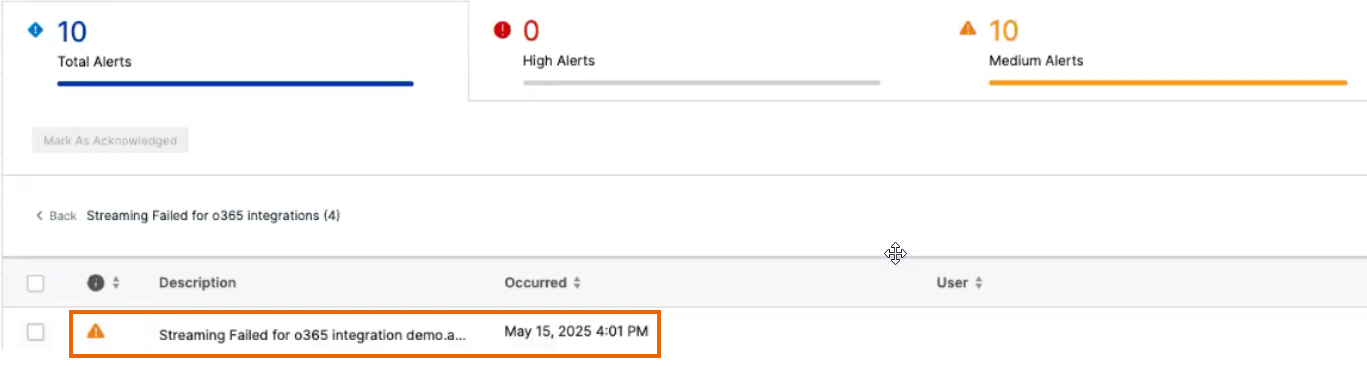
Click the integration health alert to see its details.
-
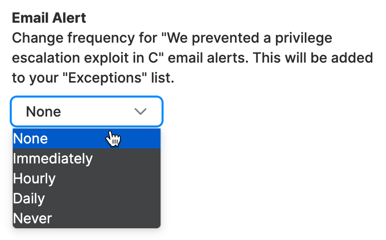
On the right of the page, under Email alert, select the frequency.
Specify which administrators receive email alerts
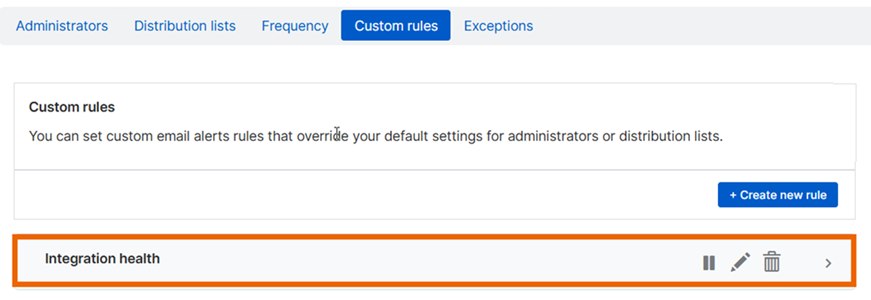
You can specify which administrators receive email notifications about integration health alerts. To do this, you must set a custom rule.
Warning
Setting a custom rule turns off the default sending of all email notifications to all administrators. If you want to continue sending some email notifications to all administrators, you'll need to set that up in another custom rule.
To set a custom rule, do as follows:
- Click the General Settings icon .
-
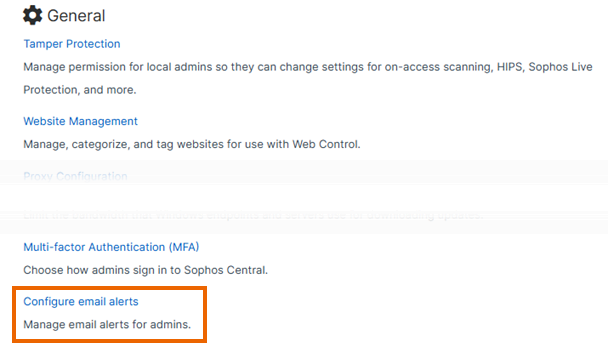
Under Platform > Notification Settings, click Configure email alerts.
-
On the Configure Notifications page, select the Custom rules tab.

-
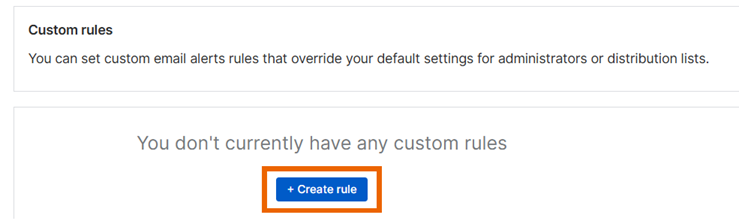
On the Custom rules tab, click + Create new rule.
-
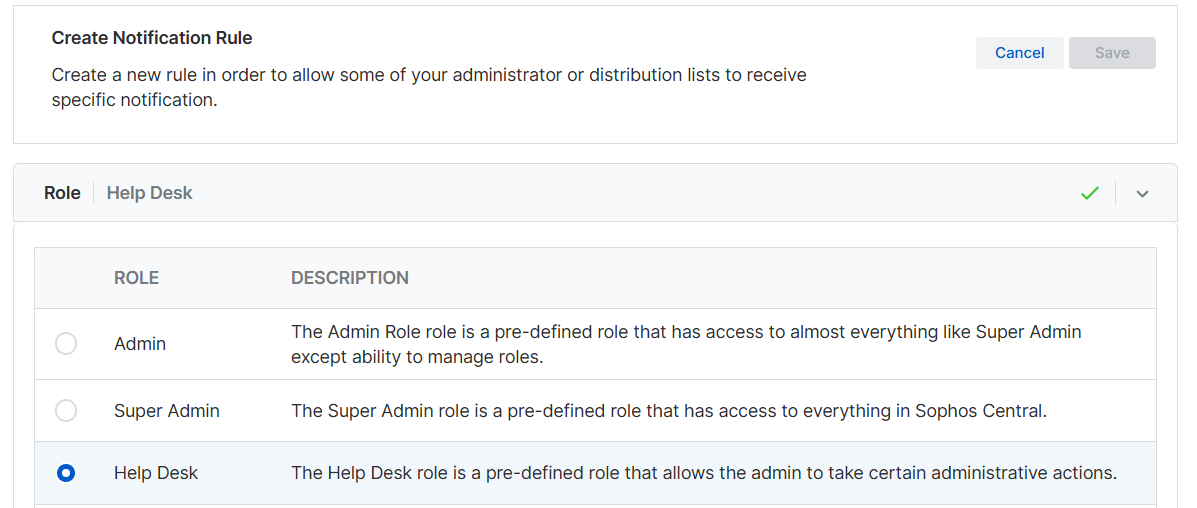
On the Create Notification Rule page, the Role section is open by default. Select the administrator role to which the rule will apply, then click Next.
-
In Administrators & Distribution lists, all administrators with the required role are shown. Select the administrators who will receive email notifications, then click Next.
- In Devices, turn email notifications on or off for all computers and all servers, and click Next.
-
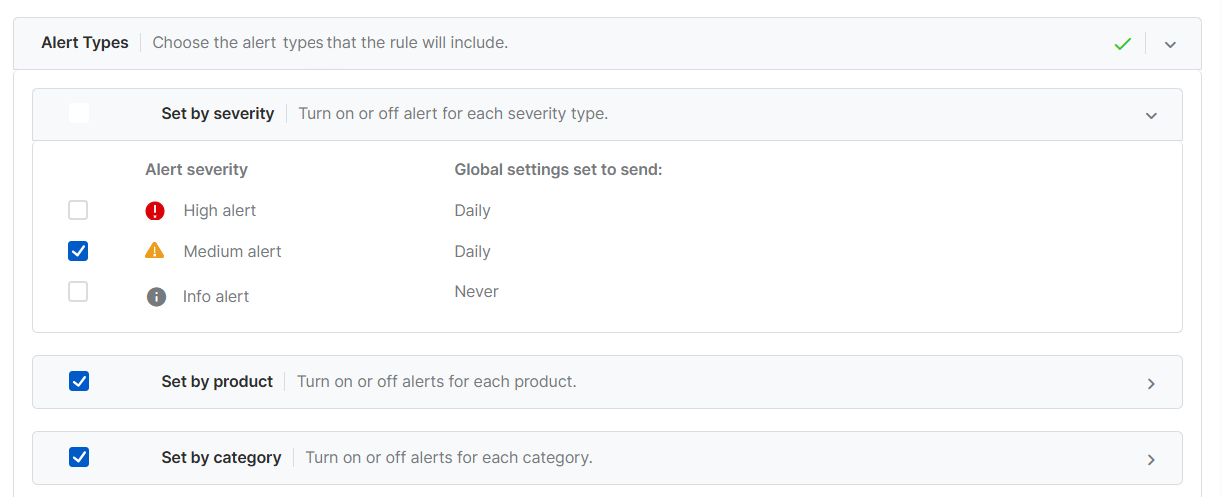
In Alert Types, turn on email notifications about alert types that match integration health alerts, as follows:
- In Set by severity, select Medium alert. All integration health alerts have this severity.
- In Set by product, leave Sophos Central selected. Deselect other options unless you want the same administrators to receive email notifications about other non-integration alerts.
- In Set by category, leave Central Integrations Alert selected. Deselect other options, unless you want the same administrators to receive email notifications about other, non-integrations alerts.
- Click Next.
-
In Name and Description, name the rule and add a description.
- Click Save.
-
The new rule is shown on the Custom rules tab.