Integrate Cato Networks
You can integrate Cato Networks with Sophos XDR so that it sends data to Sophos for analysis.
Cato Networks exports logs to Amazon S3. Sophos XDR ingests the logs using a customer-managed S3 transport.
Key steps
The key steps in a Cato Networks integration are as follows:
- Configure Cato Networks to export logs to Amazon S3.
- Configure a customer-managed S3 integration in Sophos XDR.
Requirements
The following is required for Cato Networks SASE configuration:
- A Cato Networks account.
- Access to configure log export in Cato Networks.
- An AWS account.
- An S3 bucket for Cato logs.
- Permissions to create Lambda, CloudFormation, IAM, and related AWS resources.
Add a Cato Networks SASE integration
To integrate Cato Networks SASE, you must first create the integration in Sophos XDR, then configure Cato Networks to export logs to Amazon S3 and deploy the provided CloudFormation template in AWS.
Create integration in Sophos XDR
To configure Cato log forwarding via your own customer-managed AWS S3 bucket, do as follows:
- In Sophos Fusion, go to Security Operations > Integrations > Marketplace.
-
Click Cato Networks SASE.
The Cato Networks SASE page opens. You can configure integrations here and see a list of any you've already configured.
-
In Configured integrations, click Add new.
- In Customer-managed S3, click Set Up.
- Read the S3 information, then click Next.
-
Enter a name for the integration, then click Done.
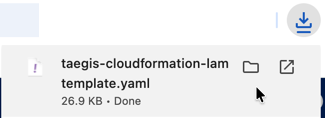
A sample AWS CloudFormation (.yaml) template is generated upon completion of the provisioning process. You'll use this when creating a Lambda stack.
Configure log export in Cato Networks
To configure Cato Networks to send logs to Amazon S3, follow Cato's own instructions: Integrating Cato Events with AWS S3.
Configure log export to the Amazon S3 bucket that will be used by your Sophos XDR integration.
Create the Lambda stack
To create the Lambda stack, do as follows:
Note
Complete the deployment in the same AWS region as your Cato Networks SASE logs bucket.
- Log in to the AWS Console for the region (for example,
https://us-east-1.console.aws.amazon.com/cloudformation) with an account that has permissions to create roles, Lambdas, secrets, and policies, or use a role that can assume another role with these permissions. - In the Management and Governance section, select CloudFormation.
-
Click Create stack.
Note
You may see a list of CloudFormation stacks when you select CloudFormation. If that's the case, click Create stack > With new resources (standard).

-
In the Prerequisite - Prepare Template section, click Choose an existing template.
- In the Specify Template section, click Upload a template file > Choose file.
-
Upload the downloaded CloudFormation template (.yaml file).
Storing the CloudFormation template in an S3 bucket.
Instead of uploading the template file directly, you can store the CloudFormation template in an S3 bucket and specify the S3 URL when creating the stack.
The bucket doesn't need to be public, versioned, or encrypted, but typically, the template bucket, notification bucket, and Lambda stack should be in the same AWS account and region.
-
Click Next.
-
Enter an appropriate stack name.
Note
Spaces aren't allowed in stack names.
-
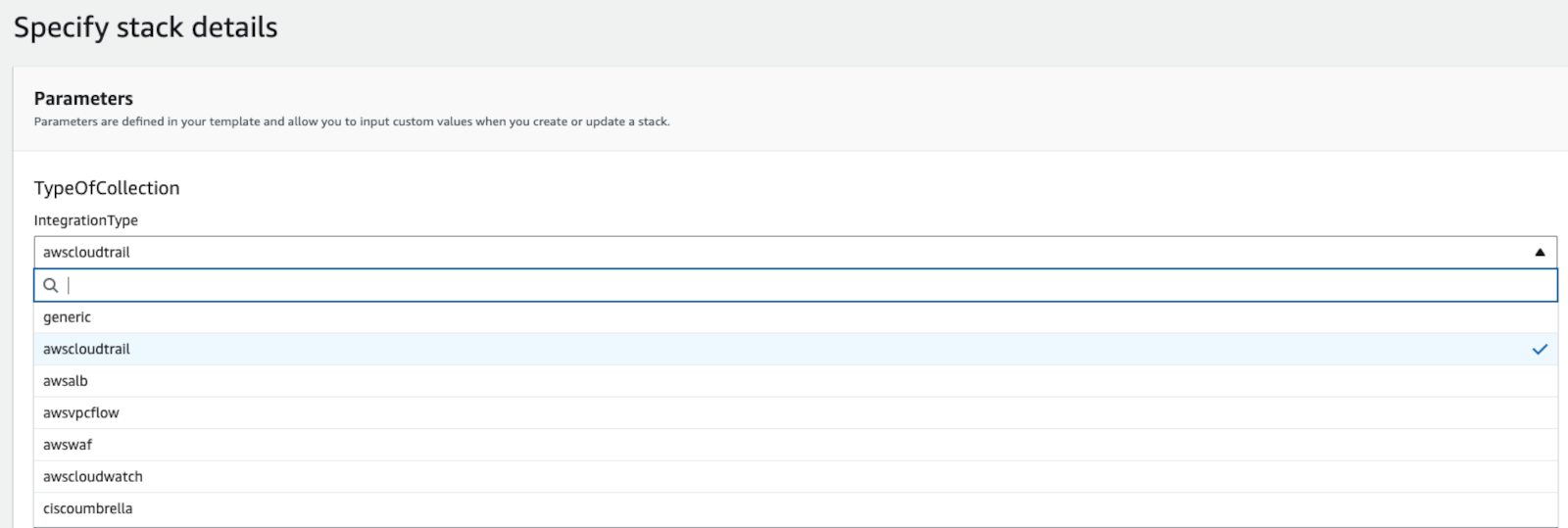
In the IntegrationType drop-down, choose cato.
Note
This field describes what sort of log objects are in the NotificationBucket. If there's more than one type, or you're not sure, choose generic.
-
In NotificationBucket, enter the bucket name (not a URL or URI) that houses the logs.
- (Optional) Enter the appropriate value into SNSNotificationarn if you wish to use SNS notifications going forward instead of S3 notifications.
- Leave the remaining fields as default.
- Click Next.
- Accept the acknowledgment statement: I acknowledge that AWS CloudFormation might create IAM resources.
- Click Next.
- Review all parameters and click Submit.
-
Wait at least 30 seconds, then click Refresh.
The process may take a minute or more to finish. A status of
CREATE_COMPLETEfor the stack indicates the process has finished.
Add the Lambda trigger
Once the Lambda stack is created, add a trigger as follows:
- In the AWS Console, go to the Lambda service.
- Locate the new Lambda by name. The default name is
{STACKNAME}-sophos-xdr-lambda-{INTEGRATIONTYPE}. For example,ct-demo-sophos-xdr-lambda-cato. - Click the Lambda name to open the stack's edit page.
- Expand the Function overview section and click Add Trigger.
-
In the Trigger Configuration editor, select S3 from the drop-down menu.
Optionally, use an SNS trigger configured with a previously created topic.
-
From the Bucket options, find the bucket containing the logs and select it.
- From the Event Type options, choose All Object Create Events.
- In the Prefix field, enter the bucket prefix where the logs are located. Leave this blank if no prefix is used.
- Leave the Suffix field blank.
- Accept the acknowledgment statement about the cost impact of a Lambda function.
-
Click Add.
The configuration page for that Lambda displays again. A message at the top indicates that the trigger was added successfully. For example,
The trigger wmikeking was successfully added to function Logs-XDR-Upload.The function is now receiving events from the trigger.
The new integration appears under Configured integrations. After provisioning is complete, a green tick indicates that the integration is working correctly and your data should appear in the Sophos Data Lake after validation.
For more information about integration statuses, see View health status of an integration.