Integrate Google Cloud Platform
You can integrate Google Cloud Platform (GCP) with Sophos XDR so that it sends data to Sophos for analysis.
Key steps
The key steps in a GCP integration are as follows:
- Create a Pub/Sub topic and subscription.
- Configure a logging sink to forward logs to Pub/Sub.
- Create a service account and grant the required permissions.
- Generate a JSON service account key.
- Configure the integration in Sophos XDR.
Requirements
The following is required for GCP configuration:
- An active Google Cloud account with an administrator role.
- A Google Cloud Project.
- One or more supported GCP log sources.
Supported GCP log types
Sophos XDR supports the following GCP log types:
Add a GCP integration
To integrate GCP, you must first configure log forwarding through Google Cloud Pub/Sub, then provide the required details in Sophos XDR.
Create Pub/Sub topic and subscription
To create a Pub/Sub topic and subscription, do as follows:
- In the Google Cloud console, go to Pub/Sub > Topics.
- Click Create Topic.
-
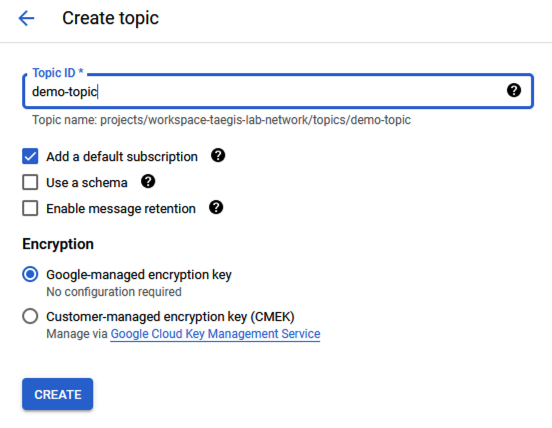
Enter a Topic ID, then click Create.
-
Go to Pub/Sub > Subscriptions.
- Click Create Subscription.
-
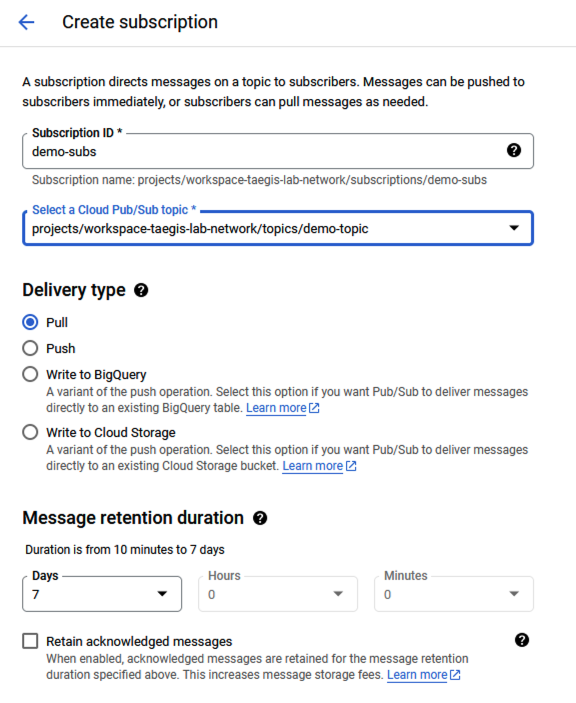
Enter a Subscription ID and select the topic you just created.
-
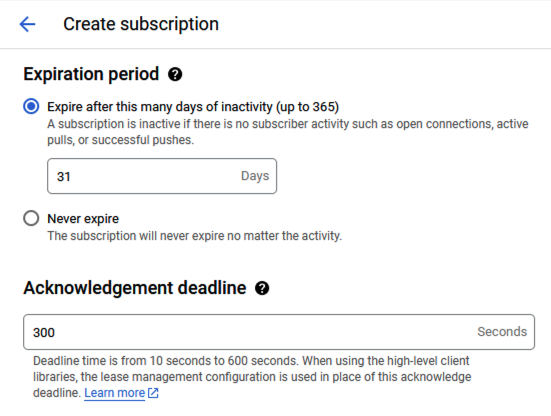
Set the Acknowledgement deadline to
300 seconds.Leave other fields at the default values.
-
Click Create.
Create sink
To create a sink, do as follows:
- In the Google Cloud console, go to Logging > Log router.
- Click Create Sink.
-
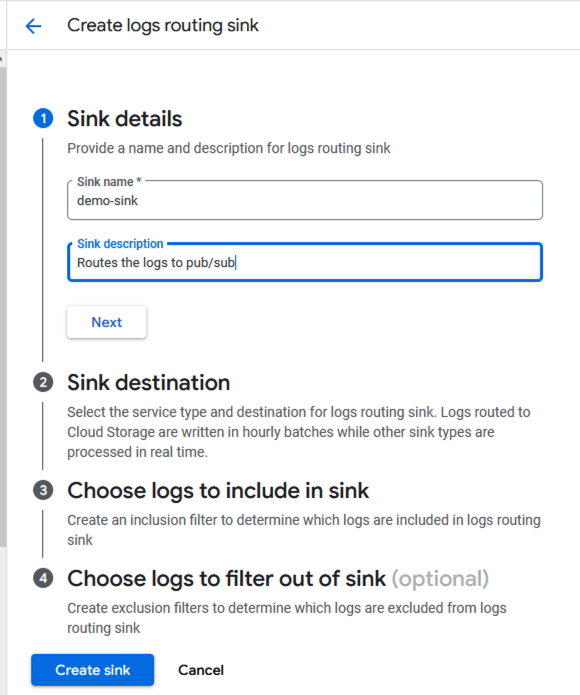
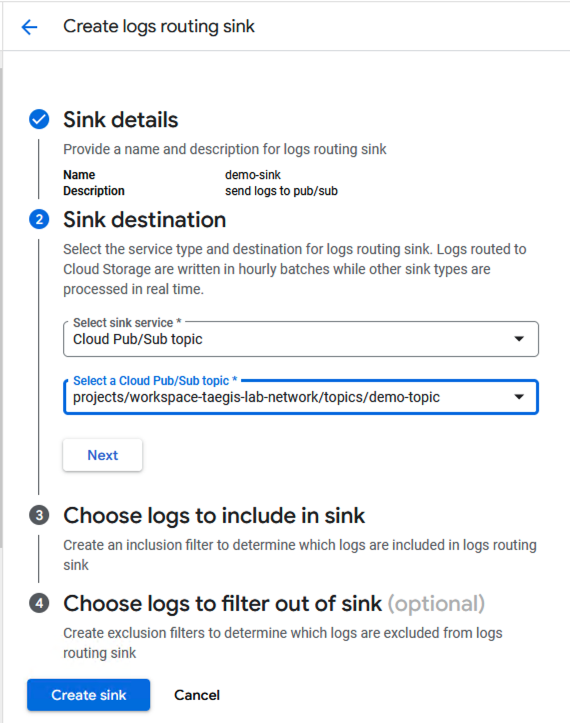
In Sink details, enter a name and description for the sink.
-
Click Next.
-
In Sink destination, select Cloud Pub/Sub topic as the sink service, then select the Pub/Sub topic you created in the previous section.
-
(Optional) To create inclusion filters that determine which logs are sent to the sink, see Select logs to send to Sophos XDR.
-
Click Create sink.
Tip
To collect organization- and folder-level logs, follow Google's own document on creating aggregated sinks: Collate and route organization- and folder-level logs to supported destinations.
Create and configure a service account
To create a service account with permissions to read from the Pub/Sub topics, do as follows:
- In the Google Cloud console, go to IAM & Admin > Service Accounts.
- Click Create Service Account.
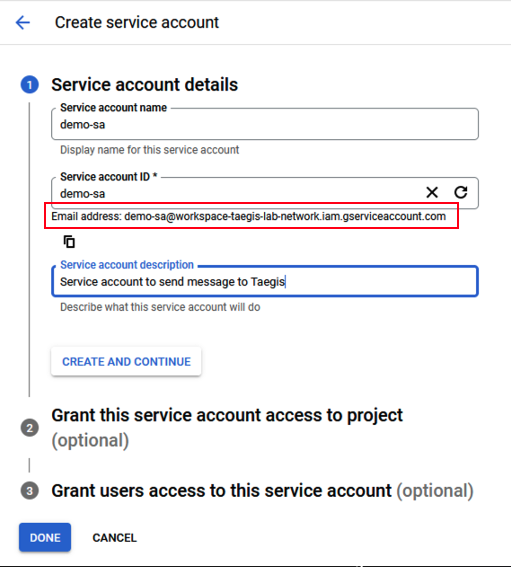
- Enter a name and description for the service account.
- Make note of the Service account ID email address, which you'll need in a later step.
-
Click Done.
-
Go to Pub/Sub > Subscriptions.
- Click Edit on the subscription you created earlier.
-
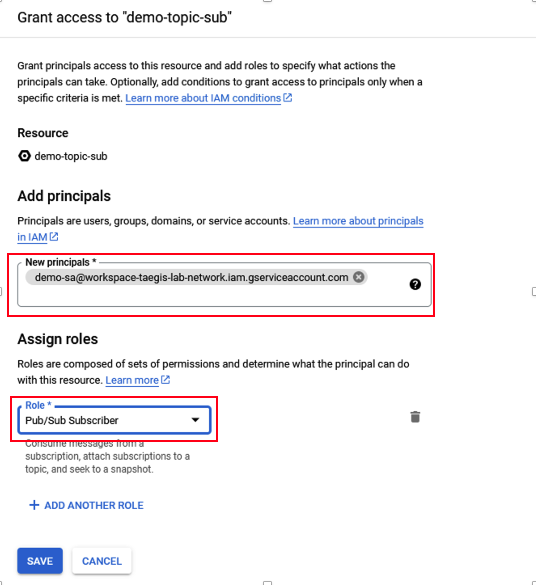
Click Add Principal.

-
In the New principals field, enter the Service account ID email address you copied earlier.
-
Assign it the Pub/Sub Subscriber role.
-
Click Save.
Grant monitoring permission for the service account
Note
You can reuse an existing Google Cloud service account that is already configured for Sophos XDR. If you do so, grant the required custom monitoring role to that service account instead of creating a new account and key.
To create a custom role with monitoring permissions, do as follows:
- In the Google Cloud console, go to IAM & Admin > Roles.
- Click Create Role.
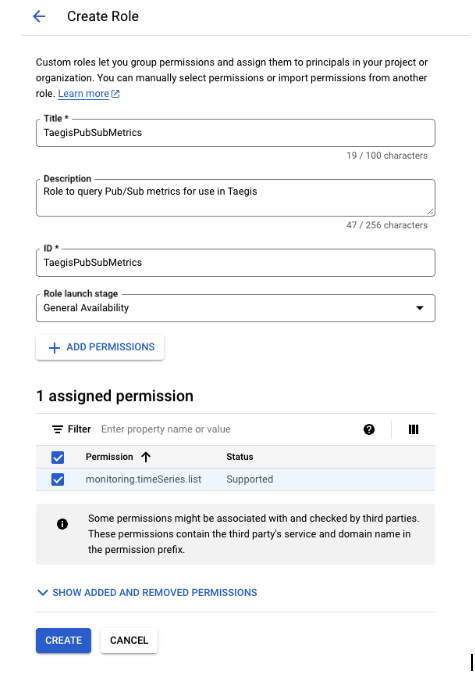
- Enter descriptive strings for the Title and ID.
- Under Role launch stage, select General Availability.
- Click Add Permissions.
-
From the list of permissions, choose monitoring.timeSeries.list and click Add.
-
Click Create.
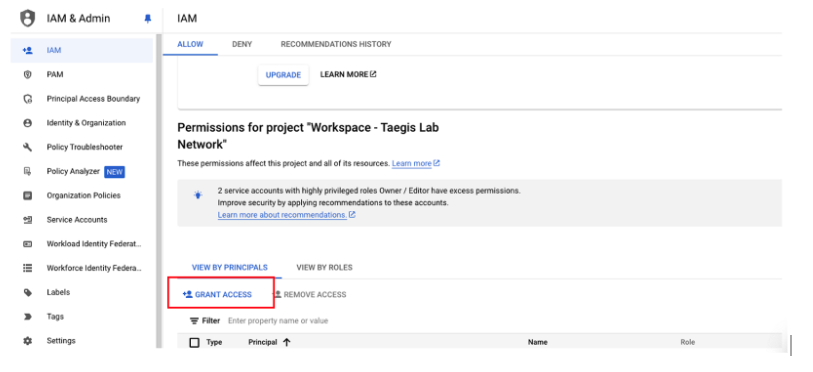
- Go to IAM & Admin > IAM.
-
Click Grant Access.
-
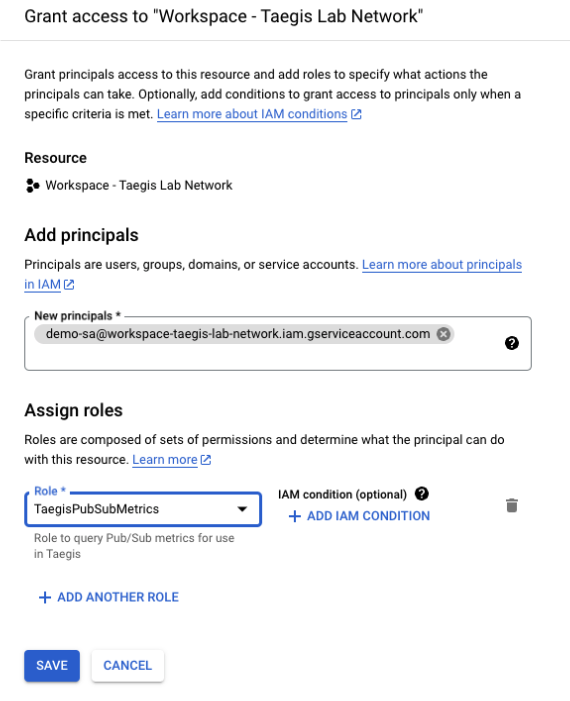
In the New principals field, enter the Service account ID email address you copied earlier.
-
Click the Role drop-down menu, choose Custom, then select the custom role you just created.
-
Click Save.
Create a service account key
To create a service account key, do as follows:
- In the Google Cloud console, go to IAM & Admin > Service accounts.
- Open the service account you created in the previous section.
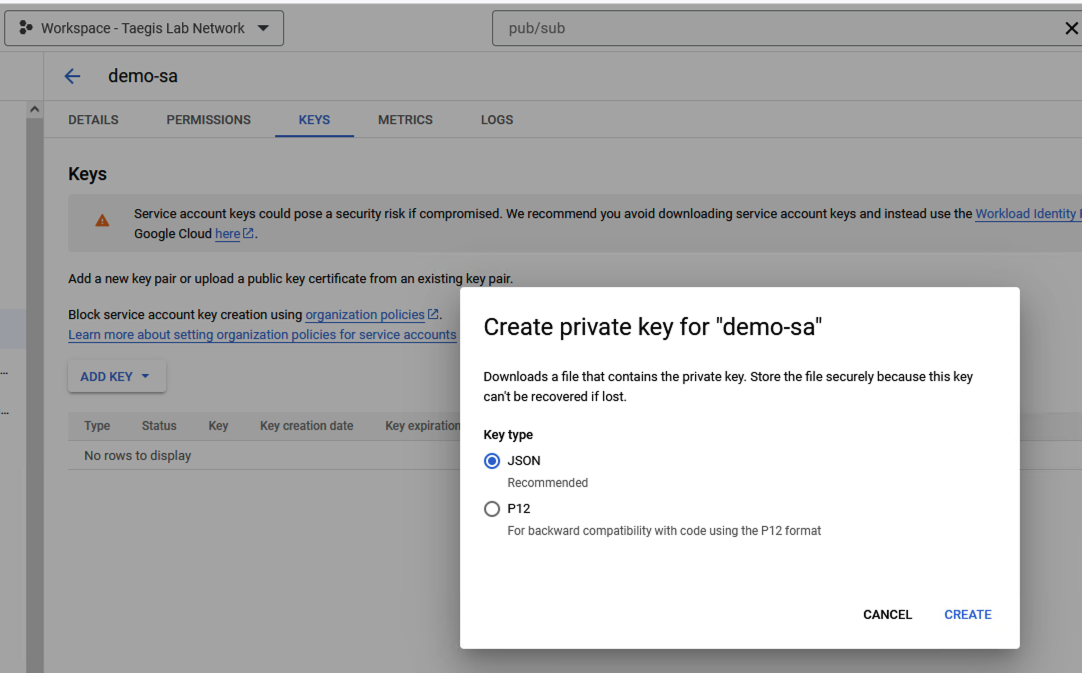
- Open the Keys tab and click Add Key.
- Choose the JSON key type.
-
Click Create.
The service account key .json file is downloaded.
Tip
You may need to rotate your GCP keys periodically. See Key rotation.
Configure the integration in Sophos XDR
To integrate GCP with Sophos XDR, do as follows:
- In Sophos Fusion, go to Security Operations > Integrations > Marketplace.
-
Click GCP.
The GCP page opens. You can configure integrations here and see a list of any you've already configured.
-
In Configured integrations, click Add new.
-
In Add an integration, do as follows:
- Enter a name for the integration.
- Enter the GCP Project ID and the Pub/Sub Subscription ID.
- Click Upload Key File and attach the .json key file you downloaded from GCP.
-
Click Done.
The new integration appears under Configured integrations. After provisioning is complete, a green tick indicates that the integration is working correctly and your data should appear in the Sophos Data Lake after validation.
For more information about integration statuses, see View health status of an integration.
Configuration notes
Some additional configuration options are available.
Select logs to send to Sophos XDR
To create inclusion filters that determine which logs are sent to the sink, do as follows:
- Follow the steps in Google's own guide on building log inclusion filters: About resource hierarchy.
-
Choose a tab for instructions for the following supported log types:
See Google's document, Cloud Audit Logs, for more information.
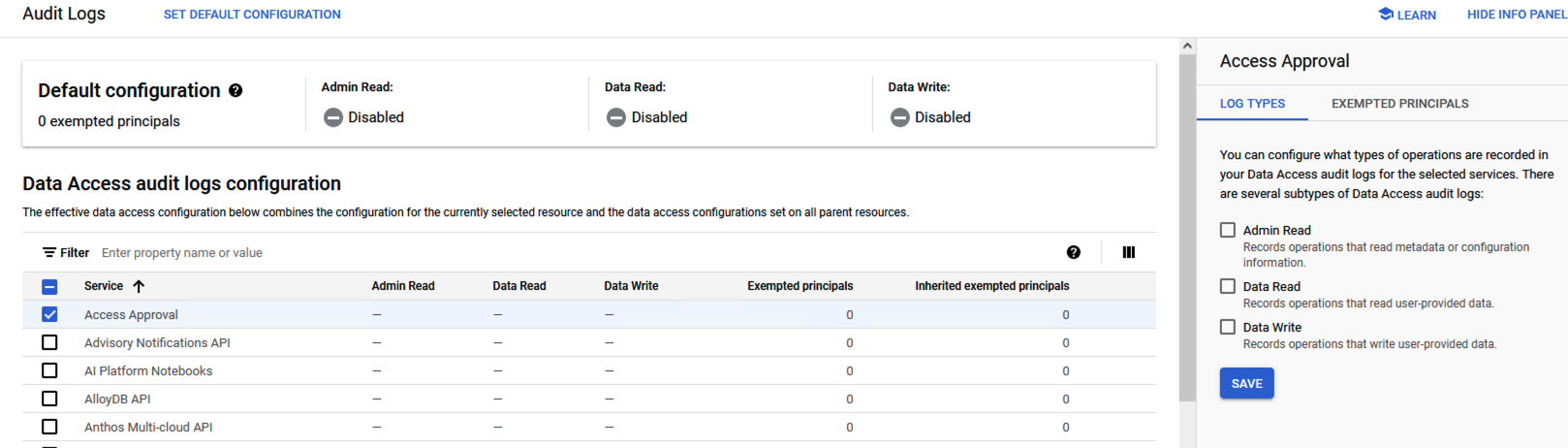
- In the Google Cloud console, go to IAM & Admin > Audit Logs.
-
Select the services for which Data Access audit logs should be turned on.
-
Create an inclusion filter to determine which logs are sent to the Pub/Sub topic.
See the following table for assistance with building the inclusion filter for Cloud Audit logs.
Scope Admin Activity Data Access System Event Policy Denied Projects projects/PROJECT_ID/logs/cloudaudit.googleapis.com%2Factivityprojects/PROJECT_ID/logs/cloudaudit.googleapis.com%2Fdata_accessprojects/PROJECT_ID/logs/cloudaudit.googleapis.com%2Fsystem_eventprojects/PROJECT_ID/logs/cloudaudit.googleapis.com%2FpolicyFolders folders/FOLDER_ID/logs/cloudaudit.googleapis.com%2Factivityfolders/FOLDER_ID/logs/cloudaudit.googleapis.com%2Fdata_accessfolders/FOLDER_ID/logs/cloudaudit.googleapis.com%2Fsystem_eventfolders/FOLDER_ID/logs/cloudaudit.googleapis.com%2FpolicyOrganizations organizations/ORGANIZATION_ID/logs/cloudaudit.googleapis.com%2Factivityorganizations/ORGANIZATION_ID/logs/cloudaudit.googleapis.com%2Fdata_accessorganizations/ORGANIZATION_ID/logs/cloudaudit.googleapis.com%2Fsystem_eventorganizations/ORGANIZATION_ID/logs/cloudaudit.googleapis.com%2Fpolicy
See Google's document, Security Command Center Findings, for more information.
Security Command Center considerations
Security Command Center can be activated at the Organization and Project levels.
To activate Security Command Center for an organization, see Overview of activating Security Command Center.
To activate Security Command Center for a project, see Activate Security Command Center for a project.
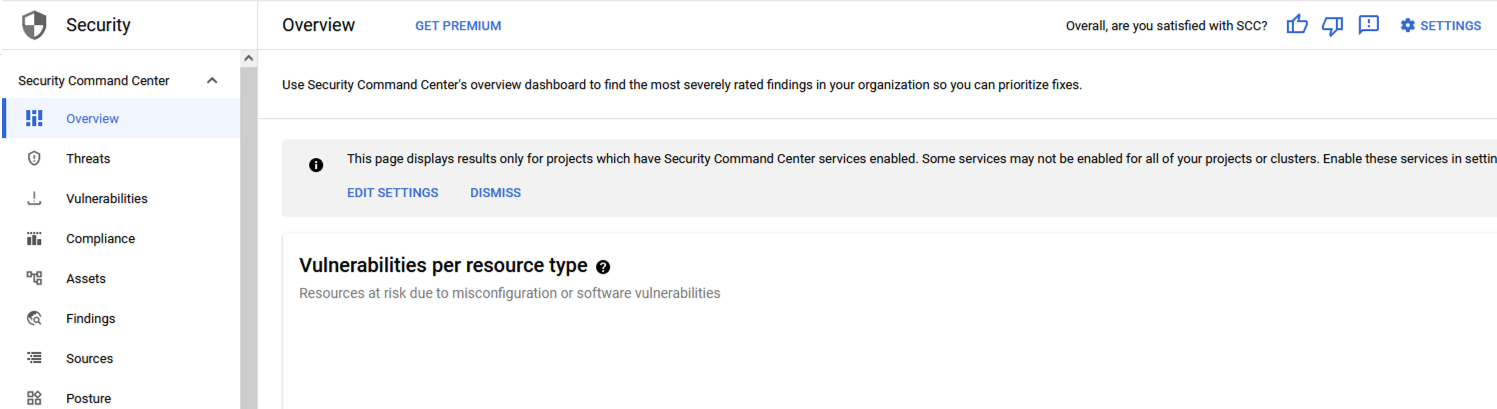
- In the Google Cloud console, go to Security > Security Command Center > Overview.
-
Click Edit Settings.
-
Open the Continuous exports tab and click Create Pub/Sub Export.
- Enter a descriptive name, then select the Pub/Sub topic you created earlier.
- Click Save.
See Google's document, VPC Flow Logs, for more information.
VPC Flow logs considerations
- VPC Flow logs can be turned on or off on a subnet level.
- When turned on for a subnet, logs are collected for all virtual machines within that subnet.
- Both the inbound and outbound network traffic will be sampled for log generation for TCP, UDP, ICMP, ESP, and GRE protocols. To learn more about sampling, see Log sampling and processing.
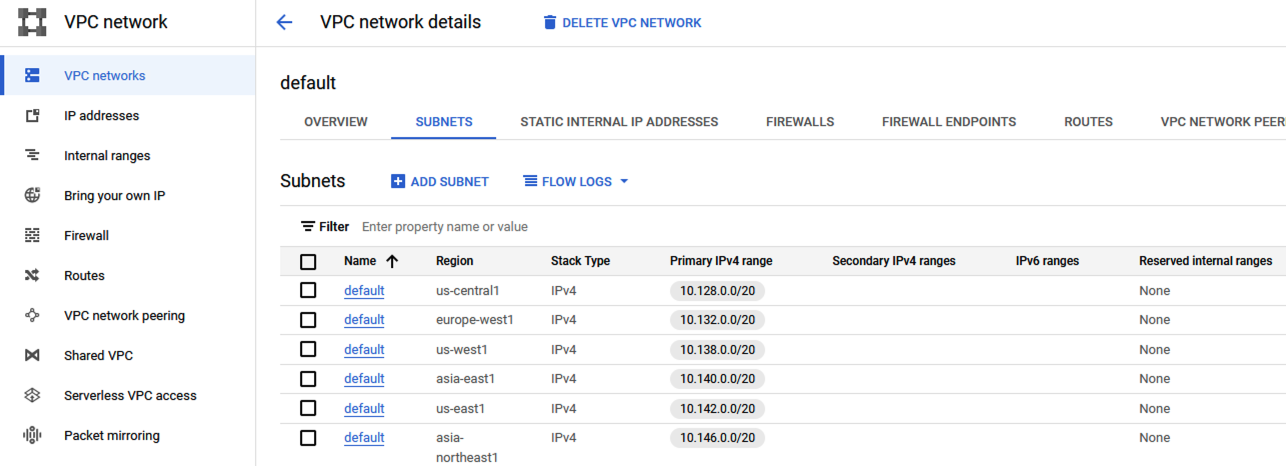
- In the Google Cloud console, go to VPC Network > VPC Networks.
- Select the network for which VPC Flow logs should be turned on.
-
Open the Subnets tab.
-
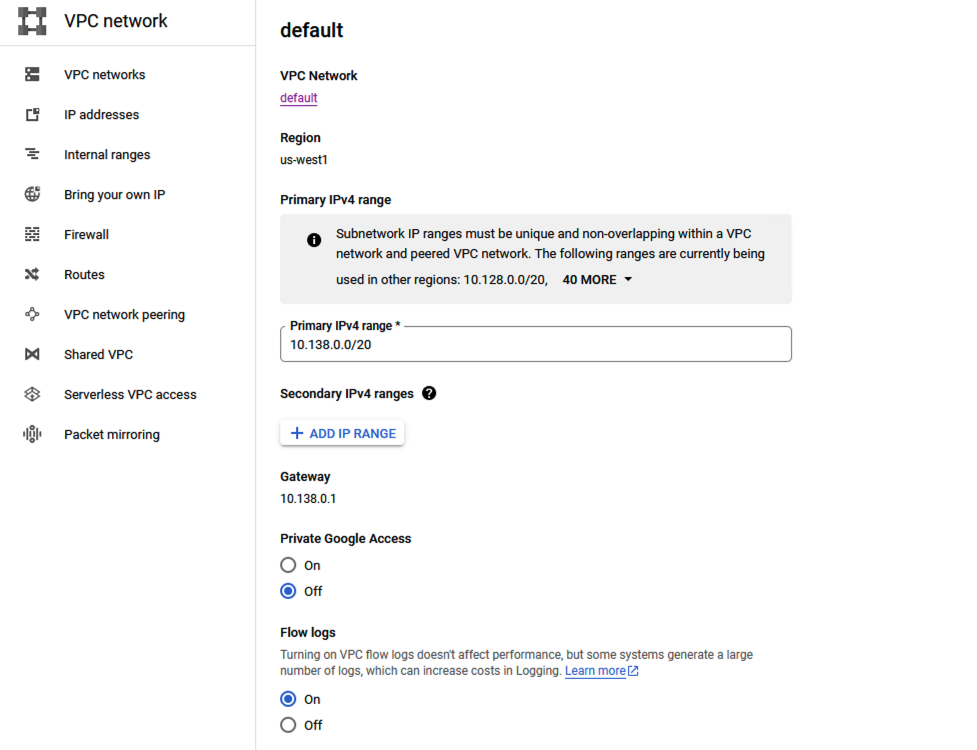
On the subnet for which VPC Flow Logs are to be turned on, enter Edit mode.
-
In Flow Logs section, select On.
-
To route VPC Flow logs to the sink you created earlier, edit the sink, then update the Inclusion Filter. See this example of a VPC Flow logs inclusion filter:
logName="projects/gcp-dataflow-poc/logs/compute.googleapis.com%2Fvpc_flows"
See Google's document, GKE Dataplane V2, for more information.
-
Follow the steps in Google's own guide for creating a GKE cluster: Creating a GKE cluster with GKE Dataplane V2.
Info
GKE Dataplane V2 can only be turned on when creating a new cluster.
-
Follow the steps in Google's own guide for turning on network policy logging: Use network policy logging.
-
To route logs to the sink you created earlier, edit the sink, then update the Inclusion Filter. See this example of a GKE Dataplane V2 inclusion filter:
logName="projects/gcp-dataflow-poc/logs/policy-action"
Key rotation
You may need to rotate your GCP keys for your service account periodically. Do as follows:
- In the GCP management console, create a new JSON key for the service account.
- Update the GCP integration in Sophos XDR with the newly created key.
-
Open the integration details page. Under the API Query Log tab, look for the log with the summary:
secrets cache invalidated. Integration was updated. Restarting.This means the cache will be updated with the new key.
-
Wait for a few minutes to see the successful ingestion of log messages.
- Delete the old key from the service account in the GCP management console.