Integrate OCI
You can integrate Oracle Cloud Infrastructure (OCI) with Sophos XDR so that it sends data to Sophos for analysis.
Sophos XDR receives OCI logs through the OCI Streaming Service.
Key steps
The key steps in an OCI integration are as follows:
- Create a dedicated user, domain, compartment, and group for logging (recommended).
- Create an OCI Stream.
- Configure OCI logs to publish to the stream using a Service Connector.
- Gather the OCI connection details.
- Configure the integration in Sophos XDR.
Requirements
The following is required for OCI configuration:
- An active OCI account.
- An OCI tenancy.
- An OCI Stream.
- OCI logs configured to publish to the stream.
- Permissions to create OCI users, auth tokens, streams, and service connectors.
Supported OCI log types
Sophos XDR supports the following OCI log types:
- Audit (general audit logs)
- com.oraclecloud.objectstorage
- com.oraclecloud.eventsservice.eventrule.ruleexecutionlog
- com.oraclecloud.filestorageservice
- com.oraclecloud.vcn.flowlogs.DataEvent
- com.oraclecloud.loadbalancer.access
- com.oraclecloud.loadbalancer.waf
- com.oraclecloud.networkfirewall.traffic
- com.oraclecloud.networkfirewall.threat
- com.oraclecloud.vpn.ipseclog.read
Add an OCI integration
To integrate OCI, you must first configure OCI log forwarding through the OCI Streaming Service, then provide the required connection details in Sophos XDR.
Create a dedicated user, domain, compartment, and group (recommended)
We recommend the following practices before configuring OCI integration.
-
Create a dedicated domain, compartment, and group for logging.
You can create a dedicated domain, compartment, and group for OCI. We strongly recommend following the principle of least privilege. The only privilege a user requires is
stream-pullto pull data from an Oracle stream. See the following Oracle guides for more: -
Create a dedicated user for logging.
When you create a new OCI user for logging, the user won't have any privileges. Later, you can place the user into the user group created above. The only privilege required is
stream-pullaccess for reading from an OCI stream. See the following Oracle doc for more:
Create an OCI stream
To create an OCI stream, do as follows:
- In Oracle Cloud, go to OCI Streams and click Create Stream.
- Select the Stream Pool.
-
Make note of the OCID value. You'll need to supply this later in Sophos XDR. For example:
ocid1.streampool.oc1.ap-acme-1.ambbbbbbbbbbbeiadnkcxdp6f2vx5glmsihhme6n7ks7iiyz2prh123456789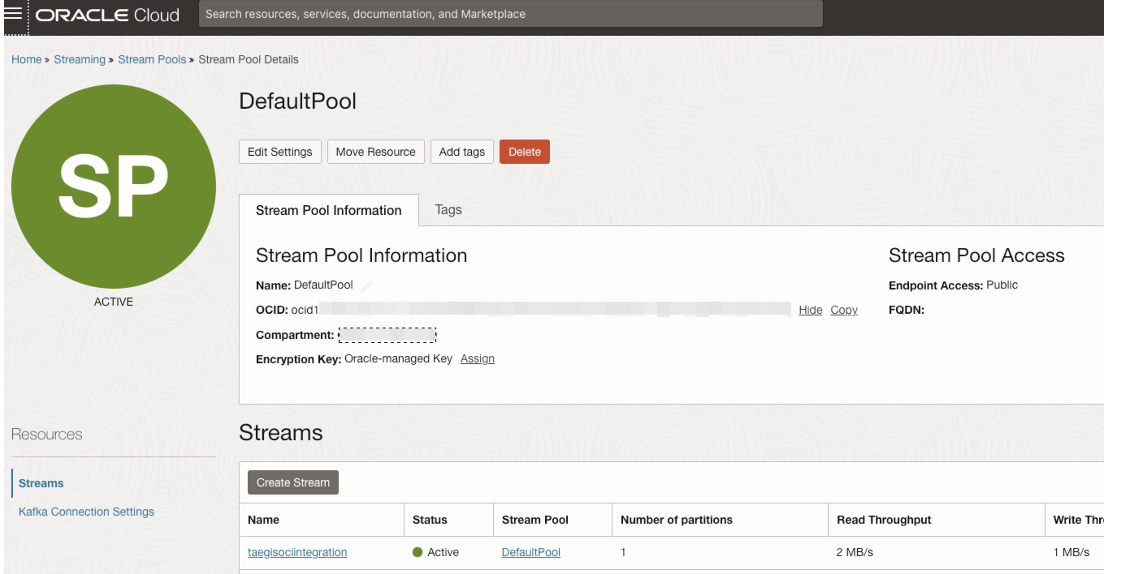
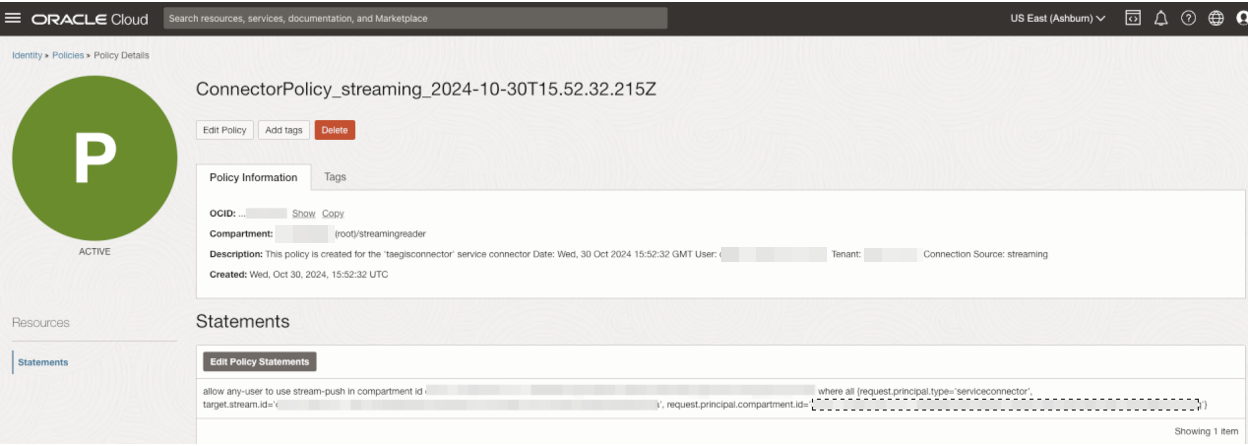
Create a service connector
To create a service connector in OCI, do as follows:
- Follow the steps in Oracle's own guide: Creating a Connector.
-
Be sure to configure the following details:
- Compartment: Where the connector will reside.
- Source: Where the data is coming from.
- Target: where the data will be sent. This could be Logging Analytics, Object Storage, or another service.
- Tags: (Optional) Assign tags to the connector for organization and management.
-
Click Create.
-
Confirm that the service connector is actively moving data by turning on logs for the connector and checking for expected results in the target service.
Configure the integration in Sophos XDR
To integrate OCI with Sophos XDR, do as follows:
- In Sophos Fusion, go to Security Operations > Integrations > Marketplace.
-
Click OCI.
The OCI page opens. You can configure integrations here and see a list of any you've already configured.
-
In Configured integrations, click Add new.
-
In Add an integration, provide the following details:
- Name: Enter a name for the integration.
- Username: Enter the dedicated user account you created for this integration.
- Auth token: Enter the authentication token associated with the dedicated user account.
- Stream Pool ID: Enter the OCID you copied from Oracle Cloud.
-
Tenant Name: Enter your OCI tenant name.
Click to view steps for nested compartments or federated users.
-
If a streaming topic is within a nested compartment (for example,
tenancy1/compartment1/compartment2/compartment3), there's no need to include the compartment names as a part of the Tenant Name value. In this case, usetenancy1as the Tenant Name in Sophos XDR. -
If you're using federated users, a default compartment by the name of
OracleIdentityCloudServiceis created. In this case, the tenant name should be followed by the compartment name. For example:- Tenancy:
acme - Compartment:
OracleIdentityCloudService - Policy statement:
Allow group 'OracleIdentityCloudService'/streamreaders to use stream-pull on tenancy acme - Tenant Name: Use
acme/OracleIdentityCloudServicein the Sophos XDR integration.
- Tenancy:
-
-
Topic Name: Enter the stream name from OCI.
- Region: Your OCI region. See Regions and Availability Domains.
-
Click Done.
The new integration appears under Configured integrations. After provisioning is complete, a green tick indicates that the integration is working correctly and your data should appear in the Sophos Data Lake after validation.
For more information about integration statuses, see View health status of an integration.