Data Lake Search
Data Lake Search is a powerful interface for querying detections and events across your tenant. Use AI Search to translate natural language into Sophos XDR Advanced Search query language, or build queries visually with Query Builder by selecting fields and operators. You can also use the Query Editor to create queries from scratch using Advanced Search query language syntax, schemas, and operators.
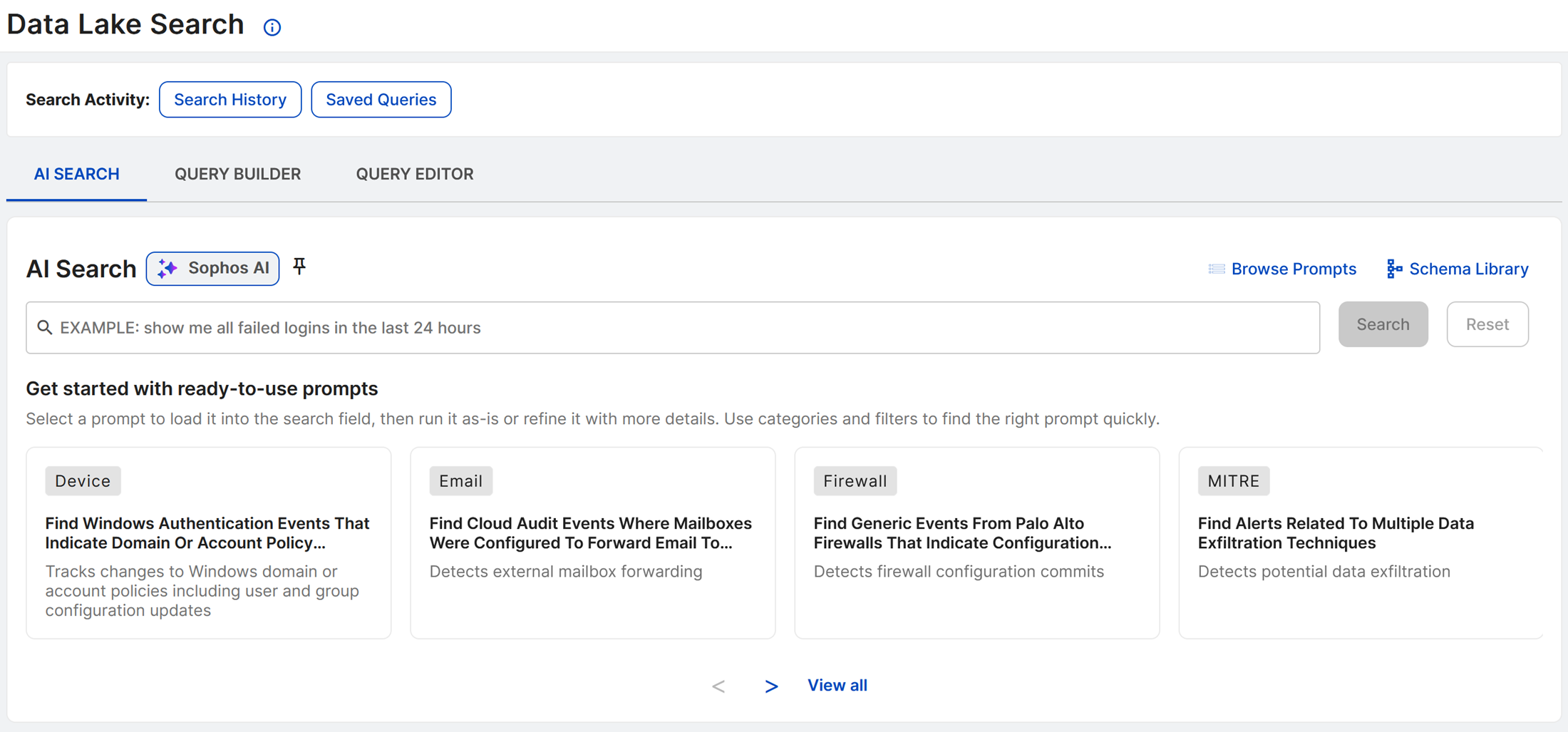
You can set a search method as your default in Data Lake Search. To do so, click the Pin icon next to the method name.
All searches are automatically added to your tenant's search history upon execution. For more information, see Search history.
Select a search method from the tabs below to find general guidance on running searches and saving queries for each method.
Go to Security Operations > Data Lake Search and choose AI Search.
Prompts
A selection of ready-to-use prompts shows below the search field. To see all prompts, click View All below the prompts or Browse Prompts above the search field to open the Ready-to-use Prompts slide-out.
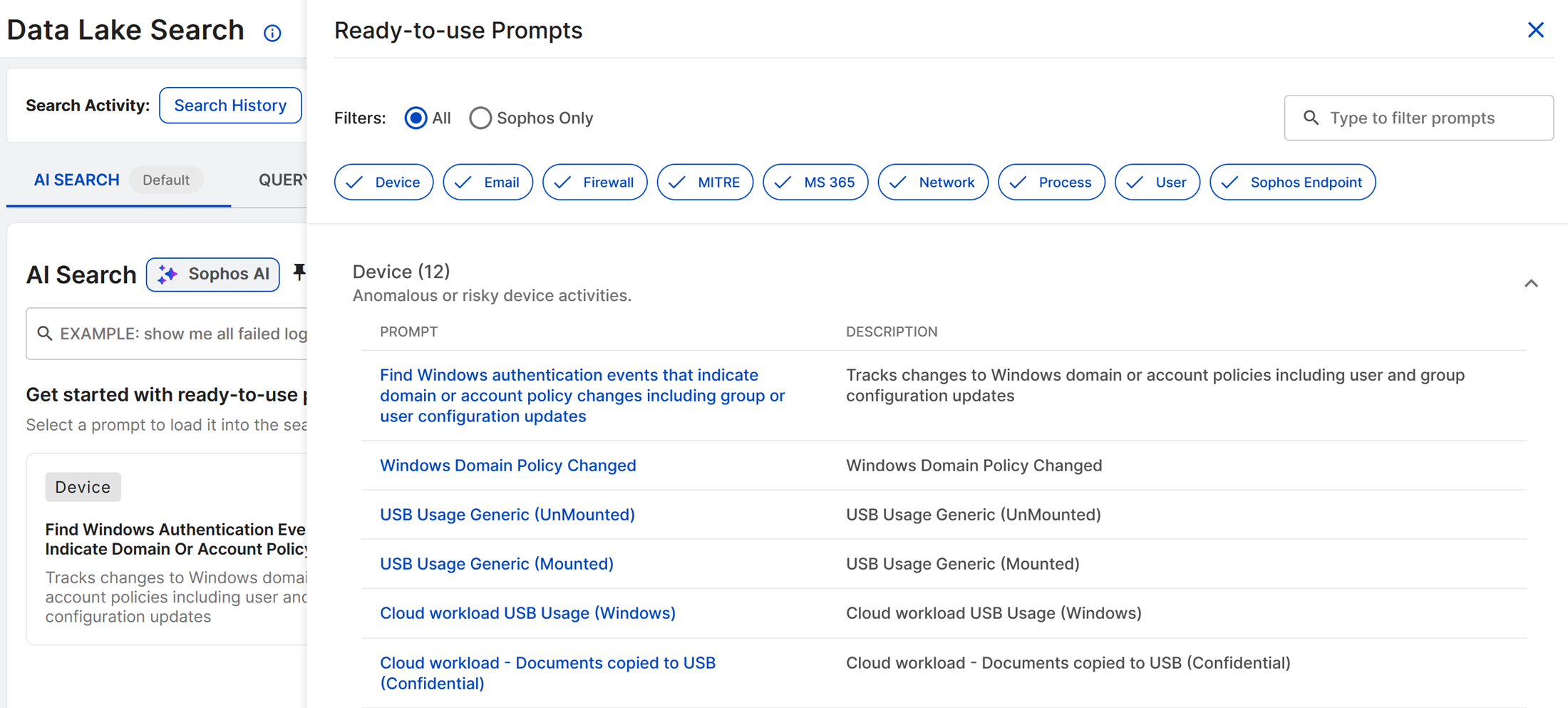
Find the prompt you wish to use with the following controls:
- Click Sophos Only to see prompts specific to Sophos products.
- Click a category filter chip to add or remove that category of prompts from the list.
- Enter a term in the search field to filter prompts by that term.
Click a prompt to load it in the search field to run or refine.
Run your search query
Enter a natural language query in the search field, or click a ready-to-use prompt, and then click Search.
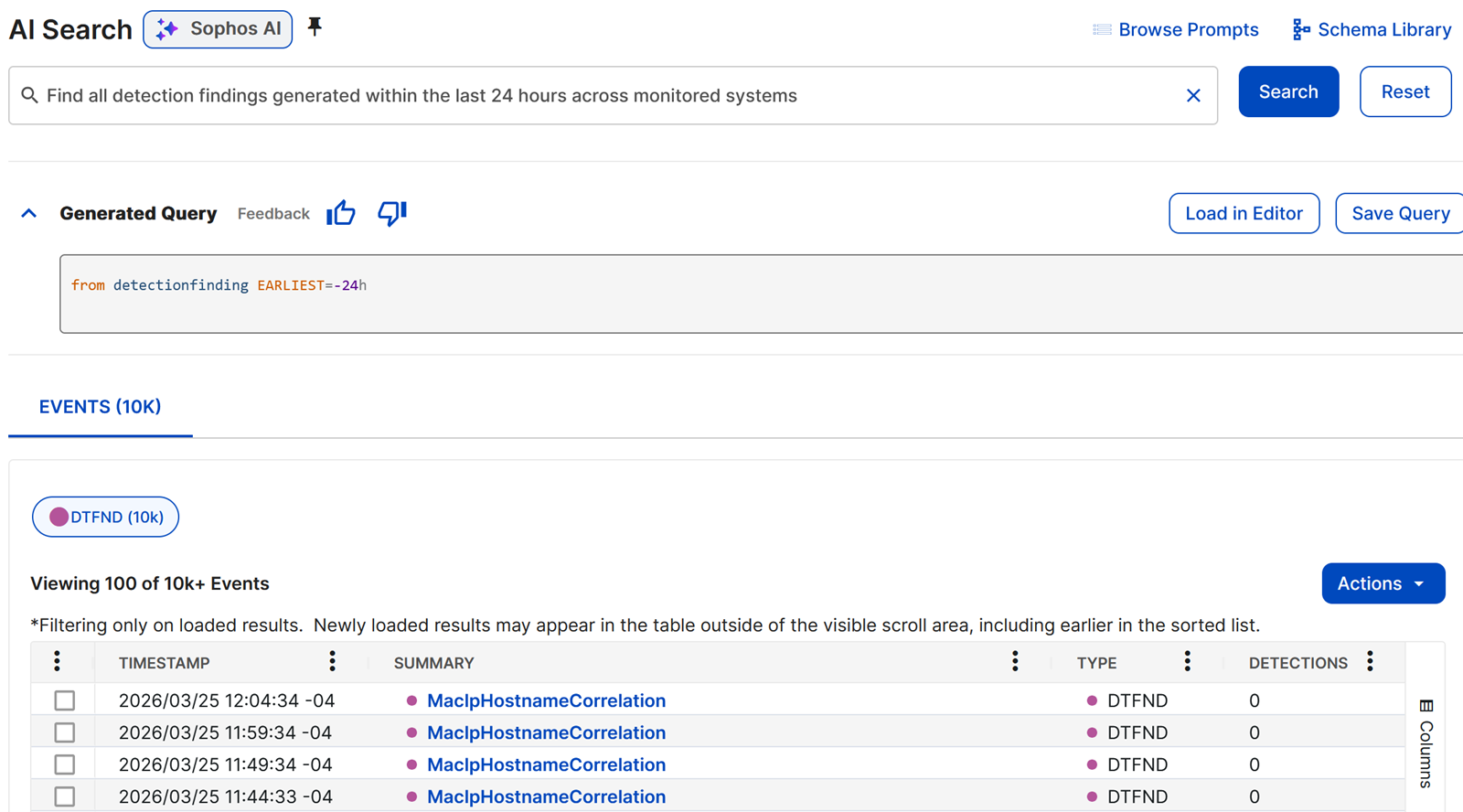
The AI-generated query shows with the results below.
Tip
Click the Feedback icons to provide feedback on AI-generated queries.
If necessary, refine your prompt and click Search again.
Tip
Click Full Screen above the query results to see them in a larger view. For tips on adjusting the query results table, see Filter and rearrange columns.
Save your search query
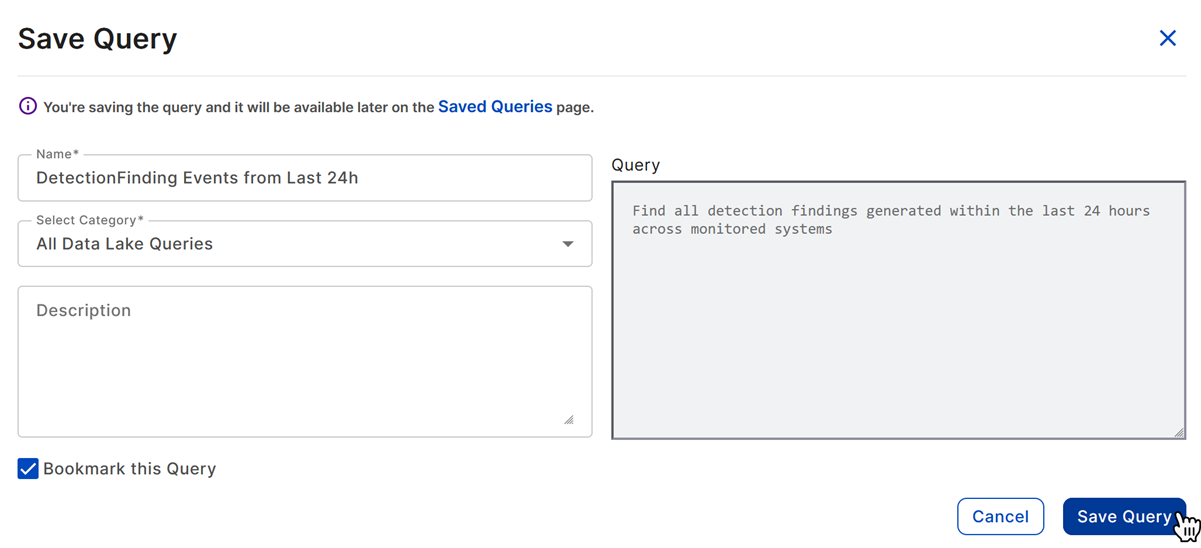
- Click Save Query.
- Enter a name for the search.
- Select a category from the dropdown.
- Optionally enter a description.
- Click Bookmark this Query if you want the search to appear in the My Bookmarked Queries category. For details, see Saved queries.
- Click Save Query.
Go to Security Operations > Data Lake Search and choose Query Builder.
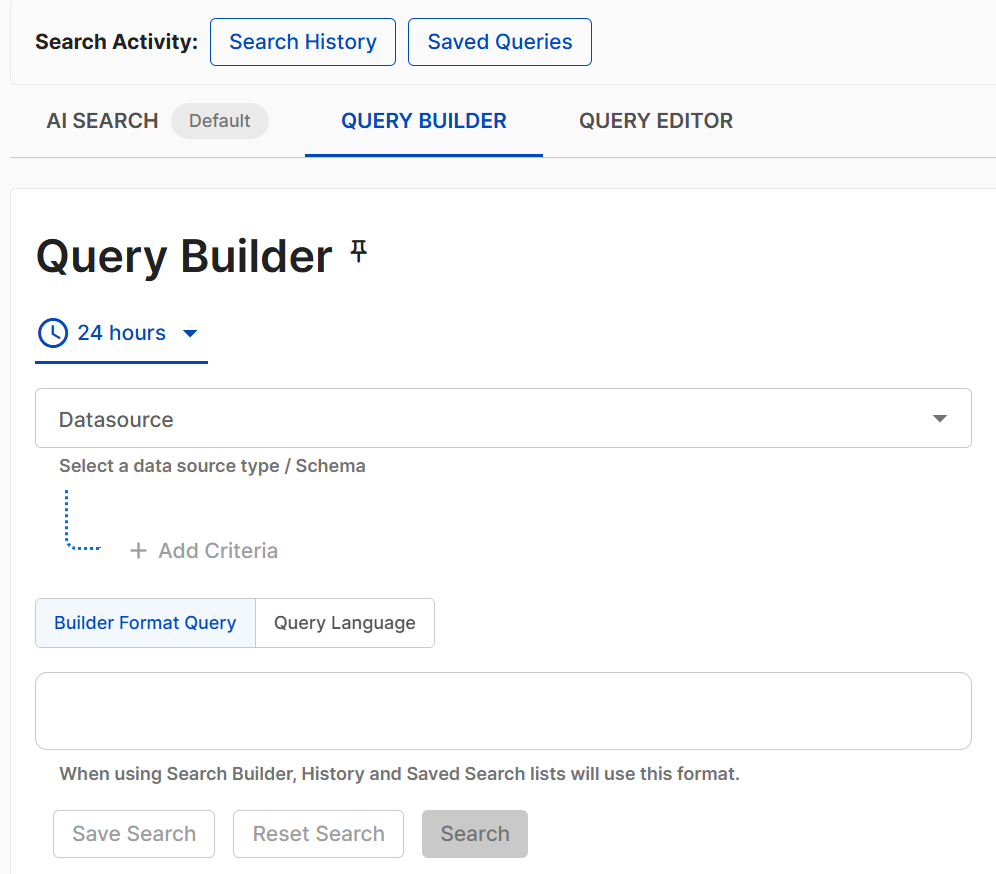
For detailed instructions on using Query Builder fields and operators, see Query Builder.
Run your search query
When you are ready to run your query, choose the date and time range and click Search or press Shift + Enter.
Tip
Click Full Screen above the query results to see them in a larger view. For tips on adjusting the query results table, see Filter and rearrange columns.
If necessary, refine your query and click Search again.
Save your search query
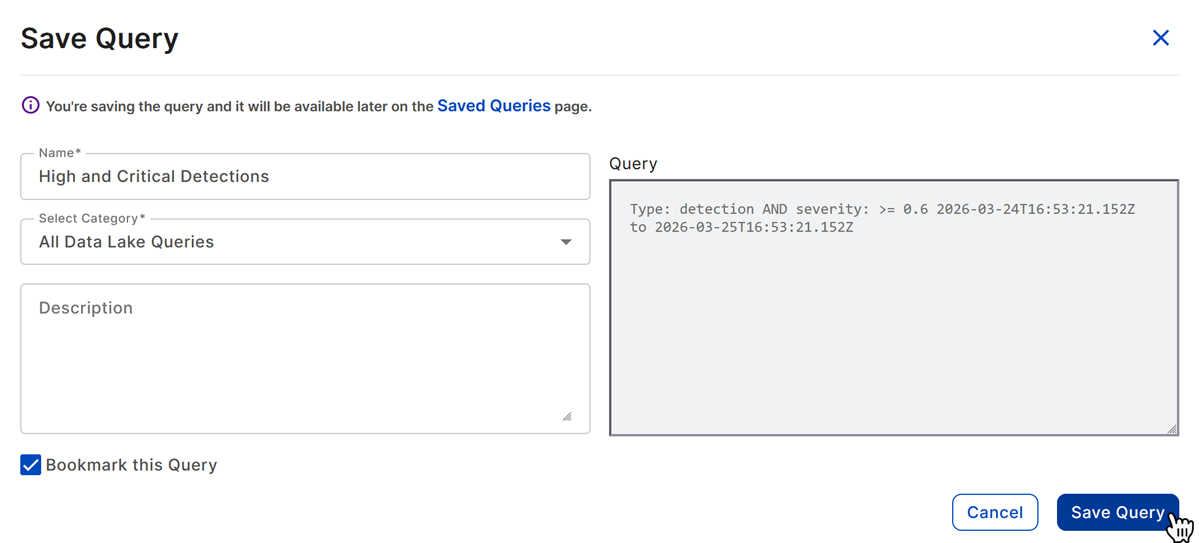
- Click Save Search.
- Enter a name for the search.
- Select a category from the dropdown.
- Optionally enter a description.
- Click Bookmark this Query if you want the search to appear in the My Bookmarked Queries category. For details, see Saved queries.
- Click Save Query.
Go to Security Operations > Data Lake Search and choose Query Editor.
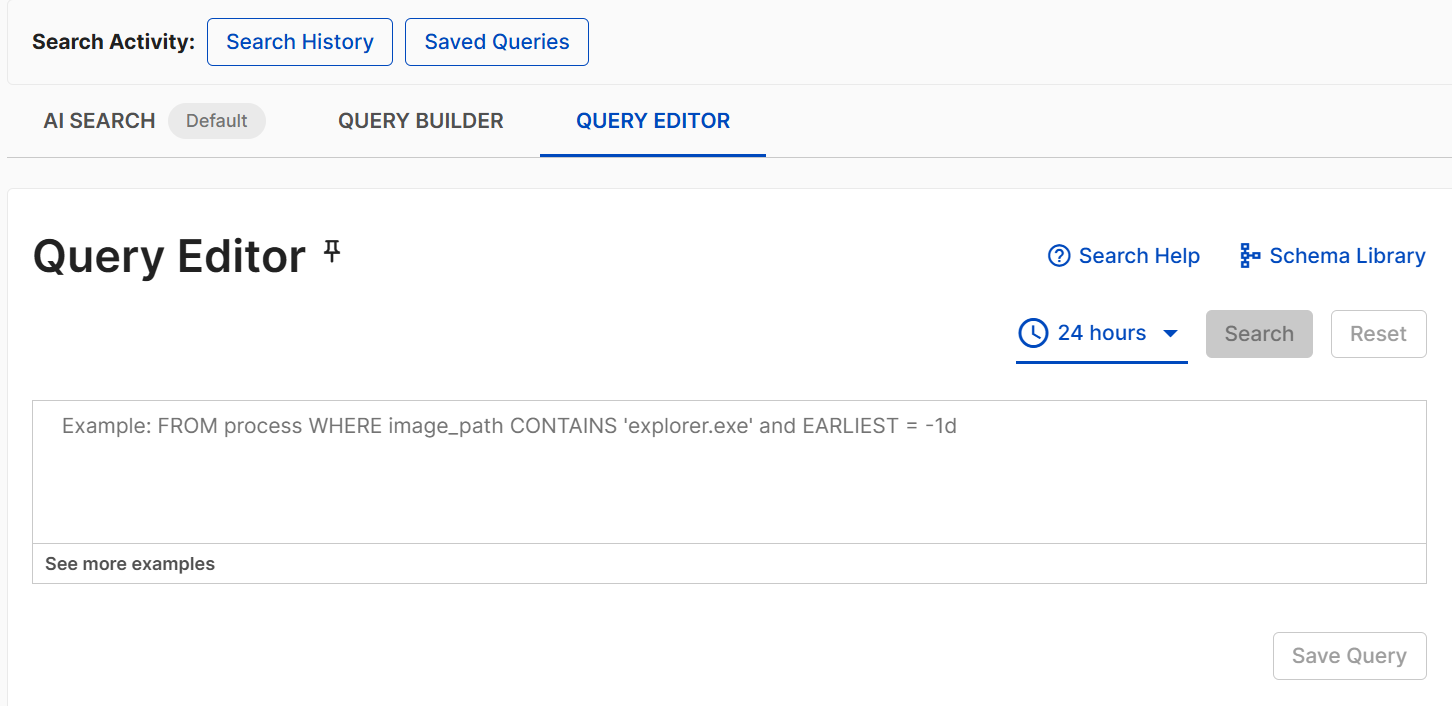
Click the Basics tab in the Getting Started section to learn Advanced Search query language syntax basics and review sample queries. Click Cheat Sheet for quick reference on operators, functions, and more. For detailed documentation, see Advanced Search query language
Run your search query
When you are ready to run your query, choose the date and time range and click Search or press Shift + Enter.
Tip
Click the Search Help icon to open Query Editor help, including context-aware Build With Me guidance that suggests available schemas and fields as you type.
Tip
Click Full Screen above the query results to see them in a larger view. For tips on adjusting the query results table, see Filter and rearrange columns.
If necessary, refine your query and click Search again.
Save your search query
- Click Save Query.
- Enter a name for the search.
- Select a category from the dropdown.
- Optionally enter a description.
- Click Bookmark this Query if you want the search to appear in the My Bookmarked Queries category. For details, see Saved queries.
- Click Save Query.
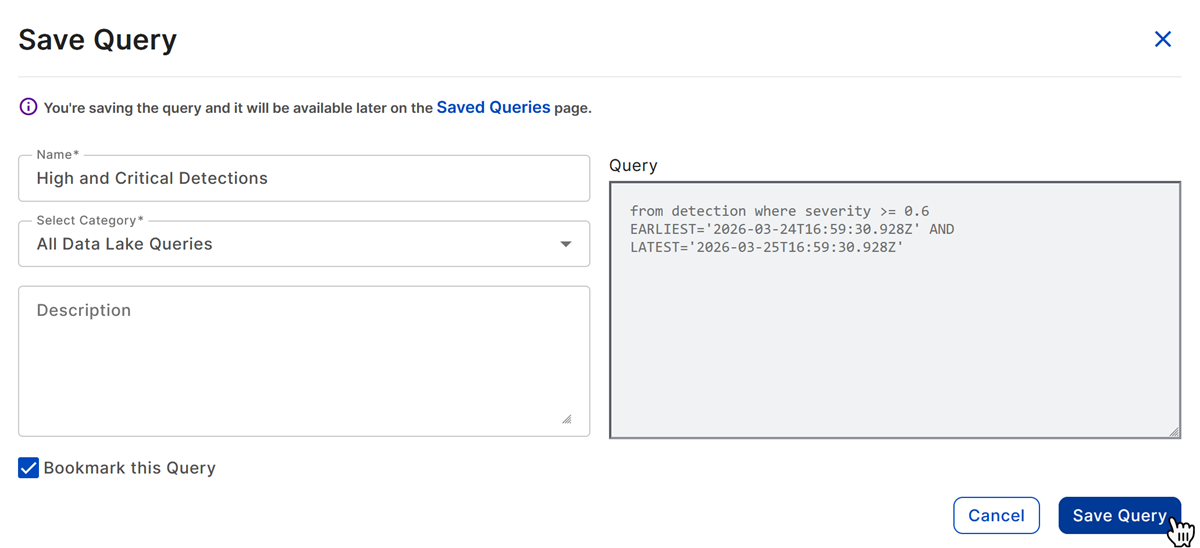
You can access saved searches by clicking Saved Queries at the top of Data Lake Search. For more information, see Saved queries.
Tip
Click the Actions menu above the results table to export the full search results or a selected subset. You can check the status of the export and download the file on the Data Exports page. See Data Exports for details.
Filter and rearrange columns
Click the Menu icon in a column header to do the following:
- Pin : Pin the column to the left or right.
- Autosize: Autosize the selected column, or autosize all columns.
- Reset: Restore the default column size and order.
- Filter : Narrow results or use checkboxes to show certain values.
- Show/hide : Choose which columns to display.
Rearrange columns by dragging their headers.