Saved queries
Saved queries let you quickly recall and organize frequently used Data Lake Search queries made by you or others in your organization.
View saved queries
Click Saved Queries to access a table of searches that you and other members of your organization saved.

Identify the method for each saved query by its icon in the Query Name column.
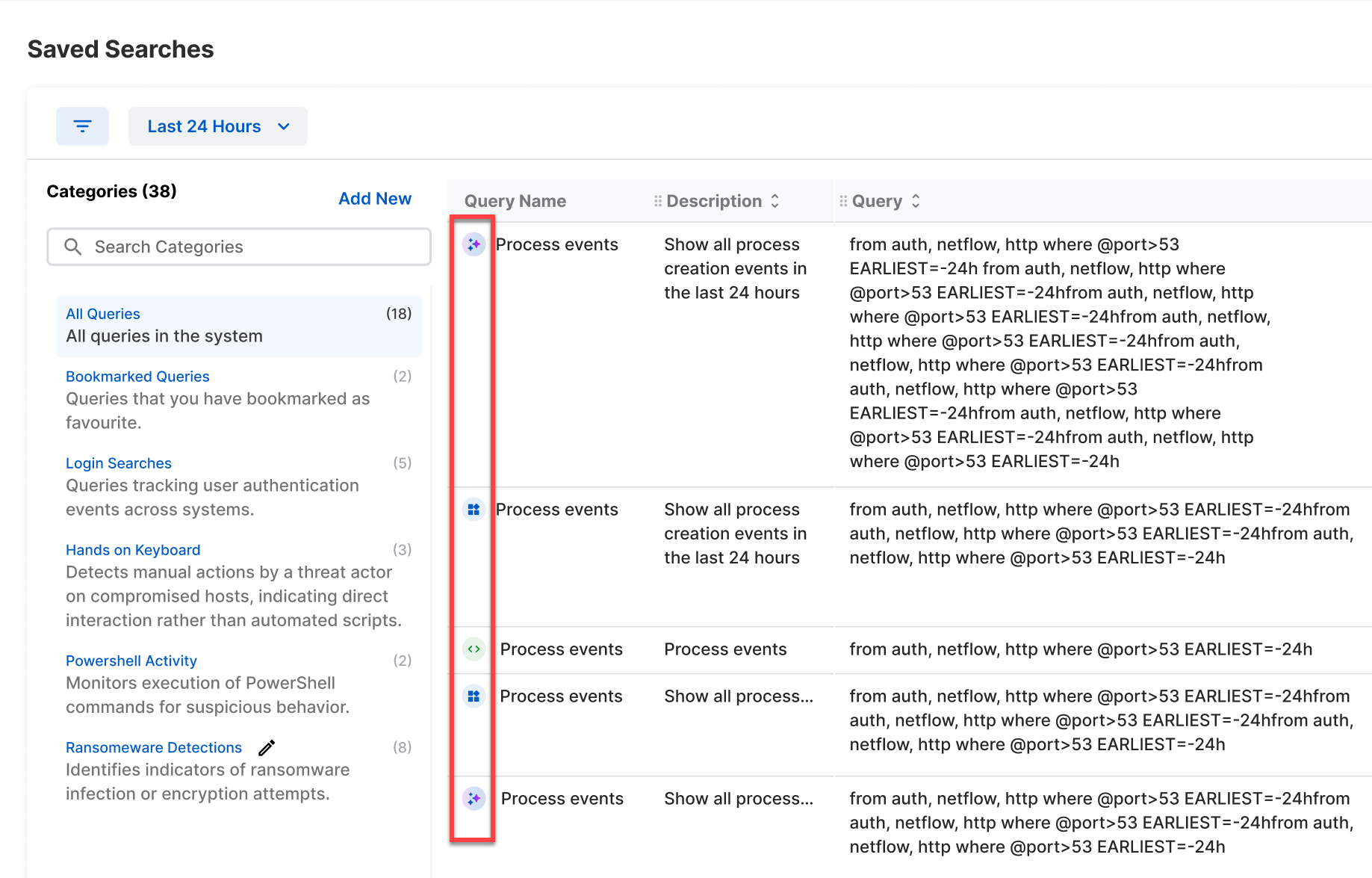
See the table below for a reference of each method.
| Icon | Meaning |
|---|---|
 | AI Search |
 | Query Builder |
 | Query Editor |
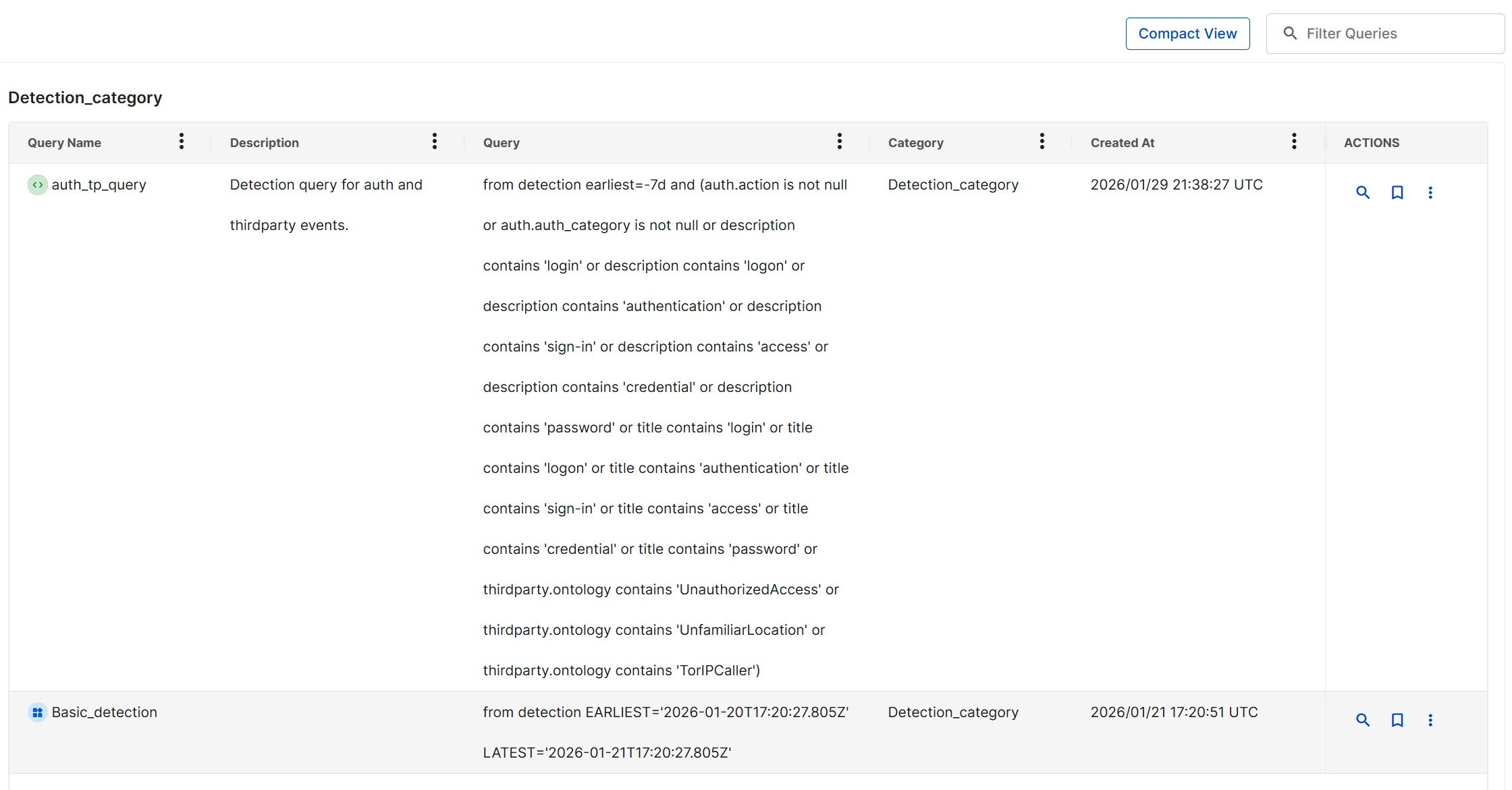
Click Expand View to expand each table row and display the full details of saved queries.
Tip
Click Compact View to return to the compact table view.
Filter saved queries
Click the Filter icon to show various criteria to filter the view of saved queries in your tenant.
Tip
You can also use the search bar to narrow the list and quickly find specific saved queries.
Saved query categories
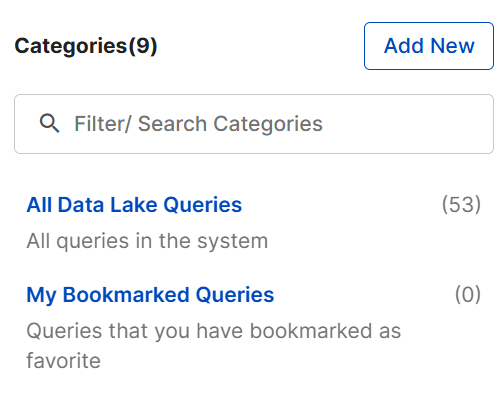
You can group saved queries into categories to organize related queries by theme. Click Add New to create your own categories. Some default categories are pre-populated.
Saved query actions
The Actions column provides three controls for each saved query, letting you manage and interact with it in different ways.
| Icon | Meaning |
|---|---|
| Magnifying Glass icon | Re-run the saved query. |
| Bookmark icon | Bookmarks the saved query. Search appears in the My Bookmarked Queries category. |
| Three Dots | More options, including Edit Details, Delete, and Add to Case. |
Filter and rearrange columns
Click the Three Dots in a column header to do the following:
- Pin : Pin the column to the left or right.
- Autosize: Autosize the selected column, or autosize all columns.
- Reset: Restore the default column size and order.
- Show/hide : Choose which columns to display.
Rearrange columns by dragging their headers.