Search history
Click Search History to view a table of searches previously executed by you or other users in your tenant from up to 30 days ago. Searches are automatically added to the search history table upon execution. Click the Filter icon to filter the table using various criteria.
Note
A grayed-out entry in the table indicates the search is in progress. Click the Refresh icon to refresh the contents and view the results of a pending search once it has completed.
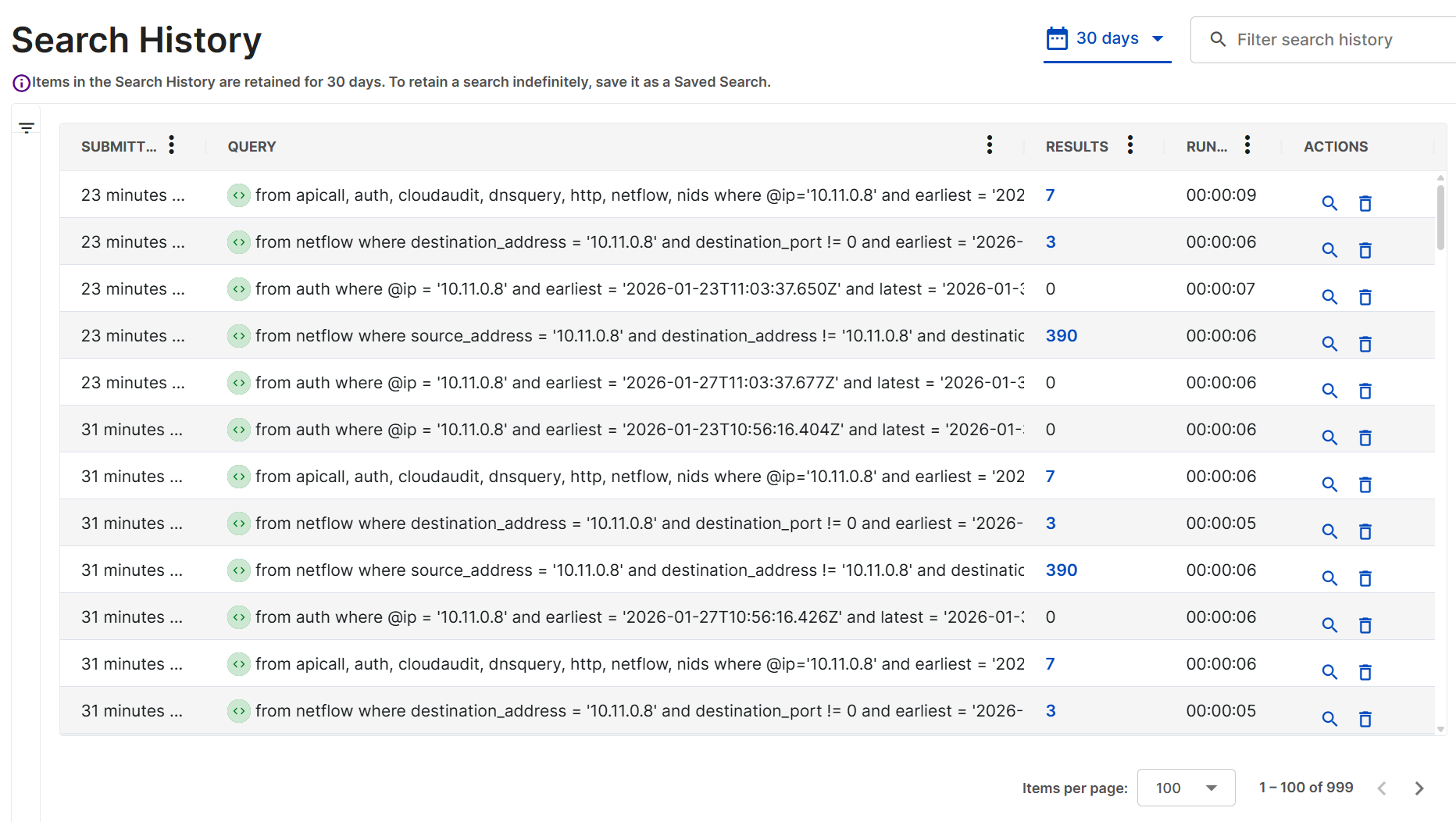
Identify the method for each search by its icon in the Query column.
| Icon | Meaning |
|---|---|
 | AI Search |
 | Query Builder |
 | Query Editor |
Search history actions
Use the Actions column to edit or delete a search from history. Editing a search with the Search icon reloads the historical query into the query prompt for further refinement or to run again. The Trash icon will show a search deletion dialog.
Retrieve query results
The Results column contains the number of results for events searches, as these results remain static. For detections searches, the Results column contains a View link, as these results may change after a search is executed if any of the detections have been resolved. For more details, see Resolve detections.
Filter and rearrange columns
Click the Three Dots in a column header to do the following:
- Pin Pin the column to the left or right.
- Autosize: Autosize the selected column, or autosize all columns.
- Reset: Restore the default column size and order.
- Show/hide : Choose which columns to display.
Rearrange columns by dragging their headers.