Edit or create queries
You can edit a pre-prepared Live Endpoint Search query or create your own query.
The query is written in osquery, which uses basic Structured Query Language (SQL) commands. You must be familiar with osquery or SQL to edit the query. For help with osquery, see osquery schema.
You also need to check the Sophos schema for the data sources you want to include in your query, for example, Sophos email data or Sophos Cloud Optix data. See Data Lake schema.
We recommend using the Sophos Community to share queries or fine-tune existing ones. See Live Endpoint Search Query Forum.
Use the tabs below that correspond to creating a new query or editing an existing query.
To create a query, do as follows:
- Go to Security Operations > Live Endpoint Search.
-
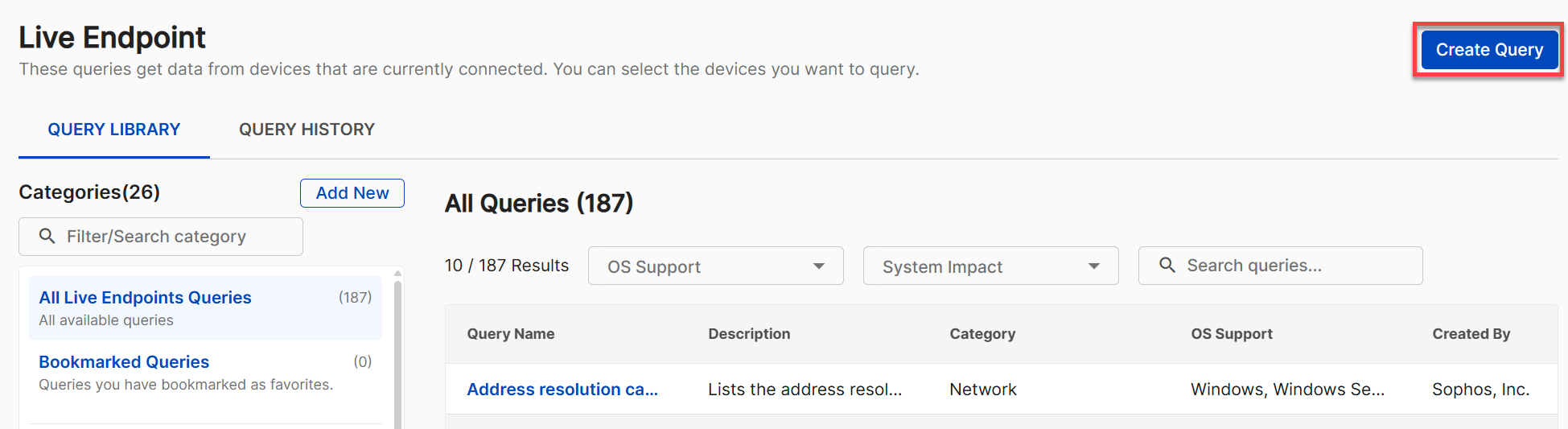
In Live Endpoint Search, click Create Query from the top-right of the page.
-
In the Create Query page, build your query as follows:
-
In the SQL box, enter the new query.
Tip
For information about the tables and data available, see osquery schema.
-
You can add variables to the query and assign a value to them. You can then use the value, such as in a conditional statement. To do this, do as follows:
-
Expand the Variables editor.
Note
Click + Add variable for each additional variable you want to define.
-
Enter a name for the variable.
Note
You can include spaces in the name but not dollar symbols.
-
Specify the variable type and the value that you want to use when the query runs.
-
In the SQL box, enter the SQL variable name, including the dollar symbols, where you want to use the variable.
For example, if you enter
File pathfor the variable name, SQL variable name becomes$$File path$$. -
Enter
$$File path$$in the SQL box:SELECT * FROM processes WHERE filepath = $$File path$$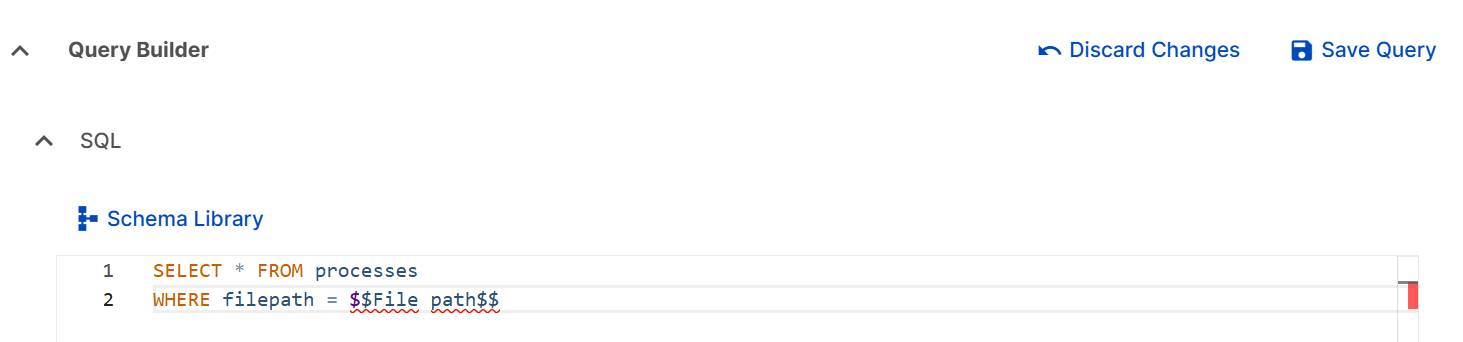
-
-
-
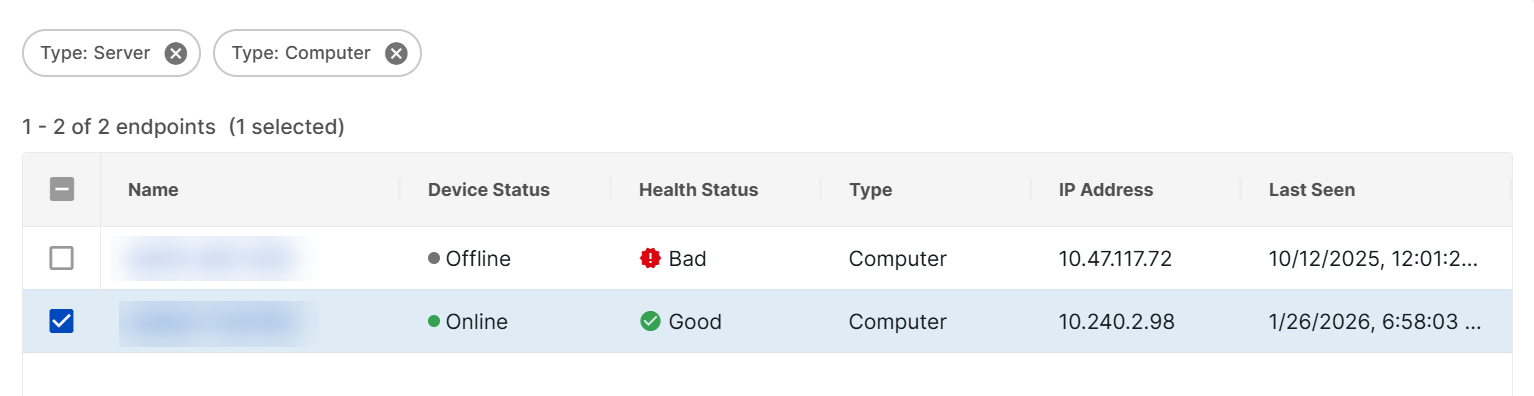
Open Endpoint Selection and select the devices to query.
Tip
Click Run Query to test the output before saving.
-
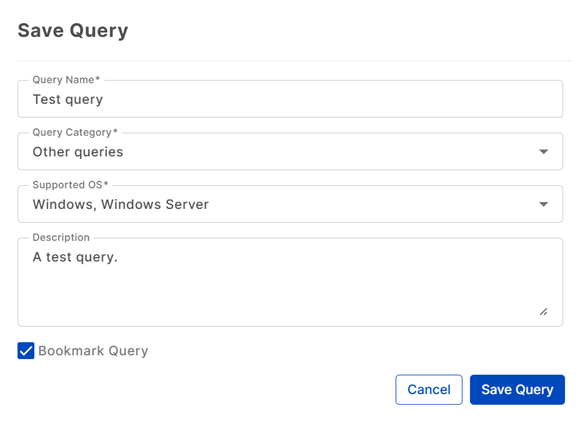
Click Save Query, and assign a Name, Query Category, Supported OS, and Description. Click the Bookmark Query checkbox, if required.
Note
Bookmarked queries form a collection of your favorite or commonly used search queries.
-
Click Save Query.
To edit an existing query, do as follows:
- Go to Security Operations > Live Endpoint Search.
-
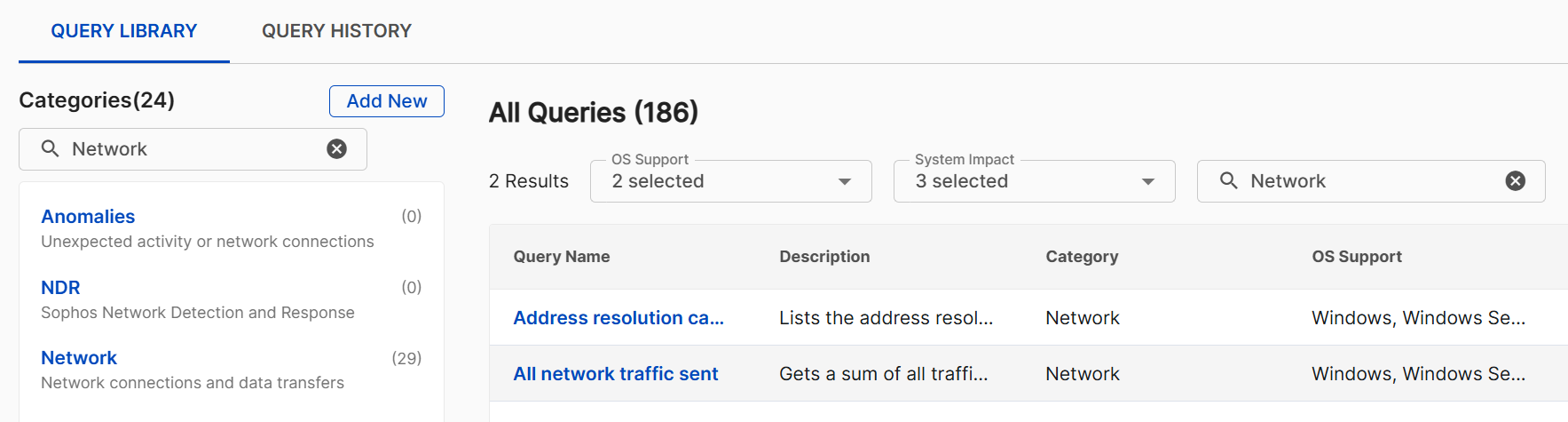
In Live Endpoint Search, click the query you want to edit.
Tip
Use the filter controls to find the query you want.
-
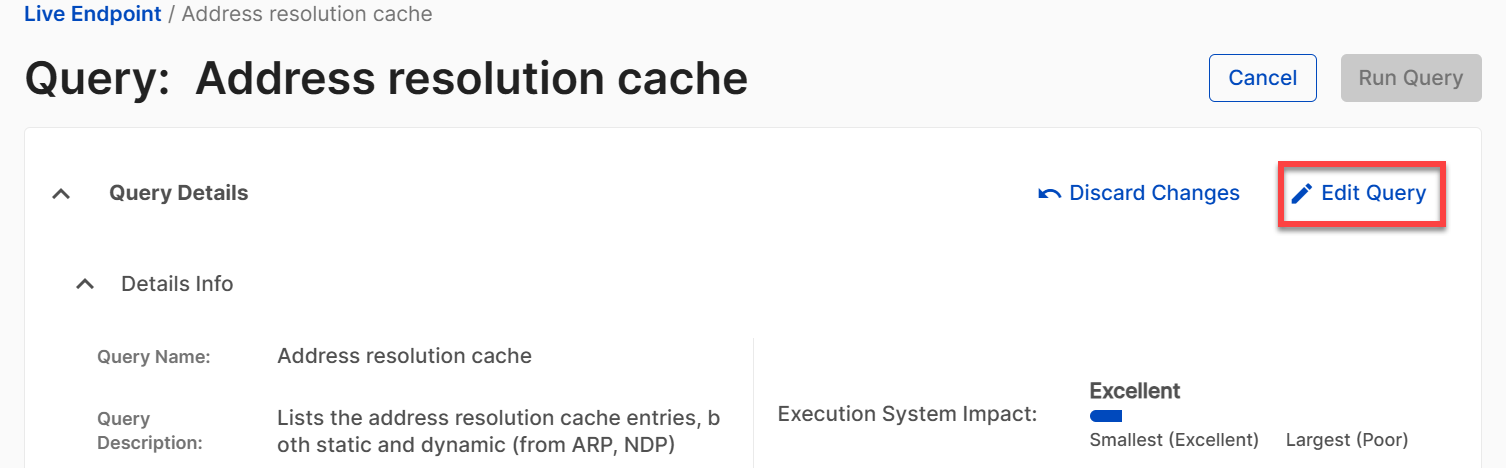
On the Query page, click Edit Query to enable editing in the SQL query box. Then define your query using the steps below.
-
In the SQL box, enter the changes that you want to make to the existing query.
Tip
For information about the tables and data available, see osquery schema.
-
You can add variables to the query and assign a value to it. You can then use the value, for example in a conditional statement. To do this, do as follows:
-
Expand the variable editor.

Note
Click + Add variable for each additional variable you want to define.
Remove variables if needed with the Trash icon .
-
Enter a name and descriptive name for the variable.
Note
You can include spaces in the name but not dollar symbols.
-
Specify the variable type and the value that you want to use when the query runs.
-
In the SQL box, enter the SQL variable name, including the dollar symbols, where you want to use the variable.
For example, if you enter
File pathfor the variable name, SQL variable name becomes$$File path$$. -
Enter
$$File path$$in the SQL box:SELECT * FROM processes WHERE filepath = $$File path$$
-
-
Open Endpoint Selection and select the devices to query.
Tip
You may run the query to test the output before saving.
-
Click Save Query, and assign a Name, Query Category, Supported OS, and Description. Click the Bookmark Query checkbox, if required.
Note
Bookmarked queries form a collection of your favorite or commonly used search queries.
-
Click Save Query.
-