Live Endpoint Search
Live Endpoint Search allows you to check the devices that Sophos Fusion is managing, look for signs of a threat, or assess compliance.
You can use Live Endpoint Search queries to search devices for signs of threats that haven’t been detected by other Sophos features. For example:
- Unusual changes to the registry.
- Failed authentications.
- A process running that is very rarely run.
You can also search devices for signs of a suspected or known threat if Sophos Fusion has found the threat elsewhere, or if a user reports suspicious behavior on their device.
You can also check the compliance of each device. For example, you can search for out-of-date software or browsers with insecure settings.
How queries work
Sophos Fusion provides a range of queries for you to use to check your devices. You can use them as they are, or edit them (you'll need to be familiar with osquery or SQL). You can also create new queries. For more information on creating or editing queries, see Edit or create queries.
Select query
To select a pre-prepared query, do as follows:
-
Go to Security Operations > Live Endpoint Search. The Query Library tab is selected by default.
Note
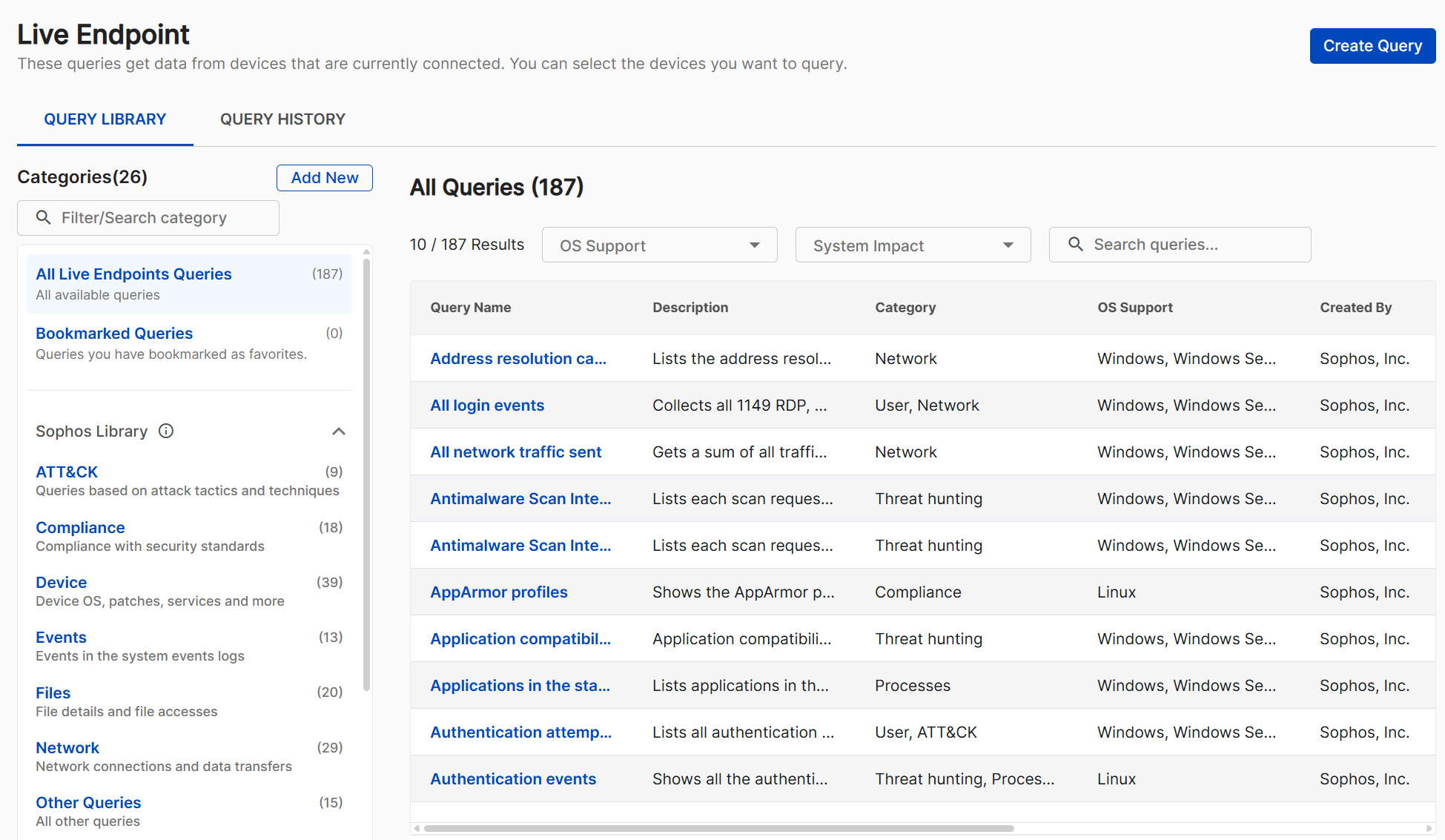
In Query Library, the All Live Endpoints Queries category is selected by default, so you see all available queries.
Tip
Only ten queries are shown in the table by default. Use the Items per page drop-down beneath the table to increase the number of visible search entries per page.
-
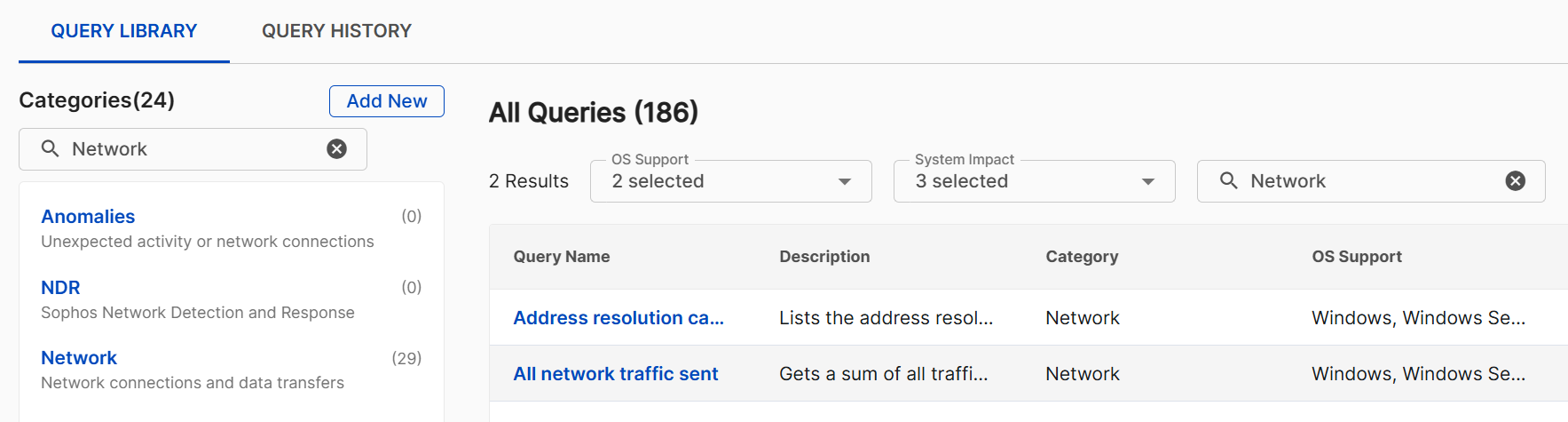
Use the Categories filter on the left to filter queries. Refine results with OS Support and System Impact, or use Search queries to find specific queries.
Note
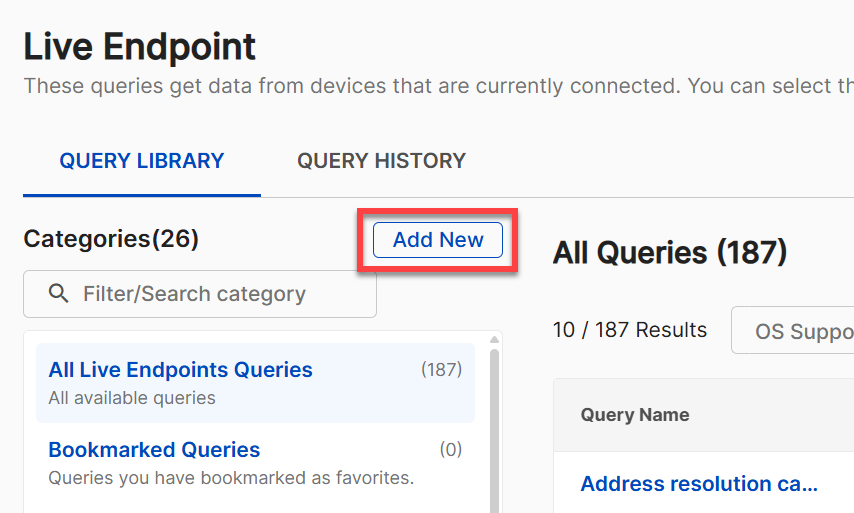
Click Add New to add a custom-defined category for the organization of custom queries that you build in Live Endpoint Search. For more information, see Create query categories.
-
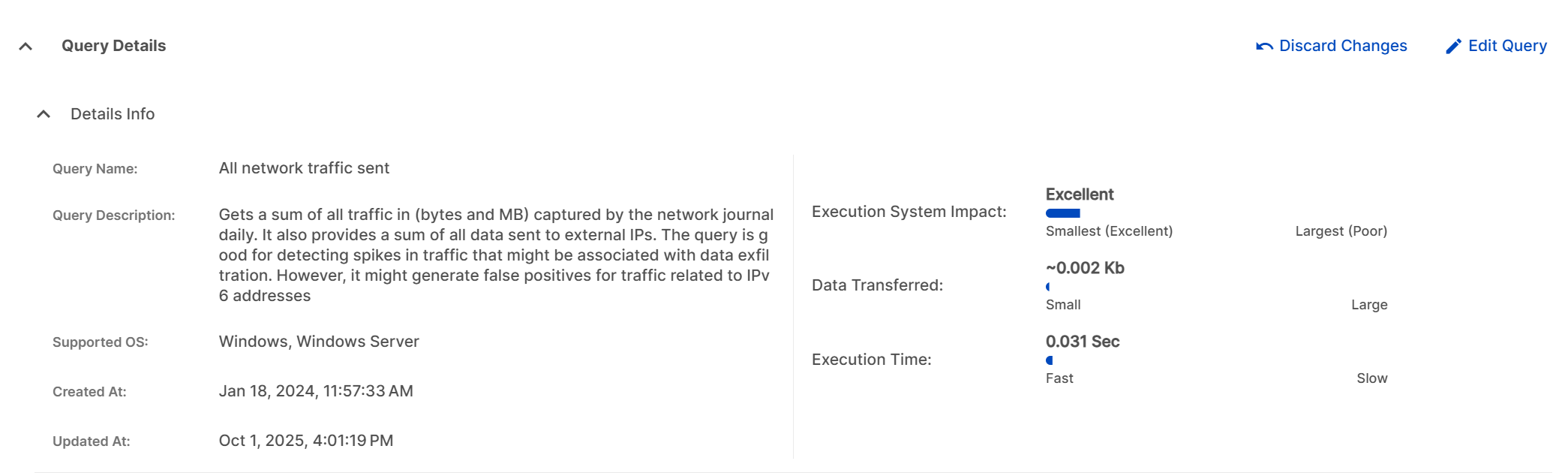
Click the query that you want to run. Each query features the following sections:
Lists metadata containing supported operating systems and performance data.
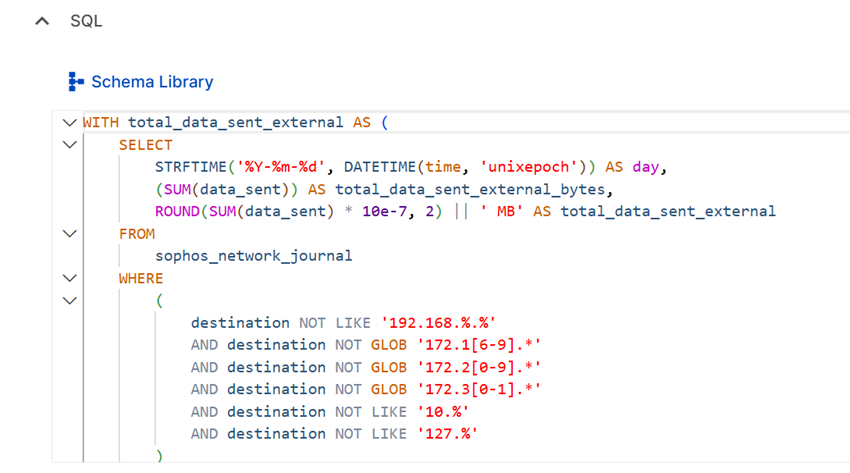
Shows the search query SQL syntax.
Tip
Click Edit Query to make changes to the query. You can save edits as a custom query.
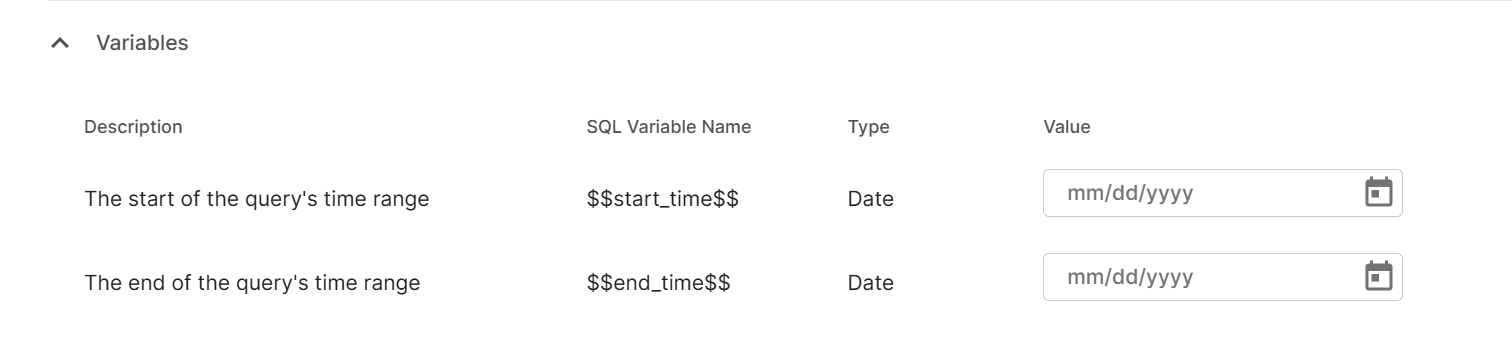
Define a time range for the query and any other parameters relevant to the query.
Note
Some queries don’t require variables, so they won’t include a Variables section.
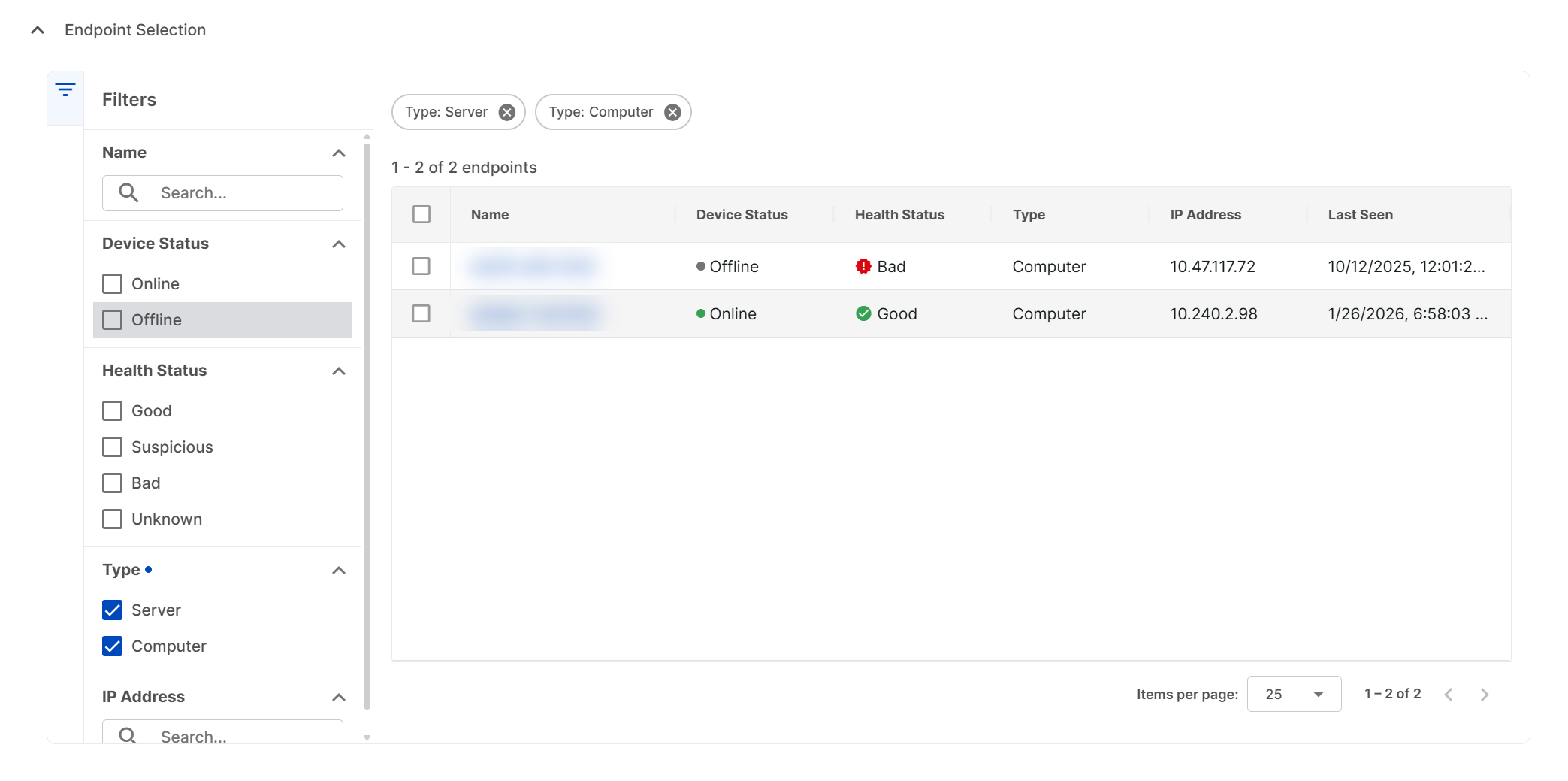
Select endpoints to be the subjects of the query from a table of Sophos managed endpoints.
Tip
Use the filters to narrow the devices that are shown.
-
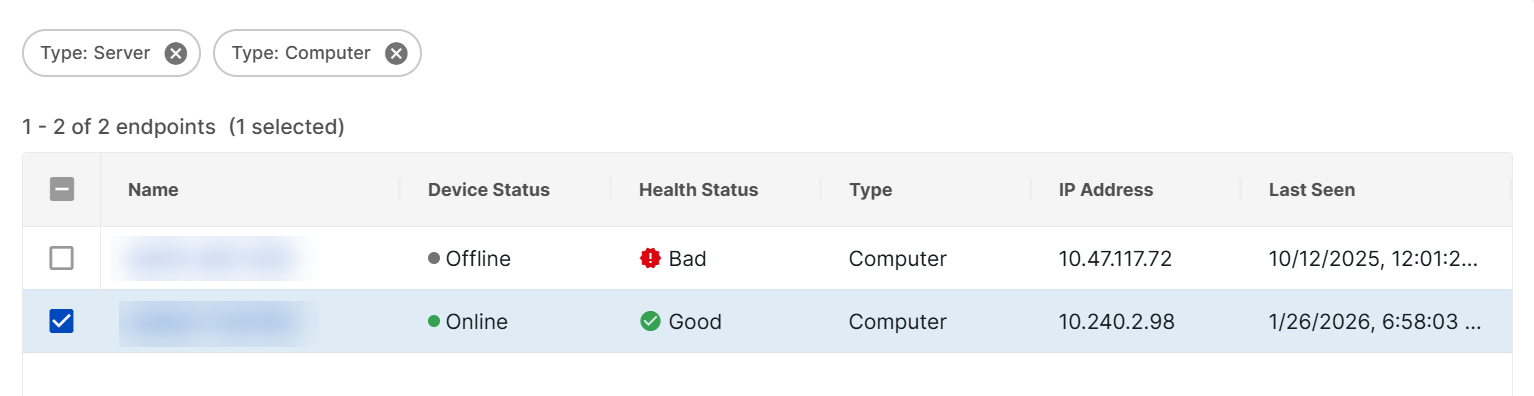
In the Endpoint Selection section, select the devices that you want to query.
Run query
Once you've selected endpoints, you can run the query.
To run a query, do as follows.
-
At the top of the Live Endpoint Search page, click Run Query.
-
When the query stops running, the Query Results tab shows a table displaying the results of the query and items found for each device.
Tip
Click Export All to get a CSV export of the results.
-
Click the Device Telemetry tab to see a table with metadata for each selected endpoint regarding the query. This table shows you the following information for each device:
- Status: Shows whether the query finished.
- Result: Shows the query's result.
-
Performance: Shows the amount of data that the query generated and the impact of the query on the target system.

Create Query
You can define your own custom queries in Live Endpoint Search using SQL. For more information, see Edit or create queries.