Data Exports
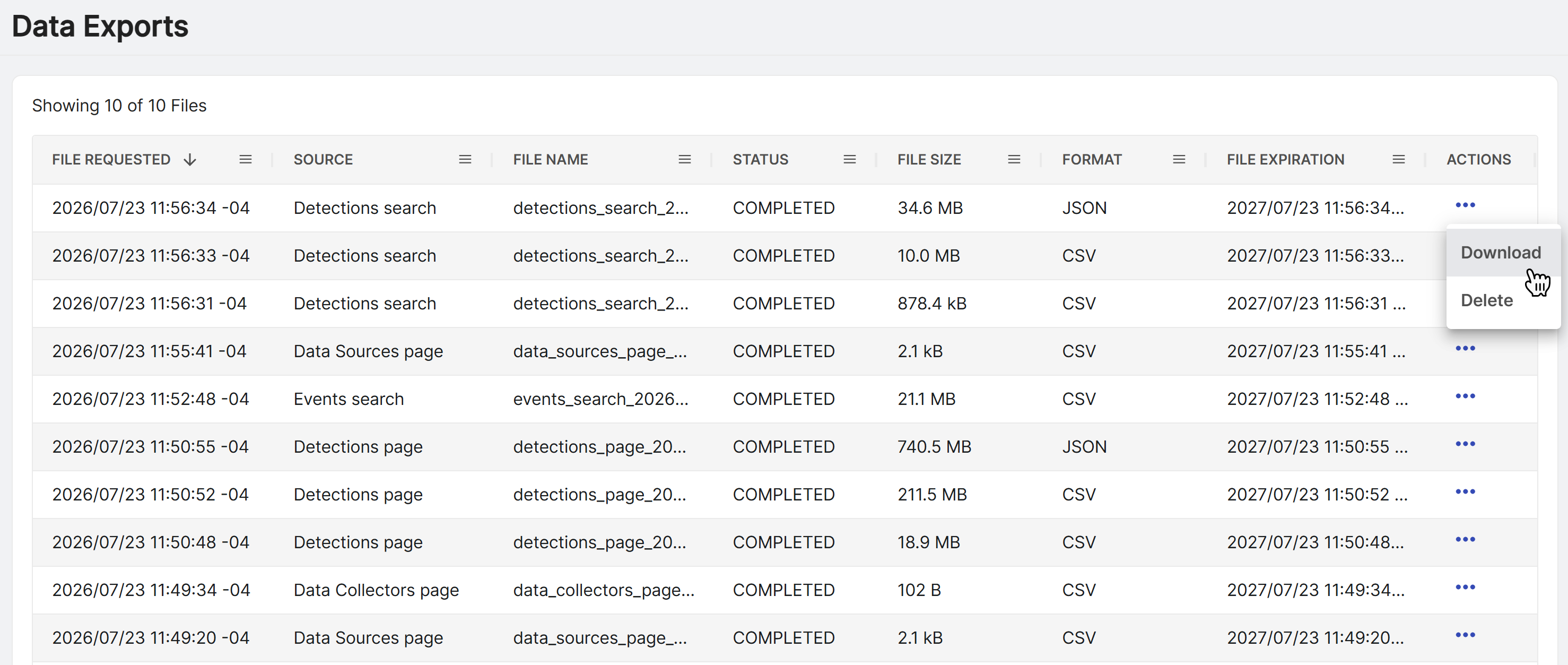
The Data Exports pages shows a table of data export requests you've made throughout Sophos XDR.
To see, manage, and download your exports, go to Security Operations > Data Exports.
Note
Exported files are limited to 100,000 rows. If a data set larger than 100,000 rows in size is needed, you must refine the data table through the date picker, filters, or search parameters, or submit multiple requests spanning the full desired dataset.
Exported files have an expiration date shown in the File Expiration column.
Status
Exports may be in one of the following states, which shows in the Status column:
- Completed: Export has completed processing and the file is available to download.
- Errored: A processing error has occurred. Click the three dots in the Actions column and choose Retry to try again.
- Processing: The export is in progress.
- Cancelled: The export request is cancelled.
Actions
Click the three dots in the Actions column and choose one of the following options, depending on the export's current status:
- Download: Downloads the completed file.
- Cancel: Cancels an export request that is in progress.
- Retry: Submits another export request. Select this if your export has an Errored status.
- Delete: Deletes the export.
Note
Deleted exports can't be recovered.