MDR Cases
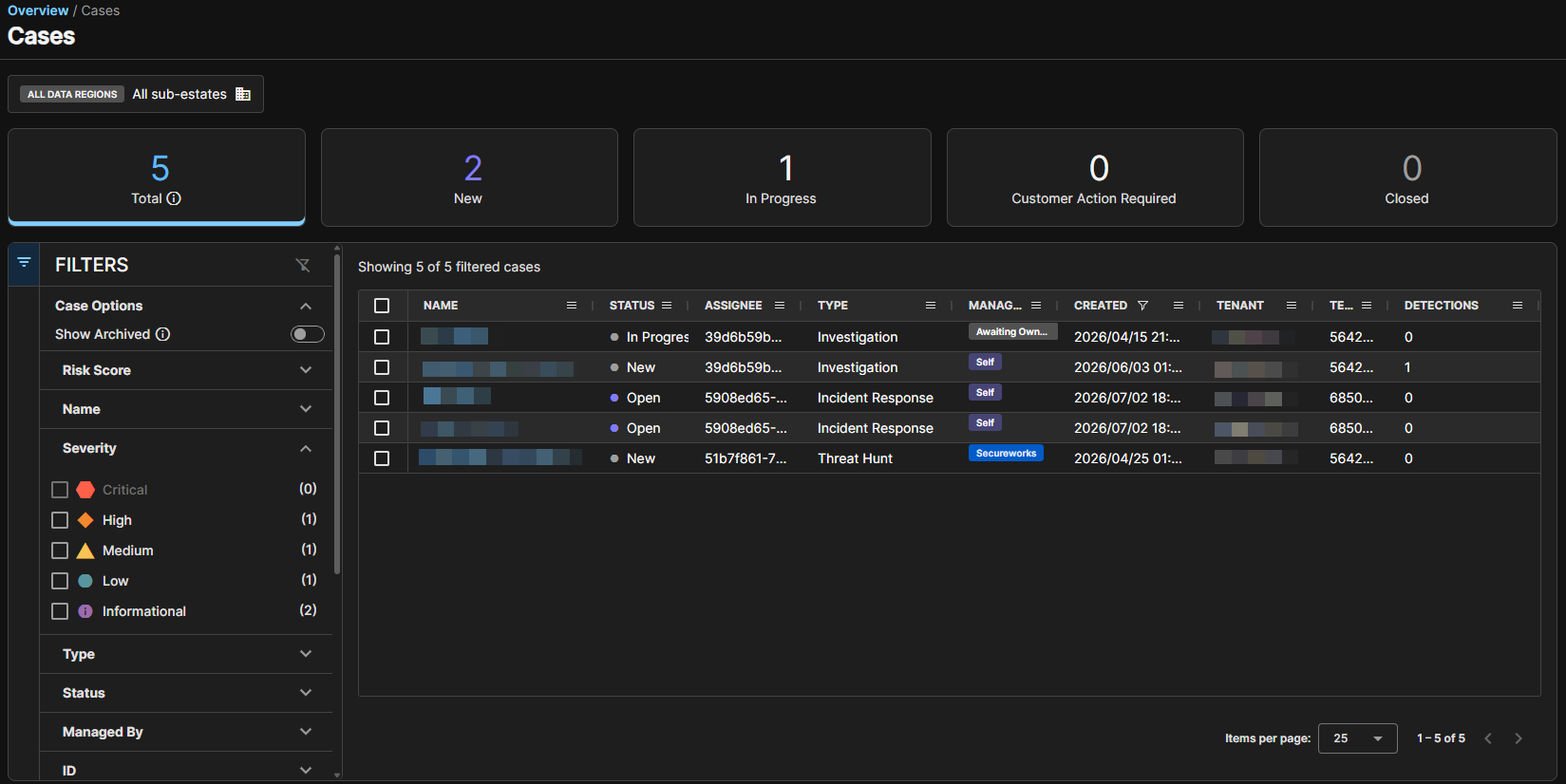
This page explains how case management works in the Sophos MDR beta. It describes the changes from the current version, the differences between self-managed and Sophos-managed cases, and the actions you can take in each scenario.
Go to My Products > MDR > Cases.
Key changes
The Sophos MDR beta introduces the following updates:
- You can now claim ownership of certain cases, including some auto-generated cases.
- You can create and manage more targeted case types, not just general requests.
- Case behavior is now defined more clearly and depends on whether a case is self-managed or Sophos-managed.
Case filters
Click the Filter icon  to manage which case details are shown on the Cases page.
| Filter name | Description |
|---|---|
| Case Options | Shows active or archived cases. Turn on Show Archived to show only archived cases. |
| Risk Score | Helps you identify which case contains the most critical security threat and requires immediate investigation. |
| Severity | Shows the severity of the incident that caused the case. The severity levels and the colors associated with them are as follows:
|
| Type | Investigation Threat Hunt Incident Health Check Security Case Managed Risk ITDR Finding Others |
| Status | Open New In Progress |
| Managed By | Shows whether the case is managed by Self, by Secureworks, or is Awaiting Ownership. |
| ID | Shows the case ID. |
| Creator | Shows the case creator. |
| Assignee | Shows the case assignee. |
| Created | Shows the date when the case was created. Dates are in UTC. Select Equals, Greater Than, In Range, or Less Than Select a specific date and click Apply. |
| Updated | Shows the date when the case was last updated. Dates are in UTC. Select Equals, Greater Than, In Range, or Less Than Select a specific date and click Apply. |
 Critical
 High
High Medium
 Low
Low Informational
Case details in Sophos MDR beta
Click the case name to open the full case details.
Case ownership
A case can be managed in one of the following ways:
- Self-managed: You manage the case and have access to all fields and capabilities available in the case. The Sophos MDR team doesn't work on the case.
- Sophos-managed: The Sophos MDR team manages the case. Only MDR analysts have access to all fields and capabilities.
When a case becomes Self-managed or Sophos-managed, this setting can't be changed. To switch ownership, you must create a new case.
Case type behavior
| Case type | Can customers create? | Ownership |
|---|---|---|
| Investigation and Other | Yes | Self-managed or Sophos-managed |
| Threat Hunt | Yes | Sophos-managed only |
| Health Check | Yes | Sophos-managed only |
| Incident | No | Sophos-managed only |
For new Investigation and Other case types, ownership is determined based on your actions. When ownership has been set, it remains fixed for the case's lifetime.
A new Investigation or Other case becomes Sophos-managed if you take one of the following actions:
- Assign the case to Sophos.
- Tag Sophos (
@Sophos) in a comment.
A new Investigation or Other case becomes self-managed if you take one of the following actions:
- Perform a response action.
- Assign the case to someone in your tenant.
- Close the case.
Ownership of a new Investigation or Other case doesn't change if you take one of the following actions:
- Add a comment without tagging Sophos.
- Add a link or attachment to the case.
Self-managed cases
In a self-managed case, you have full control and can do the following:
- Update the case status to any available value.
- Assign the case to your team.
- Add comments, links, and attachments.
- Perform response actions.
- Manage the investigation workflow.
Sophos-managed cases
In a Sophos-managed case, some actions are restricted.
You can take the following actions:
- View case details.
- Add comments and collaborate with Sophos.
- Assign the case back to Sophos.
- Close the case.
You can't take the following actions:
- Merge or split cases. This functionality is coming soon.
- Change the case status, except for closing the case.
- Add new evidence, such as events or detections.
- Edit key findings.
Case status and verdict
Cases may show the following statuses, depending on the case type:
| Status | Description |
|---|---|
| New | The case has been created. |
| In Progress | The case is in progress. |
| Customer Action Required | The case is waiting for customer action. |
| Awaiting Sophos Assignment | The case is waiting for the MDR Ops team to assign it internally. |
| Closed | The case is closed. |
| Case verdict | Description |
|---|---|
| True Positive – Benign | Activity was correctly identified, but it either doesn't compromise the targeted system or data, or it's been mitigated. |
| True Positive – Malicious | A confirmed security incident. Activity indicates that your organization's systems or data have been compromised or that measures put in place to protect them have failed. |
| Inconclusive | Activity might be valid, but remediation actions might not be possible. |
| False Positive | Activity that is misidentified and non-malicious. |
Case lifecycle
After investigating a case, you can close it once it's resolved. If further investigation is needed, you can reopen the case within 30 days of closure. The available options depend on how your cases are managed.
Close a case
When you close a case, its related detections are resolved and labeled based on the verdict you choose. For MDR customers and MDR Ops team, the verdicts and their corresponding detection labels are as follows:
| Case verdict | Detection resolution status |
|---|---|
| True Positive – Benign | True Positive – Benign |
| True Positive – Malicious | True Positive – Malicious |
| Inconclusive | Not Actionable |
| False Positive | False Positive |
Reopen a case
Within 30 days of closure, you can reopen a case in the following ways:
- Sophos-managed: Tag Sophos (
@Sophos) in a comment on the case. - Self-managed: Change the status of the case from closed.
After 30 days, the case can't be reopened. You must create a new case.
Notifications and inactivity rules
For Sophos-managed cases, if action is needed from you, the MDR analyst sets the case status to Customer Action Required. This action starts the inactivity timer.
If you don't take action on the case, the following events occur:
- You receive an email reminder every 24 hours until you take action.
- The case is automatically closed after five days of inactivity.
Actions that reset the inactivity timer
If you take one of the following actions, the inactivity timer resets to zero and starts again:
- Add a comment.
- Perform a response action.
- Change the assignee.
- Add a link or attachment.
Best practices
Follow these best practices while working with cases in the Sophos MDR beta:
- Decide early who will manage the case. Ownership can't be changed later.
- Take action promptly on Sophos-managed cases to avoid automatic closure.
- Use comments (including
@Sophos) to collaborate and re-engage MDR analysts when needed. - Choose the most appropriate case type when creating a new case to ensure efficient handling.