API configuration
Learn how to allow administrators API access to the firewall. API access is turned off by default to protect your network.
To use the API, you must turn it on and explicitly allow access from trusted IP hosts. This ensures that only authorized administrators can access the firewall configurations through the API.
Allow API calls from administrators' endpoints
To allow API calls from administrators' endpoints, do as follows:
- Go to Administration > API access.
-
Turn on API access.
It allows administrators to get, set, or remove configurations using the API.
-
Under Allowed IP hosts, enter the IP hosts from which administrators connect to the firewall's API.
The IP hosts can contain IP addresses, IP ranges, or networks. You can add up to 64 entries.
Note
When you upgrade to SFOS 22.0 and later, the firewall automatically converts previously configured allowed IP addresses into IP host objects. These migrated objects are named using the prefix
apiconfig, for example,apiconfig_1_ajgy5q. -
Click Apply.
Make an authentication request
The firewall authenticates administrators' API requests based on their credentials in the firewall.
The API client sends the credentials over HTTPS to the firewall to ensure security. HTTPS provides a secure channel between the client and server, encrypting the data in transit and ensuring that unauthorized actors don't intercept or modify the communication.
We recommend that you first verify that the port, IP address or hostname, and credentials work.
You must send the payload using the following URL:
https://<Firewall IP address or hostname>:<port>/webconsole/APIController
You can use any of the following mechanisms to test the connectivity and credentials.
In the Postman application, enter your credentials as follows:
-
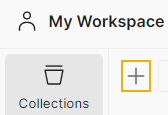
Under Collections, click the plus button to create a new collection.
-
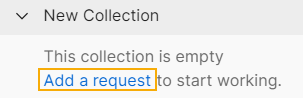
Under the collection, click Add a request.
-
Under New Request, use the following syntax to enter your firewall details:
https://<firewall's IP address or hostname>:<firewall's port>/webconsole/APIController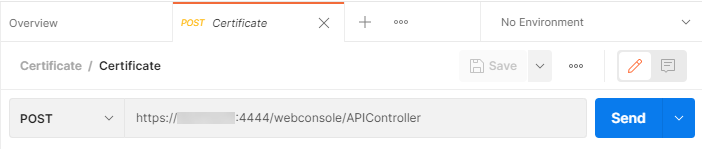
-
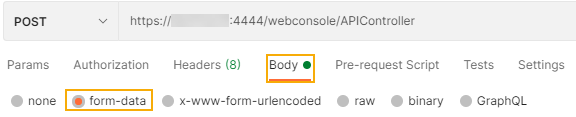
Click Body and click form-data.
-
Under Key, enter
reqxml. -
Under Value, use the following syntax to enter your credentials.
<Request>
    <Login>
        <Username><your username></Username>
        <Password><your password></Password>
    </Login>
</Request>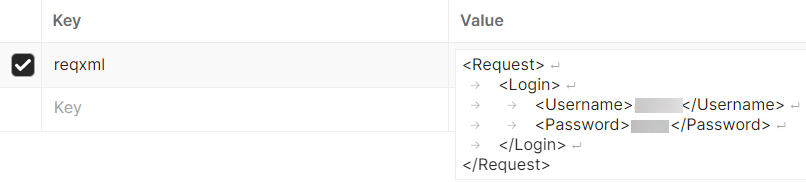
-
Click Send.
On the command-line of your Linux endpoint or the firewall, use the following syntax to enter your credentials:
curl -k "https://<firewall's IP address or hostname>:<firewall's port>/webconsole/APIController?reqxml=<Request><Login><Username><your username></Username><Password><your password></Password></Login></Request>"
You'll get the following response: Authentication successful.