Import connections
The Sophos Connect client can connect to Sophos Firewall using SSL VPN or IPsec VPN connections. You can import connections into the Sophos Connect client.
Introduction
In version 2.0 of the Sophos Connect client, you can import both SSL and IPsec VPN connections. If you're using an earlier version of the Sophos Connect client, you can only import IPsec connections.
You can do as follows:
- Import an IPsec connection using a file given to you by your firewall administrator.
- Import an SSL connection using a file given to you by your firewall administrator.
- Import an SSL connection by downloading a file from the user portal.
Sophos Connect supports .pro provisioning files, .scx and .tgb IPsec VPN configuration files, and .ovpn SSL VPN configuration files. For more information about provisioning files, see Sophos Firewall: Automatic provisioning, configuration files, and clients.
Note
On macOS and Windows, you can import supported VPN configuration files by double-clicking the file in addition to importing connections by clicking Import connection.
Import an IPsec connection
To import an IPsec connection, you must have a connection file. The file has the .tgb extension. Contact your firewall administrator to get the file.
To import a connection, do as follows:
-
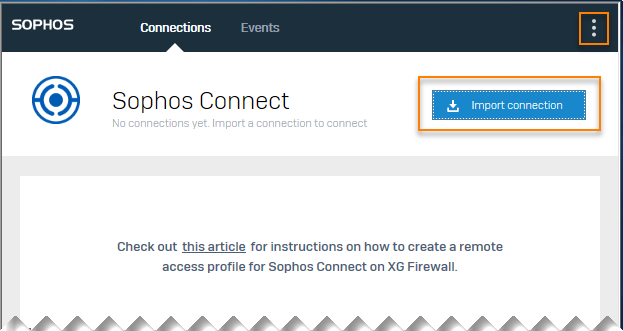
Click Import connection on the Connections page.
-
If there are existing connections, click the menu button and choose Import connection from the drop-down menu.
The image below shows the Connections page:
-
Search for the
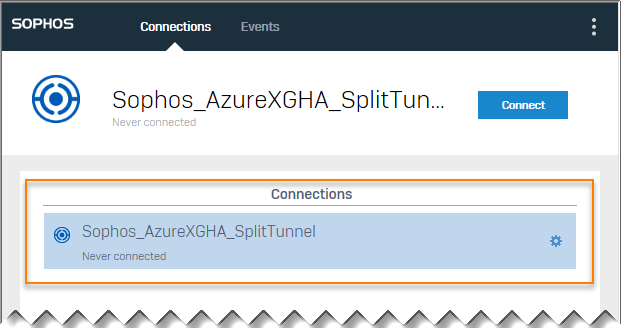
.tgbfile and open it. The imported connection shows under Connections.Here's what an imported connection looks like:
You can now establish the connection. You can import multiple connections.
Import an SSL connection from a provisioning file
To import an SSL connection, you must have a connection file. The file has the .pro extension. Contact your firewall administrator to get the file.
To import a connection, do as follows:
- Search for the
.profile and open it. The connection is imported automatically, and Sophos Connect opens. The imported connection shows under Connections.
You can now establish the connection. You can import multiple connections.
Import an SSL connection from the user portal
To import a connection, do as follows:
-
Sign in to the user portal.
If you're on SFOS 20.0 or later, sign in to the VPN portal. See Sophos Firewall: VPN portal.
-
Go to SSL VPN and click Download configuration for other OSs.
- Open the Sophos Connect client.
-
Click Import connection on the Connections page.
If there are existing connections, click the menu button and choose Import connection from the drop-down menu.
-
Search for the
.ovpnfile and open it.The imported connection shows under Connections.
-
Click Connect to establish the connection.
- Enter the credentials provided by your administrator and click Sign in.
You can import multiple connections.