Configure OAuth 2.0 on Gmail
You can configure Gmail to use OAuth 2.0 for email notifications. You must configure Gmail using Google Cloud Console to set up the client ID, client secret, and refresh token. You need these credentials when you're setting up OAuth 2.0 for notification emails on Administration > Notification settings in Sophos Firewall.
The key steps are as follows:
- Create a project and turn on Gmail API.
- Create client ID and client secret.
- Create the refresh token.
Warning
This information was correct at the time of writing. To ensure you're following the most current steps, review the Gmail documentation. See Gmail API Overview.
Create a project and turn on Gmail API
In Google Cloud Console, do as follows:
- Sign in to the Google Cloud Console using your Google account.
-
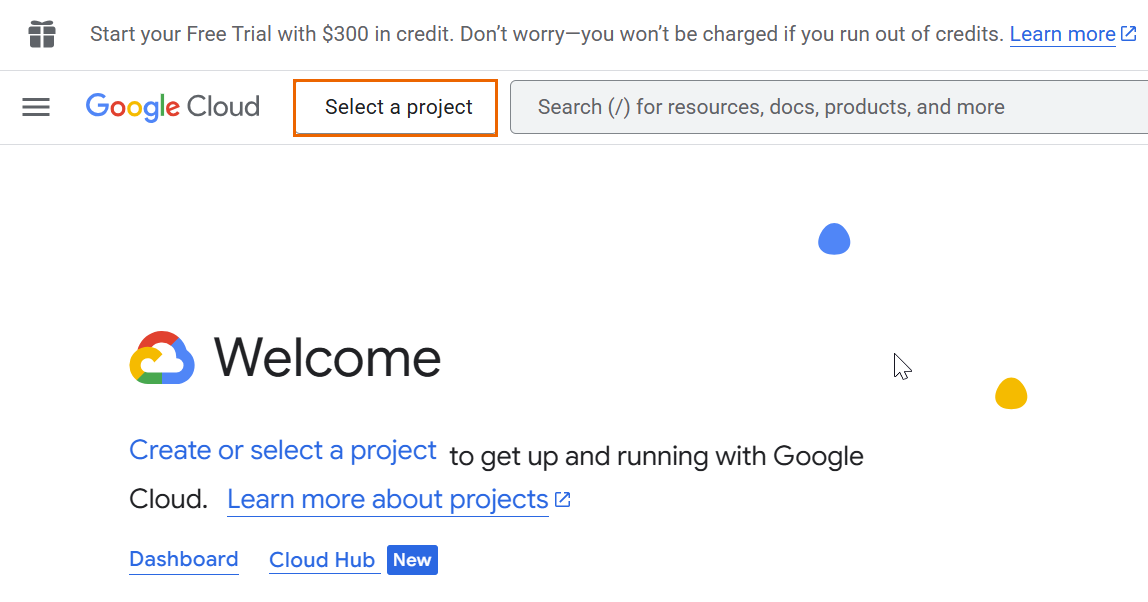
Next to Google Cloud, click Select a project.
-
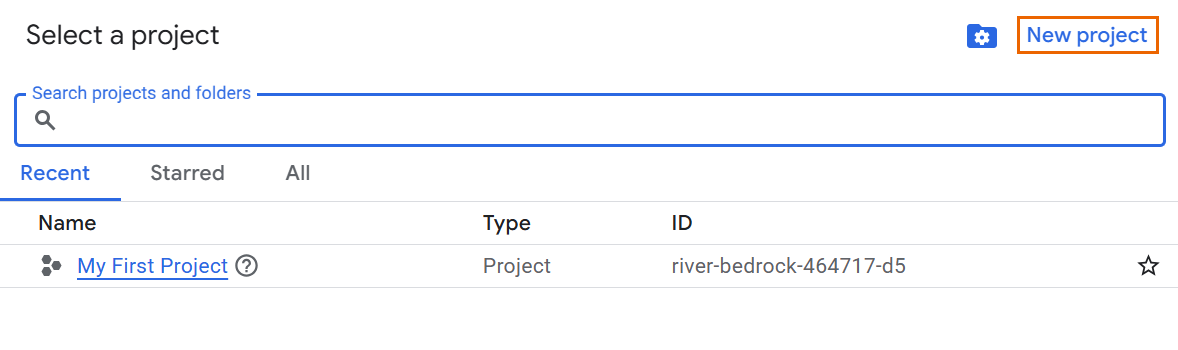
In the Select a project dialogue, click New project.
-
Enter a name and click Create.
-
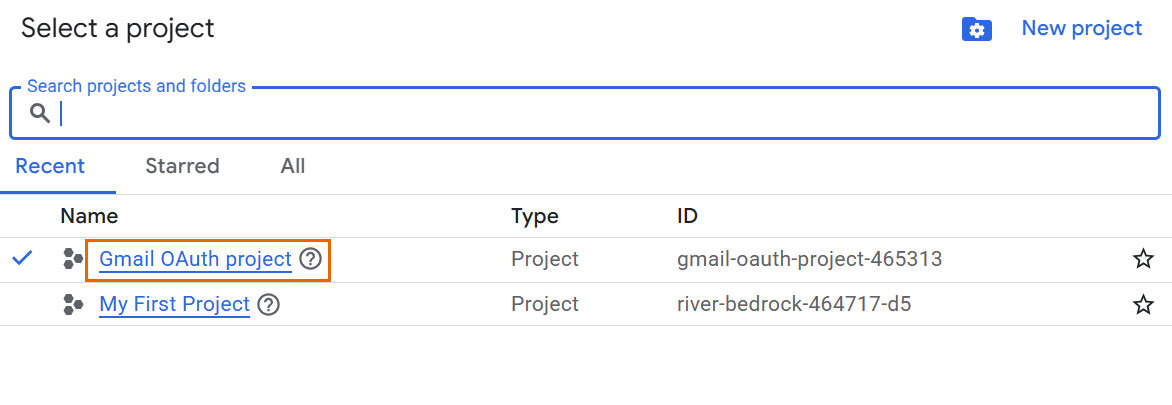
Next to Google Cloud, click Select a project and select the project you created.
-
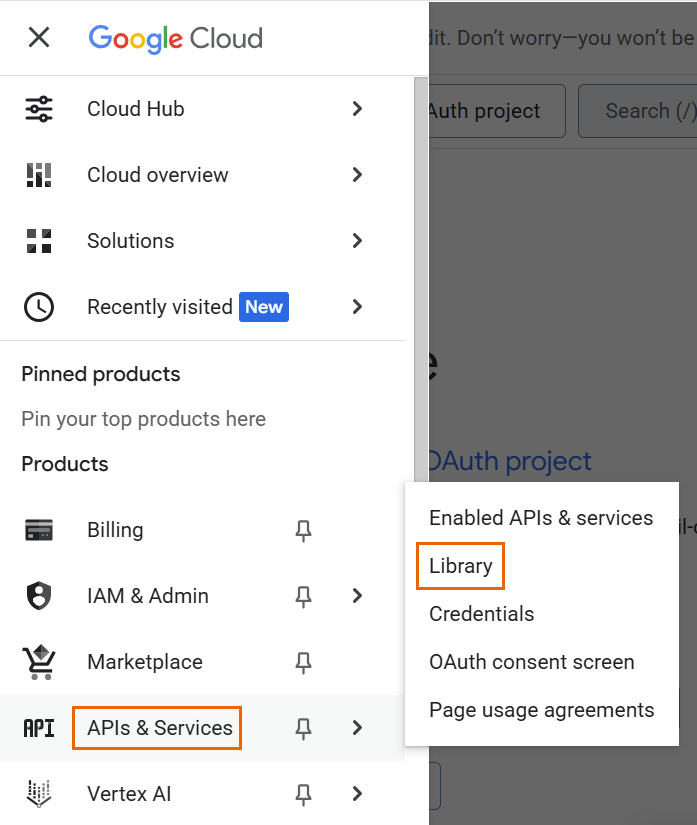
In the left navigation menu, go to APIs & Services > Library.
-
Search for Gmail API.
- Click Gmail API, then click Enable.
Create client ID and client secret
To create the client ID and client secret, do as follows:
-
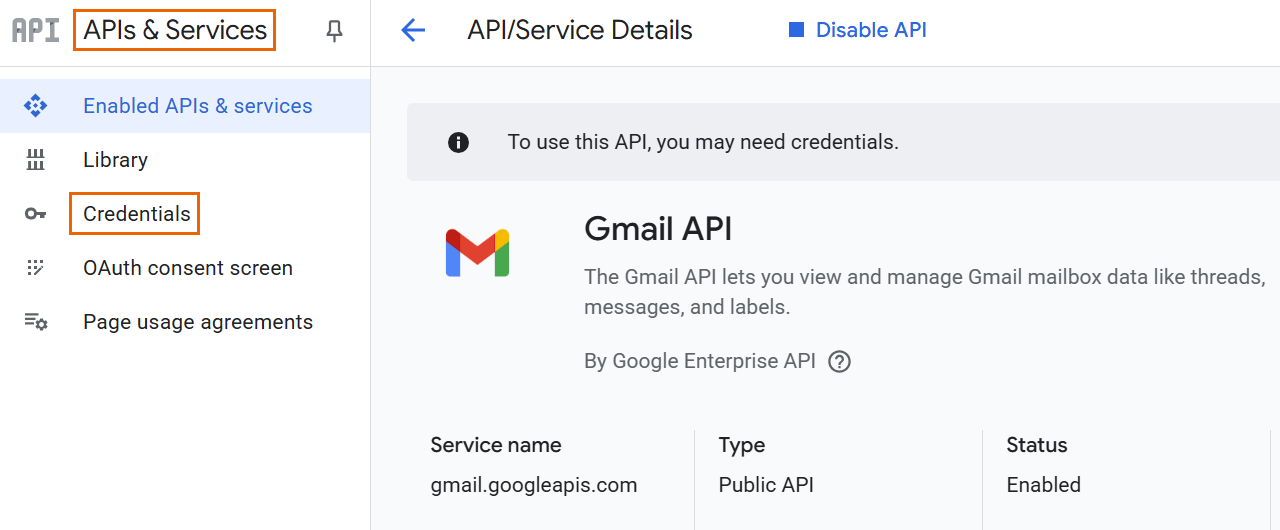
Under APIs & Services, click Credentials.
-
Click Create credentials and select OAuth client ID.
-
Click Configure the OAuth consent screen, click Get started, and do as follows:
- Under App Information, enter a name and email address.
- In User type, select External.
- Under Developer contact information, enter the email address again.
- Click Create.
- Click Create OAuth client.
- In Application type, select Web application.
- Enter a name.
- In Authorized redirect URIs, click Add URI and enter
https://developers.google.com/oauthplayground%22. -
Click Create.
The OAuth client created dialogue appears.
-
Copy the Client ID and Client secrect.
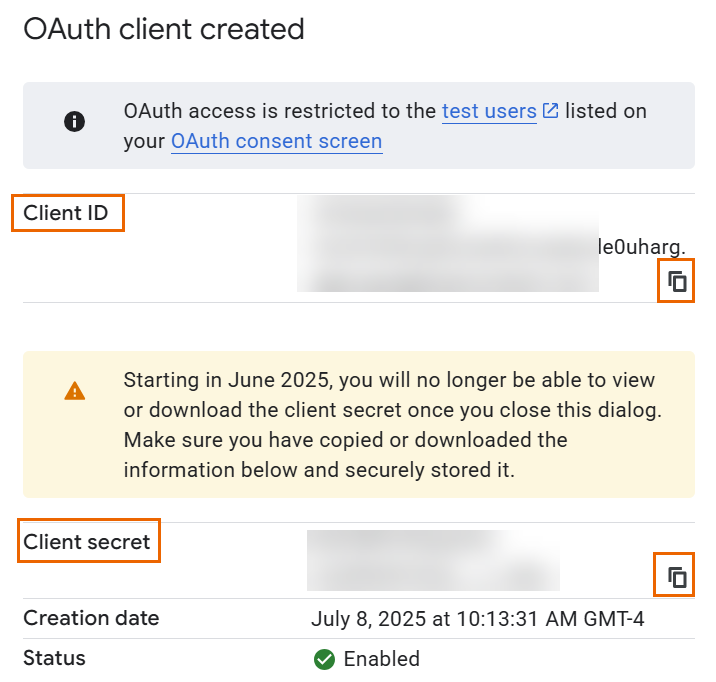
When you're configuring OAuth 2.0 for email alerts in the firewall, you must paste the ID in Client ID and the secret in Client secret.
-
Click Audience and do as follows:
- Click Add users.
- Enter the email addresses of users you want to add.
- Click Save.
Create the refresh token
To create the refresh token, do as follows:
- Go to
https://developers.google.com/oauthplayground. -
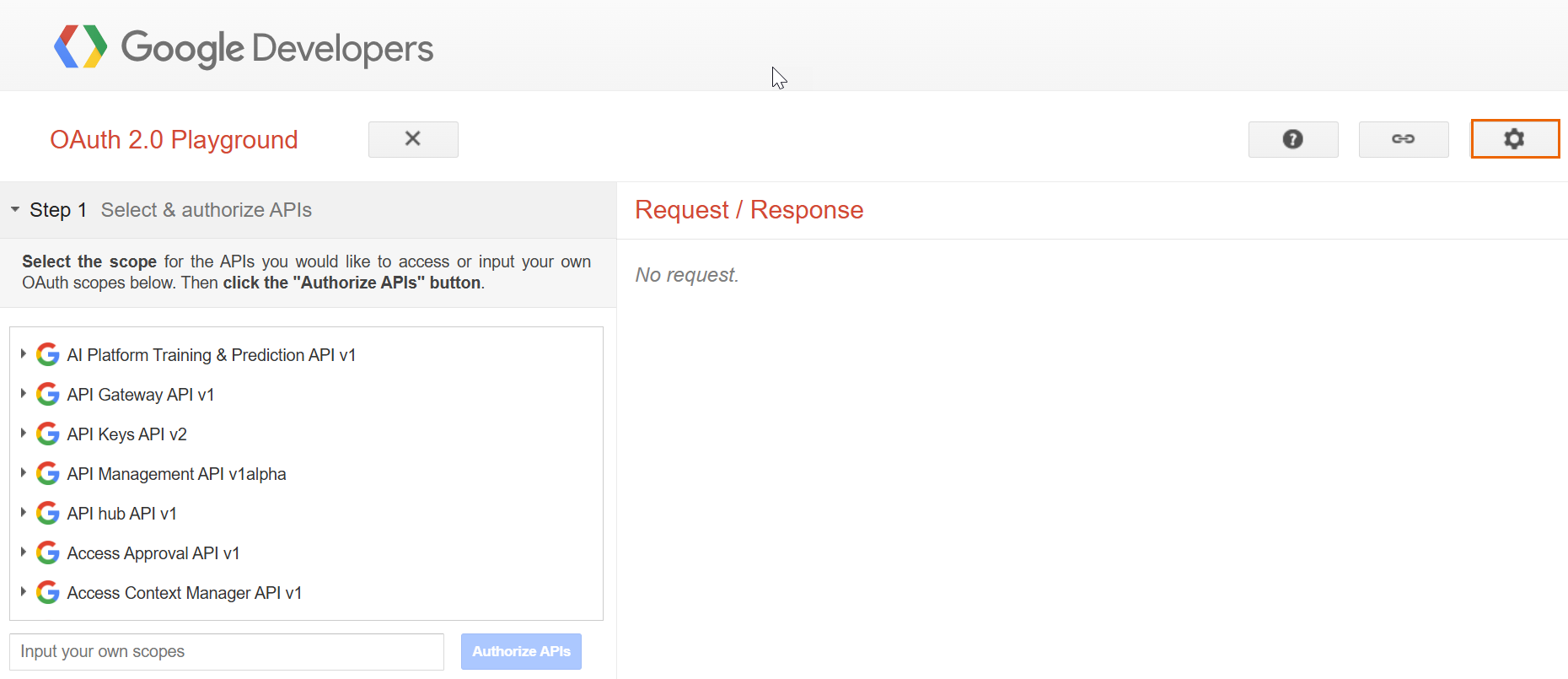
In the upper-right corner, click the gear icon.
-
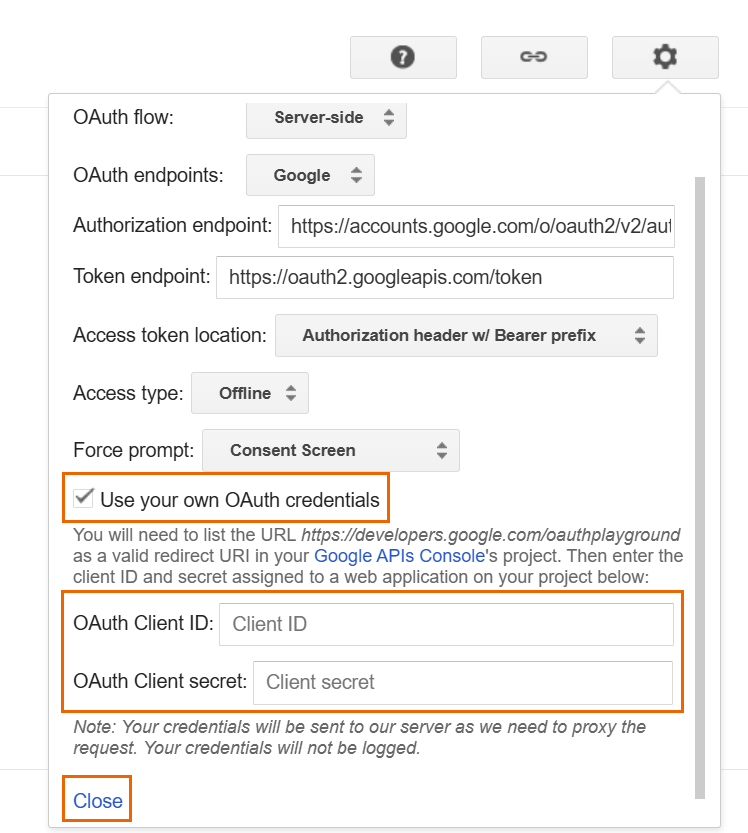
Select Use your own OAuth credentials and do as follows:
- In OAuth Client ID, paste the client ID you created.
- In OAuth Client secret, paste the client secret you created.
- Click Close.
-
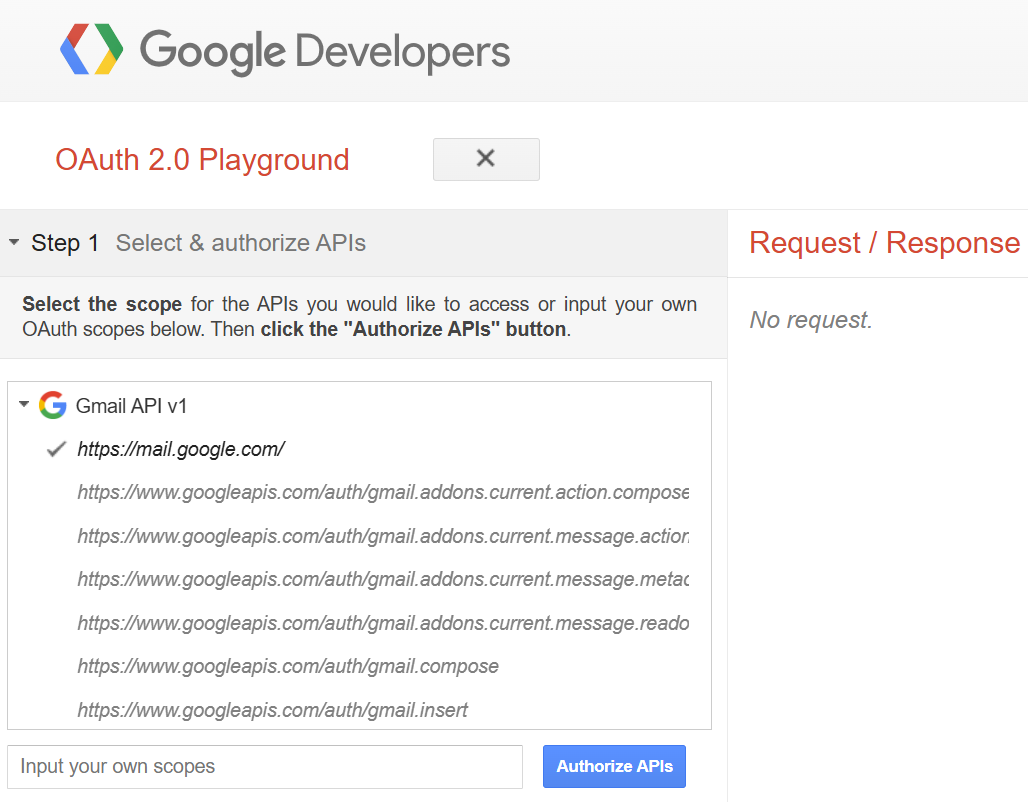
Under Step 1 Select & authorize APIs, expand Gmail API v1, select https://mail.google.com, and click Authorize APIs.
-
Click Account.
-
Expand Step 2 Exchange authorization code for tokens and copy the Refresh token.
When you're configuring OAuth 2.0 for email alerts in the firewall, you must paste this token in Refresh token.