Configuration Viewer
Sophos Firewall Configuration viewer is a browser-based tool, which shows firewall configurations quickly in an easy-to-read format. You can see a single configuration or compare two configuration files to understand the changes across firewalls or versions.
Note
No configuration data is uploaded or shared outside your browser. All parsing, analysis, and report generation runs locally on your endpoint device, keeping your data private.
Use the tool to document, compare, and audit Sophos Firewall configurations.
Reports and highlights
Learn about the configuration reports and key benefits.
Reports
Sophos Firewall Configuration Viewer shows the following reports:
- Configuration report: Shows all rules, policies, and settings in a single configuration.
- Comparison report: Compares two configurations and highlights added, removed, modified, and unchanged items.
Key benefits
The key benefits are as follows:
- View and explore configurations: Filter, search, and review configurations in an easy‑to‑read layout.
- Compare configurations: Compare configurations from the same firewall or different firewalls to identify changes.
- Trace object usage: See where objects are used in a configuration to troubleshoot and plan changes.
- Export reports in HTML: Support documentation, reviews, audits, and record‑keeping.
How to use
You must first export the Entities.xml file from your firewall and upload it to Configuration Viewer.
Download the Entities.xml file
You must export and download the Entities.xml file as follows:
- In the web admin console, go to Backup & firmware > Import export.
-
To export the configuration, select one of the following options:
- Full configuration: Use this to report the entire configuration.
- Selective configuration: Use this when you only need specific modules for focused comparisons.
-
Click Download.
An
Entities.xmlfile is downloaded to your endpoint device.
Use Configuration Viewer
Click the relevant tab to learn more about the required report.
To see the details of a single configuration, do as follows:
- To open the tool in your browser, click Sophos Firewall Configuration Viewer.
- Under Configuration report, click Get Started.
-
Upload the
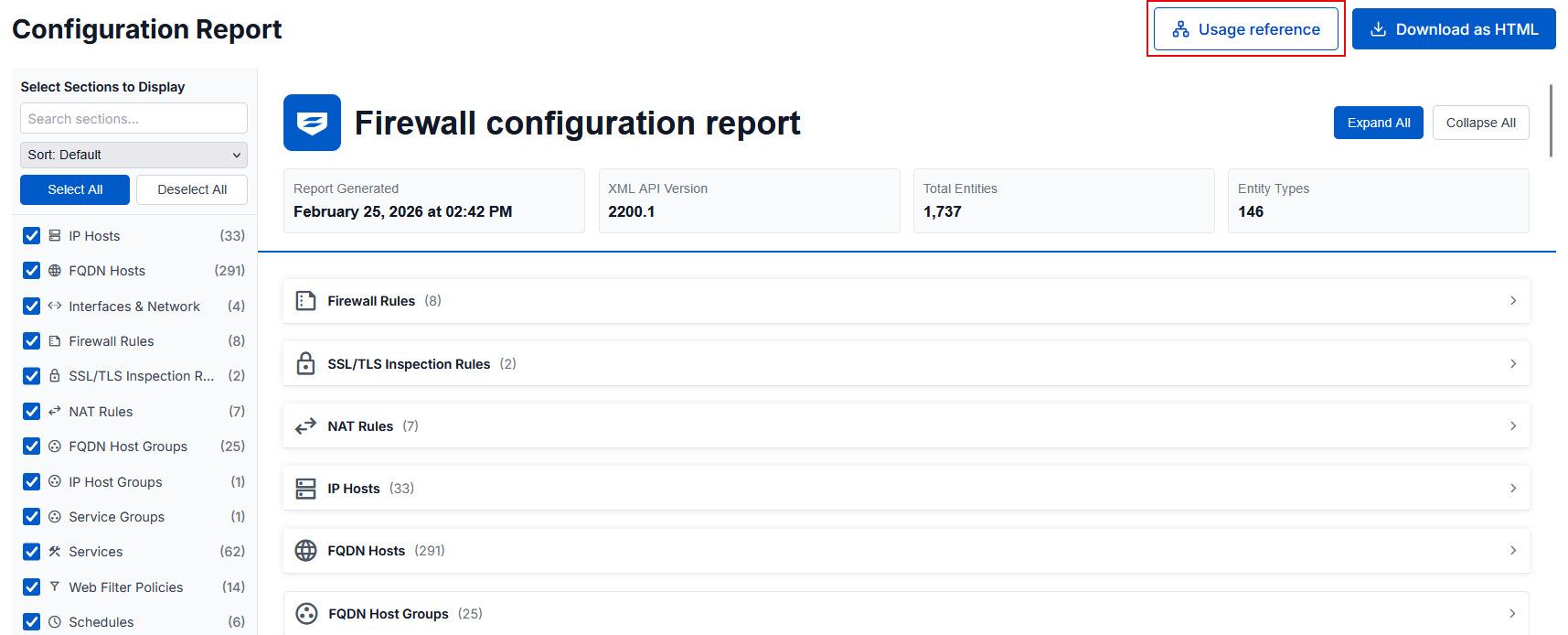
Entities.xmlfile.The report lists all configurations from the file. See the example report below.
-
To see a module's configuration details, click the module.
- To see where an object is used, click Usage reference in the upper-right corner.
- To download the report, click Download as HTML in the upper-right corner.
In the comparison report, you can compare configurations from different firewalls or compare a firewall's previous and current configurations.
- To open the tool in your browser, click Sophos Firewall Configuration Viewer.
- Under Compare configurations, click Get Started.
-
Upload the two
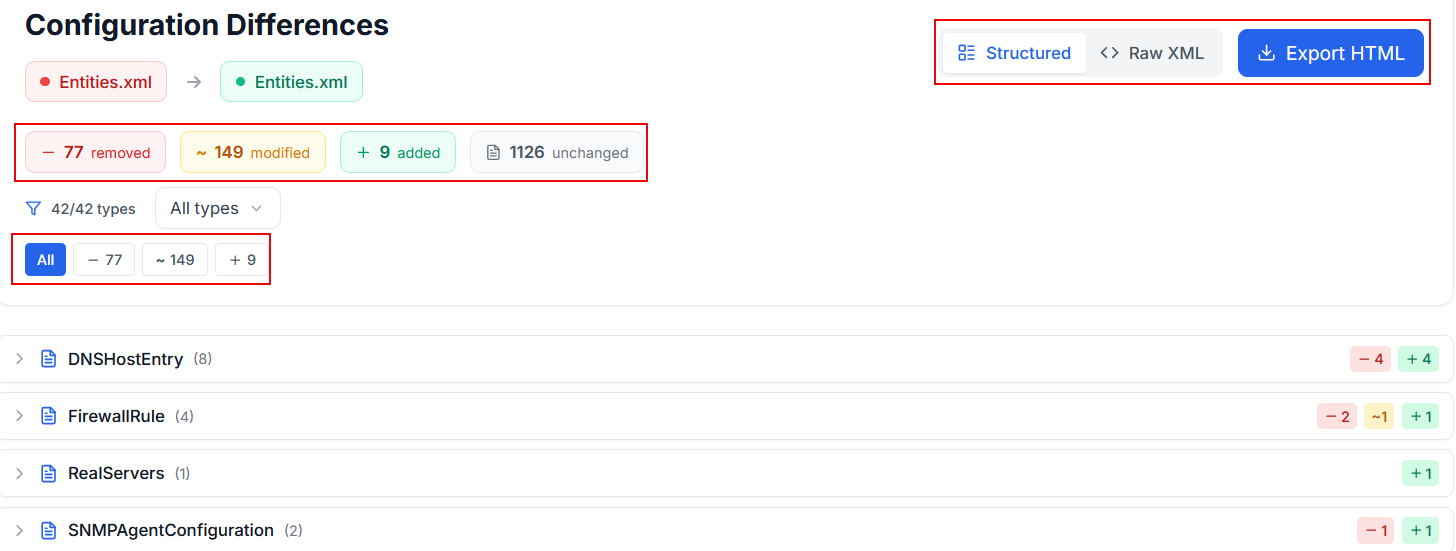
Entities.xmlfiles.The comparison report highlights the removed, modified, added, and unchanged configurations. See the example report below.
-
To focus on a specific module, click All types, click Deselect all, then select the module.

-
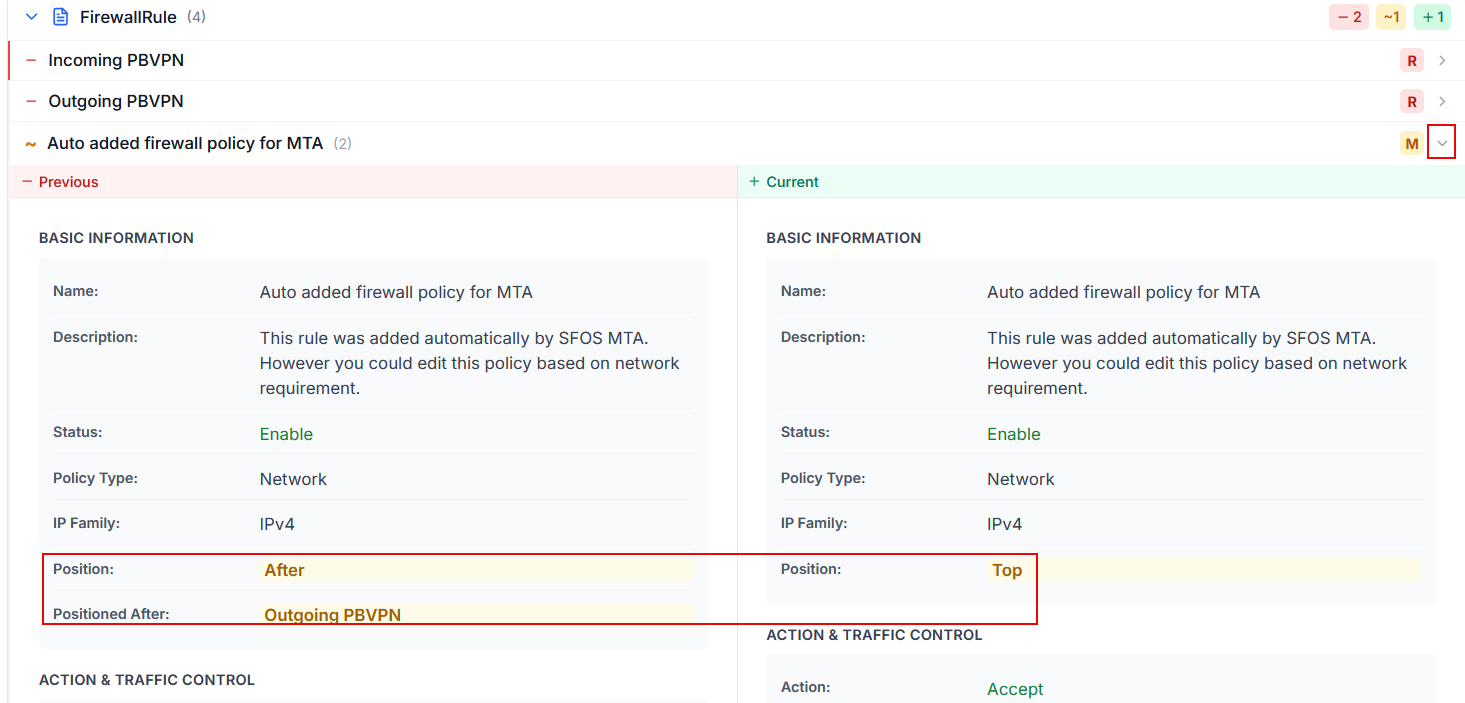
To check the configuration changes, click the module to expand it, then expand one of the categories on the right to show the removed (R), modified (M), or added (A) configurations.
See an example of modified configurations below.
-
To export the report, click Export HTML in the upper-right corner.
Video
