Reconfigure HA devices in active-passive mode after an RMA
You can replace high availability (HA) devices and reconfigure HA in active-passive mode after an RMA. The steps here only apply to HA active-passive mode and not to HA active-active mode.
Warning
An outage occurs when you reimage and replace HA devices and reconfigure HA. Plan your downtime accordingly.
Requirements
The requirements are as follows:
- Check if the model and revision of the replacement device are correct.
-
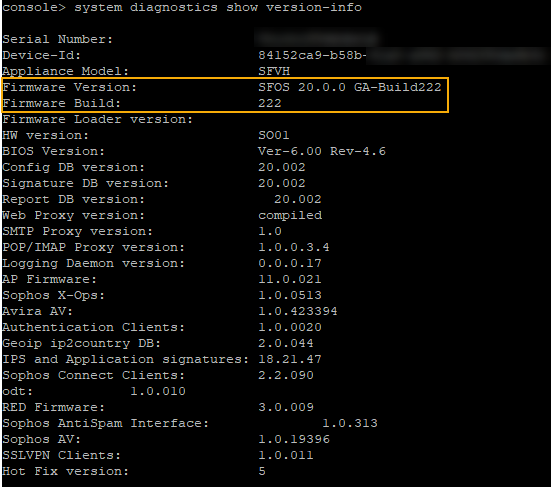
Check the firmware version and build of the working firewall and the replacement firewall. To do this, do as follows:
- Sign in to the CLI console. See Accessing Command Line Console.
- Type
4to selectDevice Console. -
Run
system diagnostics show version-infoand check the firmware version and build of both firewalls.Example:
-
Download the latest firmware. See Download firmware.
Tip
We recommend using the latest firmware. If you prefer to stay on your current firmware and it isn't available for download, contact Sophos Support to request the firmware version and build. See Sophos Support.
-
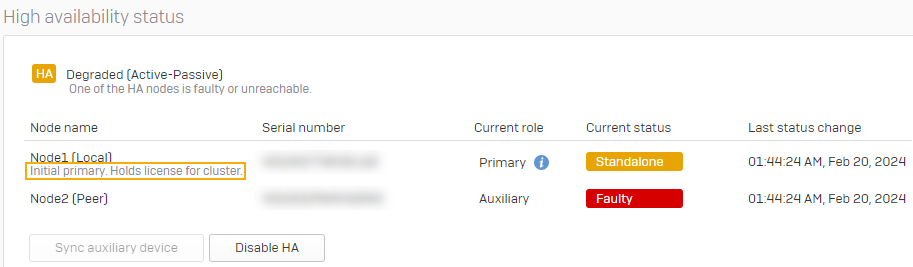
Check which firewall is the initial primary device. To do this, do as follows:
- Sign in to the web admin console.
-
Go to System services > High availability and check which firewall is the initial primary device.
Example:
Configuration
After an RMA, you can replace the auxiliary or the primary device and reconfigure HA.
You want to replace the auxiliary device with the replacement device and reconfigure HA in active-passive mode. In this scenario, the healthy primary device is running as a standalone HA device.
Configure the replacement device
On the replacement device, do as follows:
- Reimage the replacement device to the same firmware and build version as the healthy primary device. See Reimage the firewall using a USB flash drive. You can skip this step if the firmware version and build are the same on both firewalls.
- Connect a DHCP-enabled laptop or desktop to port 1 on the replacement device and go to
https://172.16.16.16:4444to sign in. - Connect a network cable to port 2 on the replacement device and configure the WAN interface to allow internet access using the setup assistant. Don't configure any other interfaces.
- Claim the replacement device in Sophos Central and transfer the license from the faulty auxiliary device to the replacement device. See Transfer licenses in HA devices.
- Disconnect the cables from the faulty auxiliary device and connect them to the replacement device.
Configure the healthy primary device
On the healthy primary device, do as follows:
- Go to System services > High availability and click Disable HA.
-
Check that the
msyncservice shows asUNTOUCHEDorSTOPPED. To do this, do as follows:- Sign in to the CLI console.
- Type
5to selectDevice Management, then type3to selectAdvanced Shell. -
Run
service -S | grep msync.Example:

Reconfigure HA
Configure HA in active-passive mode with the healthy primary device as the primary device and the replacement device as the auxiliary device. See Configure active-passive HA.
You want to replace the faulty primary device with the replacement device and reconfigure HA in active-passive mode. In this scenario, the auxiliary device is running as a standalone HA device.
Deregister the healthy auxiliary device from Sophos Central
To deregister the healthy auxiliary device, do as follows:
- Sign in to the healthy auxiliary device and go to Sophos Central and click Deregister.
- Sign in to your Sophos Central account and go to My Products > Firewall Management and click Firewalls. Make sure that the healthy auxiliary device isn't shown.
Configure the replacement device
To configure the replacement device, do as follows:
- Sign in to the healthy auxiliary device and go to Backup & firmware, download the configuration backup, and save it to your computer. See Backup-restore.
- Reimage the replacement device to the same firmware and build version as the healthy auxiliary device. See Reimage the firewall using a USB flash drive. You can skip this step if the firmware and build version are the same on both firewalls.
- Connect a DHCP-enabled laptop or desktop to port 1 on the replacement device and go to
https://172.16.16.16:4444to sign in. - Connect a network cable to port 2 on the replacement device and configure the WAN interface to allow internet access using the setup assistant. Don't configure any other interfaces.
- Claim the replacement device in Sophos Central and transfer the license from the faulty primary device to the replacement device. See Transfer licenses in HA devices.
- Restore the configuration backup to the replacement device. See Backup-restore.
-
Disconnect the cables from the healthy auxiliary device and connect them to the replacement device.
Warning
This step results in downtime. After you've correctly connected the cables to the replacement device, it starts serving traffic and operates as a standalone HA device.
Configure the healthy auxiliary device
To configure the healthy auxiliary device, do as follows:
- Reset the healthy auxiliary device to factory default settings. See Reset to factory settings.
- Connect a DHCP-enabled laptop or desktop to port 1 on the healthy auxiliary device and go to
https://172.16.16.16:4444to sign in. - Connect a network cable to port 2 on the healthy auxiliary device and configure the WAN interface to allow internet access using the setup assistant. Don't configure any other interfaces.
- Claim the healthy auxiliary device in Sophos Central. See Set up your Sophos Firewall and claim it in Sophos Central.
- Disconnect the cables from the faulty primary device and connect them to the healthy auxiliary device.
Reconfigure HA
Configure HA in active-passive mode with the replacement device as the primary device and the healthy auxiliary device as the auxiliary device. See Configure active-passive HA.