RED tunnels and provisioning
Remote Ethernet Device (RED) interfaces in Sophos Firewall enable secure, encrypted tunnels between remote branch offices and central networks, letting remote sites function as if they're part of the local network.
Learn about the RED tunnel options, including how to provision RED appliances, configure the network, and use the unlock codes for RED appliances.
RED tunnel establishment
The network diagram below shows how a RED tunnel is established.
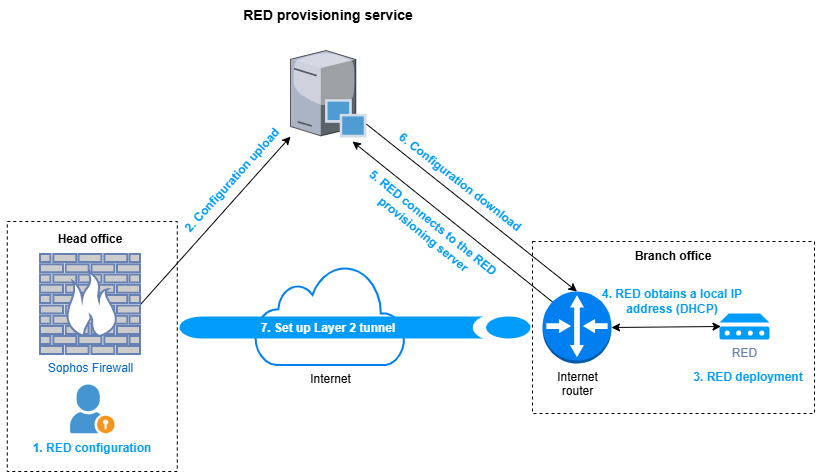
The RED tunnel is established as follows:
- The head office administrator configures RED in the firewall.
- The firewall uploads the configuration to the RED provisioning server using TCP port 3400.
- The branch office administrator deploys the RED device in the branch office.
- The RED device obtains an IP address from the local router through DHCP.
- The RED device connects to the RED provisioning server.
- The RED device downloads the configuration from the RED provisioning server using TCP port 3400.
- The RED device first establishes a control channel on TCP port 3400 to the firewall, then sets up a Layer 2 tunnel on UDP port 3410 for traffic.
RED tunnel options
You can configure Sophos RED appliances and a site-to-site RED tunnel between two Sophos Firewall devices to securely connect the head and remote offices.
RED appliances
You can establish a tunnel between Sophos Firewall in the head office and a RED appliance at the remote office. The firewall supports the SD-RED 20 and 60 appliances.
You can provision a RED device using the following methods:
- Automatically via provisioning service: Sophos Firewall provisions the remote RED appliance automatically through the RED provisioning server. See Set up a RED device automatically.
- Manually via USB stick: You provision the remote RED appliance using a USB device. In this method, you copy the provisioning file from Sophos Firewall to a USB device and install the file on the RED appliance. See Set up a RED device manually.
Note
For optimal performance, turn off the 802.3az setting on the switches connected to SD-RED 20 and 60.
Firewall RED
You can create a site-to-site RED tunnel between two Sophos Firewall devices in a client-server configuration. Firewall RED devices are Sophos Firewall devices that communicate using the RED tunnel. You can use Firewall RED device types as follows:
- Firewall RED server or client: Select this option if you're connecting two Sophos Firewall devices or two UTM devices.
- Firewall RED server or client (legacy): Select this option if you're connecting Sophos Firewall to a UTM device.
RED network configuration
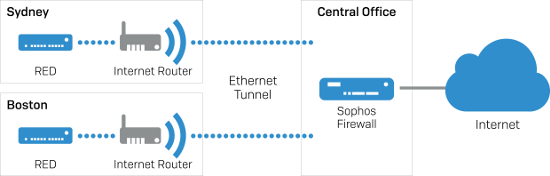
In a typical configuration, you set up the device at a branch office and connect it to the firewall at the head office.
The RED establishes a VPN tunnel to the firewall. So, anything connected to the RED becomes a part of the network. All traffic in and out of the branch office is routed through the RED. You can apply the same policies across local and remote traffic or create custom policies by location.
RED provisioning servers
When you configure a RED on Sophos Firewall, the firewall uploads the following configuration details to the RED provisioning servers:
- IP address of the firewall's web admin console
-
WAN settings:
- WAN uplink mode (DHCP, PPPoE, Static)
- Mobile broadband connection settings for RED hardware
- If you've selected static uplink mode, RED WAN IP address settings (IP address, netmask, default gateway, and DNS server)
-
Tunnel operation mode (example: Standard)
- Unlock code
The cloud-based RED provisioning servers store the configurations. When you add a RED device, it performs a DNS lookup of red.astaro.com, securely connects to the closest provisioning server, and gets its configuration from the provisioning server. When an existing configuration doesn't work, it checks the provisioning servers for updated instructions. A working RED doesn't connect to the provisioning servers.
SD-RED 20 and 60 use ports TCP 3400 and UDP 3410. For a complete list of the RED provisioning server hostnames and ports, see Default services.
RED unlock codes
A RED unlock code allows the provisioning servers to accept a new configuration for a RED. It prevents a RED that is in use from being accidentally or maliciously redirected.
First-time use
If you're configuring a RED for the first time, leave the unlock code blank and save the configuration. The firewall uploads the RED configuration to the provisioning server. The provisioning server generates an unlock code specific to the RED. You can see it in the web admin console. It also sends the code to the email address you provided when you turned on the RED provisioning service. If you move the RED to a new firewall, you must enter the old unlock code to register the RED to the new firewall.
Previously used RED
When you delete a RED interface from the web admin console, the console shows the unlock code in a pop-up message confirming the delete action. It also sends the code to the email address you provided on System services > RED.
Warning
Retain the unlock code. Make sure this email address is up to date and accurate. You'll need the code to set up the RED on another firewall.
If you can't find the unlock code, contact Sophos Support.