How to use Sophos Connect
The Sophos Connect client lets remote users securely access your organization's network through remote access IPsec and SSL VPN connections. The client lets users authenticate using their existing credentials or Microsoft Entra ID SSO and connect to the network.
Learn how to download the Sophos Connect client, import the configuration or provisioning files, and understand connection behavior and platform compatibility.
Client information
Learn about the supported platforms and where to download the Sophos Connect client.
Compatibility with endpoint platforms
The Sophos Connect client is supported on the following endpoint operating systems.
| Endpoint OS | Supported connection types | File to install |
|---|---|---|
macOS (Sophos Connect client 2.0 for macOS and later versions) | Remote access IPsec and SSL VPNs | SophosConnect_x.x_(IPsec_and_SSLVPN).pkg |
macOS (versions earlier than Sophos Connect client 2.0 for macOS) | Only remote access IPsec VPN | SophosConnect_x.x_(IPsec).pkg |
| Windows | Remote access IPsec and SSL VPNs | SophosConnect_x.x_(IPsec_and_SSLVPN).msi |
For more information, see Clients and configurations.
Note
The Sophos Connect client is supported on Windows 10 and 11, including LTSB and LTSC.
Sophos Connect version 2.1 and later is supported on macOS 14.0 and later. Sophos Connect version 2.0 is supported on macOS 13.0 and later.
Sophos Connect for macOS supports Intel-based and Apple Silicon devices natively.
For more information, see Supported platforms in Sophos Connect release notes.
Download the client
You can download the Sophos Connect client from the following portals:
- Users can download the client from the VPN portal. See Remote access VPN.
-
Administrators can download the client from the web admin console and then share it with users.
Go to Remote access VPN > IPsec or SSL VPN and click Download client.
The latest client version is available on the VPN portal. It's also available on the web admin console if you set pattern updates to automatically update on Backup & Firmware > Pattern updates.
Configurations and provisioning
Users can import the configuration files or the provisioning file into the Sophos Connect client.
Configuration files
SSL VPN: Users can download the .ovpn configuration file from the VPN portal, then import it into the client.
IPsec VPN: Administrators must download the .scx file from the web admin console and share it with users. Users then import it into the client.
SSL VPN connection behavior
The Sophos Connect client connects to the remote gateways listed in the .ovpn configuration file in reverse order of priority. Dynamic DNS gateways take priority over WAN IP address gateways in the list.
Example

In this .ovpn configuration file, the Sophos Connect client first connects to 5g.vpn.sophosexample.example.net. If the connection fails, it then attempts to connect to the next available gateway in reverse order, starting with vpn.sophosexample.example.net and so on.
Provisioning file
You can configure the provisioning (.pro) file for automatic VPN provisioning of both IPsec and SSL VPN connections. You can then share it with users.
When users import the file into the Sophos Connect client, the configuration files are automatically imported.
See Provisioning file templates.
How to sign in
Remote users can sign in to the Sophos Connect client using their credentials or single sign-on (SSO). Credential sign-ins are based on the local configurations in the firewall or an external authentication server, such as Active Directory (AD).
Users, domains, and authentication methods
An imported SSL VPN configuration is linked to the user identity, domain, and authentication method used when the configuration was imported.
Import a separate .pro or .ovpn configuration for each authentication method and domain. This requirement applies to the following cases:
-
Different authentication methods
- Microsoft Entra ID SSO
- AD
- Local
-
Different domains
Reusing the same imported configuration across different authentication methods or domains causes the connection to fail with the following error:
Login failed. Wrong fingerprint of certificate.
To use a different authentication method or domain, import a separate .pro or .ovpn configuration file.
Note
.ovpnfiles are user-specific because they contain unique user certificates and private keys..profiles aren't inherently user-specific. However, when you import a.profile, the SSL VPN configuration and certificates are generated and associated with the authentication method and user identity used during the import process. After import, you can't use the same profile with a different authentication method or domain.- This requirement applies only to remote access SSL VPN connections. It doesn't apply to remote access IPsec VPN (
.scx) configurations.
Single sign-on
Remote users can use Microsoft Entra ID SSO to sign in to remote access VPN tunnels using the Sophos Connect client. See Microsoft Entra ID (Azure AD) server.
Note
Windows devices running Sophos Connect client 2.4 or later and macOS devices running Sophos Connect client 2.1 or later support Microsoft Entra ID SSO for IPsec VPN, SSL VPN, and provisioning connections.
For Microsoft Entra ID SSO, verify that the VPN portal, SSL VPN policy, and Microsoft Entra ID configuration use the required authentication server. Users might be prompted for MFA or redirected to a browser to complete authentication.
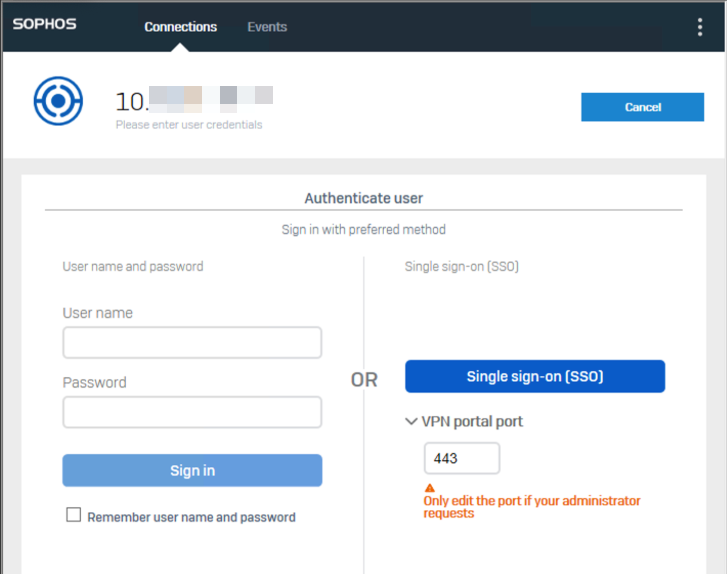
Microsoft Entra ID authentication
Sophos Connect opens the Microsoft Entra ID sign-in page based on the endpoint operating system and connection configuration.
-
Windows (Sophos Connect 2.4 and later): Sophos Connect opens the sign-in page in an embedded browser.
-
macOS (Sophos Connect 2.1 and later): Depending on the connection configuration, Sophos Connect opens the sign-in page in an embedded browser or the default system browser. If authentication can't be completed in the embedded browser, Sophos Connect opens the system browser. Complete authentication in the system browser, then return to Sophos Connect.
Conditional Access and device compliance
If your organization uses Microsoft Entra Conditional Access, authentication can fail if the device doesn't meet the organization's compliance requirements.
If Sophos Connect reports that the device isn't compliant, complete the required compliance actions or contact your IT administrator.
On macOS, Sophos Connect uses either the embedded browser or the system browser for authentication, depending on the configuration. The following scenarios describe how Sophos Connect selects a browser and what happens if Conditional Access requirements affect authentication.
-
If the provisioning file doesn't include the
sso_auth_browser_typekey, or ifsso_auth_browser_typeis set toauto, Sophos Connect first tries to authenticate in the embedded browser. If authentication can't be completed because of Conditional Access requirements, Sophos Connect automatically switches to the system browser and retries authentication. -
If the provisioning file sets
sso_auth_browser_typetoembedded, Sophos Connect authenticates only in the embedded browser. If authentication can't be completed because of Conditional Access requirements, authentication fails. Changesso_auth_browser_typetosystemand try again. -
If the provisioning file sets
sso_auth_browser_typetosystem, Sophos Connect authenticates only in the system browser. -
If you imported an
.ovpnor.scxconfiguration directly, Sophos Connect behaves as ifsso_auth_browser_typeis set toauto. It first tries to authenticate in the embedded browser and automatically switches to the system browser if Conditional Access requirements prevent authentication. If authentication issues continue because of Sophos Connect not switching to the system browser, use a provisioning file and setsso_auth_browser_typetosystem.
For information about configuring provisioning files, see Provisioning file templates.
Force SSO re-login
When a user establishes tunnels from a shared endpoint device, we recommend that they force an SSO re-login for subsequent users of the endpoint device. The next user can then establish the tunnel only when they sign in with Microsoft Entra ID SSO. See Microsoft Entra ID Single Sign-On.
Troubleshooting
To troubleshoot SSO issues, see Single sign-on.