Manage URL regex patterns with Config Studio
Use Config Studio to create, update, and validate URL regular expressions (regex) in web exceptions. You can export and import web exceptions between the firewall and Config Studio to simplify creating and updating them.
Use Config Studio to create regex patterns
Use Config Studio to create URL regex patterns for web exceptions, download the configuration, and import it into the firewall.
Create URL regex patterns
Create URL regex patterns for web exceptions in Config Studio.
- To open the tool in your browser, click Sophos Firewall Config Studio.
- Click the Configuration editor panel.
- Go to Rules > Web exceptions.
- Click Add.
- Enter a name.
-
Under Skip these checks, turn on any of the following options:
- Skip HTTPS decryption
- Skip policy check
- Skip cert validation
- Skip malware scan
- Skip zero-day protection
-
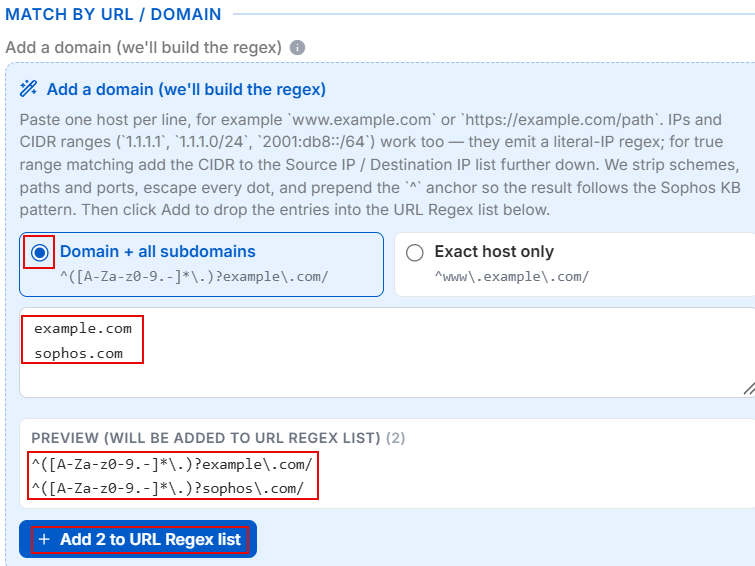
Under Match by URL/Domain, select one of the following options:
- Domain + all subdomains
- Exact host only
-
Enter the domain name in the text box, for example,
example.com.The generated regex pattern and a preview appear automatically.
-
Click Add to URL Regex list.
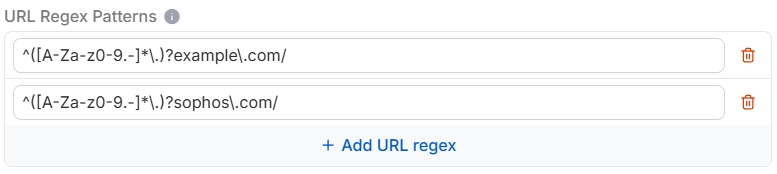
The patterns appear under URL Regex Patterns.
-
Optional. Under URL Regex Patterns, you can click + Add URL regex and add a pattern directly.
- Click Add at the bottom of the slider.
Download web exceptions
Download the web exceptions configuration from Config Studio for import into the firewall.
- Click Download at the top.
-
Click Download TAR and save the
.tarfile to your endpoint device.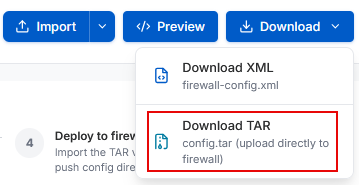
Import exceptions into firewall
Import the downloaded web exceptions configuration into the firewall.
- In the firewall, go to Backup & firmware > Import export.
- Under Import, click Browse and select the
.tarfile. - Click Import.
- Go to Web > Exceptions and check the entry.
Troubleshoot URL regex patterns with Config Studio
Use Config Studio to identify and fix incompatible URL regex patterns in existing web exceptions. Export the configuration from the firewall, import and fix incompatible patterns in Config Studio, and import the updated configuration back into the firewall.
Export web exceptions
Export web exception configurations from the firewall.
- Go to Backup and firmware > Import export.
- Select Export selective configuration.
- Enter
Exceptionto search, then select WebFilterException and click Apply selected items. - Click Download and save the
.tarfile to your endpoint device. -
Extract the file.
The extracted folder contains the
Entities.xmlfile.
Import and fix web exceptions in Config Studio
Import the exported web exceptions configuration into Config Studio and fix incompatible patterns.
- To open the tool in your browser, click Sophos Firewall Config Studio.
- Click the Configuration editor panel.
- Go to Rules > Web exceptions.
- Click Import in the upper right corner.
-
Drag and drop the
Entities.xmlfile, or upload it.The exceptions appear in Config Studio.
-
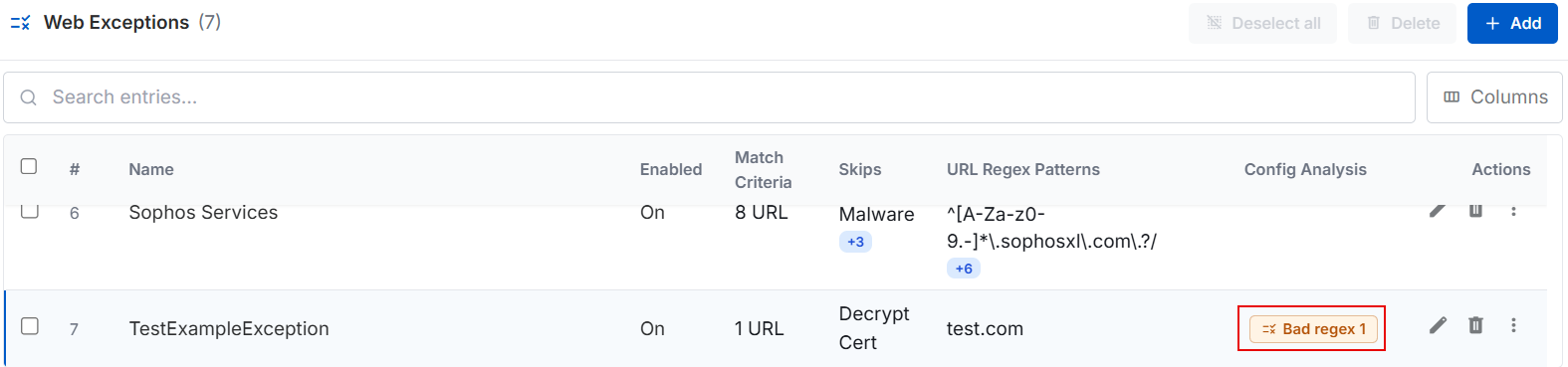
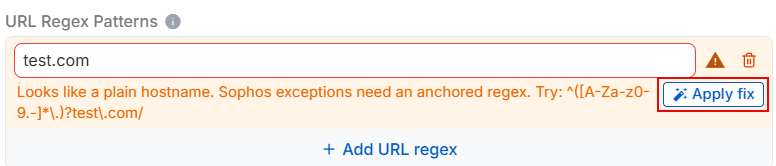
In the Config Analysis column, look for entries labeled Bad regex.
-
Click the Edit button.
The entry appears under URL Regex Patterns.
-
Click Apply Fix.
-
Click Update.
Download updated web exceptions
Download the updated web exception configurations from Config Studio.
- Click Download at the top.
-
Click Download TAR and save the file to your endpoint device.
Import updated exceptions into firewall
Import the updated web exception configurations into the firewall.
- In the firewall, go to Backup & firmware > Import export.
- Under Import, click Browse and select the
.tarfile. -
Click Import.
The firewall imports the file and updates the existing web exceptions. If you changed the name of an exception, the firewall creates a new web exception instead of updating the existing one.
-
Go to Web > Exceptions and check the entry.