Forward NTP requests through the firewall using NAT
You can configure internal devices to use the firewall as a relay to forward NTP requests to an internal or external NTP server by using NAT. Using this setup, the internal client's default gateway and NTP server uses the firewall's IP address.
There are two configuration options:
- Forward NTP requests from internal devices to an external NTP server, for example,
1.sophos.pool.ntp.org. - Forward NTP requests from internal devices to an internal NTP server.
To get step-by-step instructions, click the tab for your preferred NTP setup.
To forward NTP requests from internal devices through the firewall to an external NTP server, do as follows:
- Create an FQDN host for the external NTP server.
- Configure a NAT rule to forward NTP requests through the firewall.
- Configure a firewall rule to allow NTP traffic.
This setup lets internal devices use the firewall's IP address as their NTP server while the firewall synchronizes time from the external NTP server.
Create an FQDN host
To create an FQDN host for the external NTP server, do as follows:
- Sign in to the web admin console.
- Go to Hosts and services > FQDN host and click Add.
- Enter a Name.
-
Under FQDN, enter the NTP server's FQDN. For example,
1.sophos.pool.ntp.org.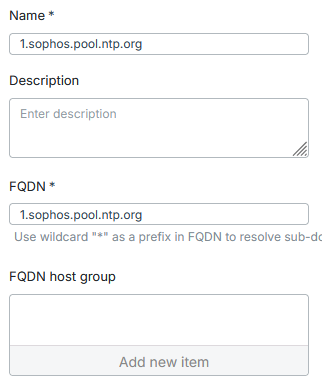
-
Click Save.
Configure a NAT rule
To configure a NAT rule to forward all NTP requests to an external NTP server, do as follows:
- Go to Rules and policies > NAT rules.
- Click Add NAT rule > New NAT rule.
-
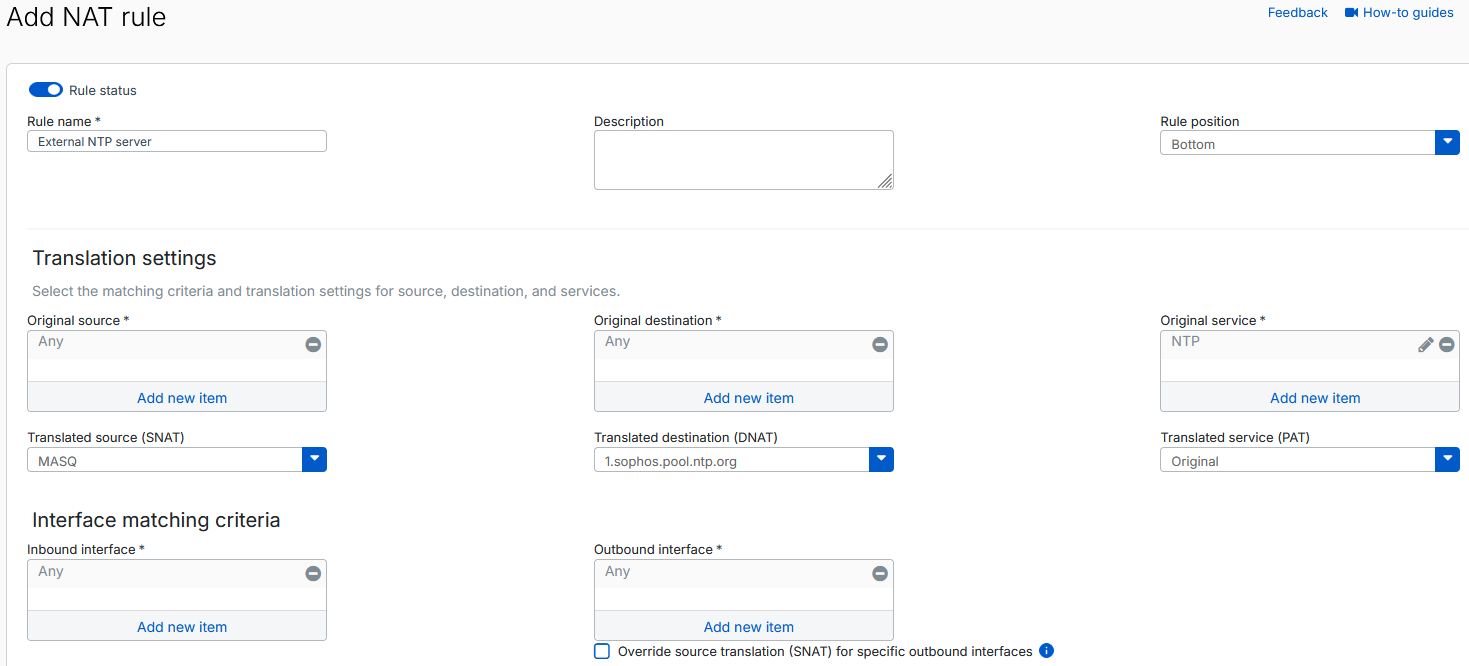
Configure the following settings:
- Rule name: Enter a name.
- Rule position: Select Top.
- Original service: Remove Any, then select NTP.
- Translated source (SNAT): Select MASQ.
- Translated destination (DNAT): Select the external NTP server you created.
- Inbound interface: Remove Any, then select all your internal network interfaces. Alternatively, you can use Any.
-
Click Save.
Configure a firewall rule
To configure a firewall rule to allow NTP traffic, do as follows:
- Go to Rules and policies > Firewall rules.
- Click Add firewall rule > New firewall rule.
-
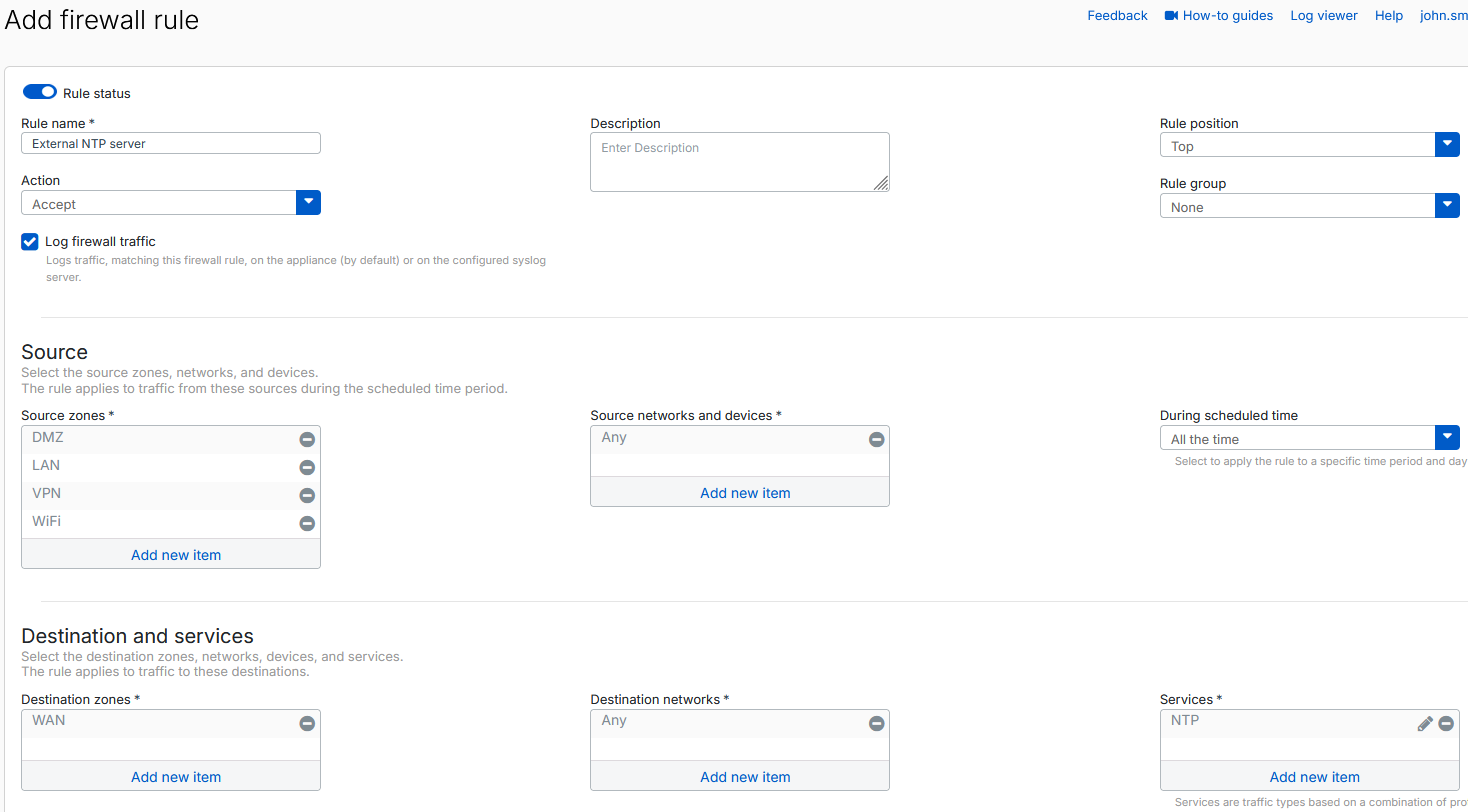
Configure the following settings:
- Rule name: Enter a rule name.
- Rule position: Select Top.
- Log firewall traffic: Make sure this setting is selected.
- Source zones: Select all zones except WAN and Any.
- Source networks and devices: Select Any.
- Destination zones: Select WAN.
- Services: Select NTP.
-
Click Save.
To forward NTP requests from internal devices through the firewall to an internal NTP server, do as follows:
- Create a host for the internal NTP server.
- Configure two NAT rules to forward NTP requests through the firewall to an external and internal NTP server.
- Configure two firewall rules to allow external and internal NTP traffic.
This setup lets internal devices use the firewall's IP address as their NTP server while the firewall synchronizes time from the internal NTP server.
Create a host
To create a host for the internal NTP server, do as follows:
- Sign in to the web admin console.
- Go to Hosts and services and click Add.
-
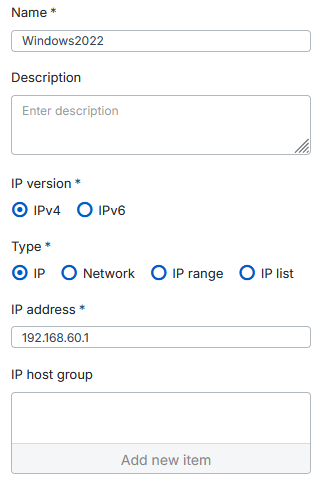
Configure the following settings:
- Name: Enter a name.
- IP version: Select IPv4.
- Type: Select IP.
- IP address: Enter the IP address of your internal NTP server.
-
Click Save.
Configure NAT rules
Configure two NAT rules, one that allows the internal NTP server to access external NTP servers and another that forwards NTP requests to the internal NTP server.
NAT rule 1
To configure a NAT rule to allow the internal NTP server to access external NTP servers, do as follows:
- Go to Rules and policies > NAT rules.
- Click Add NAT rule > New NAT rule.
-
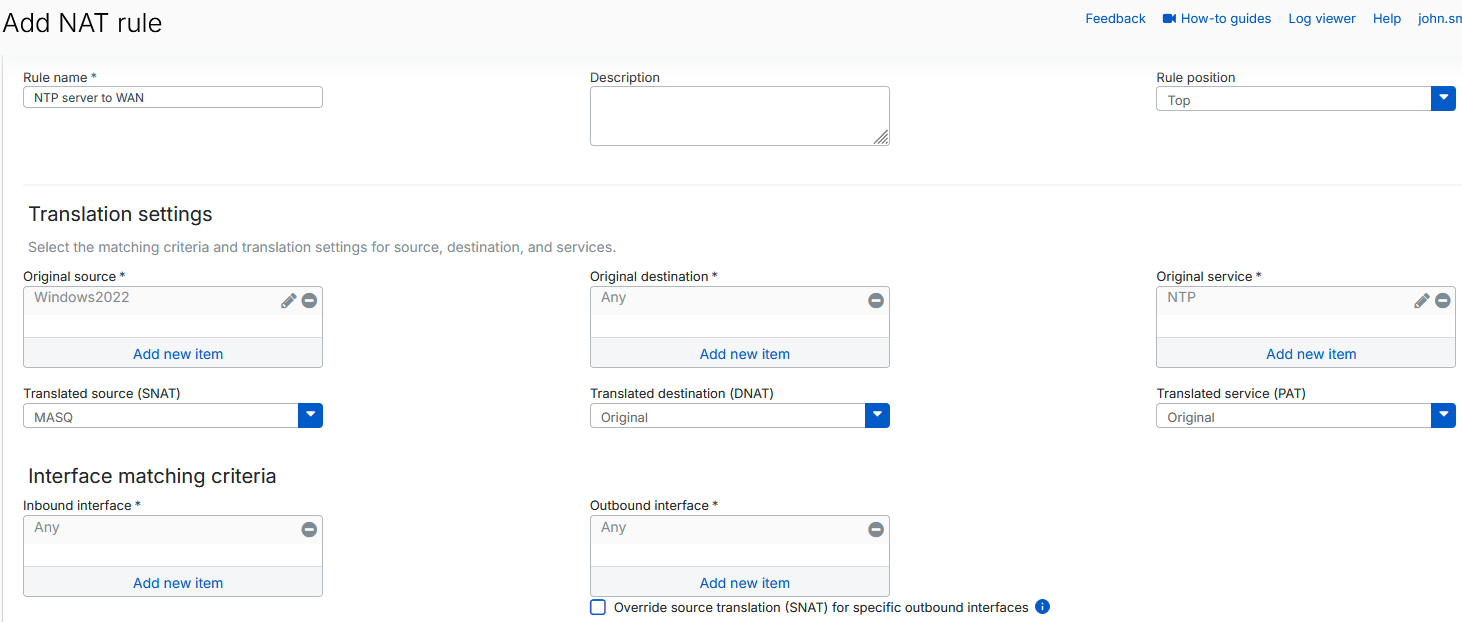
Configure the following settings:
- Rule name: Enter a name.
- Rule position: Select Top.
- Original source: Select the internal NTP server you created.
- Original service: Remove Any, then select NTP.
- Translated source (SNAT): Select MASQ.
-
Click Save.
NAT rule 2
To configure a NAT rule to forward NTP requests to the internal NTP server, do as follows:
- Go to Rules and policies > NAT rules.
- Click Add NAT rule > New NAT rule.
-
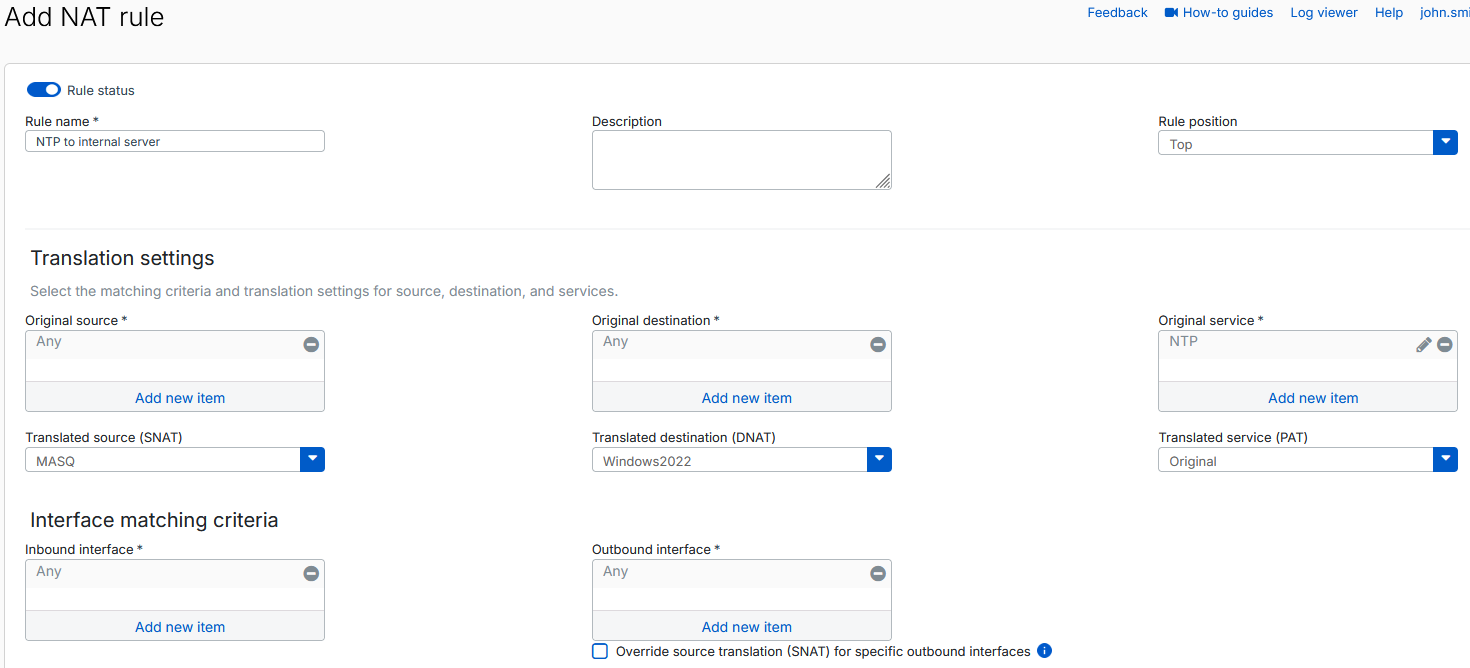
Configure the following settings:
- Rule name: Enter a name.
- Rule position: Select Top.
- Original service: Remove Any, then select NTP.
- Translated source (SNAT): Select MASQ.
- Translated destination (DNAT): Select the internal NTP server you created.
-
Click Save.
Configure firewall rules
Create two firewall rules, one that allows the internal NTP server to synchronize time with external NTP servers and another that allows the internal devices to access the internal NTP server through the firewall.
Firewall rule 1
To configure a firewall rule that allows the internal NTP server to synchronize time with external NTP servers, do as follows:
- Go to Rules and policies > Firewall rules.
- Click Add firewall rule > New firewall rule.
-
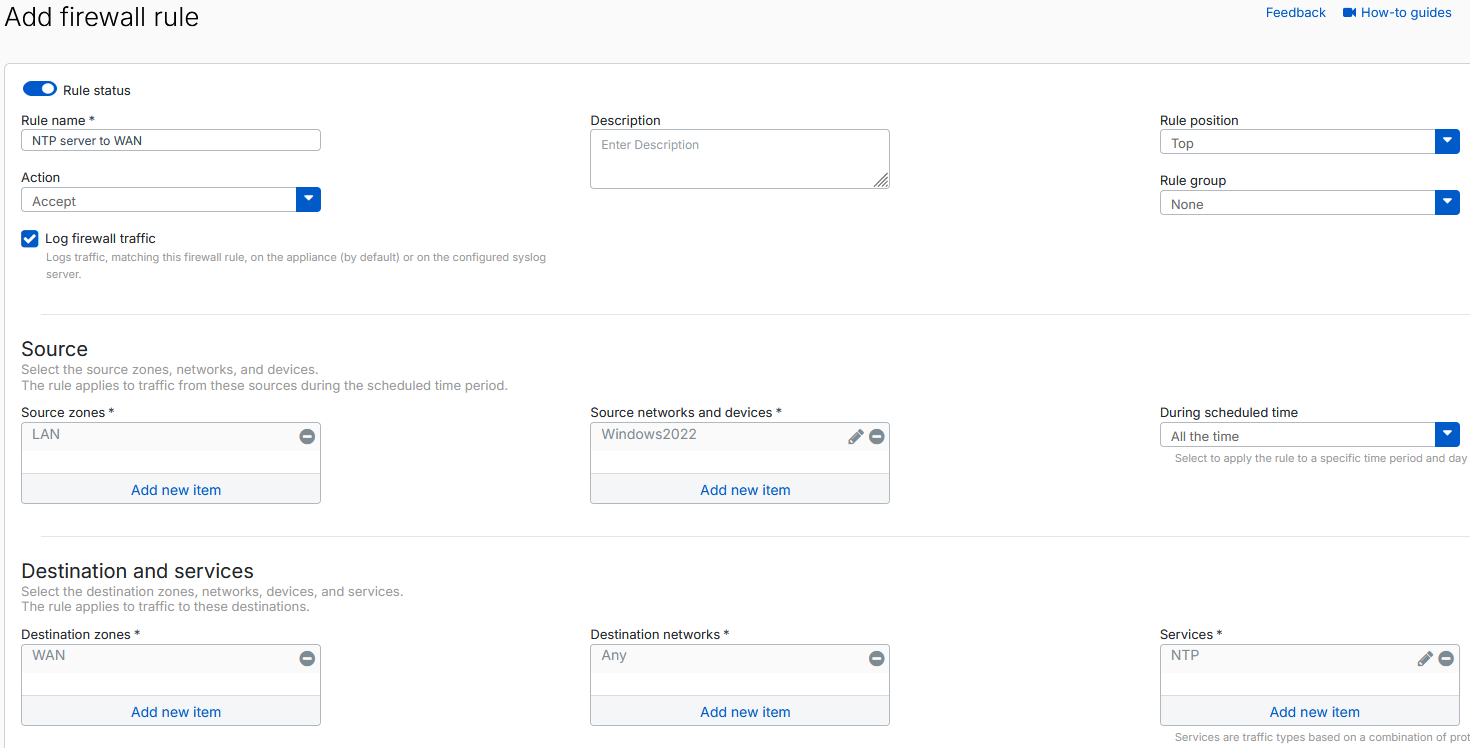
Configure the following settings:
- Rule name: Enter a rule name.
- Rule position: Select Top.
- Log firewall traffic: Make sure this setting is selected.
- Source zones: Select LAN.
- Source networks and devices: Remove Any, then select the internal NTP server you created.
- Destination zones: Select WAN.
- Services: Remove Any, then select NTP.
-
Click Save.
Firewall rule 2
To configure a firewall rule that allows the internal devices to access the internal NTP server through the firewall, do as follows:
- Go to Rules and policies > Firewall rules.
- Click Add firewall rule > New firewall rule.
-
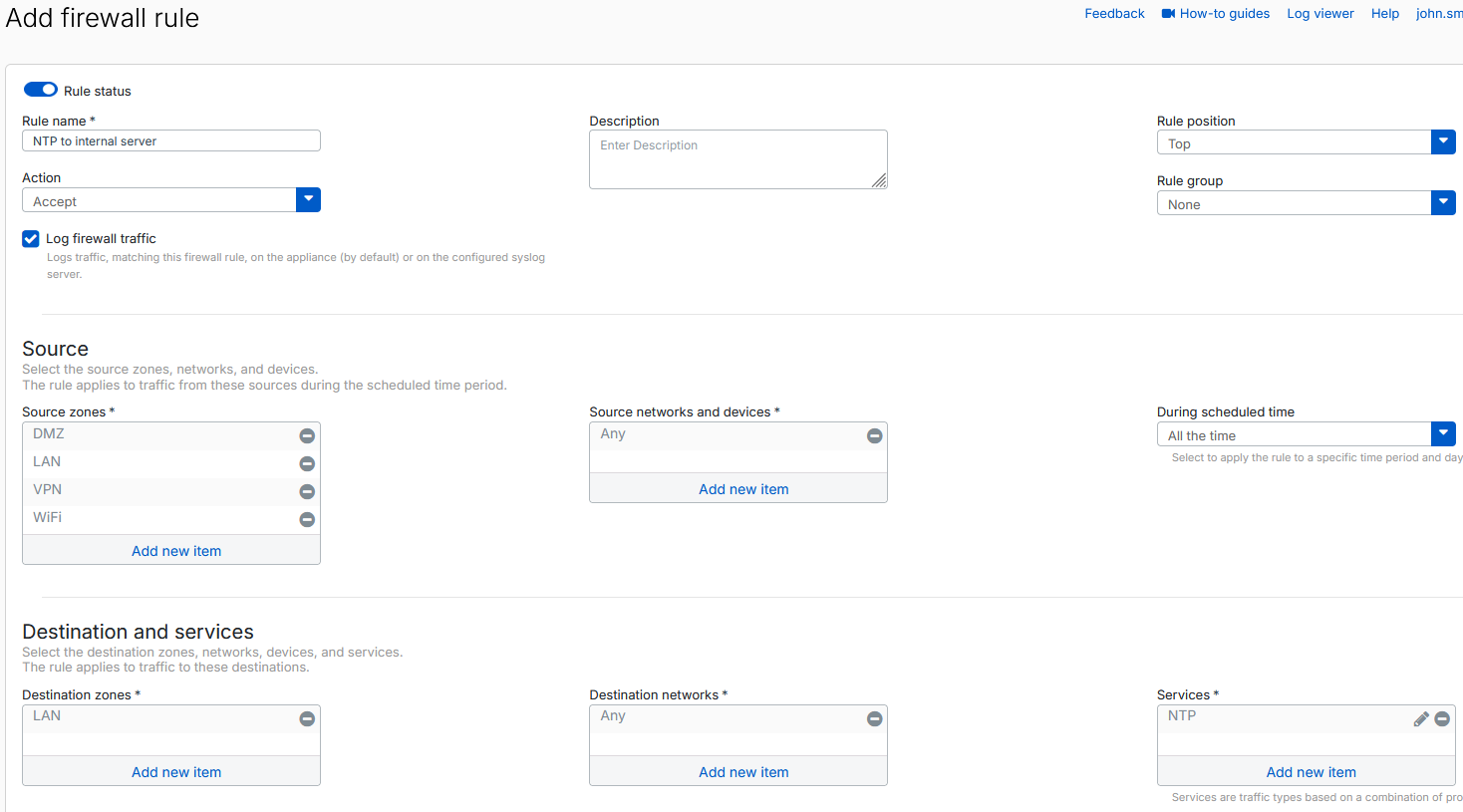
Configure the following settings:
- Rule name: Enter a rule name.
- Rule position: Select Top.
- Log firewall traffic: Make sure this setting is selected.
- Source zones: Select all zones except WAN and Any.
- Destination zones: Select LAN.
- Services: Remove Any, then select NTP.
-
Click Save.
Internal devices can now use the firewall as a relay to forward NTP requests to an internal or external NTP server by using NAT.
Tip
To enhance security for NTP traffic, add an IPS rule that includes NTP-related IPS patterns. This helps detect and block malicious activity targeting NTP services. See Intrusion prevention.