Add certificates using Postman API
You can add and update certificates through an API request using the Postman app.
To add or update certificates, do as follows:
- Turn on API access, and add the IP hosts from which you want to send the API requests.
- Upload the certificate and private key files to Postman and send an XML request.
Note
You can't get certificates using the Postman API because the data is downloaded in a .tar file. You can use a browser or a Linux command-line interface. See Get certificates using API.
Allow API access
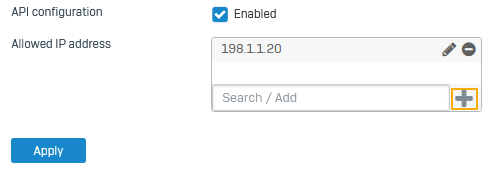
Allow configuration using the API, and enter the IP hosts from which you want to allow access.
- Go to Administration > API.
- Select API access.
- Under Allowed IP hosts, add the IP hosts from which administrators can make API requests and click
 .
. -
Click Apply.
Here's an example:
Post a certificate using Postman
Send a post request with the certificate, private key files, and the XML request using the Postman desktop app.
-
Download the Postman desktop app compatible with your operating system.
By default, the app uses your endpoint's configuration (including the IP address) to send API requests.
-
On your endpoint, store the certificate and the private key files in the following folder:
C:/Users/[yourname]/Postman/files -
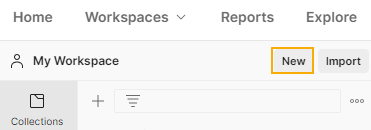
Open the Postman app and click New in your workspace.
-
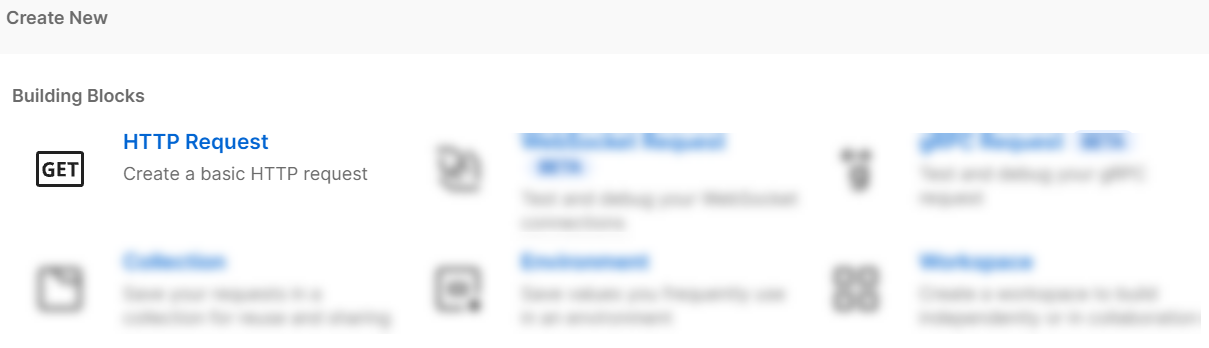
Click HTTP Request.
-
Click Save.

-
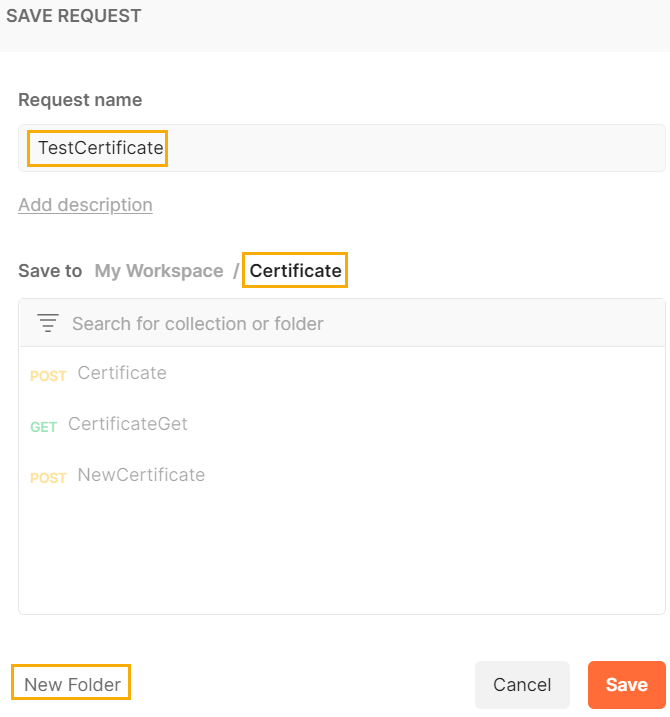
Enter a Request name, select a collection, and click Save.
Alternatively, click New folder to create a collection.
-
Select
POSTin the drop-down list and enter the following URL:https://[Firewall IP address or hostname]:[Port]/webconsole/APIController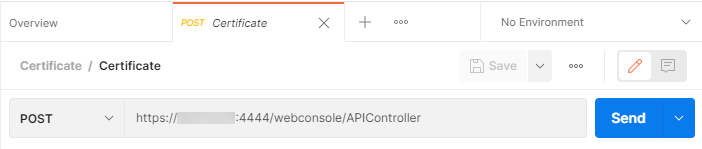
-
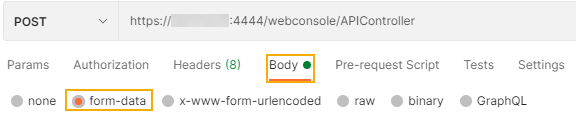
Select Body and then select form-data.
-
Specify the certificate as follows:
-
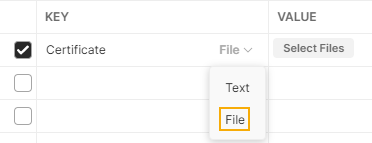
Under Key, enter a name for the certificate and select File from the drop-down list.
-
Under Value, click Select files and select the certificate file you stored on your computer.

-
-
Specify the private key as follows:
- Enter a name for the private key and select File from the drop-down list.
- Under Value, click Select files and select the private key file you stored on your computer.
-
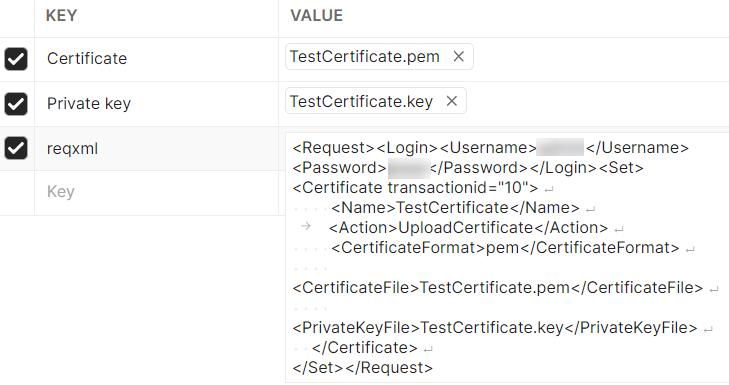
Specify the request as follows:
- Under Key, enter
reqxml. - Under Value, enter the following request:
<Request><Login><Username>xxxxx</Username><Password>xxxxx</Password></Login><Set><Certificate transactionid="10"><Name>TestCertificate</Name><Action>UploadCertificate</Action><CertificateFormat>pem</CertificateFormat><CertificateFile>TestCertificate.pem</CertificateFile><PrivateKeyFile>TestCertificate.key</PrivateKeyFile></Certificate></Set></Request>You can enter a transaction ID if you want to identify the request. In this example, the transaction ID is set to
10. See the above request.Note
Sophos Firewall uses a Set request rather than the Post request Postman uses.
- Under Key, enter
-
Click Send.
-
Scroll down and click Body to see the status of the request.
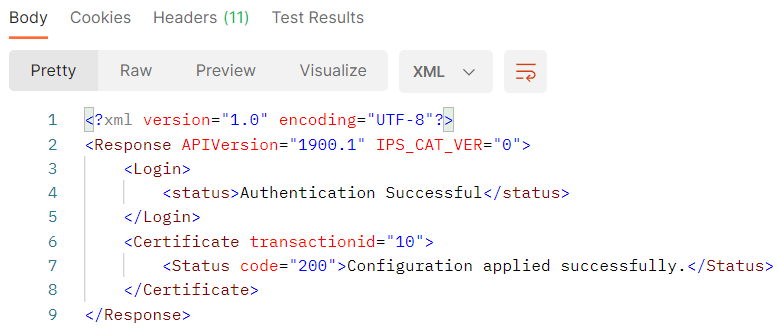
-
On the web admin console of Sophos Firewall, go to Certificates > Certificates and check if the certificate is listed.