Configure NDR Active threat intelligence
NDR Active threat intelligence uses Taegis NDR (also known as iSensor) high‑signal detection patterns, curated by Sophos Labs to identify potentially malicious traffic and active adversaries. The firewall detects events, logs them, and forwards them to the Data Lake for XDR and MDR analysis.
Video
This video shows you how to configure and use NDR Active Threat Intelligence in Sophos Firewall, simulate detections, and investigate high-risk activity in Sophos Fusion (previously Sophos Central).

Requirements
The requirements are as follows:
- You must have a Xstream Protection Bundle license.
-
The following deployments are supported:
- XGS Series firewalls, including the Gen.1 and Gen.2 firewalls.
- VMware
- KVM
- Hyper-V
- Azure
- AWS
- XEN
- Software appliances
Note
NDR Active Threat Intelligence isn't supported on XGS 88, XGS 88w, XGS 87 and XGS 87w.
-
(Optional) For XDR analysis you must have a Sophos XDR license, and for MDR analysis, you must have an MDR Essentials or MDR Complete license. You must enable Send reports and logs to Sophos Central under Sophos Central Services.
- (Optional) If you want to see the detections in Central Firewall Reporting, you must enable Send reports and logs to Sophos Central under Sophos Central Services.
- When you turn on NDR Active threat intelligence, make sure you select Scan with NDR Active threat intelligence in your firewall rules.
Summary
The summary widget at the top of the section shows the total number of detections in the last seven days, and the number of detections grouped by severity.
Configure NDR Active threat intelligence
To configure NDR Active threat intelligence, do as follows:
- Turn on NDR Active threat intelligence.
-
Select the traffic's Minimum severity level from the following options: Critical (1), Major (2), Moderate (3), Minor (4), and Warning (5).
If you select Warning, we will match all detection patterns from Critical to Warning. If you select Critical, we only match detection patterns classified as critical.
-
Under Action, the option is set to Log threats, because NDR Active threat intelligence logs the events and forwards them to the Data Lake for XDR and MDR analysis. Go to System services > Log settings, and make sure logging is turned on for IPS.
For more information about logs, see Log settings, and Logs.
-
Click Save.
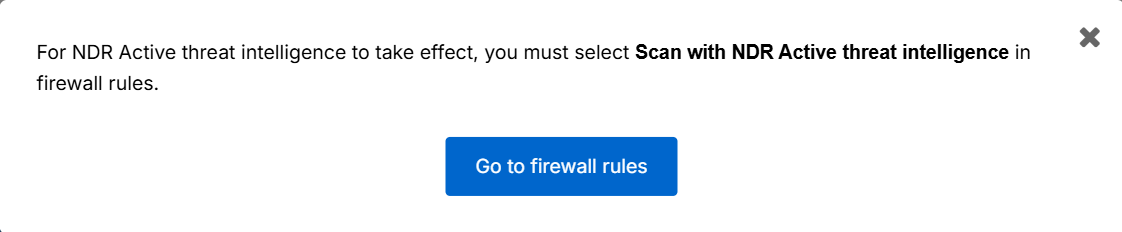
You get a reminder that you must select Scan with NDR Active threat intelligence in your firewall rules, with a link to Rules and policies > Firewall rules.
-
Click Go to firewall rules and configure or update your firewall rules.
For more information, see Firewall rules.
Logs
To see detections in Sophos Fusion, sign into Sophos Fusion and go to My Products > Firewall Management > Report Generator, and under Report templates, select IPS.
To see logs, click NDR Active threat intelligence logs. You can also go to Log viewer at the top of the page, click Add filter, and configure the following settings:
- Field: Select Category.
- Condition: Select is.
- Value: Type "NDR Active threat intelligence".
To see detections in the firewall reports, go to Reports > Network & Threat, and select Intrusion attacks.
Firewall rules
For NDR Active threat intelligence to function, you must ensure that Scan with NDR Active threat intelligence is enabled in each firewall rule that processeses traffic you want NDR to analyze.
Do as follows:
- Go to Rules and policies > Firewall rules, and click the relevant firewall rule.
- Scroll down to Other security features, and select Scan with NDR Active threat intelligence.
- Repeat these steps for every firewall rule that handles traffic you want scanned.
When you turn on Scan with NDR Active threat intelligence in your firewall rules, the firewall inspects matching traffic using the curated NDR threat intelligence signatures.