Send system-generated authentication requests through IPsec VPN
Learn how to send system-generated traffic, such as authentication requests, securely through policy-based or route-based IPsec tunnels in Sophos Firewall.
By default, system-generated traffic is sent through the WAN gateways listed in Network > WAN link manager. You can override this behavior and send the requests through IPsec tunnels from the branch office firewall to the Active Directory (AD) server at the head office.
This example shows how to send authentication requests from a branch office firewall to an Active Directory (AD) server at the head office through IPsec tunnels.
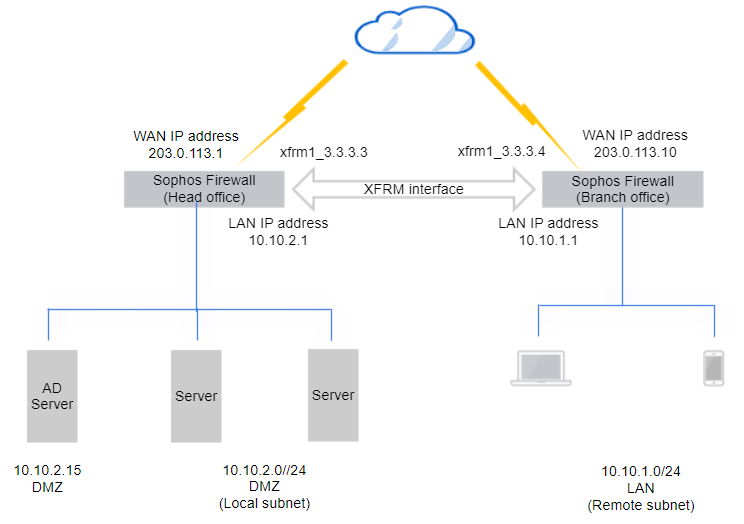
Network diagram
The configuration is based on the following example network diagram of a route-based IPsec configuration. You must use the actual values based on your network requirements.
Requirements
The branch and head office firewalls must have the following IP host and VPN configurations:
-
IP hosts:
- AD server:
10.10.2.15 - Branch office LAN interface, which sends users' authentication requests:
10.10.1.1
- AD server:
-
One of the following VPN configurations:
- Policy-based VPN between the branch office LAN and the head office DMZ subnets. See Create a policy-based IPsec VPN using preshared key.
- Route-based VPN with any-to-any subnets between the branch and head office firewalls. See Create a route-based VPN (any to any subnets).
Configure SNAT, routing, and firewall rules
Click the policy-based VPN or route-based VPN tab based on your requirement.
When you use a policy-based VPN, you must configure the branch office firewall to translate its LAN interface address to the destination AD server. The firewall sends this traffic to the IPsec tunnel.
If the traffic isn't sent to the tunnel because of the route precedence you specified, configure an IPsec route.
Translate the LAN interface
You must configure Source Network Address Translation (SNAT) for system-generated traffic, such as authentication requests, using the CLI.
To translate the LAN interface to the head office AD server address, do as follows:
-
Sign in to the CLI, enter 4 for Device Console, and run the following command:
set advanced-firewall sys-traffic-nat add destination <destination IP or network address> snatip <source IP address to translate>Example
set advanced-firewall sys-traffic-nat add destination 10.10.2.15 snatip 10.10.1.1 -
Make sure you've selected the LAN interface in the VPN configurations as follows:
- Local subnet in the branch office firewall
- Remote subnet in the head office firewall
You can use a route-based tunnel with any-to-any subnets.
Branch office: Add an SD-WAN route
Configure an SD-WAN route to send authentication queries to the XFRM interface as follows:
- Go to Routing > SD-WAN routes and click Add.
- Enter a Name.
- Set Source networks to Any.
-
Set Destination networks to the IP host for the AD server. To configure the IP host, do as follows:
- Click Add new item and clear Any.
- Click Add and enter a Name.
- For IP address, enter
10.10.2.15 - Click Save.
-
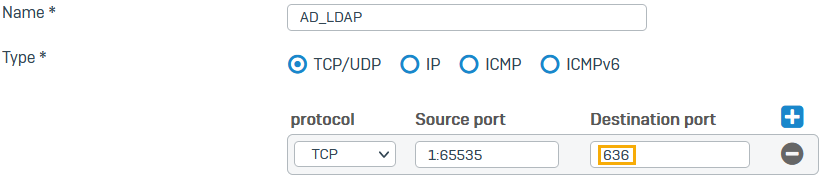
For Services, create an object for TCP port 636 (the default port for secure AD and LDAP authentication).
Do as follows:
- Click Add new item and clear Any.
- Click Add and click Services.
- Enter a Name.
- For Destination port, enter
636. -
Click Save.
-
Under Link selection settings, select Primary and backup gateways.
- Click the drop-down list for Primary gateway and click Add.
-
Do as follows:
- Enter a name.
- For Gateway IP, enter the head office XFRM IP address (
3.3.3.3). -
For Interface, select the XFRM interface you've configured on this firewall (example:
xfrm1_3.3.3.4).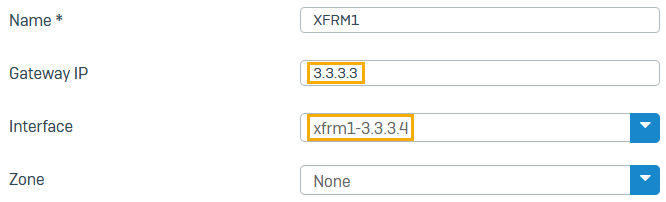
-
If you want Health check on, for Monitoring condition, enter the AD server's IP address (
10.10.2.15).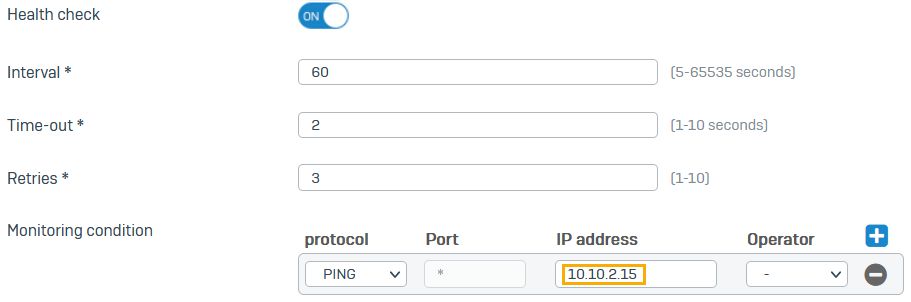
-
Select Route only through specified gateways.
The firewall then drops traffic if the tunnel isn't available.
-
Click Save.
Branch office: Turn on ping through VPN
- Go to Administration > Device access.
- Under Ping/Ping6, select the checkbox for VPN.
- Click Apply.
Branch office: Translate the gateway used by default
Translate (source NAT) the branch office firewall's gateway addresses to the XFRM interface address for system-generated traffic to the head office AD server.
Enter the following command:
set advanced-firewall sys-traffic-nat add destination <Destination or network IP address> snatip <NATed IP>
Example
set advanced-firewall sys-traffic-nat add destination 10.10.2.15 snatip 10.10.1.1
Head office: Add an SD-WAN route
Configure an SD-WAN route to send authentication queries to the XFRM interface as follows:
- Go to Routing > SD-WAN routes and click Add.
- Enter a Name.
- Set Source networks to the IP host for the AD server (
10.10.2.15). - Set Destination networks to the IP host for the LAN interface to which you've translated on the branch office firewall (
10.10.1.1). -
For Services, create an object for TCP port 636 (the default port for secure AD and LDAP authentication.)
Do as follows:
- Click Add new item and clear Any.
- Click Add and click Services.
- Enter a Name.
- For Destination port, enter
636. - Click Save.

-
Under Link selection settings, select Primary and backup gateways.
- Click the drop-down list for Primary gateway and click Add.
-
Do as follows:
- Enter a name.
- For Gateway IP, enter the branch office XFRM IP address (
3.3.3.4). -
For Interface, select the XFRM interface you've configured on this firewall (example:
xfrm1_3.3.3.3).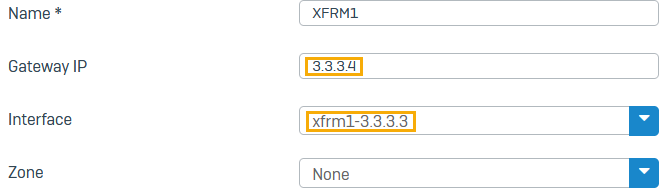
-
If you want Health check on, for Monitoring condition, enter an IP address in the branch office LAN (
10.10.1.10).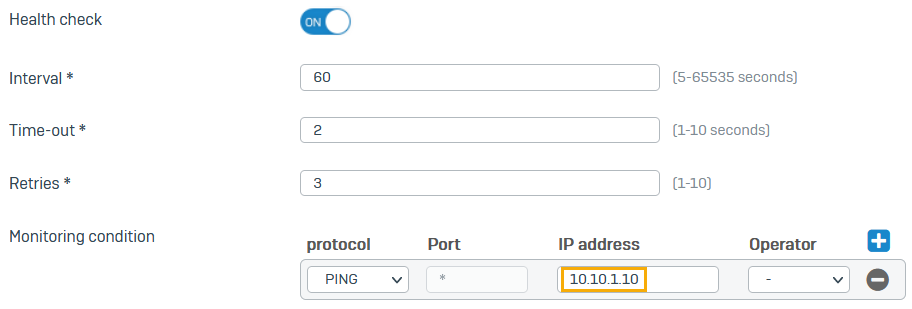
-
Select Route only through specified gateways.
The firewall then drops traffic if the tunnel isn't available.
-
Click Save.
Head office: Turn on ping through VPN
- Go to Administration > Device access.
- Under Ping/Ping6, select the checkbox for VPN.
- Click Apply.
Head office: Outbound firewall rule
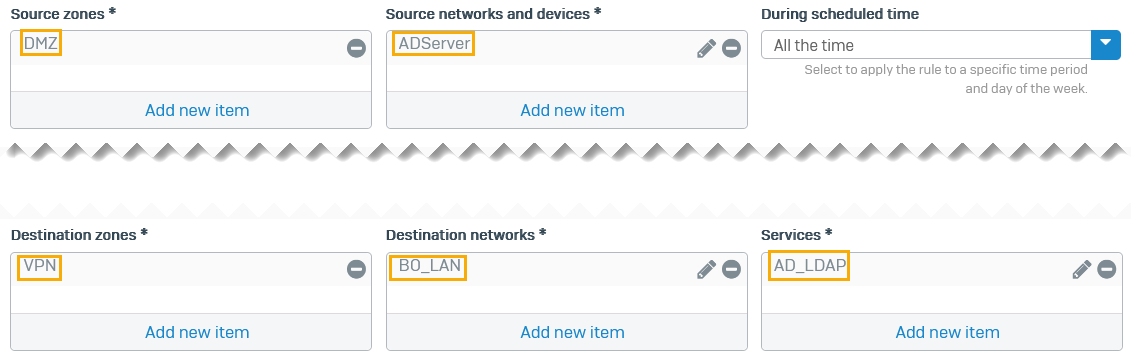
Configure a firewall rule to allow outbound traffic on the head office firewall. This allows the AD server to send its replies through the route-based VPN tunnel.
Select the following:
- Source zones:
DMZ - Source networks and devices:
ADServer - Destination zones:
VPN - Destination networks:
BO_LAN - Services:
AD_LDAP -
Click Save.
Here's an example:
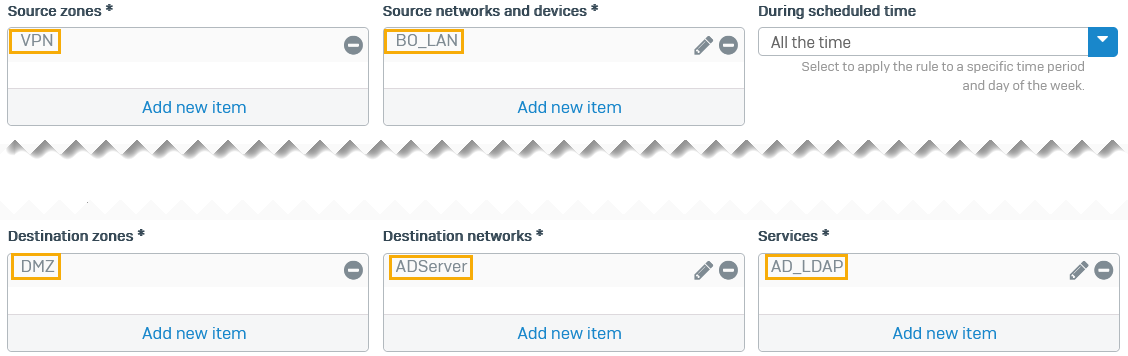
Head office: Inbound firewall rule
Configure a firewall rule to allow inbound traffic on the head office firewall. Authentication queries received through the route-based VPN tunnel are then sent to the AD server.
Select the following:
- Source zones:
VPN - Source networks and devices:
BO_LAN - Destination zones:
DMZ - Destination networks:
ADServer - Services:
AD_LDAP -
Click Save.
Here's an example: