Configure AD SSO web authentication
Sophos Firewall supports NTLM and Kerberos web authentication for Active Directory single sign-on (AD SSO). When one of these options is configured, the firewall can automatically authenticate users on the network as they access web resources. See Authentication methods.
To authenticate SSL VPN users, see SSL VPN.
AD SSO user account
Any user account that is joined to the domain can query, search, and read AD group membership. This level of access is sufficient if you aren't using AD SSO. However, AD doesn't allow standard Domain Users to add computers to the domain.
When you add a Windows computer to a domain, you're prompted to provide the credentials of a Domain Admin. Similarly, a Domain User can't join the firewall to the domain as a computer or create the Service Principal Name (SPN).
To complete this task, you must use a user account that is a member of the Domain Admins group or a user account with delegated permissions that allow domain join operations.
Configure a hostname
For NTLM, you can configure a hostname or a fully qualified domain name (FQDN). To work correctly, Kerberos requires an FQDN.
- Go to Administration > Admin and user settings.
-
For Hostname, enter a hostname or an FQDN.
Consider the following guidelines:
- Use lowercase characters because Kerberos is case-sensitive.
- The firewall uses the hostname or the host portion of an FQDN as its NetBIOS name.
-
The NetBIOS name has a maximum length of 15 characters. If the hostname exceeds this limit, the firewall truncates it when connecting to the AD server. This behavior can lead to inconsistencies between the configured hostname and the NetBIOS name used during domain operations.
We recommend that the host portion of an FQDN is 15 characters or less.
-
When joining an AD domain, a computer object is created for the firewall using its NetBIOS name followed by the AD domain name.
Example
Consider the following scenario:
- Firewall hostname:
myfirewall.mycompany.com - Company NetBIOS name:
MYCOMPANY - Domain name:
mycompany.local
The firewall joins AD using the NetBIOS computer name
myfirewall. In AD, the firewall is referenced asmyfirewall.mycompany.localand notmyfirewall.mycompany.com. This distinction is important for DNS resolution and Kerberos authentication. - Firewall hostname:
-
The SPN is created using the firewall's NetBIOS name followed by the AD domain name.
Note
By default, the serial number is used as the hostname if you don't configure a specific FQDN hostname during the initial setup of the firewall.
-
Click Apply.
Configure redirection location
To configure a redirection location, do as follows:
- Go to Administration > Admin and user settings.
-
Under Admin console and end-user interaction, select and configure the appropriate redirection setting:
If you use Kerberos in transparent mode, the hostname used in redirection must be the hostname AD knows. This can be different from the configured one.
On the client, you can run
setspn -Q HTTP/*to confirm the SPN of the firewall. You must use the same value in redirection. Make sure that it can be resolved in DNS.If you use NTLM in transparent mode with a hostname for redirection, the client automatically trusts the server to send credentials to it.
If you use an FQDN for redirection, the client needs to be configured to trust it.
-
Click Apply.
Add an AD server
To add the AD server with a search query, do as follows:
- Go to Authentication > Servers and click Add.
-
Configure the following settings:
Note
For settings not listed here, use the default value.
Setting Description Value Server type Select a server type. Active Directory Server name Enter a server name. My_AD_ServerServer IP/domain Enter the IP address or domain of the AD server. 192.168.1.100Connection security Select a connection security.
AD SSO can use STARTTLS on port 389 and SSL/TLS on port 636.
STARTTLS Port Enter a port number. 389NetBIOS domain Enter the NetBIOS domain name. contosoADS user name Enter the username of a domain administrator account.
Alternatively, enter the username of a domain user with sufficient privileges to add computers to the domain.
To create an account with the required delegated permissions, see Sophos Firewall: Troubleshoot issues when joining Active Directory for AD SSO.
<username> Password Enter the user's password. <password> Domain name Enter the domain name (DN). contoso.comSearch queries Enter a search query.
Search queries are based on the domain name.
For example, if the domain name is
contoso.com, the search query isdc=contoso,dc=com.dc=contoso,dc=comTip
In some scenarios, such as high availability (HA) deployments, environments with multiple AD servers, or after a Sophos Firewall upgrade, the firewall may need to rejoin the domain. Therefore, it's recommended not to perform the initial domain join using a Domain Admin account and later switch to a Domain User account. After the change, the firewall can't automatically rejoin the domain.
-
Click Test connection.
This test validates the user credentials and verifies the connection between the firewall and the AD server. It doesn't test AD SSO.
If AD SSO can't connect even though Test connection is successful, see NTLM and Kerberos troubleshooting.
-
Click Save.
Set firewall authentication method
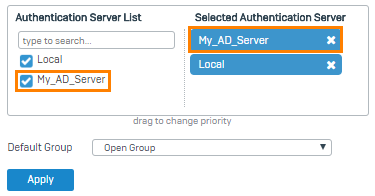
To query the AD server first, set it as the primary authentication method. When users sign in to the firewall for the first time, they're automatically added as a member of the default group specified.
- Go to Authentication > Services.
- In the Authentication server list under Firewall authentication methods, select
My_AD_Server. -
Move the server to the first position in the list of selected servers.
-
Click Apply.
- Go to Authentication > Groups and verify the imported groups.
Note
AD SSO connects to the servers in the order of their listing under Selected authentication server. It only connects to the other servers if it can't reach the preceding servers.
Turn on AD SSO for LAN zones
Turn on AD authentication for the required zones.
AD authentication is required for Kerberos and NTLM to work.
- Go to Administration > Device access.
- Select the checkbox to turn on AD SSO for the LAN zone. You can also turn on AD SSO for other zones if required.
- Click Apply.
Turn on Kerberos and NTLM authentication for web authentication
Allow browsers to authenticate using Kerberos and NTLM.
- Go to Authentication > Web authentication.
- Under If Active Directory (AD) SSO is configured, select Kerberos & NTLM.
- Click Apply.
Check Kerberos and NTLM connection
Use the log viewer to check if Kerberos and NTLM is working and that web requests are being authenticated correctly.
- Open Log viewer.
- In the drop-down list, select Authentication.
Successful authentications are shown in this log if you configure web requests to require web authentication. The Log Comp column indicates if the client uses NTLM or Kerberos.
When the firewall initially connects with the AD server, it logs the following messages:
Kerberos authentication initialized successfullyNTLM authentication channel established successfully
AD SSO won't work if the following messages appear:
Cannot initialize Kerberos authenticationCannot establish NTLM authentication channel.
The firewall requires both NTLM and Kerberos to be configured and working correctly with the AD server before it offers either one to web clients.
To troubleshoot, see NTLM and Kerberos troubleshooting.
Note
If you want the client to use Kerberos, but it's using NTLM, the client may not be matching the SPN. On the client, run the command setspn -Q HTTP/*. For transparent mode, the configured redirection URL must match the SPN. For standard mode, the proxy configured in the browser must match the SPN.
Configure web authentication in firewall rules
After you configure AD SSO, you must configure the firewall rules to determine which connections use it. Consider the following scenarios:
- To apply the firewall rule to connections from authenticated users, you must select Match known users.
-
If Match known users and Use web authentication for unknown users are selected, the following behavior applies:
- After authentication, the client reconnects, and the firewall re-evaluates the rules.
- For AD SSO to authenticate HTTPS traffic in transparent mode, the firewall must decrypt the SSL/TLS traffic.
-
When Use web authentication for unknown users triggers AD SSO authentication, the firewall decrypts the connection regardless of the configured firewall rule or SSL/TLS inspection rule settings.
For more information on certificate requirements, see Generate, apply, and install the signing CA.
Tip
We recommend creating a separate firewall rule for HTTP and HTTPS services. This approach improves clarity, as the option Use web authentication for unknown users only applies to HTTP and HTTPS traffic.