Config Studio
Sophos Firewall Config Studio is a browser-based tool, that lets you view, edit, compare, test, and analyze Sophos Firewall configurations quickly and easily. You can generate configuration reports, compare firewall configurations, edit configuration files, migrate configurations from Sophos UTM and supported third-party firewalls to Sophos Firewall, and use interactive guides for deployment and hardware planning.
Note
No configuration data is uploaded or shared outside your browser. All parsing, analysis, and report generation runs locally on your endpoint device, keeping your data private.
Features and benefits
Learn about the available tools and key benefits.
Tools
Sophos Firewall Config Studio provides the following tools:
- Configuration report: See all rules, policies, and settings in a single configuration.
- Comparison report: Compare two configurations and see the added, removed, modified, and unchanged items.
- Configuration editor: Add configurations directly or import firewall configurations and edit them in the tool. Download the configurations and import them into the firewall or copy them in API or curl formats for use with these methods.
- Migrate to Sophos Firewall: Migrate from Sophos UTM (SG), SonicWall, Fortinet, and Palo Alto Networks to Sophos Firewall. See Migrate Sophos UTM and third-party firewalls.
- Interactive guides: Access interactive guides for backup and restore compatibility, high availability (HA), SD-WAN Orchestration, hardware compatibility, and networking information.
Key benefits
The key benefits are as follows:
- See and compare configurations: Filter, search, and review configurations. Compare configurations from the same firewall or different firewalls to identify changes.
- Create and edit configurations: Create or edit configurations and download them for import to the firewall.
- Analyze configurations: Find shadowed and duplicate configurations instantly. See the rules and routes that match the source and destination addresses.
- Trace object usage: See where objects are used in a configuration to troubleshoot and plan changes.
- Export reports in HTML: Support documentation, reviews, audits, and record‑keeping.
How to use
You must first export the Entities.xml file from your firewall and upload it to Config Studio.
Download the Entities.xml file
You must export and download the Entities.xml file as follows:
- In the web admin console, go to Backup & firmware > Import export.
-
To export the configuration, select one of the following options:
- Full configuration: Use this to report the entire configuration.
- Selective configuration: Use this when you only need specific modules for focused comparisons.
-
Click Download.
An
Entities.xmlfile is downloaded to your endpoint device.
Use Config Studio
Click the relevant tab to learn more about the available tool.
To see the details of a single configuration, do as follows:
- To open the tool in your browser, click Sophos Firewall Config Studio.
- Click the Configuration report panel.
-
Upload the
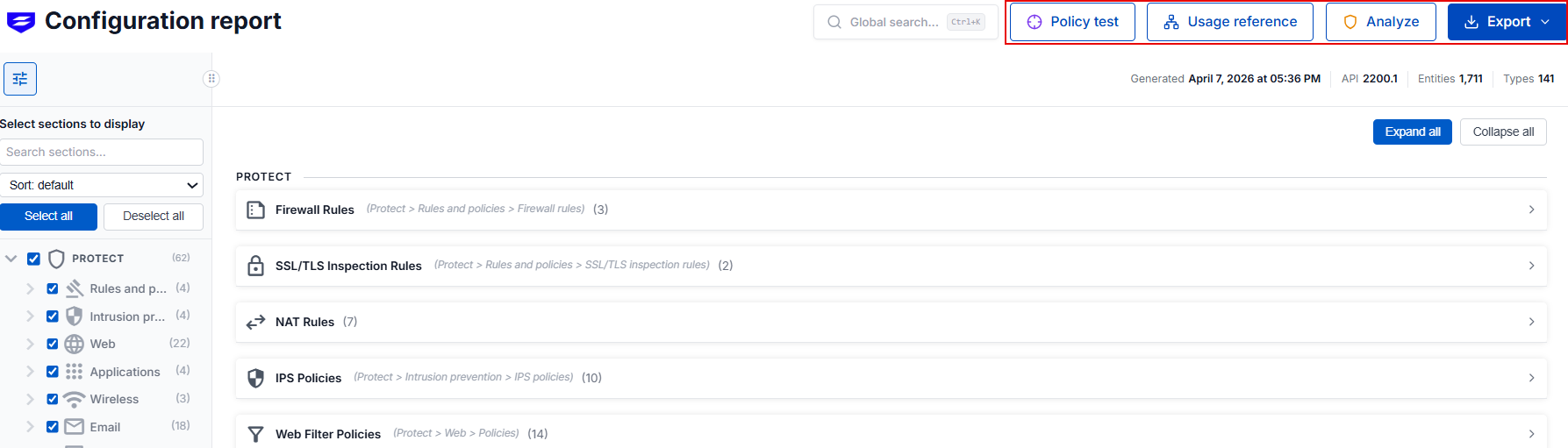
Entities.xmlfile.The report lists all configurations from the file. See the example report below.
-
To see a module's configuration details, click the module.
-
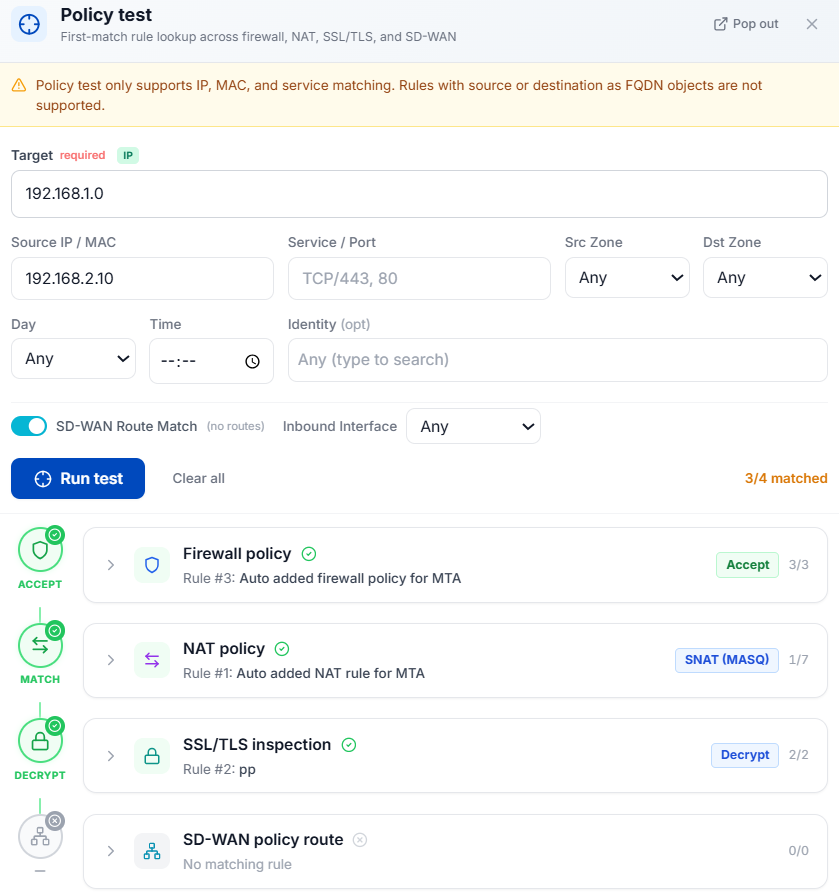
To check the rules and polices for source and destination match, click Policy test, enter the details, and click Run test. See an example below.
-
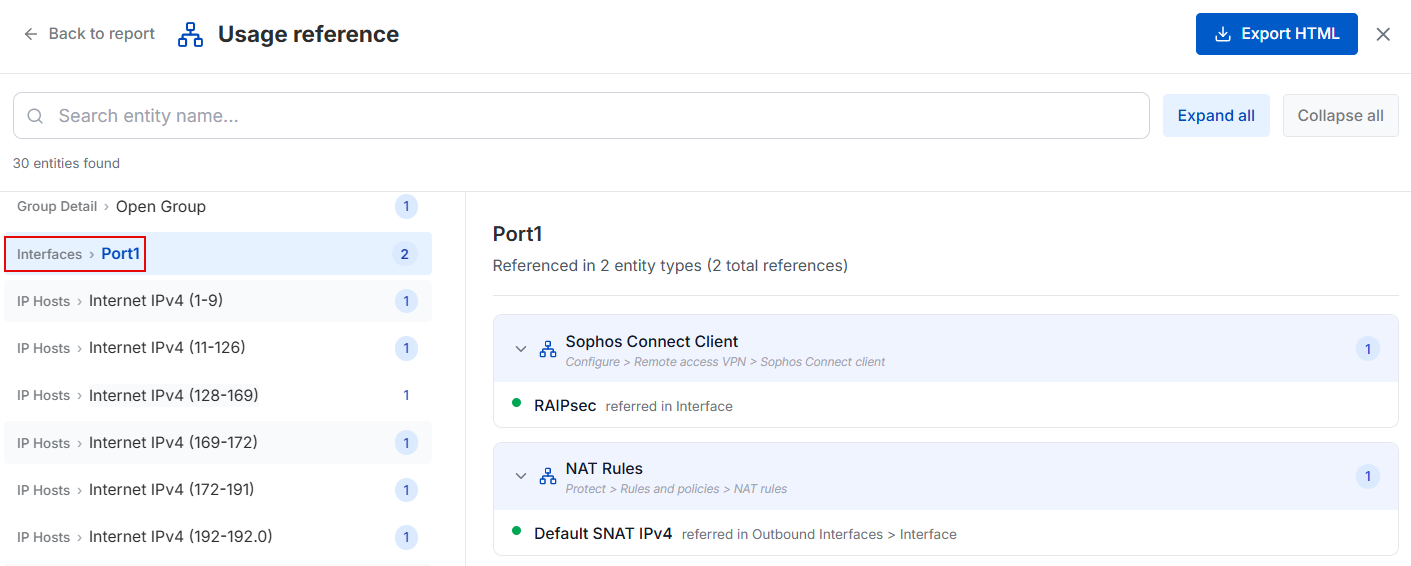
To see where an object is used, click Usage reference.
-
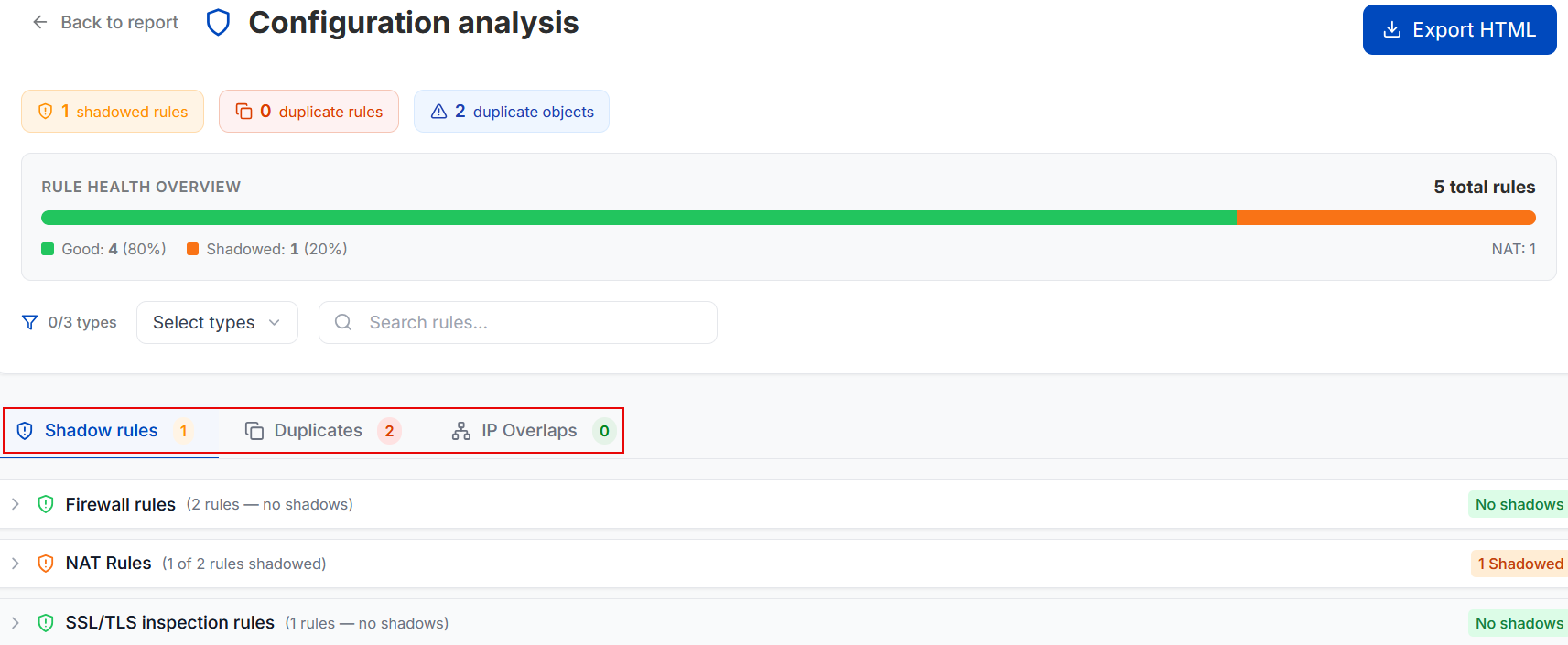
To analyze the report for shadowed and duplicate rules and objects, click Analyze. The firewall evaluates rules from the top. After it finds a matching rule, it stops processing additional rules. So, traffic never matches shadowed rules.
See an example report below.
-
To download the report, click Download as HTML.
In the comparison report, you can compare configurations from different firewalls or compare a firewall's previous and current configurations.
- To open the tool in your browser, click Sophos Firewall Config Studio.
- Click the Compare configurations panel.
-
Upload the two
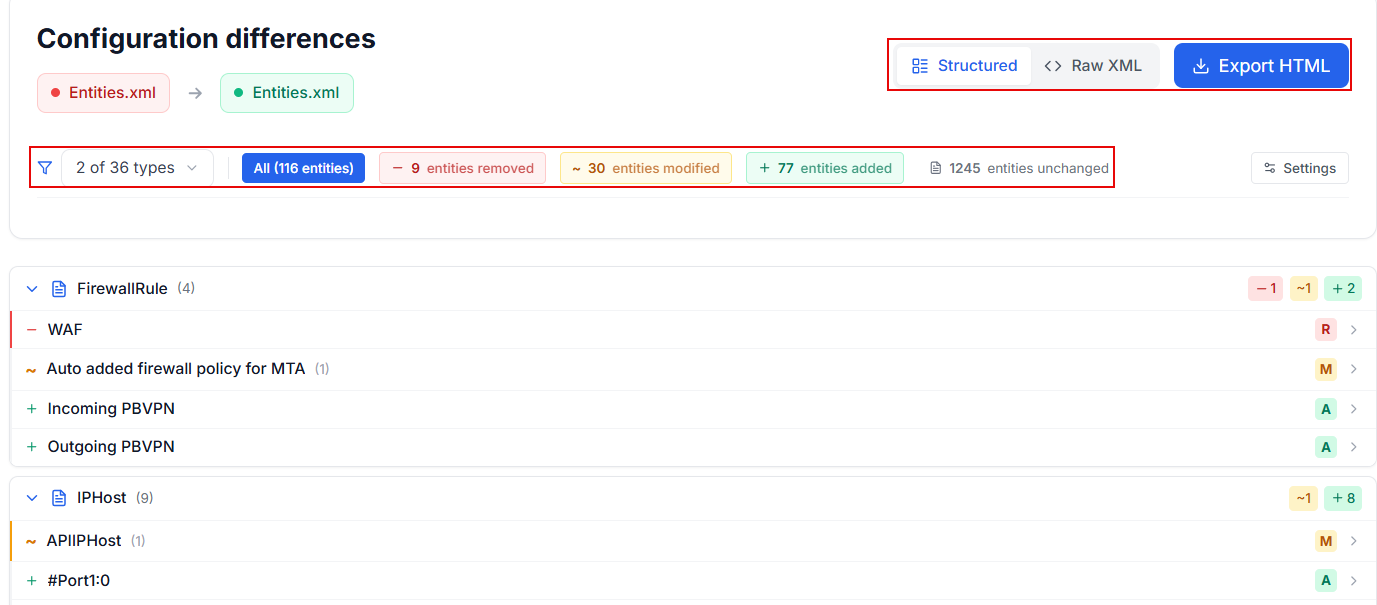
Entities.xmlfiles.The comparison report highlights the removed, modified, added, and unchanged configurations. See the example report below.
-
To focus on a specific module, click All types, click Deselect all, then select the module.

-
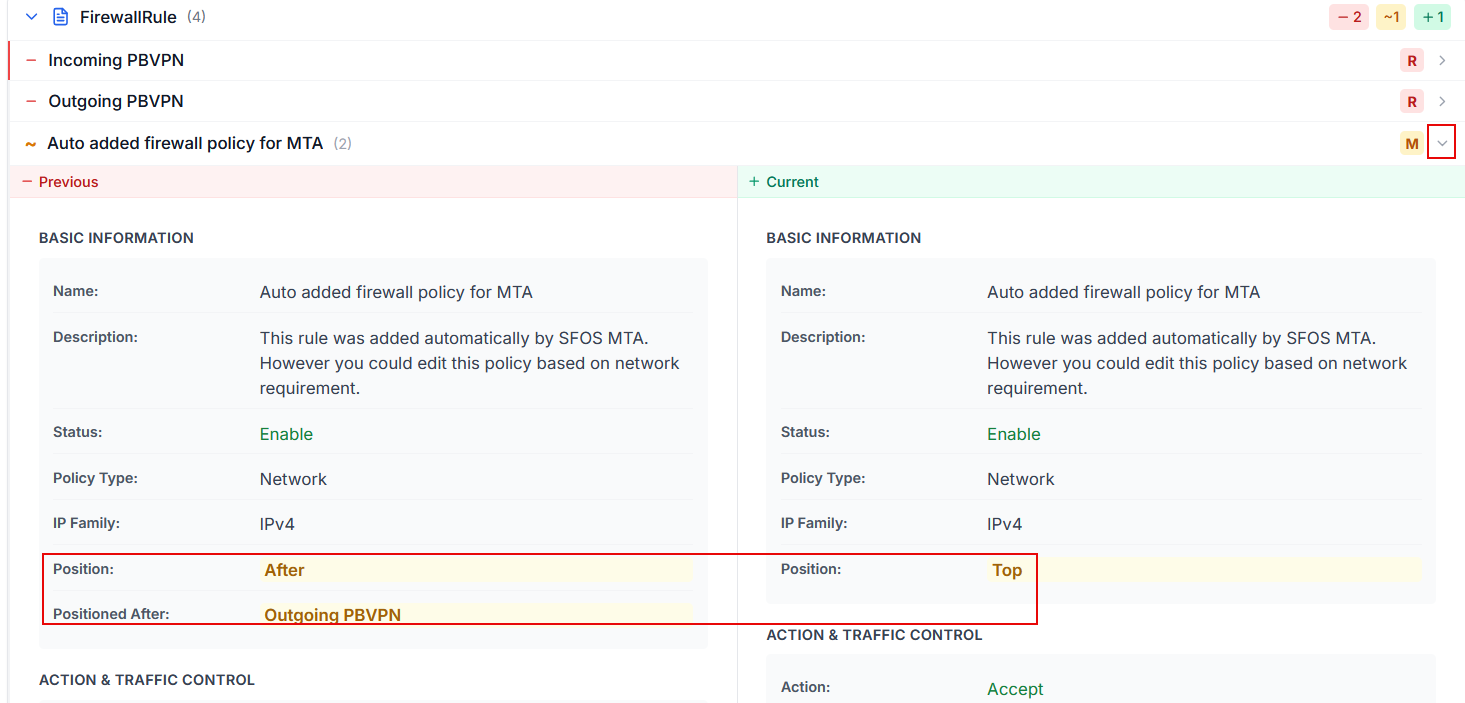
To check the configuration changes, click the module to expand it, then expand one of the categories on the right to show the removed (R), modified (M), or added (A) configurations.
See an example of modified configurations below.
-
To export the report, click Export HTML in the upper-right corner.
To create, edit, and analyze firewall configurations, do as follows:
- To open the tool in your browser, click Sophos Firewall Config Studio.
- Click the Configuration editor panel.
-
You can import or create a configuration:
-
Click Import in the upper-right corner, upload the
Entities.xmlfile, and select an option:- Keep all configurations
- Keep only editable configurations
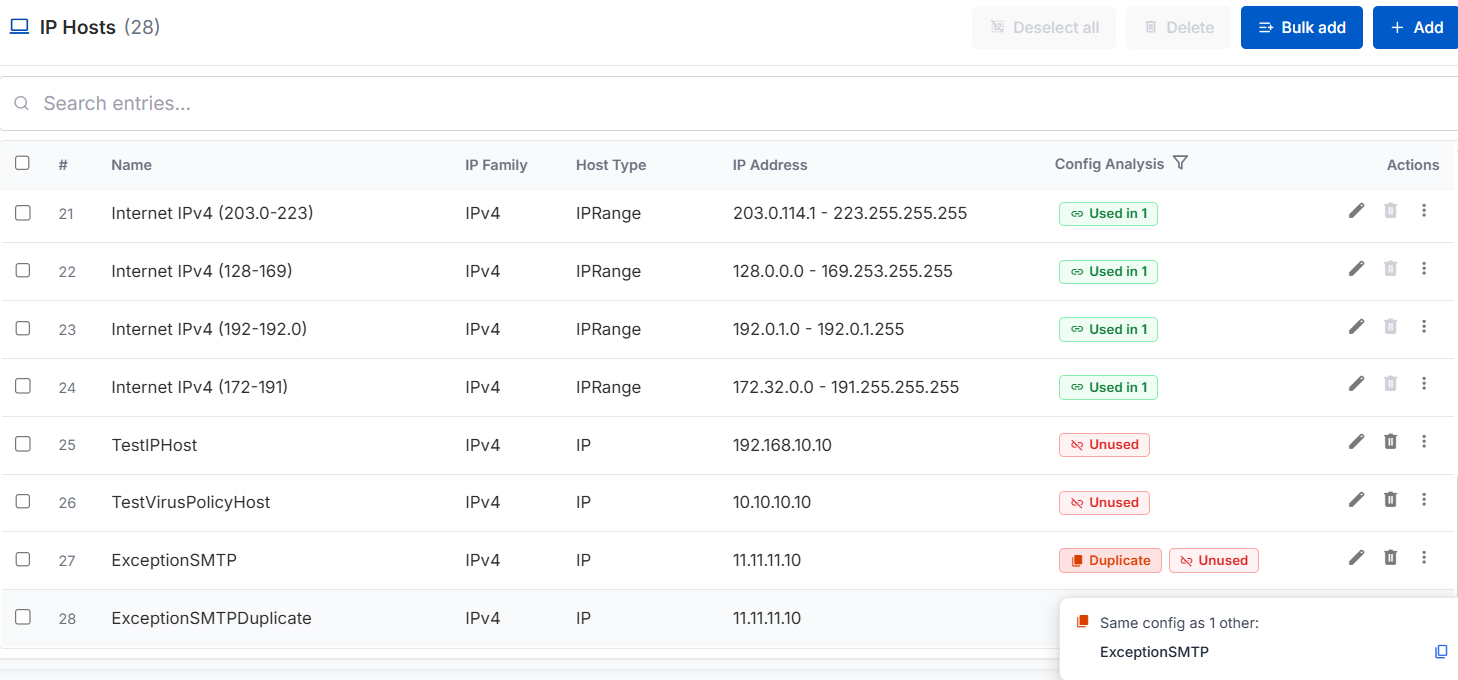
The report lists configurations along with an analysis of their usage and whether they duplicate another record. For more information, hover over a record's configuration analysis.
See the example report below.
-
Click a module on the left panel, click Bulk add or Add, and add the configurations you want.
-
-
After you create or edit the configuration, you can click an option in the upper-right corner:
- Preview: Copy or download the configuration in the following formats, then import or send the configuration to the firewall: Import XML, API Request, or cURL.
- Download: Download the configuration in XML or TAR formats. You can import the
.tarfile to the firewall in Backup and restore > Import export.
For information about migrating configurations from supported firewalls to Sophos Firewall, see Migrate Sophos UTM and third-party firewalls.
Interactive guides
To access interactive guides, do as follows:
- To open the tool in your browser, click Sophos Firewall Config Studio.
- Click the Interactive guides panel.
-
Select the guide you want to use. The following guides are available:
- HA and SD-WAN deployment guidance.
- Backup-restore compatibility across XG and XGS Series.
- Flexi Port modules, transceivers, and port standards.
- Ethernet negotiation and FEC defaults.
Video
