HO firewall as DHCP server and BO firewall as relay agent
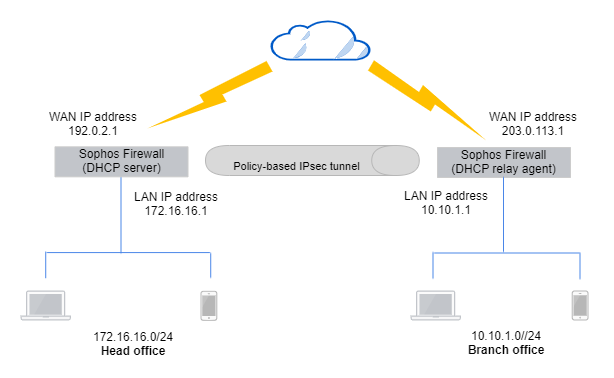
Learn how to configure Sophos Firewall at the head office as a DHCP server, and Sophos Firewall at the branch office as a DHCP relay agent with IP addresses leased over a policy-based IPsec VPN.
The DHCP relay agent forwards DHCP traffic between the clients making the requests and the server leasing IP addresses to the clients.
Network diagram
The network details are as follows:
Head office:
- WAN IP address:
192.0.2.1 - DHCP server interface:
172.16.16.1
Branch office:
- WAN IP address:
203.0.113.1 - DHCP relay agent interface:
10.10.1.1 - LAN subnet:
10.10.1.0/24
Head office
Configure the DHCP server, a policy-based IPsec connection, and lease IP addresses through the connection.
Configure the DHCP server
Configure Sophos Firewall at the head office as the DHCP server to lease dynamic IP addresses to DHCP clients at the branch office.
- Go to Network > DHCP.
- Under Server, click Add.
-
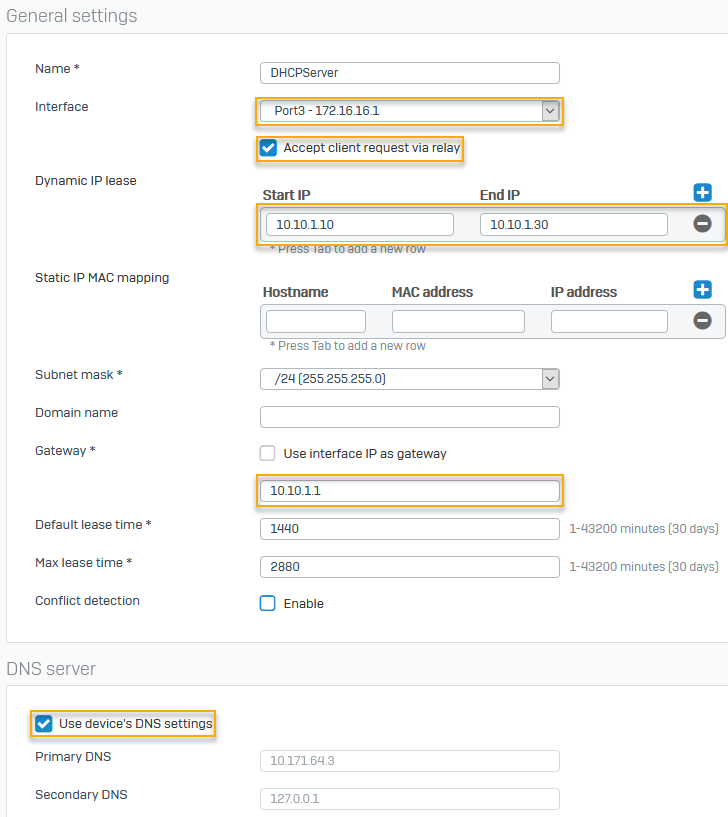
The following settings are an example. You must specify your network's settings:
Setting Value Interface `Port3 - 172.16.16.1 Accept client request via relay Accepts relay requests. Dynamic IP lease 10.10.1.10to10.10.1.30Gateway 10.10.1.1Use device's DNS settings DNS server details to share with DHCP clients. -
Click Save.
Here's an example:
Lease IP addresses over an IPsec connection
Turn on IP address lease over IPsec tunnels in the head office firewall.
- On the head office CLI, enter 4 for Device console.
- Run the following command:
system dhcp lease-over-IPSec enable
Configure a policy-based IPsec connection
Configure a policy-based IPsec connection as follows:
- On the web admin console, go to Site-to-site VPN > IPsec > IPsec connections and click Add.
-
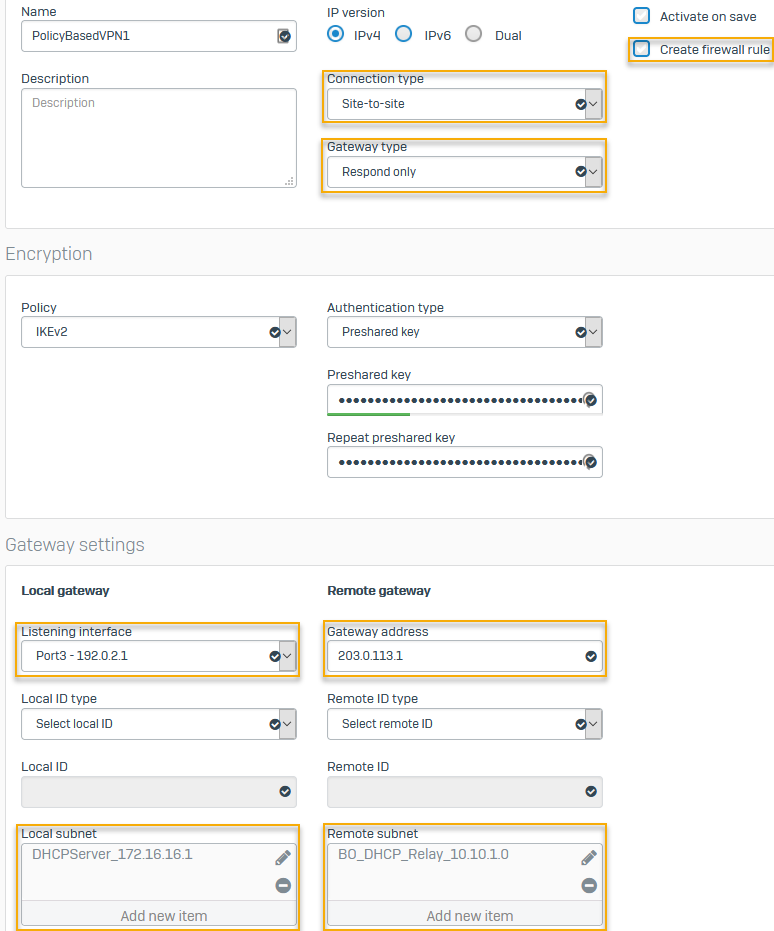
The following settings are an example. You must specify your network's settings:
Setting Value Connection type Policy-basedGateway type Respond onlyTo allow WAN traffic to access the IPsec tunnel, go to Administration > Device access and select WAN under IPsec.
Create firewall rule Clear the checkbox.
Firewall rules don't control system-generated traffic.
Authentication type Preshared keyListening interface Port3 - 192.0.2.1Gateway address 203.0.113.1Local subnet 172.16.16.1Remote subnet 10.10.1.0Here's an example:
Branch office
Configure the DHCP relay agent and a policy-based IPsec connection, and translate the LAN interface.
Configure a DHCP relay agent
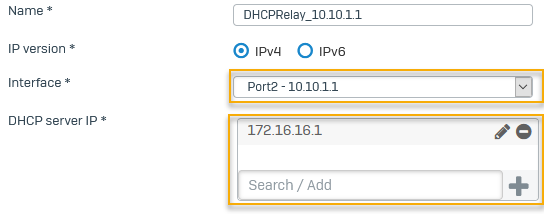
Configure the branch office Sophos Firewall as the DHCP relay agent. In this example, it relays the IP addresses leased by the DHCP server on the head office firewall.
- Go to Network > DHCP.
- Under Relay, click Add.
- Select the Interface, for exammple,
Port2 - 10.10.1.1. - Enter the IP address for DHCP server IP, for example,
172.16.16.1and click .
. -
Click Save.
Here's an example:
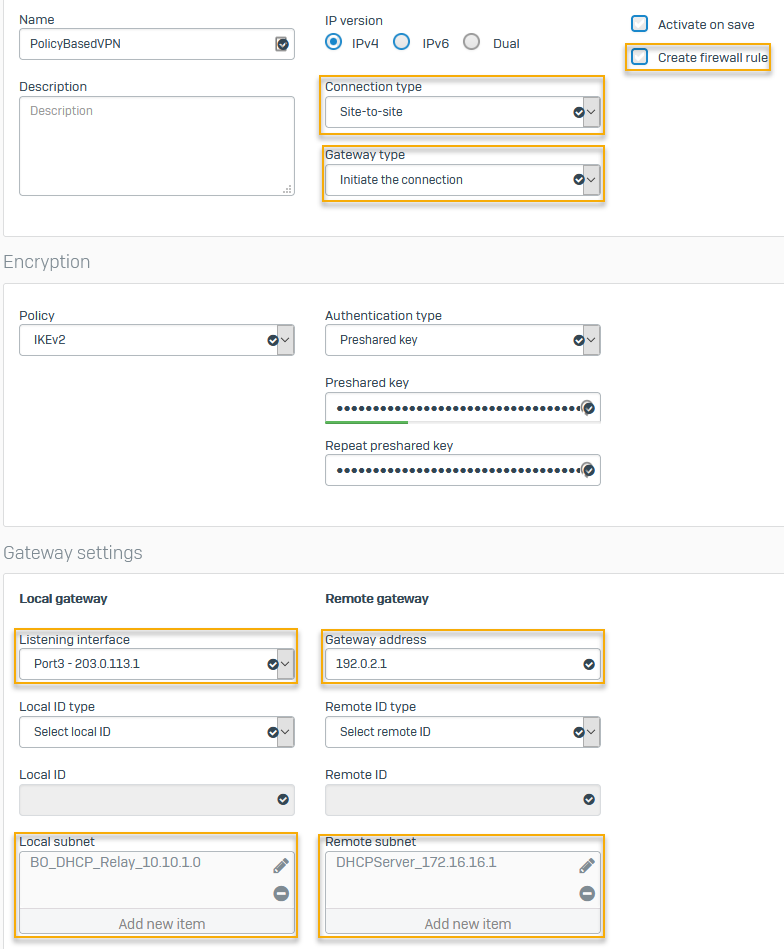
Configure a policy-based IPsec connection
Configure a policy-based IPsec connection in the branch office firewall.
- On the web admin console, go to Site-to-site VPN > IPsec > IPsec connections and click Add.
-
The following settings are an example. You must specify your network's settings:
Setting Value Connection type Policy-basedGateway type Initiate the connectionCreate firewall rule Clear the checkbox.
Firewall rules don't control system-generated traffic.
Authentication type Preshared keyEnter the key you specified in the head office firewall.
Listening interface Port3 - 203.0.113.1Gateway address 192.0.2.1Local subnet 10.10.1.0Remote subnet 172.16.16.1 -
Click Save.
Here's an example:
Translate the LAN interface
You must configure Source Network Address Translation (SNAT) for system-generated traffic, such as DHCP requests, using the CLI.
To translate the LAN port's (DHCP relay interface) IP address on the branch office firewall to the DHCP server's IP address at the head office, do as follows:
- Sign in to the CLI and enter 4 for Device Console.
-
Run the following command:
set advanced-firewall sys-traffic-nat add destination <destination IP or network address> snatip <source IP address to translate>Example
set advanced-firewall sys-traffic-nat add destination 172.16.16.1 snatip 10.10.1.1