Configure MFA with an authenticator app
To implement Multi-Factor Authentication (MFA) with an authenticator application, configure the MFA settings in the firewall.
The firewall supports SHA1, SHA256, and SHA512 hash algorithms.
Configure MFA settings in the firewall
If you haven't already configured the MFA settings, do as follows:
- Go to Authentication > Multi-factor authentication.
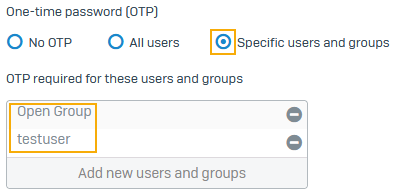
- For One-time password, select Specific users and groups.
-
Click Add new users and groups, select the users and groups, and click Apply selected items.
-
Turn on Generate OTP token with next sign-in.
A QR code containing the OTP token becomes available for the services that require MFA.
-
For Share QR code, select one of the following options:
- Email: The firewall sends the QR code to the user's email address the next time they sign in to the VPN or user portal.
- Portals: The firewall shows the QR code in the User and VPN portals the next time they sign in to the VPN portal, user portal, or web admin console.
-
Select the services that require MFA.
This example selects web admin console and SSL VPN remote access. User portal is selected by default for users to scan the QR code.

-
For OTP hash algorithm, select a hash algorithm.
- For OTP timestep settings, enter the timestep (time period) value the authenticator app requires.
- Click Apply.
Users generate passcodes
Sophos Firewall uses Time-based OTPs (TOTP).
Users must first sign in to the VPN or user portal to scan the QR code using their authenticator app. The app will generate the passcodes, that is, OTPs.
Note
We recommend that you use an authenticator app that supports SHA256 and SHA512, such as Sophos Intercept X or Google Authenticator.
Administrators can sign in to the web admin console or the user portal if you enforce MFA for the web admin console sign-ins.
To sign in to the services requiring MFA, users must enter the password in <password><passcode> format. See OTP token.
Note
You must use a hash algorithm that your authenticator app supports. If you use an authenticator app that doesn't support SHA256 or SHA512, such as Microsoft Authenticator, you can still scan the QR code, but the sign-in fails.