Integrate Google Workspace with Sophos Firewall
Complete configuration to integrate Google Workspace with Sophos Firewall
- Configure Google Workspace
- Configure firewall
- Add redirect URIs
- Allow Google Workspace URLs
- Import groups
This task has several steps. Click a link to go to the page for that step.
In the Google Cloud console, you must integrate your Google Workspace with Sophos Firewall to authenticate administrators and users through single sign-on (SSO).
Create a OAuth 2.0 client ID
A OAuth 2.0 client ID is used to identify the firewall to Google's OAuth servers.
Create a OAuth 2.0 client ID as follows:
- Sign in to Google Cloud console.
- Go to APIs & Services > Credentials.
- Click Create credentials > OAuth client ID.
- From the Application type list, select Web application.
- Enter a Name.
- Click Create.
-
Make a note of the Client ID and Client secret.
You need to enter these values in Sophos Firewall later.
Note
You must copy the Client secret immediately because you won't see it later.
-
Click Ok.
Create a service account
A service account is a non-human identity that allows applications to access Google resources programmatically. Google Workspace authentication requires a Google service account and a JSON key file.
The firewall uses the service account to retrieve Google Workspace group membership information. Group membership information can be used for user and group-based policy assignment and administrator role mapping.
Create a service account as follows:
- Go to IAM & admin > Service accounts.
- Click Create service account.
-
Enter a Service account name.
The Service account ID is automatically populated.
-
Click Create and continue.
- (Optional) Under Permissions, select the IAM roles to grant to the service account.
- Click Continue.
- (Optional) Under Principals with access, add the users or groups that are allowed to use and manage the service account.
- Click Done.
Create a JSON key file
Create a JSON key file as follows:
-
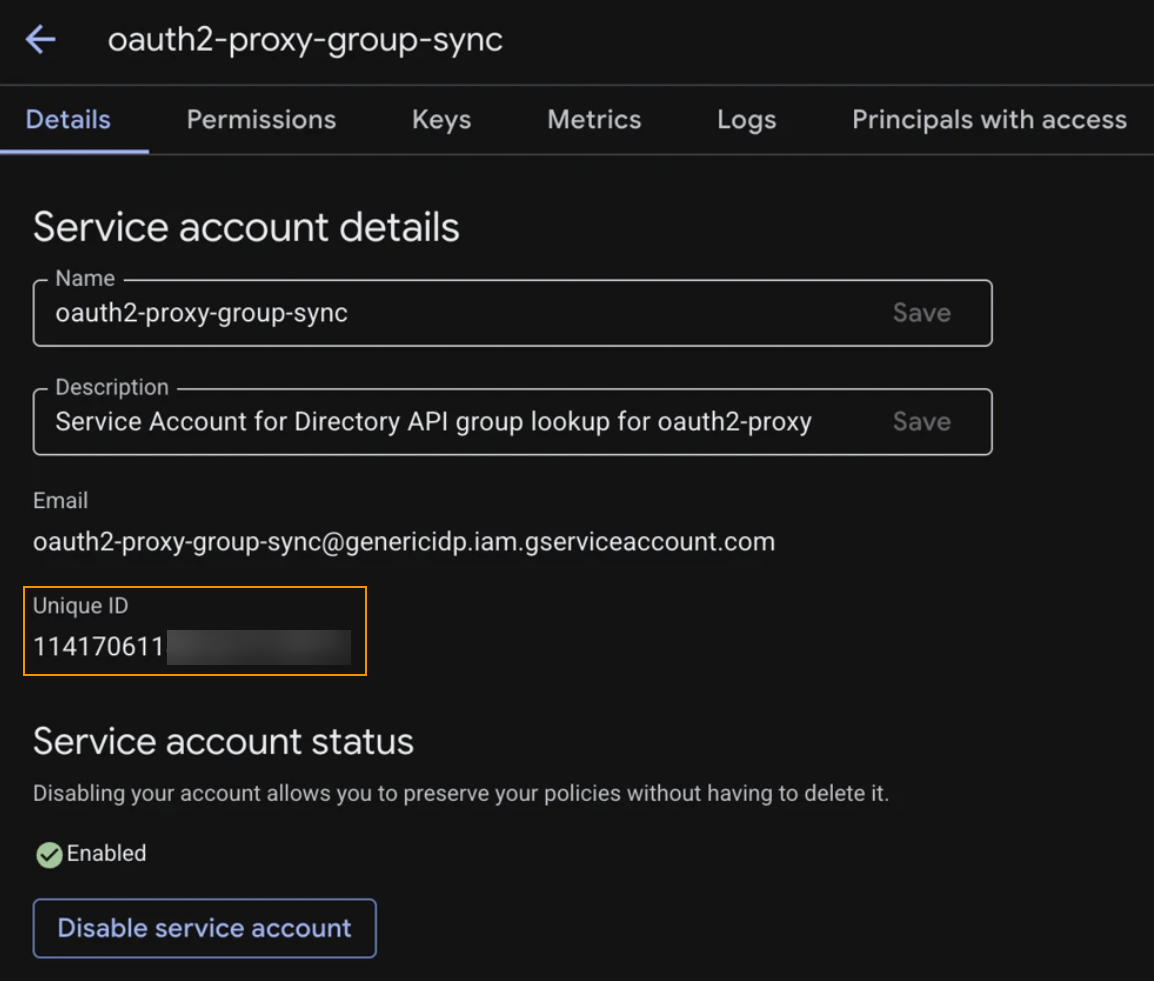
Click the service account you created.

-
Make a note of the Unique ID. You need it later when granting domain-wide delegation for the service account. See Grant domain-wide delegation for the service account.
-
Click Keys > Add key > Create new key.
Note
If you get the error
Service account key creation is disabled, you must turn off enforcement for the organization policy constraintiam.managed.disableServiceAccountKeyCreation. See Troubleshoot organization policy errors for service accounts. -
Under Key type, select JSON.
-
Click Create.
The private key is automatically downloaded to your computer.
-
Click Close.
Turn on Admin SDK API
Admin SDK lets administrators of enterprise domains to view and manage resources, such as users and groups. It also provides audit and usage reports of a domain.
Turn on Admin SDK API as follows:
- In the Google Cloud console, go to APIs & services > Library.
- Search for
Admin SDK API. - Click Admin SDK API.
- Click Enable.
Grant domain-wide delegation for the service account
To allow a service account to access Google Workspace directory information, you must configure domain-wide delegation. Domain-wide delegation authorizes the service account to act on behalf of users in your Google Workspace domain for specific Google APIs.
Grant domain-wide delegation as follows:
- Sign in to Google Admin console.
- Go to Main menu > Security > Access and data control > API controls.
- In the Domain-wide delegation pane, select Manage domain wide delegation.
- Click Add new.
- In Client ID, enter the service account's Unique ID.
-
In OAuth scopes (comma-delimited), enter the following scopes:
https://www.googleapis.com/auth/admin.directory.group.readonlyhttps://www.googleapis.com/auth/admin.directory.group.member.readonlyIf you also want to authenticate firewall administrators, include the following scope:
https://www.googleapis.com/auth/admin.directory.rolemanagement.readonly -
Click Authorize.
Configure groups or roles for administrators
To allow administrators to sign in to the firewall's web admin console, you can create groups or roles and assign these to individual administrators in Google Workspace.
You must map these Google Workspace groups or roles to administrator profiles in the server configuration in the firewall.
Create groups and add firewall administrators
If you want to use groups, we recommend that you create groups in Google Workspace specifically for the firewall administrators, so you prevent others from accessing the web admin console.
Create groups
To create groups for the firewall administrators in Google Workspace, do as follows:
- Sign in to Google Admin console.
- Go to Menu > Directory > Groups and click Create group.
- Enter a Group name.
- Enter a Group email.
- (Optional) Enter a Description.
- (Optional) Add Group owner(s) who will have the owner role for the group.
- Click Next.
- (Optional) To add the security label to the group, click the Security checkbox.
- Click Next.
- Select a group access type.
- (Optional) To customize the access settings, click the table cells to select or clear an option.
- Click Next.
- (Optional) To restrict who can be members of the group, select Restrict membership and add your query conditions.
- Click Create Group.
Add firewall administrators
To add firewall administrators to the group, do as follows:
- Click Add members.
- Search for the firewall administrators and select them.
- Click Add to group.
For granular read-write permissions in the firewall, you can create multiple groups.
Example
Firewall Admin Full Access
Firewall Admin Read Access
For more information, see Create a group in your organization.
Create and assign administrator roles
You can use custom or prebuilt administrator roles and assign them to the firewall administrators in Google Workspace.
Create roles for administrators
You can use custom or prebuilt administrator roles to grant the privileges that you want to assign to an administrator.
Click the relevant tab below for instructions.
If you want to customize administrator privileges, you can create custom roles. A custom role can include one or more administrator privileges, allowing users to do specific management tasks in the Google Admin console. You can create more than one custom role.
To create custom roles in Google Workspace, do as follows:
- Sign in to Google Admin console.
- Go to Menu > Account > Admin roles.
- Click Create new role.
-
Enter a name.
Example
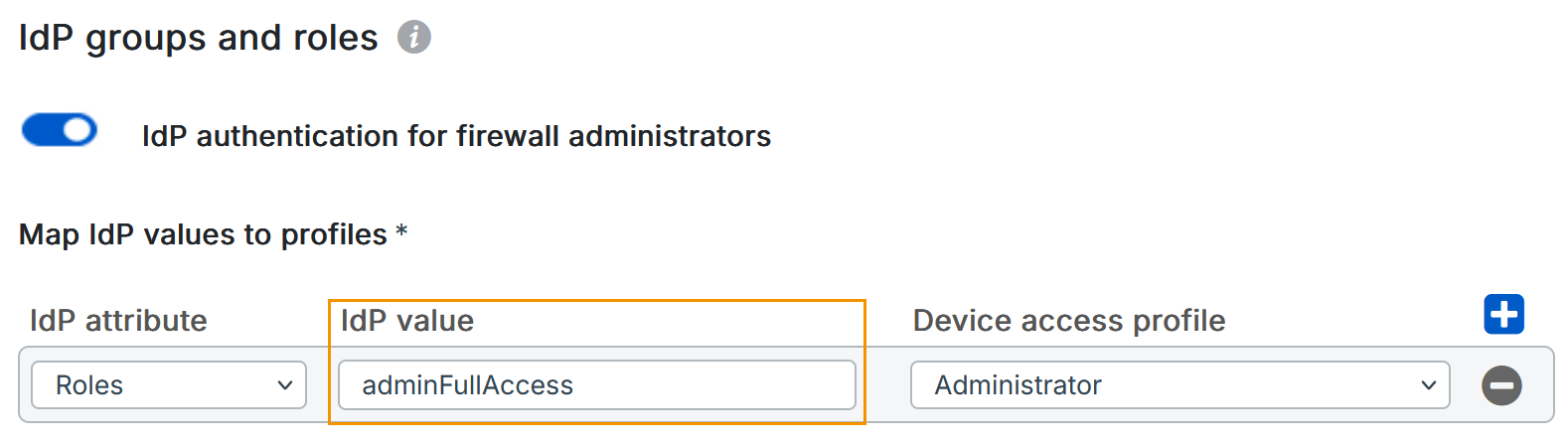
adminFullAccess
adminReadOnlyAccess
You must specify the role name as the IdP value in the firewall's Google Workspace server configuration.
Example
-
(Optional) Enter a description.
- Click Continue.
- In the Privilege name list, select the checkboxes of each privilege that you want administrators with this role to have.
- Click Continue.
- Review the privileges and click Create role.
For more information, see Create, edit & delete custom admin roles.
You can use Google's prebuilt administrator roles that include one or more administrator privileges, allowing users to do specific management tasks in the Google Admin console.
For more information, see Prebuilt administrator roles.
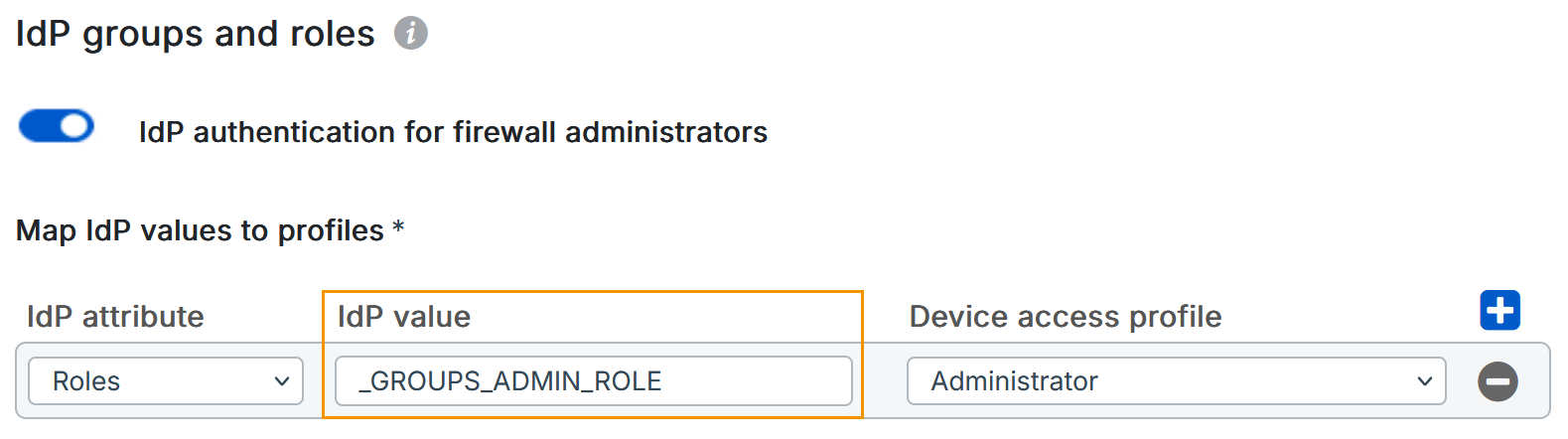
When using prebuilt administrator roles, you must enter the corresponding IdP value of the prebuilt administrator role in the firewall's Google Workspace server configuration.
The following table shows the prebuilt administrator roles and their corresponding IdP values:
| Prebuilt administrator role | IdP value |
|---|---|
| Super admin | _SEED_ADMIN_ROLE |
| Groups admin | _GROUPS_ADMIN_ROLE |
| User management admin | _USER_MANAGEMENT_ADMIN_ROLE |
| Help desk admin | _HELP_DESK_ADMIN_ROLE |
| Services admin | _SERVICE_ADMIN_ROLE |
| Multi-party approval admin | _MULTI_PARTY_APPROVAL_ADMIN_ROLE |
| Mobile admin | _MOBILE_ADMIN_ROLE |
| Storage admin | _STORAGE_ADMIN_ROLE |
| Google voice admin | _GOOGLE_VOICE_ADMIN_ROLE |
| Directory sync admin | _DIRECTORY_SYNC_ADMIN_ROLE |
| Reseller admin & indirect reseller admin | _RESELLER_ADMIN_ROLE |
Example
When using the Groups admin role, you must use _GROUPS_ADMIN_ROLE as the IdP value.
Assign roles to administrators
To assign roles to administrators, see Assign specific admin roles.
When administrators sign in to the firewall, the token sent by Google Workspace includes their role value and group name. The firewall maps the value with the administrator profile in its Google Workspace server configuration and allows the sign-in. See IdP groups and roles.
You can see the administrator profiles on Profiles > Device access in the firewall. See Device access.
To continue with the configuration, see Add a Google Workspace server.