Add a Google Workspace server
Complete configuration to integrate Google Workspace with Sophos Firewall
- Configure Google Workspace
- Configure firewall
- Add redirect URIs
- Allow Google Workspace URLs
- Import groups
This task has several steps. Click a link to go to the page for that step.
You can add a Google Workspace server to authenticate administrators and users signing in through single sign-on (SSO) to the following services:
- Web admin console
- Captive portal
- VPN portal
- Remote access IPsec VPN and remote access SSL VPN through the Sophos Connect client
General settings
Configure the general settings as follows:
- Go to Authentication > Servers and click Add.
- From the Server type list, select OpenID Connect.
- In Server name, enter a name for the server.
- From the IdP vendor list, select Google Workspace.
-
In Client ID, enter the OAuth 2.0 client ID that you created.
-
In Client secret, enter the OAuth 2.0 client secret that you created.
Redirect URIs
Configure the redirect URIs as follows:
-
Under Redirect URIs, select Use firewall URL. The firewall automatically uses the web admin console's FQDN from the URL shown in the browser and appends it to the OAuth service-specific callback URLs.
Important
The Redirect URI must use a valid top private domain that ends with a public top-level domain (TLD). Google doesn't allow single-label hostnames, such as
firewallor local domains, such asfirewall.local, as OAuth redirect URIs.Alteratively, select Enter manually to enter the FQDN or IP address of the firewall's web admin console.
Note
If you use the provisioning file for remote access VPN, you must enter the FQDN or IP address you used here as the
gatewayvalue in the file. See VPN provisioning. -
Click Show URLs to see the OAuth service-specific callback URLs.
-
Make a note of the OAuth callback URLs of the firewall services for which you want to configure SSO:
- Web admin console URL
- Captive portal URL
-
VPN portal and remote access URL
This applies to VPN portal and remote access IPsec and SSL VPNs.
You need to enter these values in Google Cloud later. See Add redirect URIs to Google Workspace.
OpenID Connect URLs
Configure the OpenID Connect URLs as follows:
- The Issuer URL is automatically populated as
https://accounts.google.com. -
Click Discover/Reset endpoint URLs to automatically get the OIDC endpoint URLs from the identity provider (IdP).
It automatically populates the following settings:
- Authorization URL
- Token URL
- Logout URL
- JWKS URL
- User info URL
Map IdP groups and roles
You can map IdP groups and roles. You can also select whether to implement SSO for the user services only or for both user services and the web admin console.
User attributes
The user attributes are automatically fetched from the IdP and used to create firewall users when they sign in for the first time.
Configure user attributes as follows:
-
(Optional) In Display name, enter a value.
Default:
nameSupported attributes:
namegiven_namefamily_nameemail
-
(Optional) In Username, enter a value.
Default:
nameSupported attributes:
nameemailsub
-
In Email address, this is automatically populated as
email.
Example
Google Workspace sends the following OIDC response:
{
"sub": "123456789",
"name": "John Doe",
"email": "john.doe@example.com"
}
Google Workspace server user attributes configuration:
- Display name:
name - Username:
name - Email address:
email
The firewall then creates a user with the following details:
- Name:
John Doe - Username:
John Doe - Email:
john.doe@example.com
Note
Only use attributes that you use in your Google Workspace configuration.
IdP groups and roles
SSO is automatically available for the configured user services. However, SSO for the web admin console requires the following settings:
- Turn on IdP authentication for firewall administrators.
-
Under IdP attribute, set it to one of the following types and enter the exact value you configured in Google Workspace:
-
Roles
-
Under IdP value, enter the role name or ID, for example,
adminFullAccess.Note
For prebuilt administrator roles, you must use the corresponding IdP value for correct mapping. See Create and assign administrator roles.
-
Under Device access profile, select an administrator profile.
-
-
Groups
- Under IdP value, enter the group name or ID, for example,
Admin Full Access. - Under Device access profile, select an administrator profile.
- Under IdP value, enter the group name or ID, for example,
You can see the administrator profiles on Profiles > Device access in the firewall. See Device access.
Tip
To create another mapping rule, click add
 .
For more information, see How SSO for web admin console works.
-
-
Under Fallback group list, select a user group.
If a user's Google Workspace group exists in the firewall, it assigns the user to that group. If it doesn't exist, the firewall assigns the user to the group you select here.
Note
If you use the Google Workspace server in Authentication > Services under Firewall authentication methods, the Fallback user group still applies instead of the Default group.
Service account credentials
The Google service account allows the firewall to access user data on behalf of Google Workspace users.
Configure the service account credentials as follows:
-
Under Email address, enter the Google Workspace super administrator's email address.
This is the same email address you used to configure the Google Admin console.
-
Under JSON private key, click Browse and select the JSON key file that was automatically downloaded.
Test connection
Verify that the firewall can connect to Google Workspace as follows:
-
Click Test connection.
The test validates the following connectivity requirements:
- Network connectivity
- Application permissions
-
Click Save.
- Click Go to Admin and user settings.
-
Make sure that the same firewall hostname you used for the redirect URIs is used for the firewall portals.
Under When redirecting users to the captive portal or other interactive pages, select one of the following options:
- Use the firewall's configured hostname
- Use a different hostname: Enter the firewall hostname.
For more information, see Sophos Firewall.
-
Click Apply.
Configure authentication methods
The firewall only allows one OpenID Connect IdP server for each authentication method.
Configure the authentication methods as follows:
- Go to Authentication > Services.
-
Select the Google Workspace server as an authentication method for the services you want:
- Firewall authentication methods: For the captive portal.
- VPN portal authentication methods: For the VPN portal.
-
VPN (IPsec/dial-in/L2TP/PPTP) authentication methods: For remote access IPsec VPN.
Note
If you use the provisioning file to establish remote access VPN connections, select the same server as the VPN portal.
-
SSL VPN authentication methods: For remote access SSL VPN. Always select the same server as the VPN portal.
- Administrator authentication methods: For the web admin console.
-
Drag and drop the server to the top of the list in each method.
Note
Users are authenticated against the configured servers in the order they appear in the server list.
-
Click Apply for each service where you added the Google Workspace server.
Configure firewall rules
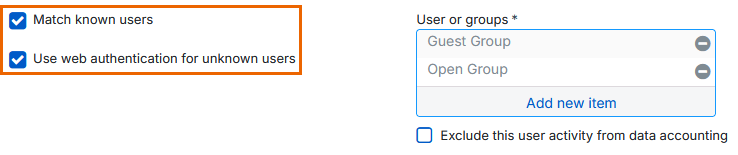
To authenticate users through Google Workspace SSO, you must select Match known users and Use web authentication for unknown users in the corresponding firewall rules.
Note
Google Workspace uses token-based authentication through OAuth 2.0 and OpenID Connect (OIDC). So, local and remote users can't use Credential login and sign in with username and password.
To implement Credential login, you can use directory services, such as Active Directory (AD) or LDAP.
Secure your SSO session
If you want to use the captive portal, we recommend securing your SSO session as follows:
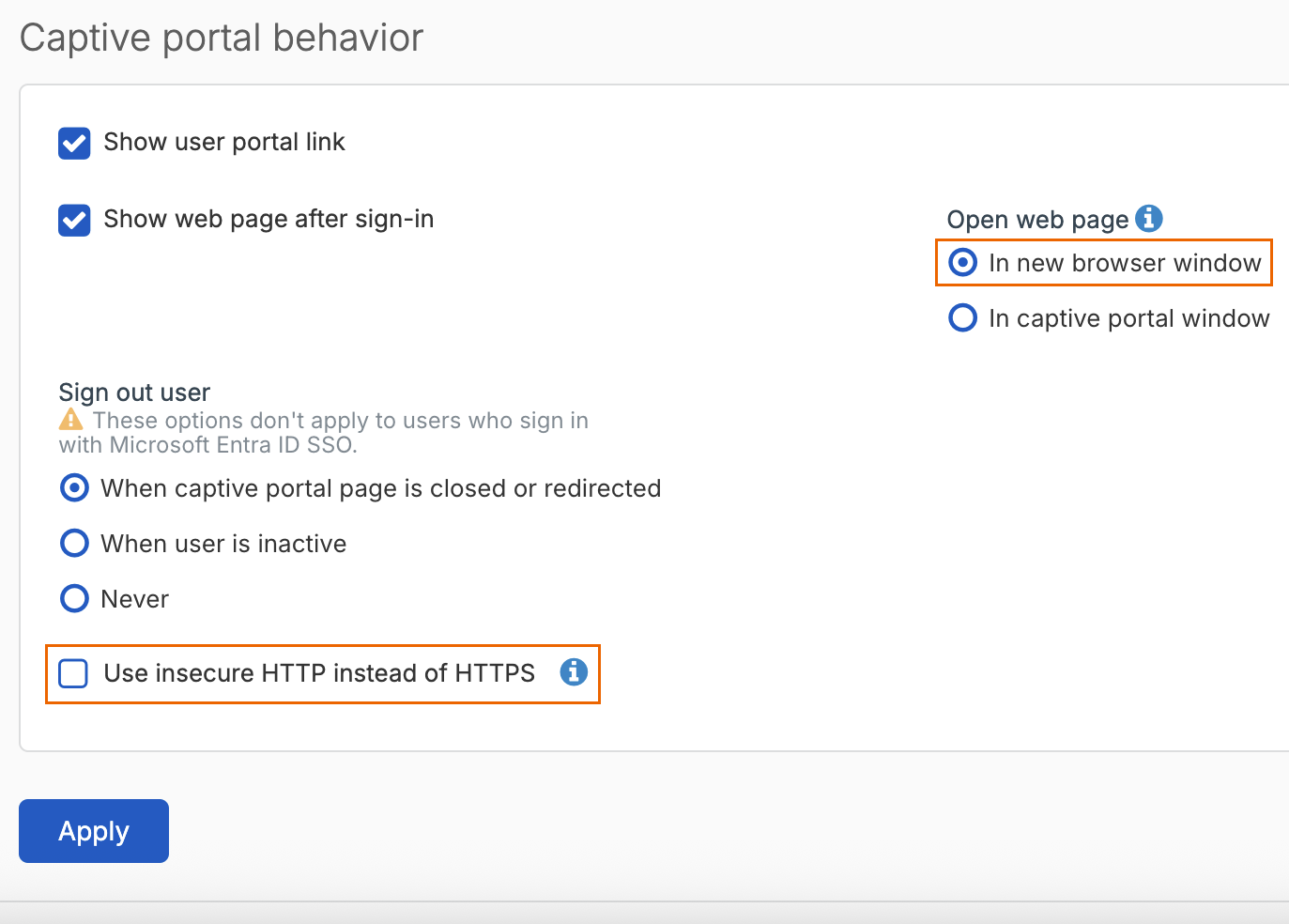
- Go to Authentication > Web authentication.
-
Under Captive portal behavior, select In new browser window.
Users must explicitly sign out to end their sessions. We recommend that users keep the captive portal window open so they can sign out when they finish their session.
-
Clear Use insecure HTTP instead of HTTPS.
OpenID Connect isn't supported if you select this option.
-
Click Apply.
To continue with the configuration, see Add redirect URIs to Google Workspace.