Add a Microsoft Entra ID server
Complete configuration to integrate Microsoft Entra ID with Sophos Firewall
- Configure Entra ID
- Configure firewall
- Add redirect URIs
- Allow Azure URLs
- Import groups
This task has several steps. Click a link to go to the page for that step.
You can add a Microsoft Entra ID server to authenticate administrators and users signing in through single sign-on (SSO) to the following services:
- Web admin console
- Captive portal
- VPN portal
- Remote access IPsec VPN and remote access SSL VPN through the Sophos Connect client
Verify TLS certificates
Before you configure Microsoft Entra ID, verify that the firewall can validate TLS connections to Microsoft endpoints. Missing certificate authority (CA) certificates can cause authentication failures.
The firewall includes root CA certificates by default. However, Microsoft Entra ID may require additional intermediate CA certificates that aren't included in the default CA store.
Microsoft Entra ID communication typically uses the following domains:
login.microsoftonline.comgraph.microsoft.com
To verify the certificate chain, do as follows:
-
Run the following command from a system that can reach the Microsoft Entra ID endpoints:
openssl s_client -connect login.microsoftonline.com:443 -showcerts -
Review the issuer certificates shown in the output. Check whether the required root and intermediate CA certificates are available in the firewall's CA certificate store.
If any certificates are missing, you must upload them to the firewall.
Note
Make sure that the certificate names don't contain leading or trailing spaces.
To download the Azure certificates, see Azure Certificate Authority details.
Example output
CONNECTED(00000003)
depth=2 C = US, O = DigiCert Inc, OU = www.digicert.com, CN = DigiCert Global Root G2
verify return:1
depth=1 C = US, O = DigiCert Inc, CN = DigiCert Global G2 TLS RSA SHA256 2020 CA1
verify return:1
depth=0 C = US, ST = Washington, L = Redmond, O = Microsoft Corporation, CN = graph.windows.net
verify return:1

---

Certificate chain
0 s:C = US, ST = Washington, L = Redmond, O = Microsoft Corporation, CN = graph.windows.net
i:C = US, O = DigiCert Inc, CN = DigiCert Global G2 TLS RSA SHA256 2020 CA1
From this output, the certificate chains are as follows:
Certificate Purpose DigiCert Global Root G2 Root CA DigiCert Global G2 TLS RSA SHA256 2020 CA1 Intermediate CA graph.windows.net Server certificate
Note
The certificates returned by Microsoft can vary depending on the endpoint, region, and certificate rotation schedule. Verify the certificate chain presented by your environment and upload any missing CA certificates to the firewall.
General settings
To add a Microsoft Entra ID server in the firewall, configure the following settings:
- Go to Authentication > Servers and click Add.
- From the Server type list, select OpenID Connect.
- In Server name, enter a name for the server.
-
In IdP vendor, select Microsoft Entra ID.
Default: Microsoft Entra ID
-
In Client ID, paste the Application (client) ID you copied from the firewall application you created in the Azure Portal. See Create a Microsoft Entra ID application for the firewall.
- In Client secret, enter the client secret that you created. See Create a client secret.
Redirect URIs
Configure the redirect URIs as follows:
-
Under Redirect URIs, select Use firewall URL. The firewall automatically uses the web admin console's FQDN from the URL shown in the browser and appends it to the OAuth service-specific callback URLs.
Alteratively, select Enter manually to enter the FQDN or IP address of the firewall's web admin console.
-
Click Show URLs to see the OAuth service-specific callback URLs.
-
Make a note of the OAuth callback URLs of the firewall services for which you want to configure SSO:
- Web admin console URL
- Captive portal URL
-
VPN portal and remote access URL
This applies to VPN portal and remote access IPsec and SSL VPNs.
You need to enter these values in Microsoft Entra ID later. See Add redirect URIs to Microsoft Entra ID.
When you configure a Microsoft Entra ID server in the firewall from Sophos Fusion (previously Sophos Central), you must do as follows:
- In an individual firewall: Manually enter the hostname. Don't use the automatically generated URLs because the firewall uses the Sophos Fusion reverse SSO URL.
- In a firewall group policy: You won't see the Redirect URI setting. The Redirect URI is automatically set to the individual firewalls' hostname if it's configured in 20.0 MR1 and later. It automatically uses "defaultHostname" in earlier versions.
Note
If you use the provisioning file for remote access VPN, you must enter the firewall's FQDN or IP address used under the Redirect URI section as the
gatewayvalue in the file. See Remote access VPN.
OpenID Connect URLs
The firewall uses the URL https://sts.windows.net/ followed by the tenant ID as the Issuer URL to identify and validate tokens.
In Issuer URL, enter the Directory (tenant) ID you copied from the firewall application you created in the Azure Portal. See Create a Microsoft Entra ID application for the firewall.
Note
The firewall retrieves the OpenID Connect configuration automatically from the Issuer URL. The Microsoft Entra ID endpoint URLs are currently not supported.
Map IdP groups and roles
You can map IdP groups and roles. You can also select whether to implement SSO for the user services only or for both user services and the web admin console.
User attributes
The user attributes are automatically fetched from the IdP and used to create firewall users when they sign in for the first time.
Configure user attributes as follows:
-
(Optional) In Display name, enter a value.
Default:
name -
(Optional) In Username, enter a value.
Default:
upn -
In Email address, this is automatically populated as
email.
IdP groups and roles
SSO is automatically available for the configured user services. However, SSO for the web admin console requires the following settings:
- Turn on IdP authentication for firewall administrators.
-
Under IdP attribute, set it to one of the following types and enter the exact value you configured in Microsoft Entra ID:
-
Roles
- Under IdP value, enter the role name or ID, for example,
adminFullAccess. - Under Device access profile, select an administrator profile.
- Under IdP value, enter the role name or ID, for example,
-
Groups
- Under IdP value, enter the group name or ID, for example,
Admin Full Access. - Under Device access profile, select an administrator profile.
- Under IdP value, enter the group name or ID, for example,
You can see the administrator profiles on Profiles > Device access in the firewall. See Device access.
Tip
To create another mapping rule, click add
 .
.For more information, see How SSO for web admin console works.
-
-
Under Fallback group list, select a user group.
If a user's Microsoft Entra ID group exists in the firewall, it assigns the user to that group. If it doesn't exist, the firewall assigns the user to the group you select here.
Note
If you use the Microsoft Entra ID server in Authentication > Services under Firewall authentication methods, the Fallback user group still applies instead of the Default group.
Test connection
Verify that the firewall can connect to Microsoft Entra ID as follows:
-
Click Test connection.
The test validates the following connectivity requirements:
- Network connectivity
- Application permissions
- TLS certificate verification
If the test connection fails, you may see the following error in the web admin console:
Connection test failed.If TLS certificate validation fails, you must verify that all required CA certificates are available on the firewall. See Verify TLS certificates.
You may see the following error in the
/log/sfos-macro-cfg.loglog file:Example
tls: failed to verify certificate: x509: certificate signed by unknown authority -
Click Save.
Configure authentication methods
The firewall only allows one OpenID Connect IdP server for each authentication method.
To configure the authentication methods, do as follows:
- Go to Authentication > Services.
-
Select the Microsoft Entra ID server as an authentication method for the services you want:
- Firewall authentication methods: For the captive portal.
- VPN portal authentication methods: For the VPN portal.
-
VPN (IPsec/dial-in/L2TP/PPTP) authentication methods: For remote access IPsec VPN.
Note
If you use the provisioning file to establish remote access VPN connections, select the same server as the VPN portal.
-
SSL VPN authentication methods: For remote access SSL VPN. Always select the same server as the VPN portal.
- Administrator authentication methods: For the web admin console.
-
Drag and drop the server to the top of the list in each method.
Note
Users are authenticated against the configured servers in the order they appear in the server list.
-
Click Apply for each service where you added the Microsoft Entra ID server.
Configure firewall rules
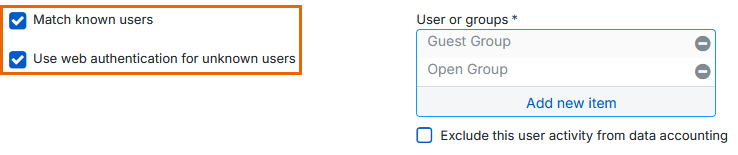
To authenticate users through Microsoft Entra ID SSO, you must select Match known users and Use web authentication for unknown users in the corresponding firewall rules.
Note
Microsoft Entra ID uses token-based authentication through OAuth 2.0 and OpenID Connect (OIDC). So, local and remote users can't use Credential login and sign in with username and password.
To implement Credential login, you can use directory services, such as Active Directory (AD) or LDAP.
Secure your SSO session
If you want to use the captive portal, we recommend securing your SSO session, as follows:
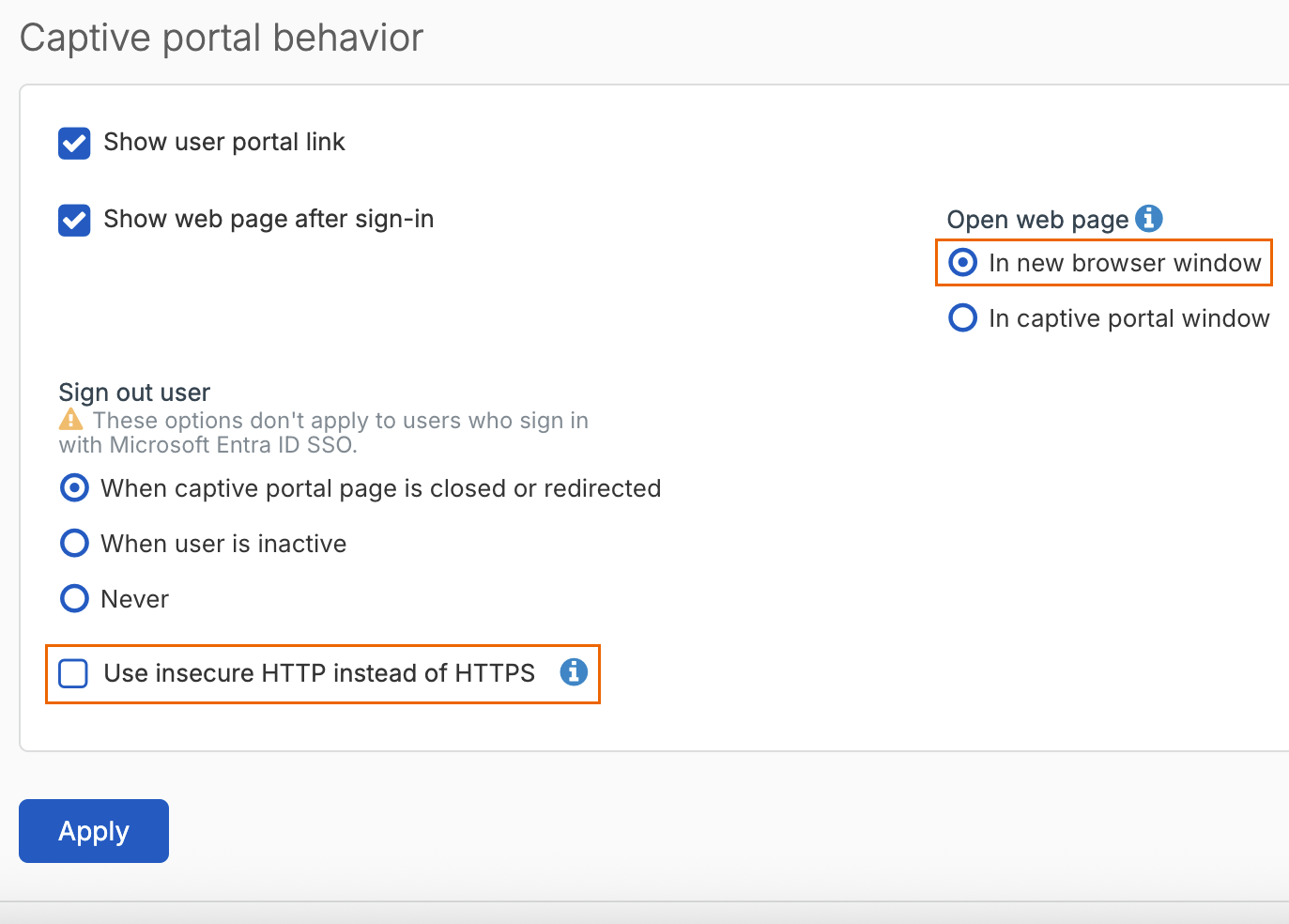
- In the firewall, go to Authentication > Web authentication.
-
Under Captive portal behavior, select In new browser window.
Users must explicitly sign out to end their sessions. We recommend that users keep the captive portal window open so they can sign out when they finish their session.
-
Clear Use insecure HTTP instead of HTTPS.
Microsoft Entra ID SSO isn't supported if you select this option.
-
Click Apply.
To continue with the configuration, see Add redirect URIs to Microsoft Entra ID.