Configure DNS servers
Sophos Firewall uses DNS servers to resolve external domain names for your network traffic. It supports multiple DNS resolution methods. You can configure how the firewall communicates with DNS servers and choose the level of DNS traffic protection that best meets your requirements.
You can use one of the following DNS resolution methods:
- DNS Protection: Resolves DNS queries through Sophos DNS Protection and blocks access to malicious and unwanted domains.
- Unencrypted DNS: Resolves DNS queries through DNS servers obtained from DHCP or PPPoE, or through DNS servers you specify manually.
- DNS over HTTPS (DoH): Resolves DNS queries through DNS servers that support communication over an encrypted HTTPS connection.
DNS Protection
DNS Protection helps protect users from unsafe and unwanted websites by filtering DNS requests before connections are made. It securely resolves DNS queries using DoH and uses Sophos X-Ops threat intelligence to identify and block malicious domains. You can also enforce web access policies to provide additional security for your network and devices. See DNS Protection.
Set up DNS Protection in Sophos Firewall
Before you set up DNS Protection, make sure that you meet the following requirements:
- You must have a Sophos Firewall Xstream Protection subscription.
-
You must register the firewall with Sophos Fusion.
If you're using an HA cluster, make sure that you register both firewalls with Sophos Fusion.
In the firewall, do as follows:
- Go to Network > DNS.
-
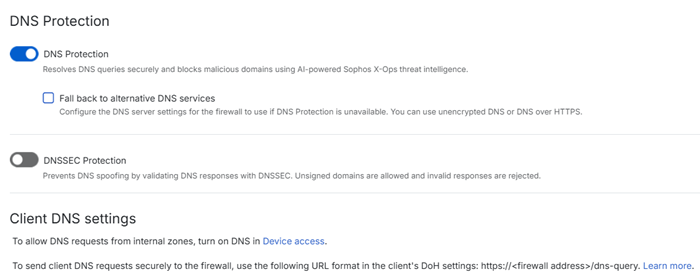
Turn on DNS Protection.
If you don't turn it on, you must configure a DNS server under DNS server settings.
-
(Optional) Select Fall back to DNS server to use a configured DNS server if DNS Protection is unreachable. If you turn this on, you must configure a DNS server under DNS server settings.
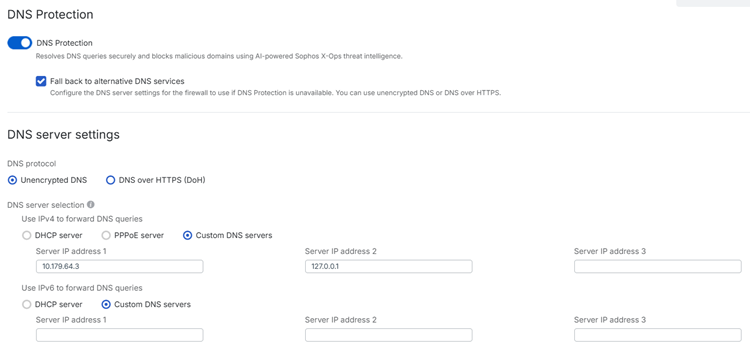
If you turn on DNS Protection but don't select Fall back to DNS server, you can't configure a DNS server under DNS server settings.
Set up DNS Protection in Sophos Fusion
In Sophos Fusion, you must add the firewall to a DNS Protection policy to apply policy-based controls on users' web browsing activities.
In Sophos Fusion, do as follows:
- Go to My Products > DNS Protection > Policies.
- Under Filtering policies, click Add policy.
- In Locations and firewalls, under Available, select the firewall and move it to Assigned to this policy.
- Click Settings to apply web access controls. See Add a filtering policy.
Migration configuration
From SFOS 23.0, Sophos Firewall supports DNS Protection over DNS over HTTPS (DoH). We recommend that you migrate to the new DoH-based DNS Protection. To do so, turn on DNS Protection on the firewall. In Sophos Fusion, remove the existing location associated with the firewall from your DNS Protection policy, and then add the firewall to the policy.
After you upgrade to SFOS 23.0, do as follows:
- In Sophos Firewall, go to Network > DNS, and turn on DNS Protection.
- In Sophos Fusion, go to My Products > DNS Protection > Policies.
- Under Filtering policies, click an existing policy that includes the firewall location.
-
In Locations and firewalls, do as follows:
- Under Assigned to this policy, move the location you created for the firewall to Available.
- Under Available, select the firewall and move it to Assigned to this policy.
-
Click Save.
You can now delete the location you had created for the firewall.
DNS server settings
Configure a DNS server if you don't want to use DNS Protection or if you want to fall back to a configured DNS server if DNS Protection is unreachable.
Under DNS protocol, select either Unencrypted DNS or DNS over HTTPS (DoH).
To see the options for your DNS protocol, click the appropriate tab below.
This method processes unencrypted DNS traffic between the firewall and DNS server. Use this option to configure DHCP, PPPoE, or custom DNS servers.
Under Use IPv4 to forward DNS queries or Use IPv6 to forward DNS queries, configure DNS servers from the following options:
- DHCP server: Uses the configured WAN interface over DHCP to obtain DNS.
- PPPoE server: Uses the configured WAN interface over PPPoE to obtain DNS.
-
Custom DNS servers: Uses the specified servers for DNS queries.
In Server IP address 1, enter the IP address of the DNS server you want to use.
For redundancy, you can enter the IP addresses of the backup DNS servers in Server IP address 2 and Server IP address 3. The firewall queries DNS servers in the listed order until it receives a response. For example, it queries the second server only if it doesn't receive a response from the first server within the time-out period.
Note
The firewall considers an NXDOMAIN (domain doesn't exist) response valid and won't query the next server. Responses are cached until the time-to-live expires.
If all of the configured DNS servers are unavailable, the firewall uses global root servers for recursive resolution.
This method processes DNS traffic securely over HTTPS between the DNS server and firewall. Use this option to configure a DNS server that supports communication over HTTPS. For example, a public DNS provider such as Google or Cloudflare.
Configure the following DoH server settings:
-
DoH server 1: Specify the URL and IP address of the DoH server you want to use. For example, Google or Cloudflare. You can specify either an IPv4 or IPv6 address.
For redundancy, you can specify the URLs and IP addresses of backup DoH servers in DoH server 2 and DoH server 3.
Click DoH server list to see details of supported public DNS servers.
-
Fall back to unencrypted DNS: Turn this option on to fall back to unencrypted DNS if communication over HTTPS fails. The firewall uses the IP addresses of your configured DoH servers to resolve DNS queries but the DNS traffic is unencrypted. If unencrypted DNS also fails, the firewall uses global root servers for recursive resolution.
Test name resolution
You can test DNS resolution after you set up your DNS servers or when troubleshooting DNS issues.
To test the DNS resolution, do as follows:
- Go to Network > DNS and click Test name resolution.
- In Hostname or IP address, enter the hostname or IP address you want to test.
-
Click Test connection.
You can see the DNS server and protocol used, whether the request was resolved or not, and the response times.
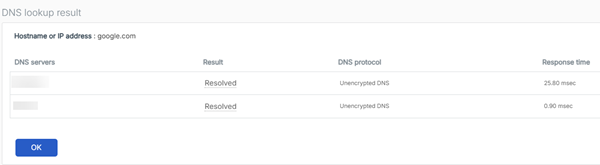
Alternatively, you can also test the DNS resolution in Diagnostics > Tools > DNS lookup. See DNS lookup.
DNSSEC Protection
Turn on DNSSEC Protection to validate DNS responses using DNS Security Extensions (DNSSEC) and help prevent DNS spoofing and cache-poisoning attacks.
The firewall uses cryptographic signatures to authenticate DNS responses and verify the integrity of DNS data from authoritative DNS servers. By validating the DNSSEC chain of trust, including DNSKEY and DS records, it ensures that DNS responses are authentic and unmodified.
The firewall allows unsigned domains and rejects domains with invalid DNSSEC signatures.
The following example shows how the firewall handles DNS responses for domains with invalid DNSSEC signatures:
| DNSSEC Protection status | Example domain | Response | Firewall action |
|---|---|---|---|
| Turned off | dnssec-failed.org | NOERROR + A <IP address> | Allows the invalid DNSSEC domain. |
| Turned on | dnssec-failed.org | SERVFAIL | Detects DNSSEC validation failure and blocks the domain. |